

編輯:關於 Android 程式設計
1. 獲取系統的通知管理器 NotificationManager;
2. 實例化通知構造器 Notification.Builder;
3. 通過 Builder 設置各項屬性;
4. 綁定 PendingIntent 指定點擊行為;
5. 調用 notify() 展示。
由於 Android 版本迭代很快,Notification 也存在兼容性分岔:Android 3.0 是分水嶺。之前推薦用兼容包裡的 NotificationCompat.Builder,之後則可直接使用原生 Notification.Builder。本文以 Android 4.x 開發為主,因此採用 Notification.Builder 講解。
屬性雖多,但有三項是必須設置的:
1)小圖標,setSmallIcon();
2)標題,setContentTitle();
3)文本內容,setContentText()。
通知有兩種視覺形態:標準視圖(Normal View)與大視圖(Big View)。標準視圖在各版本通用,大視圖則需要 Android 4.1 及以上。
官方文檔說明,標準視圖的顯示高度保持在 64dp 左右:
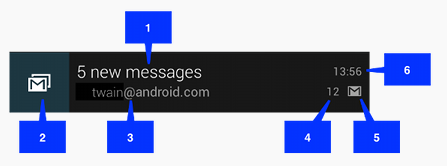
Android 為大視圖提供了三個樣式類:
Notification.BigPictureStyle:在詳情區展示一張較大的位圖;
Notification.BigTextStyle:在詳情區展示一大段文本;
Notification.InboxStyle:在詳情區展示多行收件箱式列表。
常用的 flags 標誌:
FLAG_SHOW_LIGHTS:三色燈提醒,使用三色燈時必須加上;
FLAG_ONGOING_EVENT:表示正在進行的事件(如進度通知);
FLAG_INSISTENT:讓聲音與振動循環播放,直到用戶響應;
FLAG_ONLY_ALERT_ONCE:提醒(鈴聲、振動)只執行一次;
FLAG_AUTO_CANCEL:用戶點擊後通知自動消失;
FLAG_NO_CLEAR:只有「全部清除」時才會被清掉,單獨清除無效(QQ 的常驻通知就是這個效果)。
用法很簡單,build 之後直接改字段:
Notification notification = builder.build();
notification.flags = Notification.FLAG_ONLY_ALERT_ONCE;
通知能承載的信息很有限,通常只夠提示概要。要展示完整內容,就得綁定一個意圖,用戶點擊時拉開對應的 Activity。而通知裡並不使用常規 Intent,用的是 PendingIntent。
兩者的區別可以這樣理解:PendingIntent 是對 Intent 的一層包裝,用於處理「即將發生」的意圖,而 Intent 處理的是「馬上發生」的意圖。
通知屬於系統級的全局提示,並不確定意圖究竟何時被執行。PendingIntent 內部保存了觸發時的 Context,因此外部應用可以像原應用一樣執行它——即使原應用的進程早已被銷毀,也能借助 PendingIntent 中保存的 Context 正常啟動,並能帶上額外的附帶信息。
四種獲取方式:
PendingIntent.getBroadcast(context, requestCode, intent, flags)
PendingIntent.getService(context, requestCode, intent, flags)
PendingIntent.getActivity(context, requestCode, intent, flags)
PendingIntent.getActivities(context, requestCode, intent, flags)
flags 的常見取值:
FLAG_ONE_SHOT:只能使用一次,用後自動失效;
FLAG_NO_CREATE:若描述的 PendingIntent 不存在,則不創建並返回 null;
FLAG_CANCEL_CURRENT:若已存在,先取消舊的再建新的;
FLAG_UPDATE_CURRENT:若已存在則更新,最常用。
RemoteViews 描述了一個可以跨進程顯示的視圖層次結構。一般使用 RemoteViews(String packageName, int layoutId) 構造:第一個參數是包名,第二個是布局資源 ID。拿到實例後,通過它的一系列 setXxx() 方法按控件 ID 設置屬性,最後用 NotificationCompat.Builder.setContent(RemoteViews) 應用到通知上。
還可以為不同控件綁定不同的點擊行為:
remoteViews.setOnClickPendingIntent(R.id.titleTV, PendingIntent.getActivity(
        context, 0, new Intent(context, ScrollingActivity.class),
        PendingIntent.FLAG_UPDATE_CURRENT));
調用 NotificationManager.notify() 時需要傳一個 id 作為唯一標識。很多場景下並不是無限追加新通知,而是要更新已有內容——此時重新構造一個 Notification,並用相同的 id 發送,舊通知就會被新的替換掉。
移除通知有兩種途徑:
一是讓 Notification 自己維護,用 setAutoCancel() 設置是否在點擊後自動消失;
二是交給 NotificationManager 管理,它按 id 操作通知,cancel(int) 移除指定通知,cancelAll() 移除全部。
NotificationManager mNotificationManager =
        (NotificationManager) getSystemService(Context.NOTIFICATION_SERVICE);
mNotificationManager.cancel(0);
為了讓用戶更快察覺新通知,可以調用設備的一些硬件資源。NotificationCompat.Builder 提供了三個對應方法:
setSound(Uri sound):設置鈴聲,傳入形如 file:///mnt/sdcard/Xxx.mp3 的 Uri;
setLights(int argb, int onMs, int offMs):設置前置 LED 燈的顏色、閃爍持續與停頓毫秒數;
setVibrate(long[] pattern):以 long 數組描述毫秒級的振動節奏。
多數情況下並不需要定制,直接沿用系統預設即可,用 setDefaults(int) 設置:
DEFAULT_ALL:鈴聲、閃光、振動均用系統默認;
DEFAULT_SOUND:僅默認鈴聲;
DEFAULT_VIBRATE:僅默認振動;
DEFAULT_LIGHTS:僅默認閃光。
記得聲明權限:振動需要 android.permission.VIBRATE,閃光燈需要 android.permission.FLASHLIGHT。
public class NotificationUtil {
    private final Context context;
    private final NotificationManager notificationManager;

    public NotificationUtil(Context context) {
        this.context = context;
        notificationManager = (NotificationManager) context.getSystemService(Context.NOTIFICATION_SERVICE);
    }

    /** 普通通知 */
    public void postNotification() {
        Notification.Builder builder = new Notification.Builder(context);
        Intent intent = new Intent(context, MainActivity.class);
        PendingIntent pendingIntent = PendingIntent.getActivity(
                context, 0, intent, PendingIntent.FLAG_UPDATE_CURRENT);

        builder.setContentIntent(pendingIntent);
        builder.setSmallIcon(R.mipmap.ic_launcher);   // 必須
        builder.setContentTitle("標題");               // 必須
        builder.setContentText("內容");                // 必須
        builder.setWhen(System.currentTimeMillis());
        builder.setAutoCancel(true);                  // 自己維護通知的消失
        builder.setTicker("new message");             // 首次提示時在狀態欄滾動顯示
        builder.setOngoing(true);
        builder.setNumber(20);

        Notification notification = builder.build();
        notification.flags = Notification.FLAG_NO_CLEAR;
        notificationManager.notify(0, notification);
    }

    /** 帶進度條的通知(4.0+) */
    public void postDownloadNotification() {
        final Notification.Builder builder = new Notification.Builder(context)
                .setSmallIcon(R.mipmap.ic_launcher)
                .setTicker("showProgressBar")
                .setContentInfo("contentInfo")
                .setOngoing(true)
                .setContentTitle("ContentTitle")
                .setContentText("ContentText");

        new Thread(new Runnable() {
            @Override
            public void run() {
                for (int progress = 0; progress < 100; progress += 5) {
                    // 第三個參數為 true 時顯示為不確定進度的循環樣式
                    builder.setProgress(100, progress, false);
                    notificationManager.notify(0, builder.build());
                    try {
                        Thread.sleep(1000);
                    } catch (InterruptedException e) {
                        System.out.println("sleep failure");
                    }
                }
                builder.setContentTitle("Download complete")
                        .setProgress(0, 0, false)
                        .setOngoing(false);
                notificationManager.notify(0, builder.build());
            }
        }).start();
    }

    /** 大文本樣式(4.1+) */
    public void postBigTextNotification() {
        Notification.BigTextStyle textStyle = new Notification.BigTextStyle();
        textStyle.setBigContentTitle("大標題")
                .setSummaryText("SummaryText")
                .bigText("Helper class for generating large-format notifications "
                        + "that include a lot of text; !!!!!!!!!!!");

        Notification.Builder builder = new Notification.Builder(context);
        builder.setSmallIcon(R.mipmap.ic_launcher);
        builder.setLargeIcon(BitmapFactory.decodeResource(context.getResources(), R.mipmap.ic_launcher));
        builder.setTicker("showBigView_Text").setContentInfo("contentInfo");
        builder.setStyle(textStyle);
        builder.setAutoCancel(true);
        notificationManager.notify(0, builder.build());
    }

    /** 大圖片樣式(4.1+) */
    public void postBigPictureNotification() {
        Notification.BigPictureStyle bigPictureStyle = new Notification.BigPictureStyle();
        bigPictureStyle.bigPicture(BitmapFactory.decodeResource(context.getResources(), R.mipmap.ic_launcher));

        Notification.Builder builder = new Notification.Builder(context);
        builder.setSmallIcon(R.mipmap.ic_launcher);
        builder.setLargeIcon(BitmapFactory.decodeResource(context.getResources(), R.drawable.ic_stop));
        builder.setTicker("showBigView_Picture").setContentInfo("contentInfo");
        builder.setStyle(bigPictureStyle);
        builder.setAutoCancel(true);
        notificationManager.notify(0, builder.build());
    }

    /** 收件箱樣式(4.1+) */
    public void postInboxNotification() {
        Notification.InboxStyle inboxStyle = new Notification.InboxStyle();
        inboxStyle.setBigContentTitle("InboxStyle").setSummaryText("Test");
        for (int i = 0; i < 10; i++) {
            inboxStyle.addLine("new:" + i);
        }

        Notification.Builder builder = new Notification.Builder(context);
        builder.setSmallIcon(R.mipmap.ic_launcher);
        builder.setLargeIcon(BitmapFactory.decodeResource(context.getResources(), R.drawable.ic_stop));
        builder.setTicker("showBigView_InboxStyle").setContentInfo("contentInfo");
        builder.setStyle(inboxStyle);
        builder.setAutoCancel(true);
        notificationManager.notify(0, builder.build());
    }

    /** 自定義通知 */
    public void postCustomNotification() {
        RemoteViews contentViews = new RemoteViews(context.getPackageName(), R.layout.mynotification);
        contentViews.setImageViewResource(R.id.imageNotifi, R.mipmap.ic_launcher);
        contentViews.setTextViewText(R.id.titleTV, "自定義通知標題");
        contentViews.setTextViewText(R.id.textTV, "自定義通知內容");

        Intent intent = new Intent(context, MainActivity.class);
        PendingIntent pendingIntent = PendingIntent.getActivity(
                context, 0, intent, PendingIntent.FLAG_UPDATE_CURRENT);

        Notification.Builder builder = new Notification.Builder(context);
        builder.setSmallIcon(R.mipmap.ic_launcher);
        builder.setContentTitle("custom notification");
        builder.setContentText("custom test");
        builder.setTicker("custom ticker");
        builder.setAutoCancel(true);
        builder.setContentIntent(pendingIntent);
        // builder.setContent(contentViews);

        Notification notification = builder.build();
        // 不設置 contentIntent 會拋 RemoteServiceException:
        // Bad notification posted from package ...: Couldn't expand RemoteViews for ...
        notification.contentIntent = pendingIntent;
        notificationManager.notify(0, builder.build());
    }

    public void cancelById() {
        notificationManager.cancel(0);   // 對應 notify(id, notification) 的第一個參數
    }

    public void cancelAllNotification() {
        notificationManager.cancelAll();
    }
}
調用方式:
NotificationUtil customNotification = new NotificationUtil(this);
// customNotification.postNotification();
// customNotification.postDownloadNotification();
// customNotification.postBigTextNotification();
// customNotification.postBigPictureNotification();
customNotification.postInboxNotification();
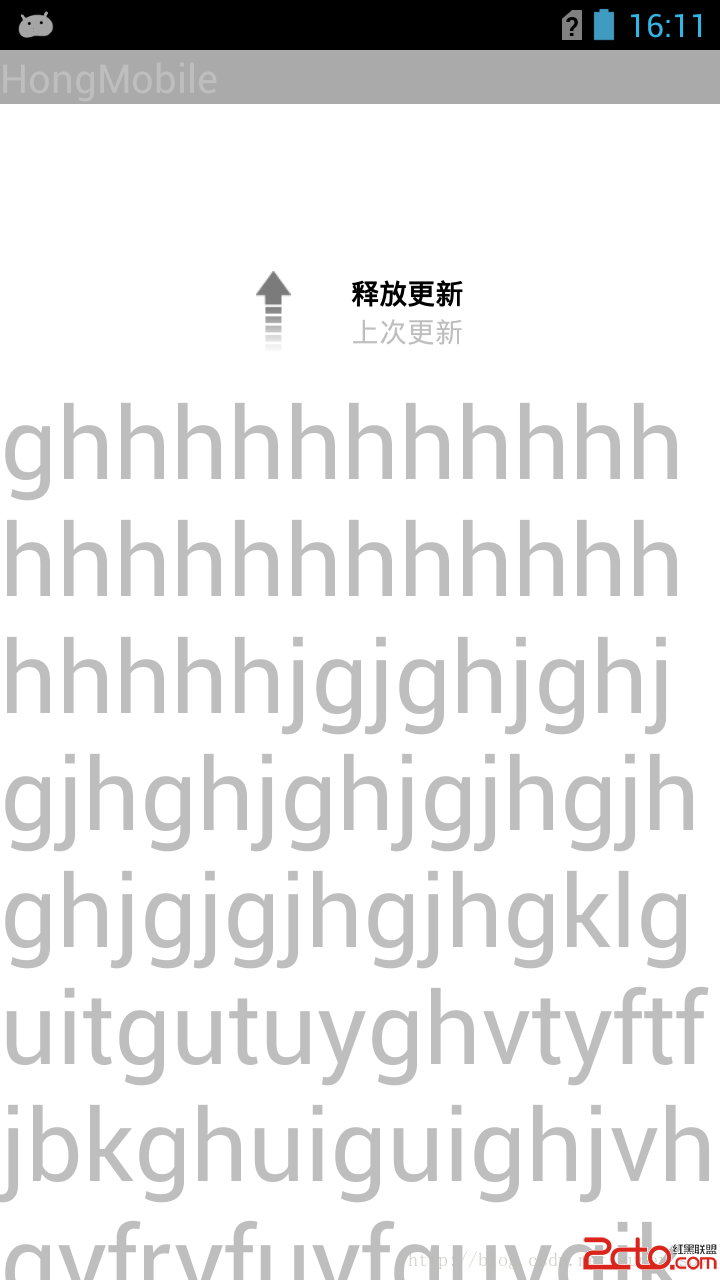 自製 Android PullToRefresh:下拉刷新、上拉加載,並可擴充 ScrollView、ListView、GridView
找了一圈開源方案,包含 GitHub 上頗有名氣的 Android-PullToRefresh,總覺得不太合手,最後決定自己寫一個,過程中自然也借鑑了一些前人的思路。核心
 自定義圓形頭像 CircleImageView:支持網絡圖片的完整實作
圓形頭像幾乎每個 App 都要用。若每次加載後再手動裁剪,既麻煩又浪費。與其如此,不如寫一個自帶裁剪能力的 ImageView,把網絡圖片直接塞進去就是圓的。 一、繼承
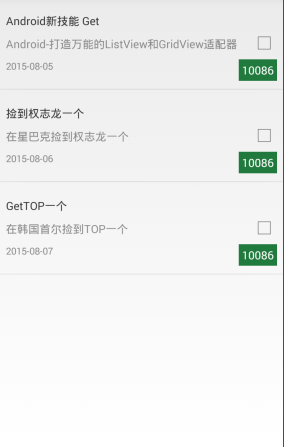 Android ListView 萬能適配器實例代碼分享
ListView 是開發中最常用的控件之一,但每次都要重複書寫大量相似的適配器代碼,既浪費時間又缺乏意義。最近參考了一些資料,發現一種「萬能 ListView 適配器」的
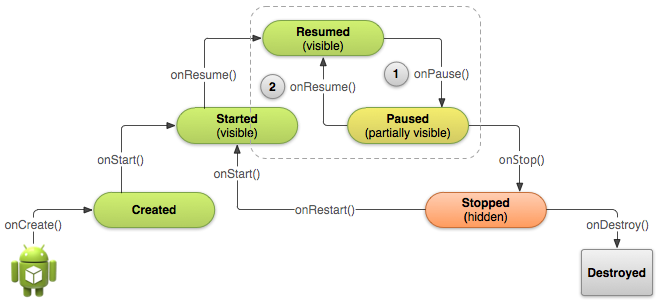 Android Activity 的暫停與恢復機制解析
在 Android 應用中,Activity 不只是單純的畫面,而是使用者與應用互動的重要入口。無論是撥號、拍照、寄送郵件還是查看地圖,背後通常都由一個或多個 Activ