

編輯:關於 Android 開發
Android 的動畫體系分為視圖動畫(View Animation)、屬性動畫(Property Animation)與 Drawable 動畫三類。本文聚焦最基礎的視圖動畫。
視圖動畫的核心抽象類是 android.view.animation.Animation,它有五個子類:AlphaAnimation(透明度漸變)、TranslateAnimation(平移)、RotateAnimation(旋轉)、ScaleAnimation(伸縮),以及作為容器的 AnimationSet。動畫既可用程式碼建立,也可用 XML 定義。
本文所有範例都作用於同一個 TextView,其布局為:
<RelativeLayout xmlns:android="https://schemas.android.com/apk/res/android"
    xmlns:tools="https://schemas.android.com/tools"
    android:layout_width="match_parent"
    android:layout_height="match_parent"
    tools:context=".AnimationActivity">

    <Button
        android:layout_width="match_parent"
        android:layout_height="wrap_content"
        android:layout_alignParentBottom="true"
        android:onClick="onClick"
        android:text="開始" />

</RelativeLayout>
座標系約定:本文提及的各種座標系,X 軸正方向水平向右,Y 軸正方向垂直向下。
// 1.0 完全不透明,0.0 完全透明
float fromAlpha = 1.0f;
float toAlpha = 0.0f;

Animation animation = new AlphaAnimation(fromAlpha, toAlpha);
animation.setDuration(3000);
textView.startAnimation(animation);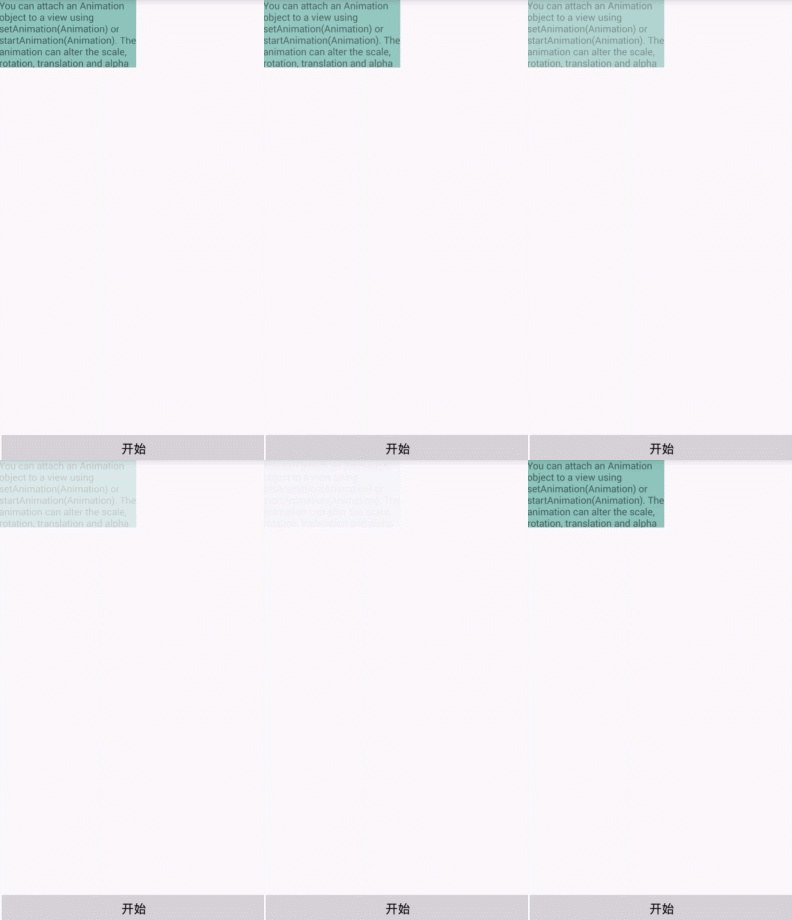
方法簽章:
public AlphaAnimation(float fromAlpha, float toAlpha)把 fromAlpha 設為 1.0、toAlpha 設為 0.0,即從完全可見漸變到完全不可見。反過來設定就是淡入效果。
由此可歸納出視圖動畫的通用三步驟:
setDuration() 設定時長(毫秒)startAnimation() 啟動其他動畫流程完全一致,只是建構子參數不同。
對應的 XML 定義放在 res/anim/ 目錄:
<?xml version="1.0" encoding="utf-8"?>
<alpha xmlns:android="https://schemas.android.com/apk/res/android"
    android:duration="3000"
    android:fromAlpha="1.0"
    android:toAlpha="0.0" />
載入方式:
Animation animation = AnimationUtils.loadAnimation(this, R.anim.alpha);
textView.startAnimation(animation);
用 XML 定義的好處很明顯:調參數不必改程式碼、不必重新編譯,可維護性更好。缺點是當參數需要執行期才能決定時就無能為力,只能回到程式碼建立。
兩個常用建構子:
public TranslateAnimation(float fromXDelta, float toXDelta,
                          float fromYDelta, float toYDelta)

public TranslateAnimation(int fromXType, float fromXValue, int toXType, float toXValue,
int fromYType, float fromYValue, int toYType, float toYValue)int fromXDelta = 0;
int toXDelta = getResources().getDisplayMetrics().widthPixels / 2;
int fromYDelta = 0;
int toYDelta = 0;
Animation animation = new TranslateAnimation(fromXDelta, toXDelta, fromYDelta, toYDelta);
animation.setDuration(3000);
textView.startAnimation(animation);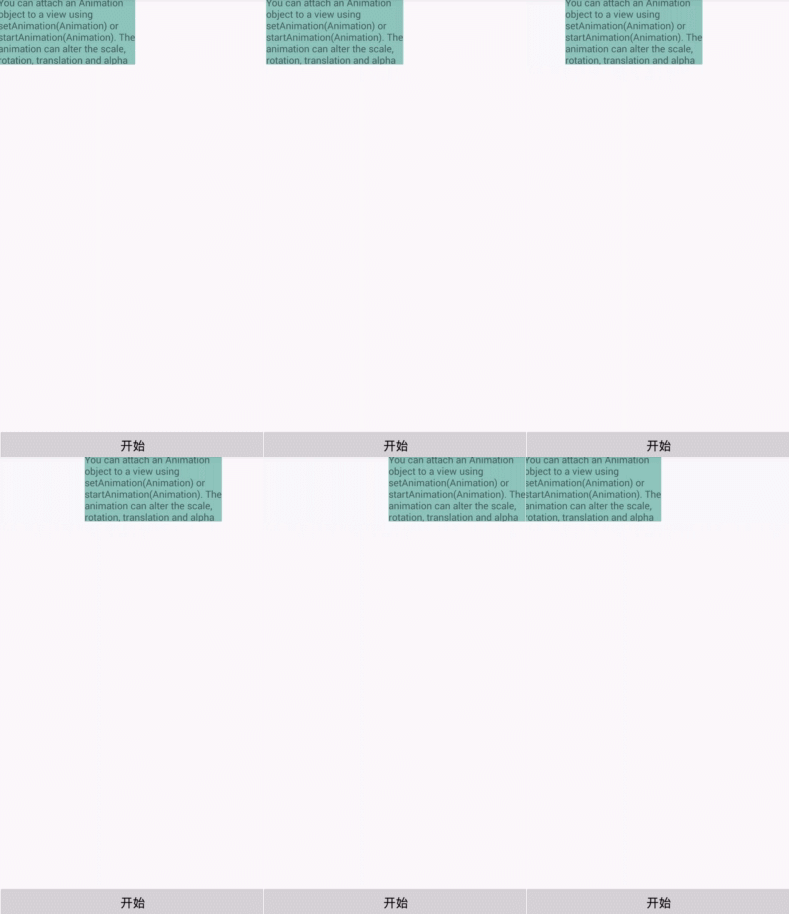
這個版本的四個參數都是相對於 View 初始位置的像素偏移量。要注意:偏移量永遠以初始位置為基準,而非上一次動畫的終點。
四組參數分別定義動畫起訖的 X、Y 座標:
// 起點 X
int fromXType = Animation.ABSOLUTE;
float fromXValue = textView.getX();

// 終點 X
int toXType = Animation.RELATIVE_TO_PARENT;
float toXValue = 0.5f;

// 起點 Y
int fromYType = Animation.ABSOLUTE;
float fromYValue = textView.getY();

// 終點 Y
int toYType = Animation.RELATIVE_TO_SELF;
float toYValue = 3.0f;

Animation animation = new TranslateAnimation(
    fromXType, fromXValue, toXType, toXValue,
    fromYType, fromYValue, toYType, toYValue);
animation.setDuration(3000);
textView.startAnimation(animation);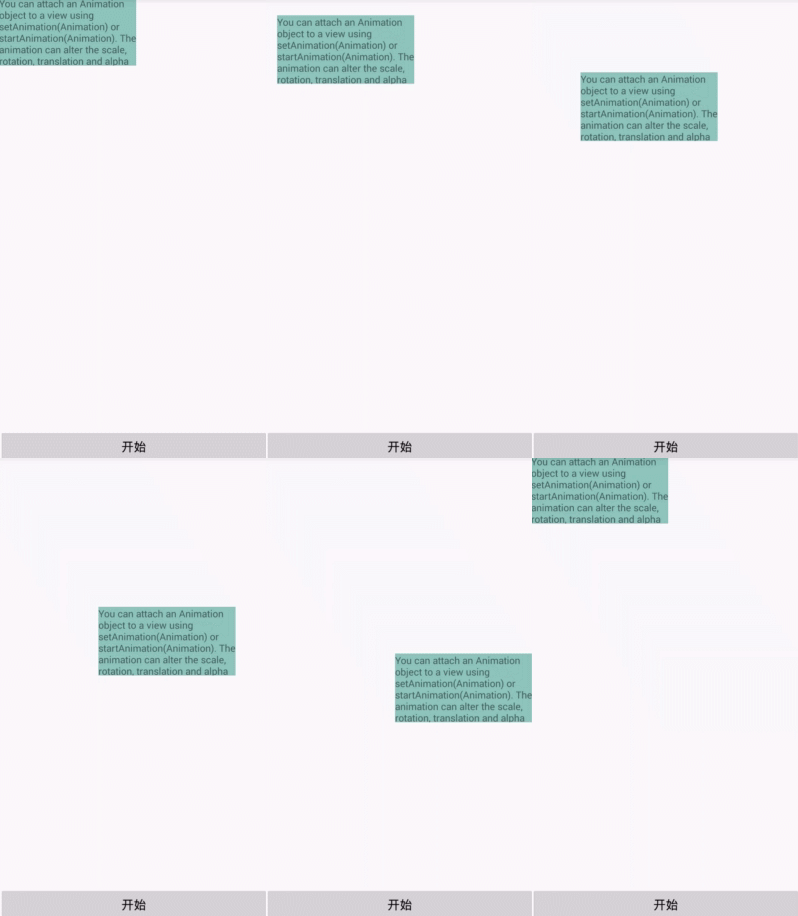
Type 有三種取值,它決定了對應 Value 的解讀方式:
fromXValue = 200 代表動畫起點距父容器左側 200px。回看上例:起點用 ABSOLUTE 搭配 getX(),等於「從目前位置出發」;終點用 RELATIVE_TO_PARENT 搭配 0.5,等於「移到父容器水平中線」;Y 方向終點用 RELATIVE_TO_SELF 搭配 3.0,等於「下移到自身高度的三倍處」。合起來就是一個往右下斜移的動畫。
對應 XML:
<?xml version="1.0" encoding="utf-8"?>
<translate xmlns:android="https://schemas.android.com/apk/res/android"
    android:duration="3000"
    android:fromXDelta="0"
    android:toXDelta="50%p"
    android:fromYDelta="0"
    android:toYDelta="300%" />
XML 中數值的尾綴規則:
android:fromXDelta="0" 等價於 fromXType = Animation.ABSOLUTE; fromXValue = 0;android:toXDelta="50%p" 等價於 toXType = Animation.RELATIVE_TO_PARENT; toXValue = 0.5f;android:toYDelta="300%" 等價於 toYType = Animation.RELATIVE_TO_SELF; toYValue = 3.0f;三個建構子:
public RotateAnimation(float fromDegrees, float toDegrees)

public RotateAnimation(float fromDegrees, float toDegrees, float pivotX, float pivotY)

public RotateAnimation(float fromDegrees, float toDegrees,
                       int pivotXType, float pivotXValue,
int pivotYType, float pivotYValue)旋轉需要兩類資訊:旋轉角度與旋轉軸。三個建構子的差別就在於如何指定旋轉軸。
// 以 View 左上角為旋轉軸,順時針旋轉 60 度
Animation animation = new RotateAnimation(0, 60);
animation.setDuration(3000);
textView.startAnimation(animation);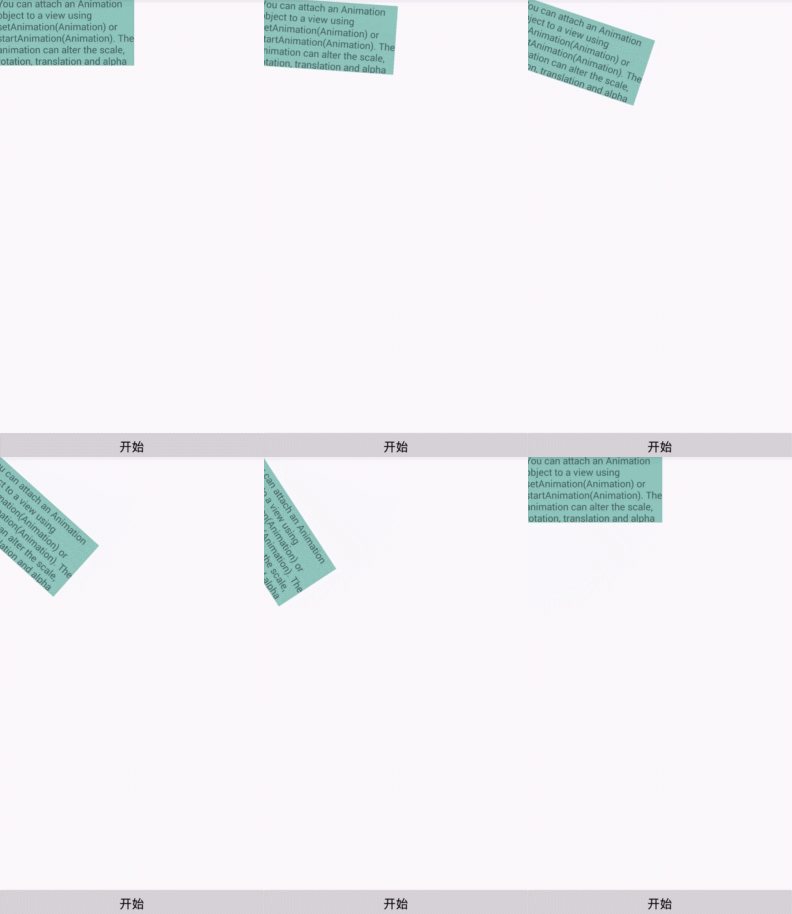
<rotate xmlns:android="https://schemas.android.com/apk/res/android"
    android:duration="3000"
    android:fromDegrees="0"
android:toDegrees="60" />// 以 View 中心點為旋轉軸
float pivotX = textView.getWidth() / 2;
float pivotY = textView.getHeight() / 2;
Animation animation = new RotateAnimation(0, 90, pivotX, pivotY);
animation.setDuration(3000);
textView.startAnimation(animation);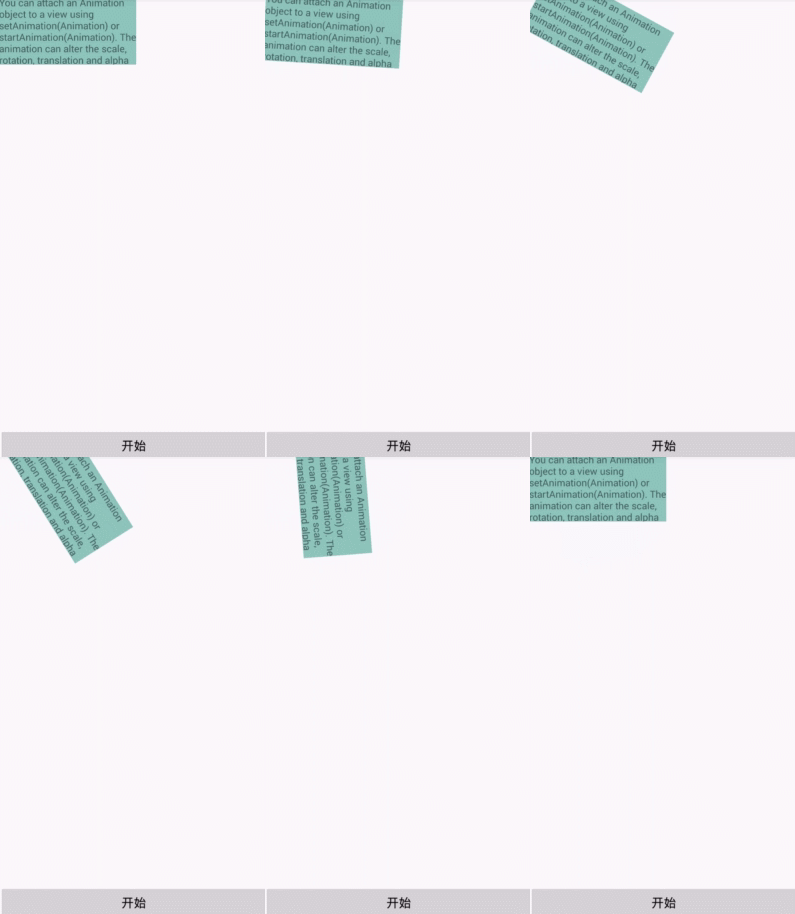
這裡的 (pivotX, pivotY) 是 View 自身局部座標系中的座標,原點為 View 自己的左上角。
<rotate xmlns:android="https://schemas.android.com/apk/res/android"
    android:duration="3000"
    android:fromDegrees="0"
    android:toDegrees="90"
    android:pivotX="100"
    android:pivotY="50" />
若 View 為 200×100,那麼 pivotX="100" pivotY="50" 就是中心點。當然也可以寫成 50%,效果相同。
// 以父容器中心點為旋轉軸,旋轉 360 度
int pivotXType = Animation.RELATIVE_TO_PARENT;
float pivotXValue = 0.5f;
int pivotYType = Animation.RELATIVE_TO_PARENT;
float pivotYValue = 0.5f;

Animation animation = new RotateAnimation(0, 360, pivotXType, pivotXValue, pivotYType, pivotYValue);
animation.setDuration(3000);
textView.startAnimation(animation);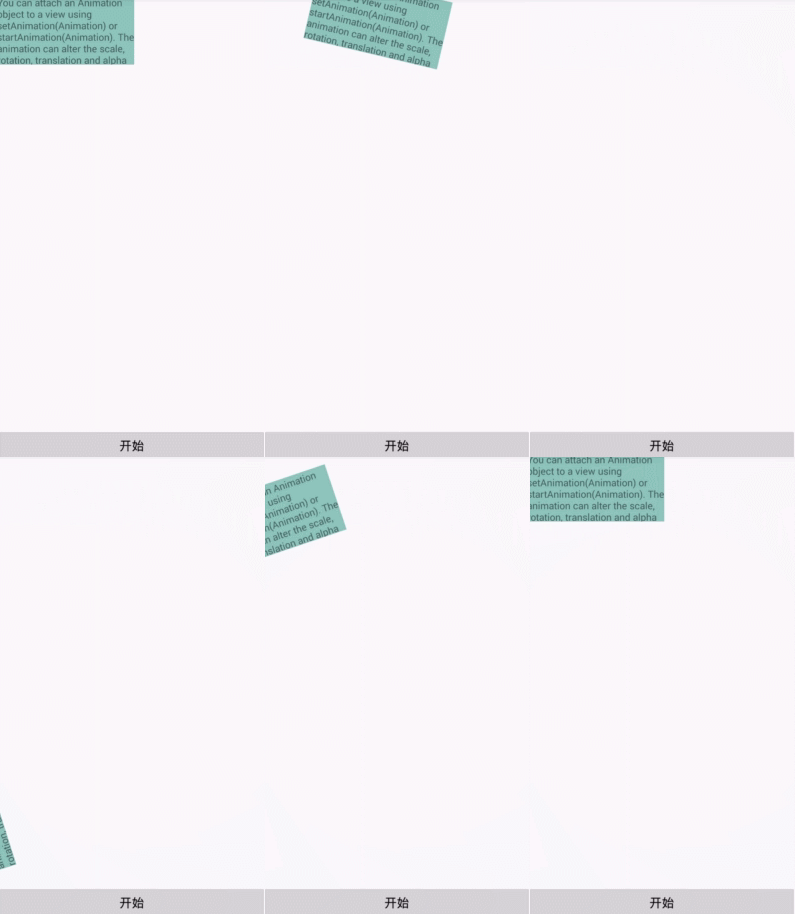
<rotate xmlns:android="https://schemas.android.com/apk/res/android"
    android:duration="3000"
    android:fromDegrees="0"
    android:toDegrees="360"
    android:pivotX="50%p"
android:pivotY="50%p" />三個建構子:
public ScaleAnimation(float fromXScale, float toScaleX,
                      float fromYScale, float toScaleY)

public ScaleAnimation(float fromXScale, float toScaleX,
                      float fromYScale, float toScaleY,
                      float pivotX, float pivotY)

public ScaleAnimation(float fromXScale, float toScaleX,
                      float fromYScale, float toScaleY,
                      int pivotXType, float pivotXValue,
int pivotYType, float pivotYValue)需要兩類資訊:縮放中心與X/Y 兩軸的縮放比例。
// 以左上角為中心,X 軸放大一倍、Y 軸縮為一半
float fromXScale = 1.0f, toScaleX = 2.0f;
float fromYScale = 1.0f, toScaleY = 0.5f;

Animation animation = new ScaleAnimation(fromXScale, toScaleX, fromYScale, toScaleY);
animation.setDuration(3000);
textView.startAnimation(animation);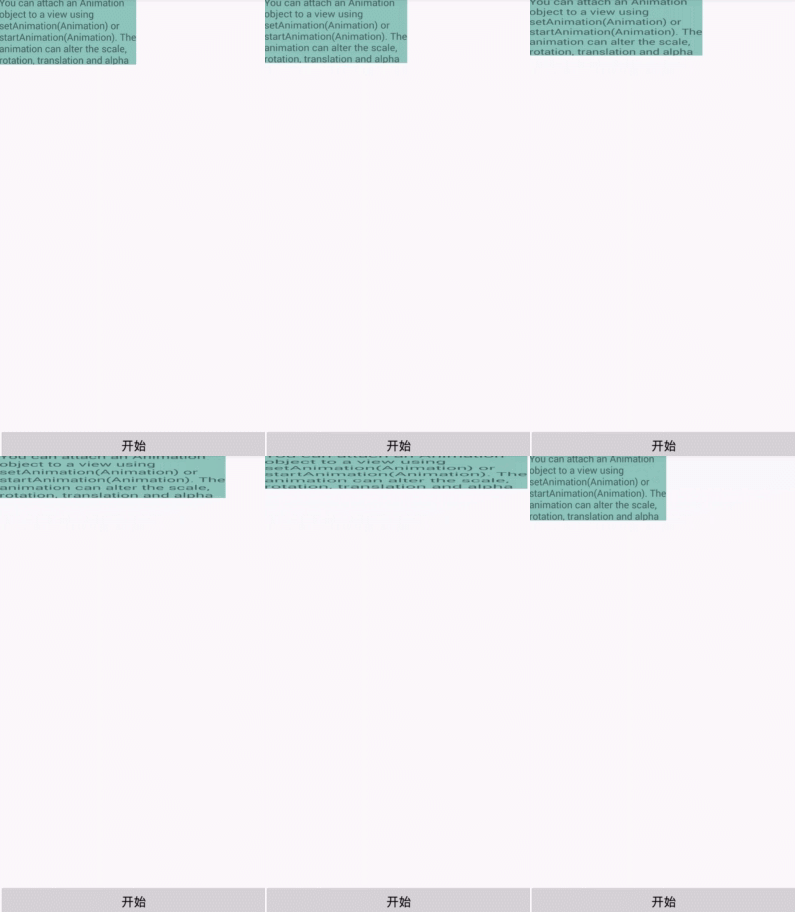
<scale xmlns:android="https://schemas.android.com/apk/res/android"
    android:duration="3000"
    android:fromXScale="1"
    android:toXScale="2"
    android:fromYScale="1"
android:toYScale="0.5" />// 以 View 中心為中心,兩軸都縮為一半
float fromXScale = 1.0f, toScaleX = 0.5f;
float fromYScale = 1.0f, toScaleY = 0.5f;
float pivotX = textView.getWidth() / 2;
float pivotY = textView.getHeight() / 2;
Animation animation = new ScaleAnimation(
fromXScale, toScaleX, fromYScale, toScaleY, pivotX, pivotY);
animation.setDuration(3000);
textView.startAnimation(animation);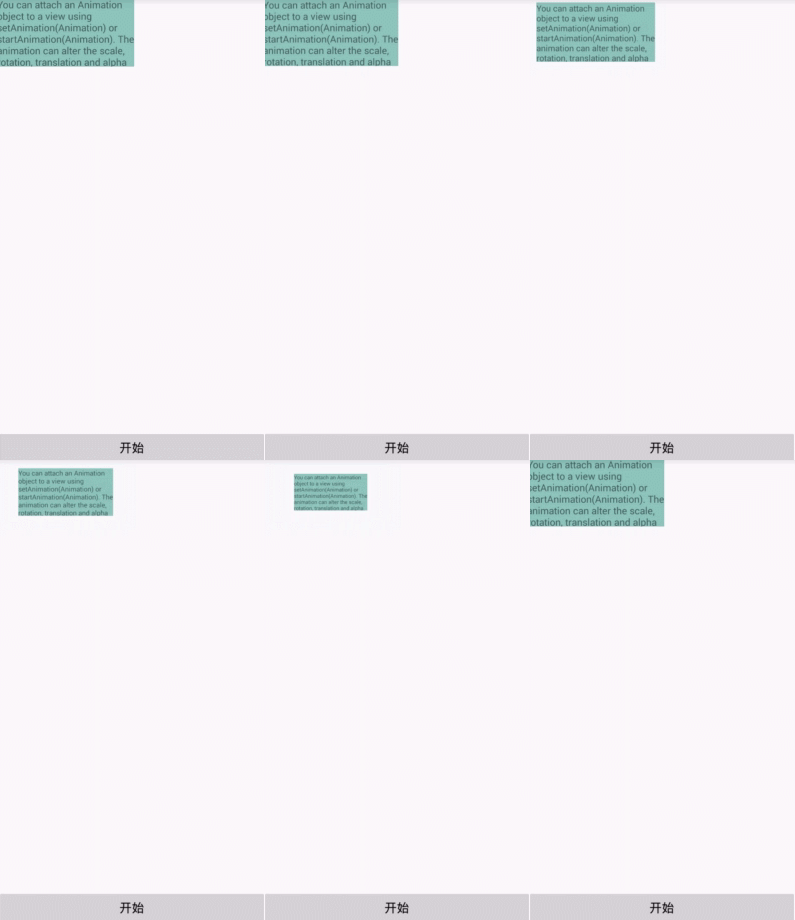
<scale xmlns:android="https://schemas.android.com/apk/res/android"
    android:duration="3000"
    android:fromXScale="1"
    android:toXScale="0.5"
    android:fromYScale="1"
    android:toYScale="0.5"
    android:pivotX="100"
android:pivotY="50" />int pivotXType = Animation.RELATIVE_TO_SELF;
float pivotXValue = 0.5f;
int pivotYType = Animation.RELATIVE_TO_SELF;
float pivotYValue = 0.5f;
Animation animation = new ScaleAnimation(
fromXScale, toScaleX, fromYScale, toScaleY,
pivotXType, pivotXValue, pivotYType, pivotYValue);
animation.setDuration(3000);
textView.startAnimation(animation);效果與上一個範例完全相同,只是改用比例表達。XML 寫法:
<scale xmlns:android="https://schemas.android.com/apk/res/android"
    android:duration="3000"
    android:fromXScale="1"
    android:toXScale="0.5"
    android:fromYScale="1"
    android:toYScale="0.5"
    android:pivotX="50%"
android:pivotY="50%" />把四種動畫看完,可以歸納出視圖動畫的兩個先天限制,實務上經常被忽略:
第一,它只改變「繪製外觀」,不改變 View 的真實屬性。 一個被 translate 移走的 View,其 getX() 仍是舊值,點擊事件的命中範圍也留在原處。若需要互動正確,應改用屬性動畫。
第二,動畫結束後若未設定 fillAfter,View 會瞬間彈回原位。 在 XML 中對應 android:fillAfter="true",在程式碼中對應 setFillAfter(true)。
需要組合多種效果時,用 AnimationSet 把多個動畫包在一起即可,並可透過 setInterpolator() 控制整體節奏。
 Android WindowManager 實現懸浮窗(一):與當前 Activity 綁定的可拖動懸浮視圖
最近有學生在做畢業設計時,希望實現懸浮窗的效果。其實原理並不複雜,我們可以借助系統服務 WindowManager 來完成。本文就帶你在當前 Activity 之上,建立
 Oracle 11.2.0.4 RAC 安裝實戰(二):Grid Infrastructure 部署全流程
接上一篇的先決配置,本文進入第二階段:安裝 Grid Infrastructure。這一步會創建集群註冊信息(OCR)、投票磁盤(Voting Disk)並啟動 ASM
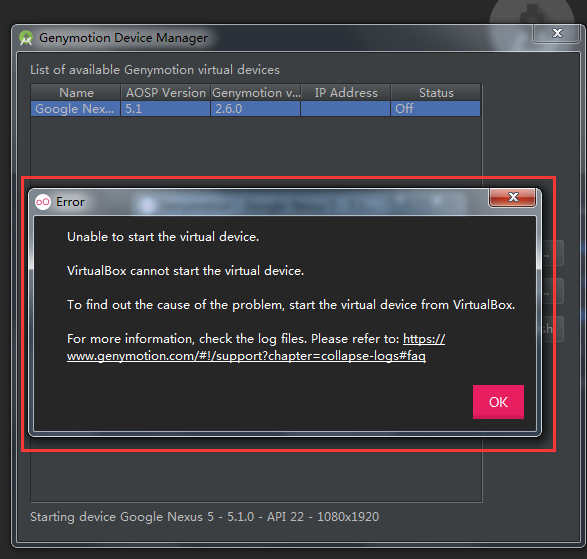 解決 Genymotion 啟動安卓模擬器出錯
Genymotion 啟動模擬器失敗時,單看錯誤視窗往往不足以定位問題。可先手動啟動 VirtualBox,再從中啟動虛擬機,通常能看到更詳細的錯誤訊息。常見原因若出現與
 React Native 中的 ViewPagerAndroid 使用解析
ViewPagerAndroid 是 React Native 中對應 Android View