

編輯:關於 Android 開發
先來初始化需要用到的對象:
private Paint mPaint;//畫筆 private int count;//點擊次數 private Rect rect;//矩形 public CounstomView(Context context, AttributeSet attrs, int defStyle) { super(context, attrs, defStyle); mPaint = new Paint(); rect = new Rect(); setOnClickListener(this); }
1.畫文字,並設置可點擊。Canvas 除了能畫圖形,還能描繪文字:drawText 的第一個參數是文本內容,第二、三個是 x、y 軸位置,最後一個是 Paint 對象。
String text = null; @SuppressLint("DrawAllocation") @Override protected void onDraw(Canvas canvas) { super.onDraw(canvas); mPaint.setStyle(Style.FILL);//實心 canvas.drawColor(Color.YELLOW); canvas.drawRect(0, 0, getHeight(), getWidth(), mPaint);//畫矩形 mPaint.setColor(Color.RED); mPaint.setTextSize(25.0f); text = String.valueOf(count); mPaint.getTextBounds(text, 0, text.length(), rect);//把文本長寬存入 rect float width = rect.width();//獲取寬 float height = rect.height(); canvas.drawText(text, getWidth() / 2 - width / 2, getHeight() / 2 + height/2, mPaint);//居中繪製 } @Override public void onClick(View arg0) { count++; invalidate();//重繪 }
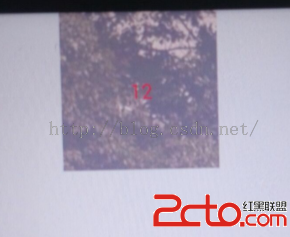
2.畫簡單的 bitmap。drawBitmap(bitmap, x, y, paint) 的第一個參數是 Bitmap 對象,後面是繪製的左上角坐標與畫筆。
protected void onDraw(Canvas canvas) { super.onDraw(canvas); Bitmap bitmap = BitmapFactory.decodeResource(getResources(), R.drawable.login_backgroud); canvas.drawBitmap(bitmap,0,0, mPaint); }
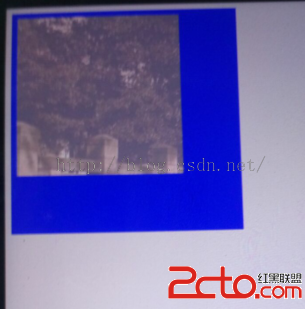
3.利用 canvas.drawBitmap(bitmap, src, dst, paint) 畫裁剪過的 bitmap。參數一是 Bitmap 對象,參數二是源區域(這裡是 bitmap),參數三是目標區域(在 canvas 上的位置與大小),參數四是畫筆。當原始 Rect 不等於目標 Rect 時會涉及縮放拉伸,性能會有較大損耗。
protected void onDraw(Canvas canvas) { super.onDraw(canvas); Bitmap bitmap = BitmapFactory.decodeResource(getResources(), R.drawable.login_backgroud); Paint paint = new Paint(); canvas.save(); // left----距屏幕左側距離;top----距頂部距離;right----矩形寬度;bottom----矩形高度 Rect rect = new Rect(10, 10, 500, 500); canvas.clipRect(rect); // 設置裁剪區域 canvas.drawColor(Color.BLUE);// 裁剪區域變為藍色 Rect rec = new Rect(20, 20, 300, 300); canvas.drawBitmap(bitmap, rect, rec, paint); canvas.restore(); }
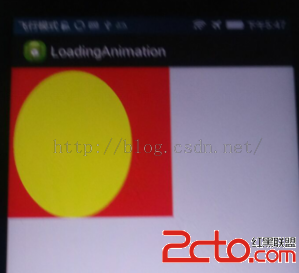
4.利用 canvas.drawOval 畫橢圓。參數一是包圍橢圓的矩形區域(RectF),參數二是 Paint 對象。
protected void onDraw(Canvas canvas) { super.onDraw(canvas); Paint paint = new Paint(); canvas.save(); // left----距屏幕左側距離;top----距頂部距離;right----橢圓寬度;bottom----橢圓高度 RectF dst = new RectF(10,10,300, 400); paint.setColor(Color.YELLOW); canvas.drawColor(Color.RED); canvas.drawOval(dst, paint); canvas.restore(); }
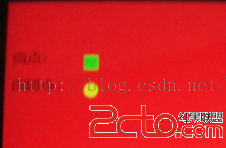
5.利用 canvas 畫點。drawPoint 參數一為水平 x 軸,參數二為垂直 y 軸,參數三為 Paint 對象。
@Override protected void onDraw(Canvas canvas) { super.onDraw(canvas); Paint paint = new Paint(); canvas.save(); canvas.drawColor(Color.RED);//先畫背景 canvas.restore(); canvas.save(); paint.setColor(Color.BLACK); paint.setTextSize(20.0f); canvas.drawText("畫點:", 10, 90, paint);//文本 canvas.restore(); canvas.save(); paint.setColor(Color.GREEN); paint.setStrokeWidth(20.0f);//設置點的大小 canvas.drawPoint(120, 90, paint);//參數一水平x軸,參數二垂直y軸,參數三Paint // canvas.drawPoints(new float[]{60,400,65,400,70,40}, paint);//畫多個點 canvas.restore(); canvas.save(); paint.setColor(Color.BLACK); paint.setStyle(Style.FILL); canvas.drawText("這樣可以當圓點用麼:", 10, 130, paint); paint.setAntiAlias(true);//去除抗鋸齒 paint.setColor(Color.YELLOW); canvas.drawCircle(120, 130, 10, paint);//參數一x軸,參數二y軸,參數三圓半徑,參數四Paint canvas.restore(); }
6.畫線。drawLine(startX, startY, stopX, stopY, paint):參數一是起點 x,參數二是起點 y,參數三是終點 x,參數四是終點 y,最後是 Paint 畫筆。
protected void onDraw(Canvas canvas) { super.onDraw(canvas); Paint paint = new Paint(); canvas.drawColor(Color.YELLOW); paint.setAntiAlias(true);//抗鋸齒 paint.setDither(true);//抖動,讓圖形沒有毛邊 paint.setColor(Color.RED); paint.setStrokeWidth(3);//設置線粗細 canvas.drawLine(20, 50, 200, 100, paint); }

7.畫弧線。drawArc 參數一是 RectF 對象(界定橢圓的矩形區域),參數二是起始角度,參數三是掃描角度(順時針),參數四是布爾值——為 true 時連同圓心一起閉合成扇形,為 false 時只是一段弧線,參數五是 Paint 對象。
protected void onDraw(Canvas canvas) { super.onDraw(canvas); Paint paint = new Paint(); canvas.drawColor(Color.BLUE); paint.setStyle(Style.STROKE);//設置空心 paint.setColor(Color.RED);//設置顏色 paint.setStrokeWidth(3);//設置粗細 RectF oval = new RectF(); oval.set(50, 50, 200, 200); // canvas.drawArc(oval, 180, 180, true, paint); canvas.drawArc(oval, 180, 180, false, paint); }
當第四個參數為 true 時(閉合成扇形):
canvas.drawArc(oval, 180, 180, true, paint);
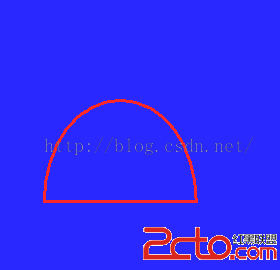
當第四個參數為 false 時(僅一段弧):
canvas.drawArc(oval, 180, 180, false, paint);
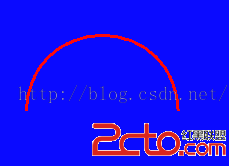
8.畫多邊形。用 Path 拼接多段線:moveTo 設定起點,lineTo 逐段連線,close 閉合;quadTo(x1, y1, x2, y2) 中 x1、y1 是第一圈扭曲的控制點坐標,x2、y2 是結束點坐標。
protected void onDraw(Canvas canvas) { super.onDraw(canvas); Paint paint = new Paint(); canvas.drawColor(Color.YELLOW); paint.setColor(Color.BLACK); paint.setTextSize(20); paint.setTextScaleX(0.5f); canvas.drawText("畫多邊形:", 50, 50, paint); paint.setColor(Color.RED); paint.setStrokeWidth(3); Path path = new Path(); paint.setStyle(Style.STROKE);//設置空心 path.moveTo(120, 50);//起點 path.lineTo(190, 100);//第一條線 path.lineTo(190, 50);//第二條線 path.lineTo(120, 50);//第三條線 path.close();//關閉 canvas.drawPath(path, paint); Path path1 = new Path(); paint.setColor(Color.BLUE); path1.moveTo(100, 150);//起始點 path1.quadTo(10, 280, 10, 350);//x1第一圈扭曲的x軸,y1第一圈扭曲的y軸,x2結束x軸位置,y2結束y位置 path1.setLastPoint(90, 60); canvas.drawPath(path1, paint); }
 Android 面試題及答案(二):核心知識點匯總
Android 面試常見問題與解答彙編 本文整理了 Android 面試中經常出現的核心知識點與參考答案,涵蓋 Activity、Fragment、序列化、多線程、圖片加
 手機衛士黑名單實作:ListView 結合 SQLite 的增刪改
手機衛士的黑名單功能,本質上是「列表介面 + 本地資料庫」的組合練習。使用者可以在列表中加入號碼與攔截模式,也能刪除既有記錄。新增與刪除新增時可透過自訂對話框輸入號碼與模
 玩轉 Android 事件監聽(第二篇):六大常用控件的監聽實戰
Android 事件監聽全攻略——第二篇 本篇延續上一回的內容,繼續盤點 Android 開發中最常打交道的一批控件,以及它們各自對應的事件監聽方式。掌握這些監聽器,你就
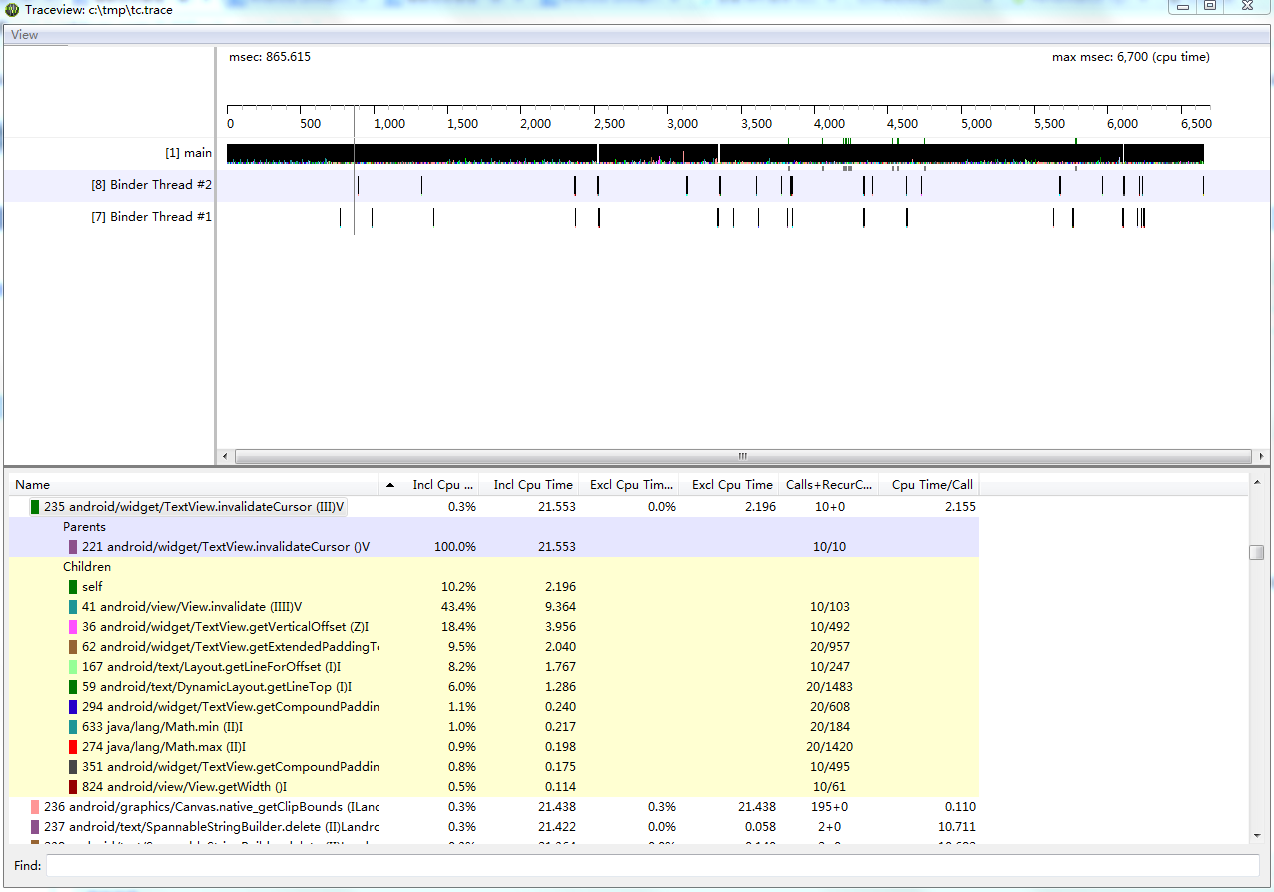 Android 效能分析入門:Traceview 介面解讀與追蹤日誌實作
Traceview 是什麼 Traceview 是執行日誌的圖形化檢視器,資料來源是透過 Debug 類別記錄的方法追蹤。它能幫你看清楚一段時間內每個函式被呼叫幾次、各自