

編輯:關於 Android 開發
SharedPreferences 是 Android 中用於保存簡單鍵值對資料的輕量級方案,其背後其實是以 XML 檔案的形式將資料存放在 /data/data/<package name>/shared_prefs 目錄下。以下透過一個登入範例說明其用法。
首先是登入頁面的佈局檔:
<?xml version="1.0" encoding="utf-8"?> <LinearLayout xmlns:android="https://schemas.android.com/apk/res/android" android:layout_width="match_parent" android:layout_height="match_parent" android:orientation="vertical" > <LinearLayout android:layout_width="match_parent" android:layout_height="wrap_content" android:orientation="horizontal" > <TextView android:layout_width="wrap_content" android:layout_height="wrap_content" android:gravity="center" android:text="logins" android:textSize="15sp" /> <EditText android:id="@+id/ed_login_name" android:layout_width="match_parent" android:hint="輸入用戶名" android:singleLine="true" android:layout_height="wrap_content" android:gravity="center" /> </LinearLayout> <LinearLayout android:layout_width="match_parent" android:layout_height="wrap_content" android:layout_marginTop="5dp" android:orientation="horizontal" > <TextView android:layout_width="wrap_content" android:layout_height="wrap_content" android:gravity="center" android:text="passd" android:textSize="15sp" /> <EditText android:id="@+id/ed_login_password" android:layout_width="match_parent" android:hint="輸入密碼" android:singleLine="true" android:layout_height="wrap_content" android:gravity="center" android:inputType="textPassword" /> </LinearLayout> <RelativeLayout android:layout_width="match_parent" android:layout_height="wrap_content" android:layout_gravity="center" android:orientation="horizontal" > <CheckBox android:id="@+id/cb_login_dian" android:layout_width="wrap_content" android:layout_height="wrap_content" android:gravity="center" android:text="點擊保存密碼" android:textSize="12sp" /> <Button android:id="@+id/bb_login_login" android:layout_width="wrap_content" android:layout_height="wrap_content" android:layout_alignParentRight="true" android:layout_marginRight="5dp" android:text="登陸" android:textSize="13sp" /> </RelativeLayout> </LinearLayout>
接著是登入邏輯的實作:
package org.xml.demo.viewpager; import ogg.huanxin.huadong.R; import android.app.Activity; import android.content.Intent; import android.content.SharedPreferences; import android.os.Bundle; import android.view.View; import android.view.Window; import android.widget.Button; import android.widget.CheckBox; import android.widget.EditText; import android.widget.Toast; /* * 使用SharedPreferences保存數據,其背後是用xml文件存放數據,文件存放在/data/data/<package name>/shared_prefs目錄下: */ public class Login extends Activity { /** 定義登錄姓名的編輯框 */ private EditText ed_Name; /** 定義輸入密碼的編輯框 */ private EditText ed_PassWord; /** 定義登錄的按鈕 當點擊時跳轉到其他的界面 */ private Button loginButton; /** 定義個選擇框點擊時會記住密碼 */ private CheckBox cb_dian; @Override protected void onCreate(Bundle savedInstanceState) { // TODO Auto-generated method stub super.onCreate(savedInstanceState); requestWindowFeature(Window.FEATURE_NO_TITLE); super.setContentView(R.layout.login); ed_Name = (EditText) super.findViewById(R.id.ed_login_name); ed_PassWord = (EditText) super.findViewById(R.id.ed_login_password); loginButton = (Button) super.findViewById(R.id.bb_login_login); cb_dian = (CheckBox) super.findViewById(R.id.cb_login_dian); loginButton.setOnClickListener(new MyOnClickItem()); /** 定義個方法當下次進來的時候會讀取getSharedPreferences若有則將姓名和密碼返回到界面上 */ readLogin(); } private class MyOnClickItem implements View.OnClickListener { @Override public void onClick(View arg0) { // TODO Auto-generated method stub if (cb_dian.isChecked()) { BaoCuenLogin(); Toast.makeText(Login.this, "登陸成功", Toast.LENGTH_SHORT).show(); } Intent it = new Intent(Login.this, DialogText.class); startActivity(it); } } /** 定義個方法當下次進來的時候會讀取getSharedPreferences若有則將姓名和密碼返回到界面上 */ private void readLogin() { SharedPreferences sp = getSharedPreferences("info", MODE_PRIVATE); this.ed_Name.setText(sp.getString("name", "")); this.ed_PassWord.setText(sp.getString("password", "")); } /** 實現文件的保存 */ private void BaoCuenLogin() { String name = ed_Name.getText().toString(); String passWord = ed_PassWord.getText().toString(); SharedPreferences sp = getSharedPreferences("info", MODE_PRIVATE); SharedPreferences.Editor ed = sp.edit(); ed.putString("name", name); ed.putString("password", passWord); ed.commit();// 提交 } }
完成後即可匯出 shared_prefs 資料夾下的 info.xml 檔案查看保存的內容。
android.content.SharedPreferences 是一個介面,用來取得與修改持久化儲存的資料。取得系統中已保存的持久化資料共有三種方式:
1)public SharedPreferences getPreferences(int mode)
透過 Activity 物件取得,取得的是本 Activity 私有的 Preference,保存在系統中的 XML 檔案名稱即為該 Activity 的名稱,因此一個 Activity 只能有一個,屬於該 Activity。
2)public SharedPreferences getSharedPreferences(String name, int mode)
由於 Activity 繼承了 ContextWrapper,因此也是透過 Activity 物件取得,但屬於整個應用程式,可以有多個,以第一參數 name 為檔名保存在系統中。
3)public static SharedPreferences getDefaultSharedPreferences(Context context)
這是 PreferenceManager 的靜態函式,用來保存 PreferenceActivity 中的設定,屬於整個應用程式但只有一個,Android 會依據套件名稱與 PreferenceActivity 的佈局檔來命名保存。
透過以上方式取得 SharedPreferences 後,即可對資料進行讀取或保存。
 用 Android Studio 運行 NDK 程式的完整步驟
 最近打算研究 Android 雙進程守護,由於過去用 Eclipse 寫 JNI 習慣了,如今主要改用 A
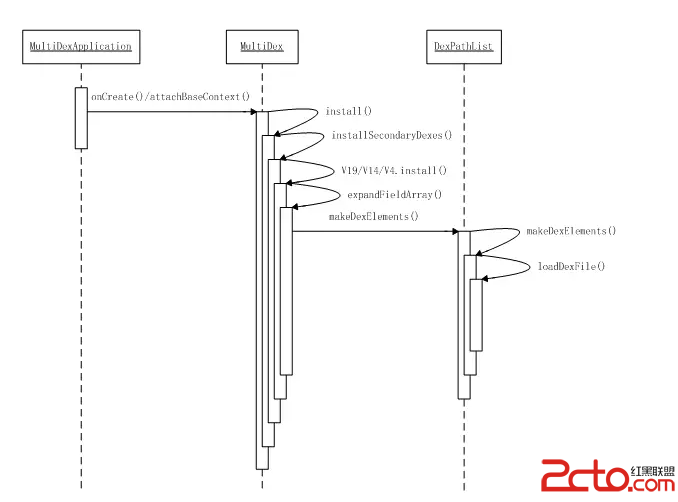 Android 插件化(一):改進 MultiDex 動態載入 assets 中的 apk
 為了解決方法數超過 65535 的問題,Google 建議用 MultiDex
 Xamarin.Android 入門:讓 WebView 與 HTML 雙向互動
一、前言 Android 搭配 HTML5 已經是相當主流的混合開發模式。優勢很明顯:介面用 HTML/CSS 寫,跨平台、改版快;需要用到相機、定位、檔案系統等原生能力
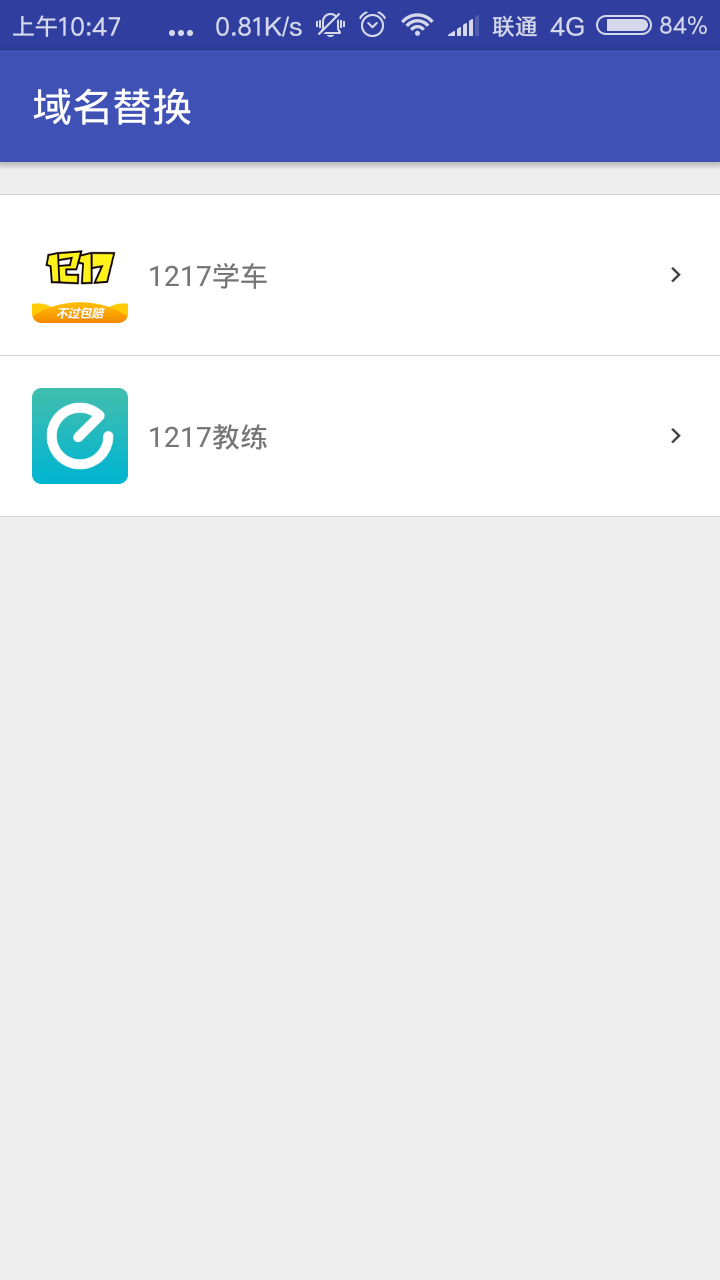 用 ContentProvider 打造「域名替換小工具」的設計與實作
 開發專案時想怎麼換域名就怎麼換,就是這麼任性!這是一個很有意思、也很方便開發與測試人員的小工具。