

編輯:關於 Android 開發
手機螢幕就那麼大,當要在一個畫面裡塞進大量內容時,最直接的反應是讓版面可以捲動。但捲動看起來終究不夠俐落,而且當不同功能的控制項本就該分組呈現時,把它們各自收進一個面板、用標籤切換,才是更合適的選擇。這正是 Tab 控件的用武之地。
面板控件的好處很明確:同一個畫面上容納多組內容,使用者透過標籤就能在面板之間快速切換,而不必在長長的捲動列表中尋找。以下直接從範例出發,介紹 Tab 的兩種內容設置方式。
最直白的做法,是在 XML 裡把每個 Tab 要顯示的內容都準備好。這裡以兩個 TextView 為例:
<?xml version="1.0" encoding="utf-8"?>
<FrameLayout xmlns:android="https://schemas.android.com/apk/res/android"
    android:layout_width="fill_parent"
    android:layout_height="fill_parent">

    <!-- Tab 1 中顯示的內容 -->
    <TextView
        android:id="@+id/content1"
        android:layout_width="fill_parent"
        android:layout_height="fill_parent"
        android:text="tab1 content" />

    <!-- Tab 2 中顯示的內容 -->
    <TextView
        android:id="@+id/content2"
        android:layout_width="fill_parent"
        android:layout_height="fill_parent"
        android:text="tab2 content" />
</FrameLayout>
這裡之所以用 FrameLayout 當外層容器,是因為它的子元素預設互相重疊,而 TabHost 在切換時會控制各面板的可見性——同一時間只有一個內容顯示。
接著在 Activity 中取得 TabHost,把版面 inflate 進去,再逐一加入各個 Tab:
public class _Tab extends TabActivity {
    @Override
    protected void onCreate(Bundle savedInstanceState) {
        super.onCreate(savedInstanceState);
        TabHost tabHost = getTabHost();
        LayoutInflater.from(this).inflate(R.layout.tab, tabHost.getTabContentView(), true);

        // Tab 1 的內容
        tabHost.addTab(tabHost.newTabSpec("tab1")
                .setIndicator("tab1", getResources().getDrawable(R.drawable.p1))
                .setContent(R.id.view1));

        // Tab 2 的內容
        tabHost.addTab(tabHost.newTabSpec("tab2")
                .setIndicator("tab2", getResources().getDrawable(R.drawable.p1))
                .setContent(R.id.view2));

        // Tab 3 的內容:直接指定一個 Activity 作為面板內容
        tabHost.addTab(tabHost.newTabSpec("tab3")
                .setIndicator("tab3", getResources().getDrawable(R.drawable.p1))
                .setContent(new Intent(this, _TextView.class)));
    }
}
從範例可以看出,Tab 的使用主要繞著三個方法打轉:
而 setContent 正是兩種做法的分水嶺。傳入一個 view id(如 R.id.view1)時,面板內容來自版面檔中已定義好的控制項;傳入一個 Intent 時,則是把另一個 Activity 直接作為面板內容顯示。
第二種方式在實務上特別有用:它讓每個 Tab 的內容在邏輯上完全獨立開來,各自擁有完整的生命週期,不必擠在同一個 Activity 裡互相牽扯。當你的面板內容各自由不同功能組成、狀態管理也互不相干時,用 Activity 當內容會讓整體結構清爽許多。
 Android 狀態列適配:Toolbar 與全版本 SystemBar 處理方案
狀態列為什麼需要適配 自 Material Design 推出後,狀態列不再只是系統預設的黑色區域,而是可以與 App 的視覺風格整合。Android 5.0 之後可自訂
 Android View 彈性滑動的三種做法
 彈性滑動,也常被理解為漸進式滑動。它的核心概念是將一次較大的位移,拆成多個小位移,並在一段時間內逐步完成。本文整理 Scro
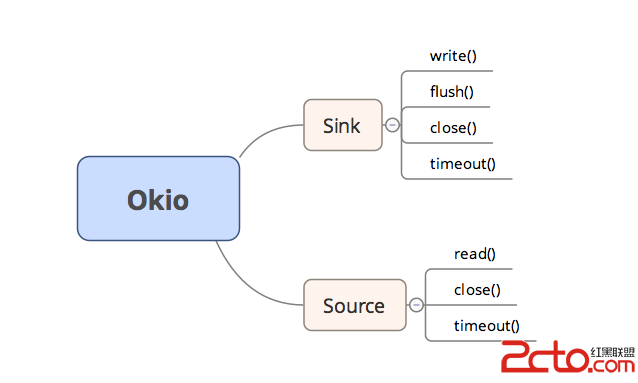 用 Okio 簡化 I/O:Source、Sink 與 Buffer 的設計之美
Okio 是 Square 開發的函式庫,它補足了 java.io 與 java.nio 的不足,讓「讀取、儲存、處理資料」這件事變得更方便、更快速。OkHttp 的底層
 Android 逆向基礎:Dex 文件格式解析
Dex 是 Android 中可執行的 Dalvik 位元組碼檔案,也是 APK 逆向分析中非常重要的格式。理解 Dex 的