

編輯:關於 Android 開發
App 有時候會 Crash,接著跳出系統的「強制關閉」對話框,使用者只能按確定收掉。
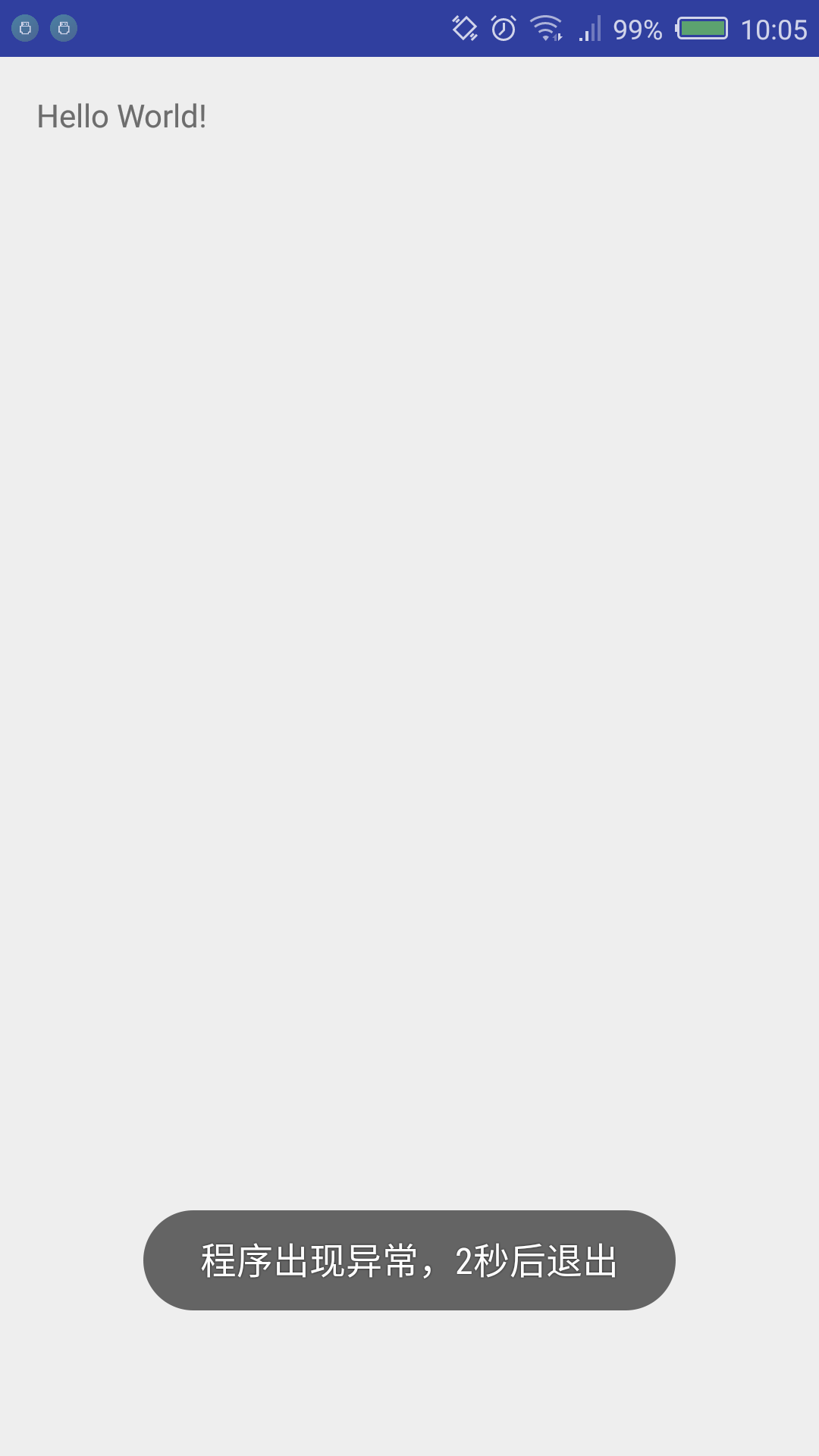
但有些 App 做了處理,效果完全不同:程式發生異常時會先 Toast 一個提示「程式出現異常,3 秒後將退出程式」,時間到才安靜關閉,不再丟出系統的錯誤視窗。
它們是如何攔下那些沒有被 try-catch 捕捉到的異常,並做友善提示的呢?關鍵是 Android 提供的 Thread.UncaughtExceptionHandler 機制。以下用一個 demo 走一遍。
建立一個類別實作 UncaughtExceptionHandler 介面,當程式發生未捕獲異常時就由它接手處理。
public class CrashHandler implements Thread.UncaughtExceptionHandler {

    private Thread.UncaughtExceptionHandler mDefaultHandler;
    private Context context;

    // 單例
    private static CrashHandler instance;

    public static CrashHandler getInstance() {
        if (instance == null) instance = new CrashHandler();
        return instance;
    }

    /** 初始化 */
    public void init(Context context) {
        this.context = context;
        // 先保留系統預設的處理器,稍後作為後備
        mDefaultHandler = Thread.getDefaultUncaughtExceptionHandler();
        // 把 CrashHandler 設為程式的預設處理器
        Thread.setDefaultUncaughtExceptionHandler(this);
    }

    @Override
    public void uncaughtException(Thread thread, Throwable ex) {
        if (!solveException(ex) && mDefaultHandler != null) {
            // 自己處理不來就交回給系統預設的處理器
            mDefaultHandler.uncaughtException(thread, ex);
        } else {
            // 已經提示過使用者,等兩秒後結束程式
            try {
                Thread.sleep(2000);
            } catch (InterruptedException e) {
                e.printStackTrace();
            }
            android.os.Process.killProcess(android.os.Process.myPid());
            System.exit(1);
        }
    }

    /** 錯誤處理:先給使用者一個友善提示 */
    private boolean solveException(Throwable e) {
        if (e == null) return false;

        new Thread() {
            @Override
            public void run() {
                Looper.prepare();   // 子執行緒中彈 Toast 必須先 prepare
                Toast.makeText(context, "程式出現異常,2 秒後退出", Toast.LENGTH_SHORT).show();
                Looper.loop();
            }
        }.start();
        return true;
    }
}
建立一個繼承 Application 的類別,在 onCreate() 裡完成註冊。放在這裡而不是某個 Activity,是因為它必須在 earliest 的時機就生效,才能攔住任何一個畫面的崩潰。
public class MApplication extends Application {
    @Override
    public void onCreate() {
        super.onCreate();
        CrashHandler.getInstance().init(getApplicationContext());
    }
}
別忘了在 AndroidManifest.xml 中指定:
<application
    android:allowBackup="true"
    android:icon="@mipmap/ic_launcher"
    android:label="@string/app_name"
    android:supportsRtl="true"
    android:name=".MApplication"
    android:theme="@style/AppTheme">
給一個沒有 findViewById 初始化的 TextView 呼叫 setText,就會產生空指標異常:
public class MainActivity extends Activity {
    private TextView text;
    private TextView aa;      // 故意不做初始化

    @Override
    protected void onCreate(Bundle savedInstanceState) {
        super.onCreate(savedInstanceState);
        setContentView(R.layout.activity_main);
        text = (TextView) findViewById(R.id.text);
        text.setOnClickListener(new View.OnClickListener() {
            @Override
            public void onClick(View v) {
                text.setText("ni hao");
                aa.setText("nihao ");    // 點下去就爆炸
            }
        });
    }
}
執行後按下按鈕,就會看到自訂的提示而不是系統視窗:
我們不可能替每個方法都包 try-catch,未捕獲異常永遠會有。與其只是安撫使用者,不如順便把資訊留下來:在 solveException 中收集 ex.getStackTrace()、裝置型號、Android 版本、App 版本、發生時間與當前的畫面名稱,寫入本機檔案後上報到自己的伺服器。累積一段時間之後,你就能清楚知道哪些機型、哪些版本、哪些操作路徑最容易出事,這比任何測試都更接近真實使用情況。
進行未捕獲異常的統一處理,本質上是用一個極小的成本,換取使用者不至于在崩潰時只看到一個冷冰冰的系統視窗。值得每個 App 都做。
 SpannableString 實作:讓 TextView 裡的某幾個字可以點擊
核心概念 Android 中各種文字樣式(Span)都是透過 SpannableString 來封裝的。流程固定為三步:建立 Span → 把 Span 放進 Spann
 Android ListView 管理範例:單擊、多選、刪除與刷新
範例目標本範例展示 ListView 的常見管理操作,包括單擊、編輯模式、多選、全選、刪除與資料刷新。適合需要批次管理列表項目的場景。資料與狀態管理列表資料可使用 Arr
 Android IPC 機制(四):深入 Binder 連接池的設計與實現
 一、前言 在上一篇《Android IPC 機制(三):淺談 Binder 的使用》中,筆者介
 Android 手機衛士:依官方文件實作圖片選擇器
圖片選擇器 Android 可按 View 狀態切換背景圖片。selector 常用於按鈕,讓按下、取得焦點與預設狀態顯示不同外觀。 建立 drawable 的 sele