編輯:Android技術基礎
在前面我們已經學過EditText控件了,本節來說下如何監聽輸入框的內容變化! 這個再實際開發中非常實用,另外,附帶著說下如何實現EditText的密碼可見 與不可見!好了,開始本節內容!
由題可知,是基於監聽的事件處理機制,好像前面的點擊事件是OnClickListener,文本內容 變化的監聽器則是:TextWatcher,我們可以調用EditText.addTextChangedListener(mTextWatcher); 為EditText設置內容變化監聽!
簡單說下TextWatcher,實現該類需實現三個方法:
public void beforeTextChanged(CharSequence s, int start,int count, int after);
public void onTextChanged(CharSequence s, int start, int before, int count);
public void afterTextChanged(Editable s);
依次會在下述情況中觸發:
我們可以根據實際的需求重寫相關方法,一般重寫得較多的是第三個方法!
監聽EditText內容變化的場合有很多: 限制字數輸入,限制輸入內容等等~
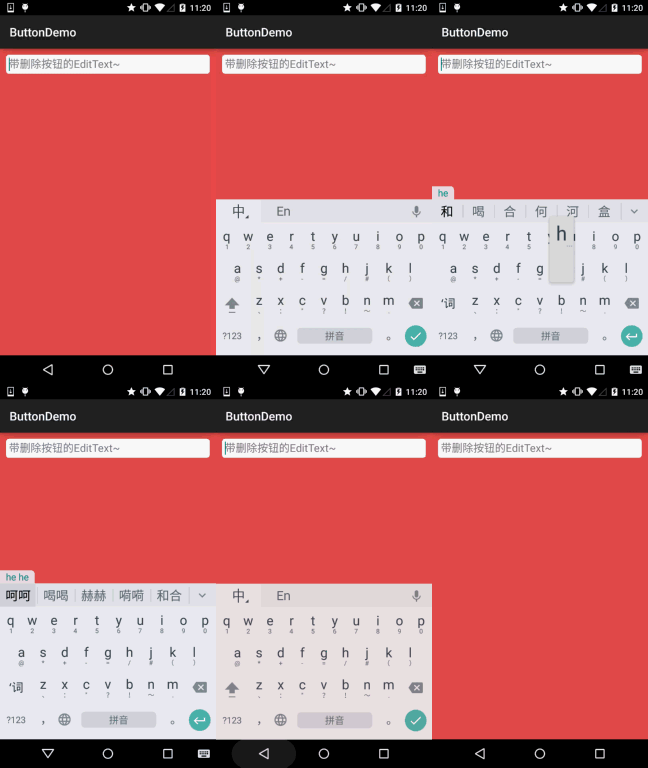
這裡給大家實現一個簡單的自定義EditText,輸入內容後,有面會顯示一個叉叉的圓圈,用戶點擊後 可以清空文本框~,當然你也可以不自定義,直接為EditText添加TextWatcher然後設置下刪除按鈕~
實現效果圖:
自定義EditText:DelEditText.java
package demo.com.jay.buttondemo;

import android.content.Context;
import android.graphics.Rect;
import android.graphics.drawable.Drawable;
import android.text.Editable;
import android.text.TextWatcher;
import android.util.AttributeSet;
import android.view.MotionEvent;
import android.widget.EditText;

/**
 * Created by coder-pig on 2015/7/16 0016.
 */
public class DelEditText extends EditText {

    private Drawable imgClear;
    private Context mContext;

    public DelEditText(Context context, AttributeSet attrs) {
        super(context, attrs);
        this.mContext = context;
        init();
    }

    private void init() {
        imgClear = mContext.getResources().getDrawable(R.drawable.delete_gray);
        addTextChangedListener(new TextWatcher() {
            @Override
            public void beforeTextChanged(CharSequence s, int start, int count, int after) {

            }

            @Override
            public void onTextChanged(CharSequence s, int start, int before, int count) {

            }

            @Override
            public void afterTextChanged(Editable editable) {
                setDrawable();
            }
        });
    }


    //繪制刪除圖片
    private void setDrawable(){
        if (length() < 1)
            setCompoundDrawablesWithIntrinsicBounds(null, null, null, null);
        else
            setCompoundDrawablesWithIntrinsicBounds(null, null, imgClear, null);
    }


    //當觸摸范圍在右側時,觸發刪除方法,隱藏叉叉
    @Override
    public boolean onTouchEvent(MotionEvent event) {
        if(imgClear != null && event.getAction() == MotionEvent.ACTION_UP)
        {
            int eventX = (int) event.getRawX();
            int eventY = (int) event.getRawY();
            Rect rect = new Rect();
            getGlobalVisibleRect(rect);
            rect.left = rect.right - 100;
            if (rect.contains(eventX, eventY))
                setText("");
        }
        return super.onTouchEvent(event);
    }


    @Override
    protected void finalize() throws Throwable {
        super.finalize();
    }

}
EditText的背景drawable:bg_frame_search.xml
<?xml version="1.0" encoding="utf-8"?>
<shape xmlns:android="http://schemas.android.com/apk/res/android" >
    <solid android:color="@color/background_white" />
    <corners android:radius="5dp" />
    <stroke android:width="1px" android:color="@color/frame_search"/>
</shape>
顏色資源:color.xml
<?xml version="1.0" encoding="utf-8"?>
<resources>
    <color name="reveal_color">#FFFFFF</color>
    <color name="bottom_color">#3086E4</color>
    <color name="bottom_bg">#40BAF8</color>
    <color name="frame_search">#ADAEAD</color>
    <color name="background_white">#FFFFFF</color>
    <color name="back_red">#e75049</color>
</resources>
布局文件:activity_main.xml
<LinearLayout xmlns:android="http://schemas.android.com/apk/res/android"
    xmlns:tools="http://schemas.android.com/tools"
    android:layout_width="match_parent"
    android:layout_height="match_parent"
    android:background="@color/back_red"
    android:orientation="vertical"
    tools:context=".MainActivity">

    <demo.com.jay.buttondemo.DelEditText
        android:id="@+id/edit_search"
        android:layout_width="match_parent"
        android:layout_height="32dp"
        android:layout_margin="10dp"
        android:background="@drawable/bg_frame_search"
        android:hint="帶刪除按鈕的EditText~"
        android:maxLength="20"
        android:padding="5dp"
        android:singleLine="true" />


</LinearLayout>
PS:代碼是非常簡單的,就不解釋了~
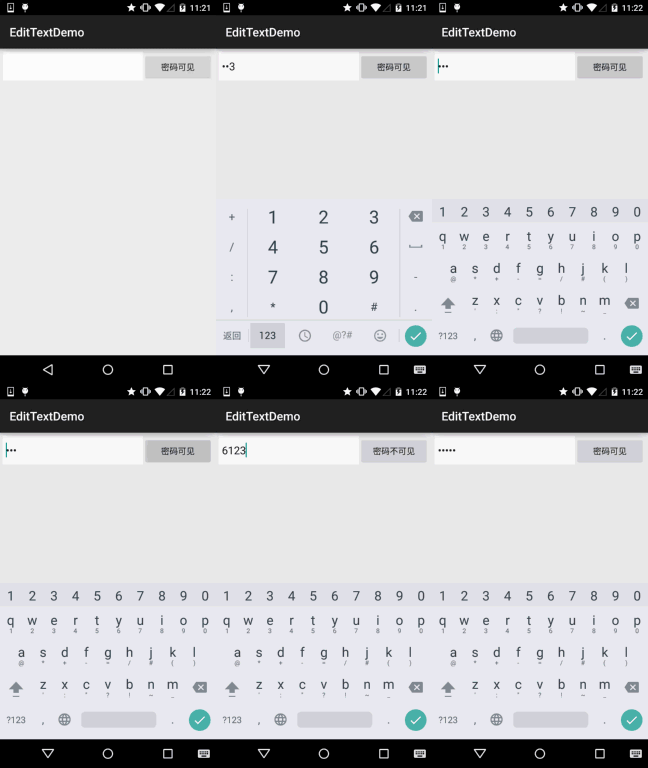
這個也是一個很實用的需求,就是用戶點擊按鈕後可讓EditText中的密碼可見或者不可見~
實現效果圖:
實現代碼: activity_main.xml
<LinearLayout xmlns:android="http://schemas.android.com/apk/res/android"
    xmlns:tools="http://schemas.android.com/tools"
    android:layout_width="match_parent"
    android:layout_height="match_parent"
    tools:context=".MainActivity"
    android:layout_margin="5dp"
    android:orientation="horizontal">

    <EditText
        android:id="@+id/edit_pawd"
        android:layout_width="0dp"
        android:layout_weight="2"
        android:layout_height="48dp"
        android:inputType="textPassword"
        android:background="@drawable/editborder"/>

    <Button
        android:id="@+id/btnChange"
        android:layout_width="0dp"
        android:layout_weight="1"
        android:layout_height="48dp"
        android:text="密碼可見"/>

</LinearLayout>
MainActivity.java
package com.jay.demo.edittextdemo;

import android.support.v7.app.AppCompatActivity;
import android.os.Bundle;
import android.text.method.HideReturnsTransformationMethod;
import android.text.method.PasswordTransformationMethod;
import android.view.Menu;
import android.view.MenuItem;
import android.view.View;
import android.widget.Button;
import android.widget.EditText;

public class MainActivity extends AppCompatActivity {

    private EditText edit_pawd;
    private Button btnChange;
    private boolean flag = false;

    @Override
    protected void onCreate(Bundle savedInstanceState) {
        super.onCreate(savedInstanceState);
        setContentView(R.layout.activity_main);
        edit_pawd = (EditText) findViewById(R.id.edit_pawd);
        btnChange = (Button) findViewById(R.id.btnChange);
        edit_pawd.setHorizontallyScrolling(true);    //設置EditText不換行
        btnChange.setOnClickListener(new View.OnClickListener() {
            @Override
            public void onClick(View view) {
                if(flag == true){
                    edit_pawd.setTransformationMethod(HideReturnsTransformationMethod.getInstance());
                    flag = false;
                    btnChange.setText("密碼不可見");
                }else{
                    edit_pawd.setTransformationMethod(PasswordTransformationMethod.getInstance());
                    flag = true;
                    btnChange.setText("密碼可見");
                }
            }
        });
    }
}
editborder.xml
<?xml version="1.0" encoding="utf-8"?>
<shape xmlns:android="http://schemas.android.com/apk/res/android" >

    <!-- 設置透明背景色 -->
    <solid android:color="#FFFFFF" />

    <!-- 設置一個白色邊框 -->
    <stroke
        android:width="1px"
        android:color="#FFFFFF" />
    <!-- 設置一下邊距,讓空間大一點 -->
    <padding
        android:bottom="5dp"
        android:left="5dp"
        android:right="5dp"
        android:top="5dp" />

</shape>
本節就到這裡,謝謝~
 1.0.1 2015年最新Android基礎入門教程目錄
前言:關於《2015年最新Android基礎入門教程目錄》終於在今天落下了帷幕,全套教程共148節已編寫完畢,附上目錄,關於教程的由來,筆者的情況和
 8.3.8 Paint API之—— Xfermode與PorterDuff詳解(五)
本節引言:好的,上一節中,我們又寫了一個關於Xfermode圖片混排的例子——擦美女衣服的Demo,加上前面的利用Xfermode來實現圓角或圓形I
 3.8 Gestures(手勢)
本節引言:周六不休息,剛剪完了個大平頭回來,繼續碼字~好的,本節給大家帶來點的是第三章的最後一節——Gestures(手勢),用過魅族手機的朋友相信
 第14章、布局Layouts之FrameLayout框架布局(從零開始學Android)
FrameLayout單桢布局FrameLayout對象好比一塊在屏幕上提前預定好的空白區域,可以將一些元素填充在裡面,如圖片。所有元素都被放置在FrameLayout區