編輯:關於Android編程
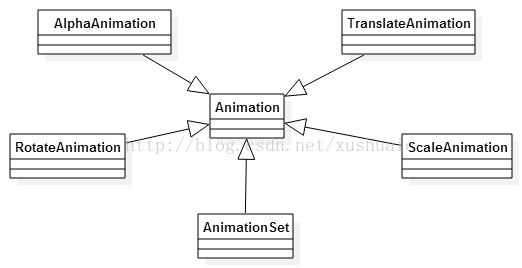 下面就來一一簡單聊聊這幾個動畫的純代碼實現方式吧
//以View左上角作為縮放中心,水平方向擴大一倍,垂直方向縮小為原來的一半
		float fromXScale = 1.0f;
		float toScaleX = 2.0f;
		float fromYScale = 1.0f;
		float toScaleY = 0.5f;
		Animation animation = new ScaleAnimation(fromXScale, toScaleX, fromYScale, toScaleY);
		//設置動畫持續時間
		animation.setDuration(3000);
		//通過View的startAnimation方法將動畫立即應用到View上
		textView.startAnimation(animation);
效果圖:
 2)
2)
//以View中心點作為縮放中心,水平方向和垂直方向都縮小為原來的一半
float fromXScale = 1.0f;
float toScaleX = 0.5f;
float fromYScale = 1.0f;
float toScaleY = 0.5f;
float pivotX = textView.getWidth() / 2;
float pivotY = textView.getHeight() / 2;
Animation animation = new ScaleAnimation(
    fromXScale, toScaleX,
    fromYScale, toScaleY,
    pivotX, pivotY
);
    //設置動畫持續時間
    animation.setDuration(3000);
    //通過View的startAnimation方法將動畫立即應用到View上
    textView.startAnimation(animation);
效果圖: 3)
3)
//以View中心點作為縮放中心,水平方向和垂直方向都縮小為原來的一半
float fromXScale = 1.0f;
float toScaleX = 0.5f;
float fromYScale = 1.0f;
float toScaleY = 0.5f;
int pivotXType = Animation.RELATIVE_TO_SELF;
float pivotXValue = 0.5f;
int pivotYType = Animation.RELATIVE_TO_SELF;
float pivotYValue = 0.5f;
Animation animation = new ScaleAnimation(
    fromXScale, toScaleX,
    fromYScale, toScaleY,
    pivotXType, pivotXValue,
    pivotYType, pivotYValue
);
//設置動畫持續時間
animation.setDuration(3000);
//通過View的startAnimation方法將動畫立即應用到View上
textView.startAnimation(animation);
效果圖:
		int fromXDelta = 0;
		int toXDelta = getResources().getDisplayMetrics().widthPixels / 2;
		int fromYDelta = 0;
		int toYDelta = 0;
		//讓動畫在水平位置上沿X軸平移toXDelta個像素
		Animation animation = new TranslateAnimation(fromXDelta, toXDelta, fromYDelta, toYDelta);
		//設置動畫持續時間為5000毫秒
		animation.setDuration(5000);
		textView.startAnimation(animation);
效果圖:
 部分代碼介紹:
fromXDelta 表示動畫開始時View相對於原來位置X軸方向的偏移坐標
toXDelta 表示動畫結束時View相對於原來位置X軸方向的偏移坐標
fromYDelta 表示動畫開始時View相對於原來位置Y軸方向的偏移坐標
toYDelta 表示動畫結束時View相對於原來位置Y軸方向的偏移坐標
//設置fromX
int fromXType = Animation.ABSOLUTE;
float fromXValue = textView.getX();
//設置toX
int toXType = Animation.RELATIVE_TO_PARENT;
float toXValue = 0.5f;
//設置fromY
int fromYType = Animation.ABSOLUTE;
float fromYValue = textView.getY();
//設置toY
int toYType = Animation.RELATIVE_TO_SELF;
float toYValue = 3.0f;
//創建動畫
Animation animation = new TranslateAnimation(
        fromXType, fromXValue,
        toXType, toXValue,
        fromYType, fromYValue,
        toYType, toYValue);
//設置動畫持續時間為3000毫秒
animation.setDuration(3000);
//通過View的startAnimation方法將動畫立即應用到View上
textView.startAnimation(animation);
 部分代碼介紹:
fromXType和fromXValue進行說明,fromXType的取值類型決定了如何設置fromXValue的值。fromXType的取值有三種,分別是:ABSOLUTE、RELATIVE_TO_PARENT和RELATIVE_TO_SELF。
ABSOLUTE
當fromXType取值為ABSOLUTE時,表示fromXValue的值是在該View的父控件的坐標系的絕對值,比如fromXValue為200,表示動畫開始時,View的左側到其父控件左側的距離是200個像素。
RELATIVE_TO_PARENT
當fromXType取值為RELATIVE_TO_PARENT時,表示fromXValue的值是相對於其父控件尺寸的百分比。比如fromXValue為0,表示動畫開始時,View的左側緊靠父控件的左側;fromXValue為0.5時,表示動畫開始時,View的左側位置在父控件水平方向中間的位置;fromXValue為1時,表示動畫開始時,View的左側位置與父控件的右側位置完全重合。
RELATIVE_TO_SELF
當fromXType取值為RELATIVE_TO_SELF時,表示fromXValue的值是相對於其自身尺寸的百分比。比如fromXValue為0,表示動畫開始時,View的X坐標和初始位置的X坐標相同;fromXValue為0.5時,表示動畫開始時,View的左側位置在初始View狀態下水平方向中間的位置,即向右偏移了View寬度的一半;fromXValue為1時,表示動畫開始時,View的左側位置正好與初始View狀態下的右側位置重合,即向右偏移了正好View的寬度大小的距離。
//1.0表示完全不透明,0.0表示完全透明
float fromAlpha = 0.0f;
float toAlpha = 1.0f;
//1.0 => 0.0表示View從完全不透明漸變到完全透明
Animation animation = new AlphaAnimation(fromAlpha, toAlpha);
//設置動畫持續時間為3000毫秒
animation.setDuration(5000);
//通過View的startAnimation方法將動畫立即應用到View上
textView.startAnimation(animation);

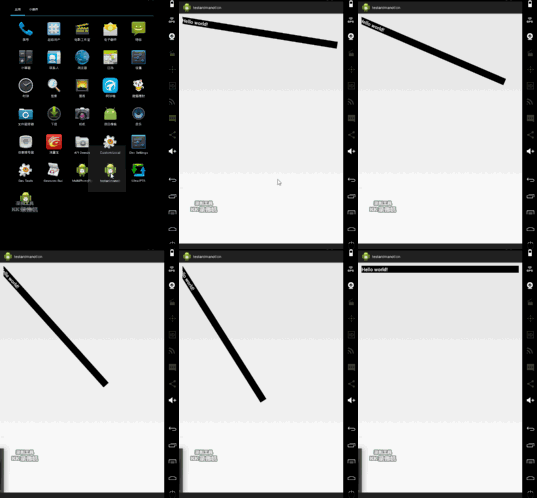
//以View左上角為旋轉軸,創建旋轉60度的動畫
Animation animation = new RotateAnimation(0, 60);
//設置動畫持續時間
animation.setDuration(3000);
//通過View的startAnimation方法將動畫立即應用到View上
textView.startAnimation(animation);
效果圖:
 2)hava problem(這種方式中我在使用的時候涉及到一個問題
//以View中心點作為旋轉軸,創建旋轉90度的動畫
		textView.post(new Runnable() {

			@Override
			public void run() {
				float pivotX = textView.getWidth() / 2;
				float pivotY = textView.getHeight() / 2;
				Animation animation = new RotateAnimation(0, 90, pivotX, pivotY);
				//設置動畫持續時間
				animation.setDuration(3000);
				//通過View的startAnimation方法將動畫立即應用到View上
				textView.startAnimation(animation);
			}
		});
效果圖:

3)
//以View的父控件中心點作為旋轉軸,創建旋轉360度的動畫
int pivotXType = Animation.RELATIVE_TO_PARENT;
float pivotXValue = 0.5f;
int pivotYType = Animation.RELATIVE_TO_PARENT;
float pivotYValue = 0.5f;
Animation animation = new RotateAnimation(
0, 360,
pivotXType, pivotXValue,
pivotYType, pivotYValue
);
//設置動畫持續時間
animation.setDuration(3000);
//通過View的startAnimation方法將動畫立即應用到View上
textView.startAnimation(animation);
效果圖:

總結:主要就是三部吧:
1)創建Animation某個子類的實例
2)通過Animation的setDuration方法設置動畫持續時間
3)最後通過View的startAnimation方法啟動動畫
對了還有最後一個(說算也不算的。。)
AnimationSet
//初始化 Translate動畫
TranslateAnimation translateAnimation = new TranslateAnimation(0.1f, 100.0f,0.1f,100.0f);
//初始化 Alpha動畫
AlphaAnimation alphaAnimation = new AlphaAnimation(0.0f, 1.0f);
//動畫集
AnimationSet set = new AnimationSet(true);
set.addAnimation(translateAnimation);
set.addAnimation(alphaAnimation);
//設置動畫時間 (作用到每個動畫)
set.setDuration(3000);
//通過View的startAnimation方法將動畫立即應用到View上
textView.startAnimation(set);
效果圖

 Android文件存儲的問題:ClassLoader和實現Parcelable接口後 詳解及用途
可能小伙伴們讀了我上一篇博客關於Android文件存儲的的,在文件操作的時候大家有沒有疑問呀,有就對了,可能在保存自定義對象的時候,如何序列化呀?ClassLoader到
 Android編程之客戶端通過socket與服務器通信的方法
本文實例講述了Android編程之客戶端通過socket與服務器通信的方法。分享給大家供大家參考,具體如下:下面是一個demo,Android客戶端通過socket與服務
 android手寫筆思路
工作需要,對這方面做了一些了解 一般的手寫對android canvas有點理解的應該都知道,只需要單純的使用drawPath就可以在view上畫畫。
 android開發之shape詳解
很多時候,使用shape能夠實現的效果,你用一張圖片也能夠實現,但問題是一張圖片無論你怎麼壓縮,它都不可能比一個xml文件小,因此,為了獲得一個高性能的手機App,我們在