編輯:關於Android編程
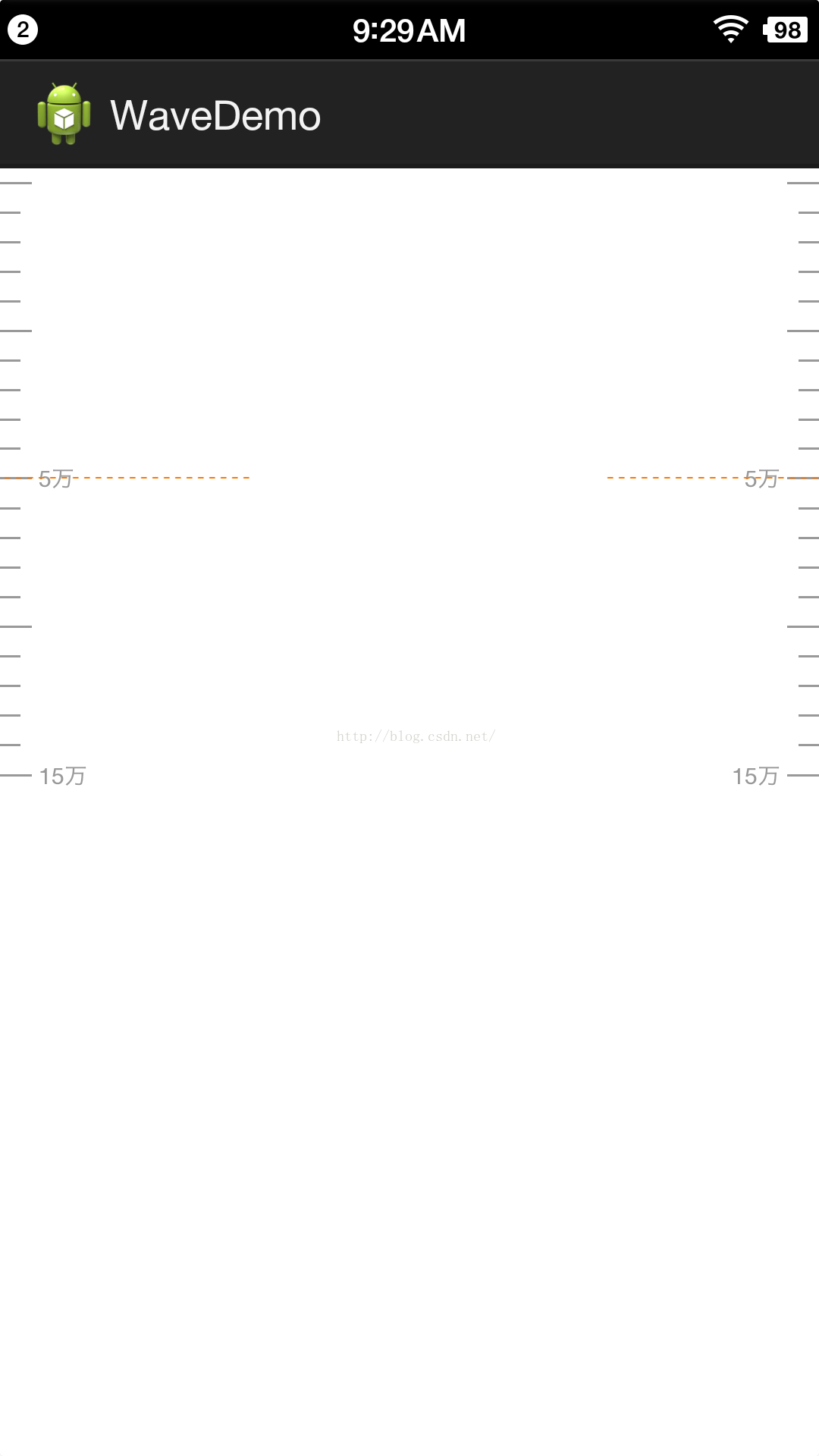
UI效果圖:
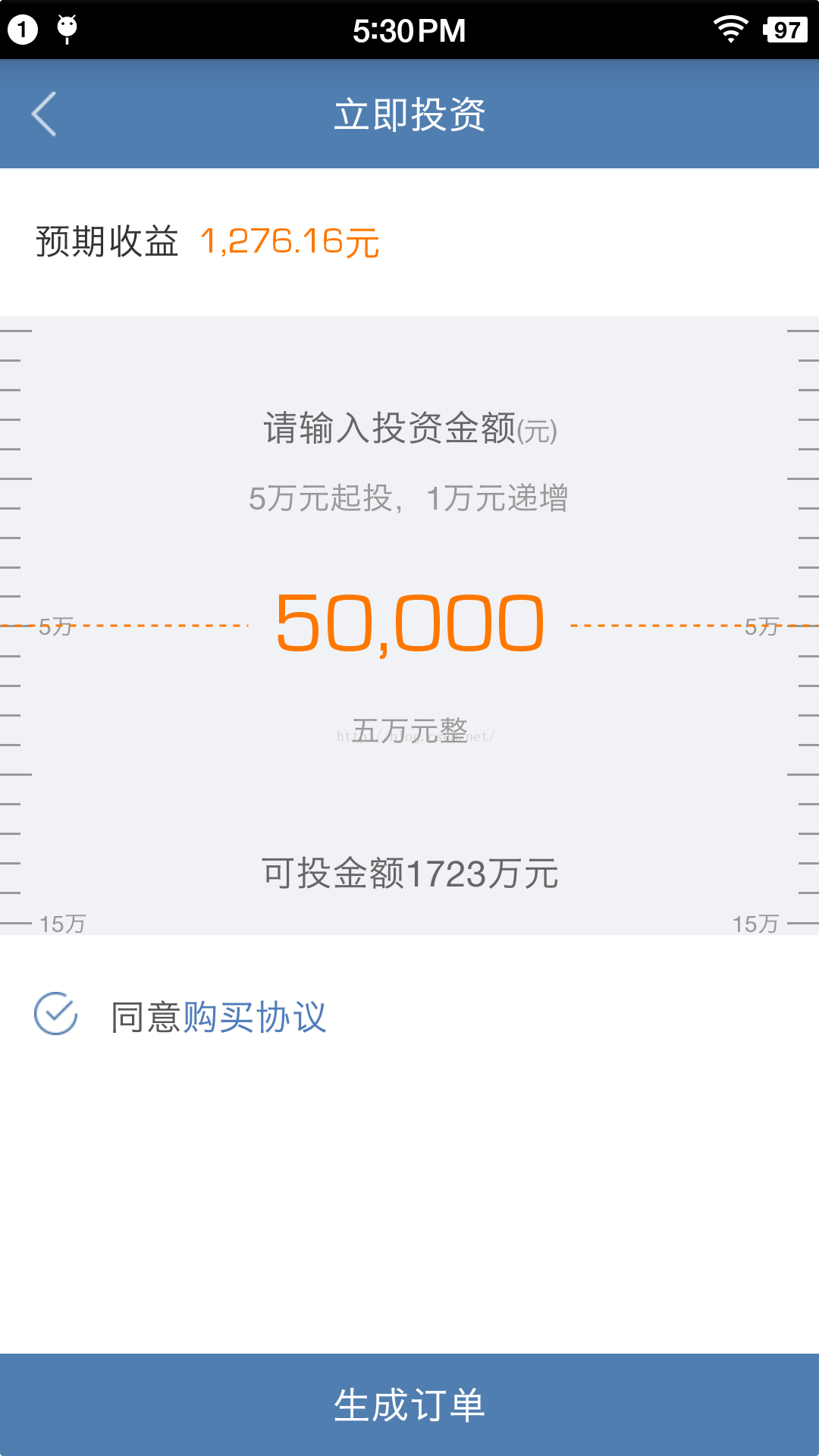
最終的效果是可以滑動刻度來選取金額,並且滑動停止後必須定位到某個金額上,不能停留在中間。
分析:決定用listview來實現上述效果
分析UI圖,發現有三種類型的item,短的,長的,還有長的帶文字的。
1.listview所用的adapter的實現。
ListAdaptera.java文件
package com.miduo.financialmanageclient.ui.adapter;

import java.util.List;

import android.content.Context;
import android.content.ClipData.Item;
import android.view.LayoutInflater;
import android.view.View;
import android.view.ViewGroup;
import android.widget.BaseAdapter;
import android.widget.TextView;

import com.miduo.financialmanageclient.R;

/**
 * 立即投資頁面刻度 本來覺得不用復用了,結果發現會卡死,還是得復用
 *
 * @author huozhenpeng
 *
 */
public class ListAdaptera extends BaseAdapter {

	private Context context;
	private List lists;
	private static final int TYPE_ITEM_FIRST = 0;
	private static final int TYPE_ITEM_SECOND = 1;
	private static final int TYPE_ITEM_THREE = 2;

	public ListAdaptera(Context context, List lists) {
		this.context = context;
		this.lists = lists;
	}

	@Override
	public int getCount() {
		return lists.size();
	}

	@Override
	public Object getItem(int position) {
		return lists.get(position);
	}

	@Override
	public long getItemId(int position) {
		return position;
	}

	@Override
	public int getItemViewType(int position) {
		if (position == 0 || position % 10 == 0) {
			return TYPE_ITEM_FIRST;
		} else if (position % 5 == 0) {
			return TYPE_ITEM_SECOND;
		} else {
			return TYPE_ITEM_THREE;
		}
	}

	@Override
	public int getViewTypeCount() {
		return 3;
	}

	@Override
	public View getView(int position, View convertView, ViewGroup parent) {
		ViewHolder viewHolder = null;
		int type = getItemViewType(position);
		if (convertView == null) {
			switch (type) {
			case TYPE_ITEM_FIRST:
				viewHolder = new ViewHolder();
				convertView = LayoutInflater.from(context).inflate(
						R.layout.item_list, null);
				viewHolder.tv_left = ((TextView) convertView
						.findViewById(R.id.tv_left));
				viewHolder.tv_right = ((TextView) convertView
						.findViewById(R.id.tv_right));
				convertView.setTag(viewHolder);
				break;
			case TYPE_ITEM_SECOND:
				convertView = LayoutInflater.from(context).inflate(
						R.layout.item_list3, null);
				break;
			case TYPE_ITEM_THREE:
				convertView = LayoutInflater.from(context).inflate(
						R.layout.item_list2, null);
				break;
			default:
				break;
			}
		}
		switch (type) {
		case TYPE_ITEM_FIRST:
			viewHolder = (ViewHolder) convertView.getTag();
			viewHolder.tv_left.setText(lists.get(position) + "萬");
			viewHolder.tv_right.setText(lists.get(position) + "萬");
			break;
		case TYPE_ITEM_SECOND:
			break;
		case TYPE_ITEM_THREE:
			break;
		default:
			break;
		}

		return convertView;
	}

	final static class ViewHolder {
		TextView tv_left, tv_right;
	}

}
item_list.xml文件
item_list2.xml文件
注意:1.剛剛開始覺得布局文件比較簡單,沒有必要復用,後來發現如果計算出來的刻度特別多滑動又比較快會卡死。
2.適配方式采用等比例適配。(就是說在720的手機上大小是72px的換到1080的手機上則占108px)。
先粘貼上全部代碼,再對代碼進行分析
MainActivityt.java類
package com.example.wavedemo;

import java.util.ArrayList;
import java.util.List;

import android.annotation.SuppressLint;
import android.annotation.TargetApi;
import android.app.Activity;
import android.graphics.Color;
import android.os.Build;
import android.os.Bundle;
import android.util.Log;
import android.view.LayoutInflater;
import android.view.Menu;
import android.view.View;
import android.view.ViewGroup.LayoutParams;
import android.widget.AbsListView;
import android.widget.AbsListView.OnScrollListener;
import android.widget.AdapterView;
import android.widget.AdapterView.OnItemSelectedListener;
import android.widget.LinearLayout;
import android.widget.ListView;
import android.widget.TextView;

public class MainActivityt extends Activity {

	private ListView listview;
	private List lists = new ArrayList();
	private ListAdaptera adapter;
	private int position;
	private int top;
	private int itemHeight;
	private int height;
	private int deltaItemNum;// 差距條數
	private int remainder;// 余數
	// 全部以萬為單位
	private int startMoney = 5;// 起投金額
	private int deltaMoney = 1;// 遞增金額
	private int canInvestMoney = 1097;// 可投金額
	// 補一個頭部
	private LinearLayout ll_head;
	// 補一個footer
	private LinearLayout ll_footer;
	// 靜止之後實際的position
	private int actualPosition;

	@TargetApi(19)
	@Override
	protected void onCreate(Bundle savedInstanceState) {
		super.onCreate(savedInstanceState);
		setContentView(R.layout.activity_maint);
		itemHeight = (int) getResources().getDimension(R.dimen.px2dp_26);
		height = (int) getResources().getDimension(R.dimen.px2dp_544);
		initHead();
		initFooter();
		// 算出總共有多少個實際的格子(可以滑動到中間位置上的)
		for (int i = startMoney; i <= canInvestMoney; i += deltaMoney) {
			lists.add(i);
		}
		adapter = new ListAdaptera(this, lists);
		listview = (ListView) this.findViewById(R.id.listview);
		listview.addHeaderView(ll_head);
		listview.addFooterView(ll_footer);
		listview.setAdapter(adapter);
		listview.setOnItemSelectedListener(new OnItemSelectedListener() {

			@Override
			public void onItemSelected(AdapterView parent, View view,
					int position, long id) {

			}

			@Override
			public void onNothingSelected(AdapterView parent) {

			}
		});
		listview.setOnScrollListener(new OnScrollListener() {

			@SuppressLint("NewApi")
			@Override
			public void onScrollStateChanged(AbsListView view, int scrollState) {
				switch (scrollState) {
				case SCROLL_STATE_FLING:// 手指離開屏幕後,慣性滑動

					break;
				case SCROLL_STATE_IDLE:// 滑動後靜止
					position = listview.getFirstVisiblePosition();// 第幾個item
					top = getViewByPosition(position, listview).getTop();
					if (position == 0) {
						if (top == 0 || -top <= itemHeight / 2)// 定位到起投金額
						{
							listview.setSelectionFromTop(1,
									(height - itemHeight) / 2);
							actualPosition = 0;
						} else {
							listview.setSelectionFromTop(
									-(top + itemHeight / 2) / itemHeight + 2,
									(height - itemHeight) / 2);
							actualPosition = -(top + itemHeight / 2)
									/ itemHeight + 1;
						}
					} else {
						deltaItemNum = (height / 2 - (itemHeight + top))
								/ itemHeight;
						listview.setSelectionFromTop(position + deltaItemNum
								+ 1, (height - itemHeight) / 2);
						actualPosition = position + deltaItemNum;
					}
					MToast.showToast(MainActivityt.this,
							lists.get(actualPosition) + "萬");
					showHighLight(actualPosition, listview);
					break;
				case SCROLL_STATE_TOUCH_SCROLL:// 手指在屏幕上滑動
					break;

				default:
					break;
				}

			}

			@Override
			public void onScroll(AbsListView view, int firstVisibleItem,
					int visibleItemCount, int totalItemCount) {

			}
		});
	}

	@Override
	public boolean onCreateOptionsMenu(Menu menu) {
		return true;
	}

	public View getViewByPosition(int pos, ListView listView) {
		final int firstListItemPosition = listView.getFirstVisiblePosition();
		final int lastListItemPosition = firstListItemPosition
				+ listView.getChildCount() - 1;

		if (pos < firstListItemPosition || pos > lastListItemPosition) {
			return listView.getAdapter().getView(pos, null, listView);
		} else {
			final int childIndex = pos - firstListItemPosition;
			return listView.getChildAt(childIndex);
		}
	}

	/**
	 * 添加輔助頭部
	 */
	private void initHead() {
		ll_head = new LinearLayout(this);
		ll_head.setOrientation(LinearLayout.VERTICAL);
		AbsListView.LayoutParams params = new AbsListView.LayoutParams(
				AbsListView.LayoutParams.MATCH_PARENT,
				(height - itemHeight) / 2);
		ll_head.setLayoutParams(params);
		ll_head.addView(new View(this), 0, new LinearLayout.LayoutParams(
				LinearLayout.LayoutParams.MATCH_PARENT, itemHeight / 2));
		int total = (height - itemHeight) / 2 / itemHeight + 1;
		View view = null;
		for (int i = 1; i <= total; i++) {
			if (i % 5 == 0) {
				view = LayoutInflater.from(this).inflate(R.layout.item_list3,
						null);
			} else {
				view = LayoutInflater.from(this).inflate(R.layout.item_list2,
						null);
			}
			ll_head.addView(view, 0);
		}

	}

	/**
	 * 添加輔助頭部
	 */
	private void initFooter() {
		ll_footer = new LinearLayout(this);
		ll_footer.setOrientation(LinearLayout.VERTICAL);
		AbsListView.LayoutParams params = new AbsListView.LayoutParams(
				AbsListView.LayoutParams.MATCH_PARENT,
				(height - itemHeight) / 2);
		ll_footer.setLayoutParams(params);
		ll_footer.addView(new View(this), 0, new LinearLayout.LayoutParams(
				LinearLayout.LayoutParams.MATCH_PARENT, itemHeight / 2));
		int total = (height - itemHeight) / 2 / itemHeight + 1;
		View view = null;
		for (int i = 1; i <= total; i++) {

			view = LayoutInflater.from(this).inflate(R.layout.item_list2, null);
			ll_footer.addView(view, 0);
		}

	}

	private void showHighLight(int pos, ListView listview) {
		View view = getViewByPosition(pos + 1, listview);
		TextView tv_left = (TextView) view.findViewById(R.id.tv_left);
		TextView tv_right = (TextView) view.findViewById(R.id.tv_right);
		if (tv_left != null) {
			tv_left.setTextColor(Color.parseColor("#fe7800"));
			tv_right.setTextColor(Color.parseColor("#fe7800"));
		}
	}

}
代碼分析:
定義listview每個item的高度
itemHeight = (int) getResources().getDimension(R.dimen.px2dp_26);
定義listview的總高度
height = (int) getResources().getDimension(R.dimen.px2dp_544);
初始化listview頭部
initHead();
初始化listview腳部
initFooter();為什麼要給listview添加頭部和腳部呢,
首先在剛剛進入頁面的時候必須保證起投金額位於位於listview的正中間,此時listview可以向下滑動但是不能向上滑動,所以為了保證起投金額(5萬,是adapter數據源(集合)中的第一個數據)位於listview正中間,需要給listview添加個頭部,所以5萬以上展現出來的效果其實是listview的一個頭部。
代碼中:
/**
	 * 添加輔助頭部
	 */
	private void initHead() {
		ll_head = new LinearLayout(this);
		ll_head.setOrientation(LinearLayout.VERTICAL);
		AbsListView.LayoutParams params = new AbsListView.LayoutParams(
				AbsListView.LayoutParams.MATCH_PARENT,
				(height - itemHeight) / 2);
		ll_head.setLayoutParams(params);
		ll_head.addView(new View(this), 0, new LinearLayout.LayoutParams(
				LinearLayout.LayoutParams.MATCH_PARENT, itemHeight / 2));
		int total = (height - itemHeight) / 2 / itemHeight + 1;
		View view = null;
		for (int i = 1; i <= total; i++) {
			if (i % 5 == 0) {
				view = LayoutInflater.from(this).inflate(R.layout.item_list3,
						null);
			} else {
				view = LayoutInflater.from(this).inflate(R.layout.item_list2,
						null);
			}
			ll_head.addView(view, 0);
		}

	}
首先需要知道一個item的范圍是多少:
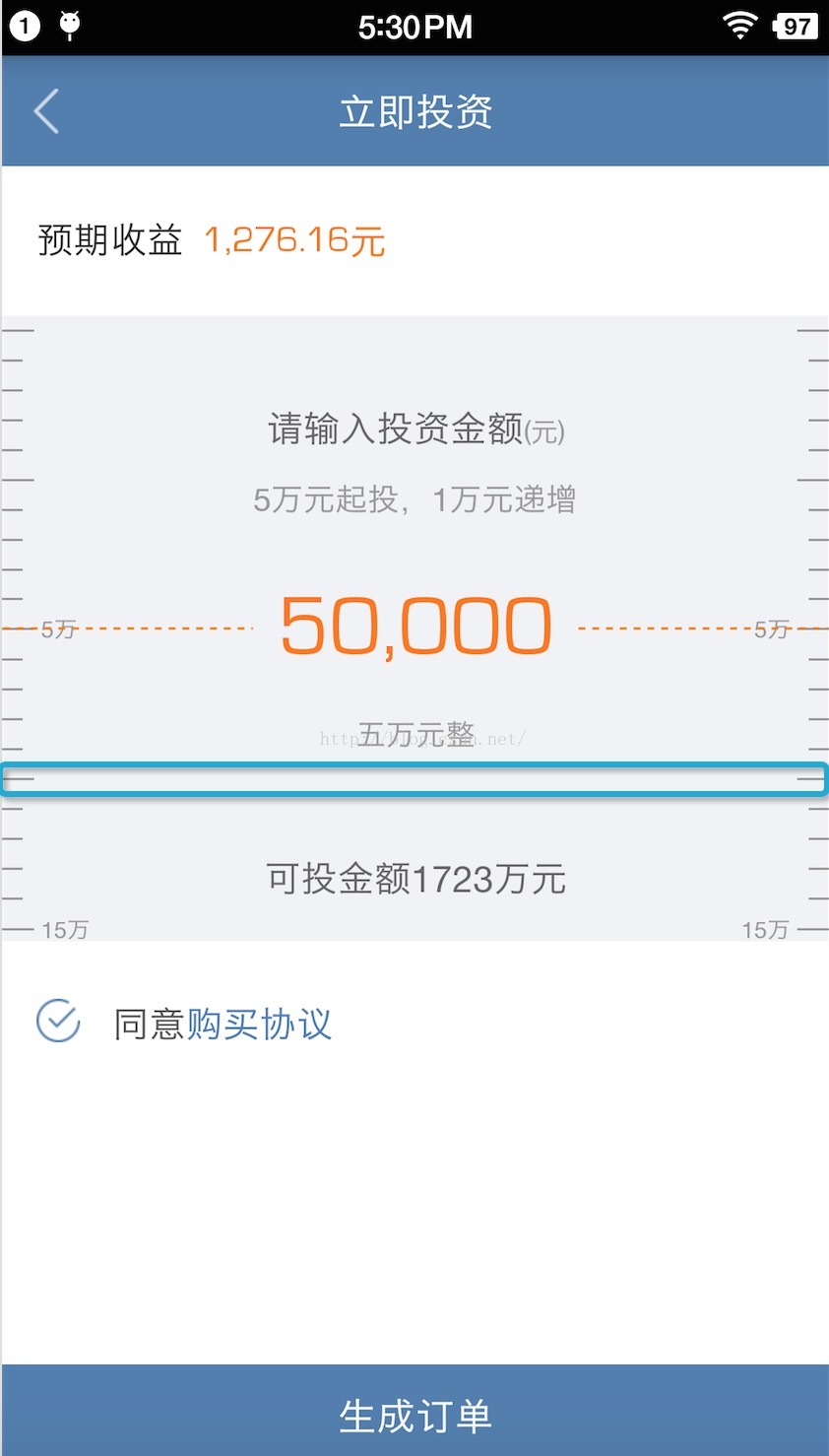
青色框框住的部分是每個item的范圍。相當於是每個刻度線在整個item內是居中顯示的。
所以在計算頭部高度的時候
AbsListView.LayoutParams params = new AbsListView.LayoutParams(
				AbsListView.LayoutParams.MATCH_PARENT,
				(height - itemHeight) / 2);
這裡首先添加了半個item的高度,這半個item相當於是5萬的那半個
ll_head.addView(new View(this), 0, new LinearLayout.LayoutParams(
				LinearLayout.LayoutParams.MATCH_PARENT, itemHeight / 2));
然後計算出剩余部分所需的item條數
int total = (height - itemHeight) / 2 / itemHeight + 1;
由於整形計算會捨棄精度,所以最後加上1
添加listview腳部也是相同的原理,為了能使最大額度(1097)滑到listview中間,所以需要加入腳部,腳部的代碼比較簡單,不做分析。
核心代碼:
case SCROLL_STATE_IDLE:// 滑動後靜止
					position = listview.getFirstVisiblePosition();// 第幾個item
					top = getViewByPosition(position, listview).getTop();
					if (position == 0) {
						if (top == 0 || -top <= itemHeight / 2)// 定位到起投金額
						{
							listview.setSelectionFromTop(1,
									(height - itemHeight) / 2);
							actualPosition = 0;
						} else {
							listview.setSelectionFromTop(
									-(top + itemHeight / 2) / itemHeight + 2,
									(height - itemHeight) / 2);
							actualPosition = -(top + itemHeight / 2)
									/ itemHeight + 1;
						}
					} else {
						deltaItemNum = (height / 2 - (itemHeight + top))
								/ itemHeight;
						listview.setSelectionFromTop(position + deltaItemNum
								+ 1, (height - itemHeight) / 2);
						actualPosition = position + deltaItemNum;
					}
					MToast.showToast(MainActivityt.this,
							lists.get(actualPosition) + "萬");
					showHighLight(actualPosition, listview);
					break;
position = listview.getFirstVisiblePosition();// 第幾個item這條代碼比較簡單,就是第一個可見的item,從0到很大
top = getViewByPosition(position, listview).getTop();得到每個item的top值(Top position of this view relative to its parent.)
然後判斷position是不是等於0,等於0說明起投金額(5萬)還沒有劃出屏幕,這段代碼的意思是應該滑動靜止後應該定位到起投金額,
actualPosition是完全靜止後實際的position,記錄下來從集合中取數據用。
top==0是初始狀態下,向下拖拽listview的情況
-top <= itemHeight / 2是向上拽,但是距離小於item一半的高度
setSelectionFromTop(int position,int y)
@param position Index (starting at 0) of the data item to be selected.
@param y The distance from the top edge of the ListView (plus padding) that the
item will be positioned.
也就是說position是要被選中的item,從0開始,y是距離被選中的item的高度,代碼中寫的1,是因為listview加了頭部,頭部算0位置。(height - itemHeight) / 2)是listview頭部的高度,就是說第一個item距離頂部的距離為
(height - itemHeight) / 2
if (top == 0 || -top <= itemHeight / 2)// 定位到起投金額
						{
							listview.setSelectionFromTop(1,
									(height - itemHeight) / 2);
							actualPosition = 0;
						}
在向下滑動時,top一直為負值,並不斷減小(-1,-2,-3,................)
-(top + itemHeight / 2)
這裡的itemHeight/2是起投哪個item的下半截高度
 else {
							listview.setSelectionFromTop(
									-(top + itemHeight / 2) / itemHeight + 2,
									(height - itemHeight) / 2);
							actualPosition = -(top + itemHeight / 2)
									/ itemHeight + 1;
						}
---------------------------------分割線-------------------------------------------------分割線--------------------------------------------------分割線------------------------
分析另一種情況
這種情況下的top的絕對值肯定會小於itemHeight的值
else {
						deltaItemNum = (height / 2 - (itemHeight + top))
								/ itemHeight;
						listview.setSelectionFromTop(position + deltaItemNum
								+ 1, (height - itemHeight) / 2);
						actualPosition = position + deltaItemNum;
					}
 Android ViewPager實例代碼介紹2。
以前寫過一篇ViewPager:內容content+指示點的Demo; 這篇文章繼續介紹ViewPager:內容content+標題title的Demo。
 Android學習筆記(七)——顯示對話框窗口
顯示對話框窗口 1、創建Dialog1項目,在activity_main.xml文件中添加一個Button: 2、在MainActivity.jav
 如何節約Android設備的流量使用
Android開放的平台,獲得高度自由度,用戶也要承受系統當中一些潛在的問題,比如後台流量的消耗。那麼怎樣才能有效控制Android的流量使用呢?下面這5個
 Android自定義控件(特效一) 點擊屏幕,根據所點擊的位置繪制圓環
之前在三星手機上看到點擊屏幕後出現水波的特效,所以嘗試著寫了個類似的效果 實現自定義一個View,並實現構造方法public class MyView exte