

編輯:Android 開發實例
系統預設的 Toast 簡潔好用,一行 makeText 就能搞定。問題是它長得實在太「系統」了,放在一個講究視覺設計的 App 裡總顯得格格不入。好在 Toast 的樣式可以完全自訂。
自訂 Toast 的版面結構與 Activity 用的完全一樣,就是一個普通的 layout XML。以「圖示 + 文字」的橫向排列為例(toast_layout.xml):
<?xml version="1.0" encoding="utf-8"?>
<LinearLayout xmlns:android="https://schemas.android.com/apk/res/android"
    android:id="@+id/toast_layout_root"
    android:orientation="horizontal"
    android:layout_width="fill_parent"
    android:layout_height="fill_parent"
    android:padding="10dp"
    android:background="#DAAA" >

    <ImageView
        android:id="@+id/image"
        android:layout_width="wrap_content"
        android:layout_height="fill_parent"
        android:layout_marginRight="10dp" />

    <TextView
        android:id="@+id/text"
        android:layout_width="wrap_content"
        android:layout_height="fill_parent"
        android:textColor="#FFF" />
</LinearLayout>
最外層 LinearLayout 的 id 千萬別省,後面的程式碼會用它作為 root 使用。
流程是「用 LayoutInflater 把 XML 變成 View → 找出子檢視填入內容 → 塞進 Toast → 設定位置與顯示時間」:
public class MainActivity extends Activity {
    private Button btn;

    @Override
    public void onCreate(Bundle savedInstanceState) {
        super.onCreate(savedInstanceState);
        setContentView(R.layout.main);

        btn = (Button) findViewById(R.id.btn);
        btn.setOnClickListener(new OnClickListener() {
            @Override
            public void onClick(View v) {
                // LayoutInflater 能把 XML 轉成對應的 View 物件
                LayoutInflater inflater = getLayoutInflater();

                // 依版面檔建立 View,第二個參數是 root(LinearLayout 的 id)
                View layout = inflater.inflate(R.layout.toast_layout,
                        (ViewGroup) findViewById(R.id.toast_layout_root));

                // 注意:是在 layout 裡面找,不是用 Activity 的 findViewById
                ImageView image = (ImageView) layout.findViewById(R.id.image);
                image.setImageResource(R.drawable.head);

                TextView text = (TextView) layout.findViewById(R.id.text);
                text.setText("自定義Toast演示程序");

                Toast toast = new Toast(getApplicationContext());
                toast.setGravity(Gravity.CENTER_VERTICAL, 0, 0);   // 設定位置
                toast.setDuration(Toast.LENGTH_LONG);              // 顯示時長
                toast.setView(layout);                             // 換成自訂樣式
                toast.show();
            }
        });
    }
}
執行結果:
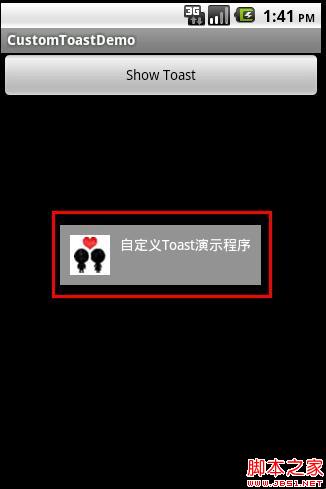
findViewById 的範圍。子檢視要在 inflate 出來的 layout 上找,寫成 Activity 的 findViewById 會拿到 null。
同一個 Toast 可以重複 show。不必每次 new 一個,把 Toast 實例留著重用更省資源,但要留意 setView 只在第一次生效的情況。
自訂 Toast 在背景執行時不會顯示。Android 4.1 起基於安全考量,非前景應用送出的自訂 Toast 會被系統攔下,只顯示文字版本的提示。若你的需求是「任何時候都要彈出提示」,應該改用通知(Notification)或 Snackbar,而不是 Toast。
最後想說的是,這些看似瑣碎的細節堆疊起來,就是使用者對一個 App 是否用心的直接感受。願意為一個提示框調整字色與間距的團隊,通常也不會在其他地方偷工減料。
 Android JSON 解析教學:JSONObject 取值與天氣 App 實作
JSON 的全名是 JavaScript Object Notation,但它早已擺脫 JavaScript 的框架,成為跨語言、跨平台的資料交換標準。它是 XML 之外
 Android手機衛士(十八):依密碼狀態切換對話框
本篇開始實作設定中心的「手機防盜」模塊。點擊手機防盜時,需要根據本地是否已經保存密碼,決定要顯示「首次設定密碼」或「輸入密碼確認」的對話框。若尚未設定密碼,會出現設定密碼
 Android MediaPlayer 完整教學:打造具備進度條的音樂播放器
Android 提供了多種控制音訊/影片檔案與串流播放的方式,其中最具代表性的是 MediaPlayer 類別。 透過 MediaPlayer,App 得以使用系統內建的
 Android 面試常考:gravity 與 layout_gravity 到底差在哪
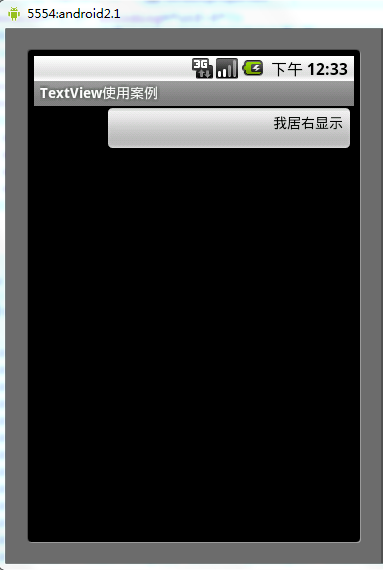
這兩個屬性名字只差一個前綴,作用卻完全不同,是初學者最容易混淆的一組: android:gravity:決定控制項內部內容的對齊方式。例如按鈕裡那行文字要貼左、居中還是