

編輯:Android 開發實例
Android 的進度提示可分為三大類:跳出式的對話框進度列、隱身在標題列的忙碌指示、以及可精確顯示百分比的水平進度列。三者適用情境不同,實作方式也各自獨立。
建立步驟只有兩個:覆寫 Activity 的 onCreateDialog() 並在其中建立對話框,然後呼叫 showDialog() 把它顯示出來。
package com.amaker.test;

import android.app.Activity;
import android.app.Dialog;
import android.app.ProgressDialog;
import android.content.DialogInterface;
import android.os.Bundle;
import android.view.View;
import android.view.View.OnClickListener;
import android.widget.Button;

public class MainActivity extends Activity {
    private Button myBtn;

    @Override
    public void onCreate(Bundle savedInstanceState) {
        super.onCreate(savedInstanceState);
        setContentView(R.layout.main);
        myBtn = (Button)findViewById(R.id.Button01);
        myBtn.setOnClickListener(new OnClickListener() {
            public void onClick(View v) {
                showDialog(0);
            }
        });
    }

    @Override
    protected Dialog onCreateDialog(int id) {
        ProgressDialog dialog = new ProgressDialog(this);
        // 也可以不顯示標題
        dialog.setTitle("測試對話框");
        dialog.setIndeterminate(true);
        dialog.setMessage("程式正在載入請稍後!");
        dialog.setCancelable(true);

        dialog.setButton(Dialog.BUTTON_POSITIVE, "確定",
            new DialogInterface.OnClickListener() {
                @Override
                public void onClick(DialogInterface dialog, int which) {
                    dialog.cancel();
                }
            }
        );
        return dialog;
    }
}
setIndeterminate(true) 代表「不知道還要多久」的轉圈模式;若想顯示百分比,改為 STYLE_HORIZONTAL 並用 setProgress() 更新即可。
這種做法不跳出任何視窗,而是在標題列右側顯示一個小小的忙碌轉盤,適合干擾性要降到最低的場合。關鍵是必須在 setContentView() 之前先向 Window 申請這個功能。
package com.amaker.test;

import android.app.Activity;
import android.os.Bundle;
import android.view.View;
import android.view.Window;
import android.view.View.OnClickListener;
import android.widget.Button;

public class MainActivity extends Activity {

    private Button b1, b2;

    @Override
    public void onCreate(Bundle savedInstanceState) {
        super.onCreate(savedInstanceState);

        requestWindowFeature(Window.FEATURE_INDETERMINATE_PROGRESS);
        setContentView(R.layout.main);
        b1 = (Button)findViewById(R.id.Button01);
        b2 = (Button)findViewById(R.id.Button02);

        b1.setOnClickListener(new OnClickListener() {
            public void onClick(View v) {
                setProgressBarIndeterminateVisibility(true);
            }
        });

        b2.setOnClickListener(new OnClickListener() {
            public void onClick(View v) {
                setProgressBarIndeterminateVisibility(false);
            }
        });
    }
}
這是唯一能呈現精確百分比的型態,步驟為:在版面配置中宣告 ProgressBar、在 Activity 中取得實例、再以 incrementProgressBy() 增量更新。
package com.amaker.test;

import android.app.Activity;
import android.os.Bundle;
import android.view.View;
import android.view.View.OnClickListener;
import android.widget.Button;
import android.widget.ProgressBar;

public class MainActivity extends Activity {
    private Button b1, b2;
    ProgressBar progressBar;

    @Override
    public void onCreate(Bundle savedInstanceState) {
        super.onCreate(savedInstanceState);
        setContentView(R.layout.main);
        b1 = (Button)findViewById(R.id.Button01);
        b2 = (Button)findViewById(R.id.Button02);
        progressBar = (ProgressBar)findViewById(R.id.ProgressBar01);

        b1.setOnClickListener(new OnClickListener() {
            public void onClick(View v) {
                progressBar.incrementProgressBy(1);
            }
        });

        b2.setOnClickListener(new OnClickListener() {
            public void onClick(View v) {
                progressBar.incrementProgressBy(-1);
            }
        });
    }
}
對應的版面配置如下。style 指定為 progressBarStyleHorizontal 是它呈現長條形的關鍵,android:max 定義上限、android:progress 定義初始值。
<?xml version="1.0" encoding="utf-8"?>
<LinearLayout xmlns:android="https://schemas.android.com/apk/res/android"
    android:orientation="vertical"
    android:layout_width="fill_parent"
    android:layout_height="fill_parent" >

    <ProgressBar
        android:id="@+id/ProgressBar01"
        style="?android:attr/progressBarStyleHorizontal"
        android:layout_width="200dip"
        android:layout_height="wrap_content"
        android:max="100"
        android:progress="50"
    ></ProgressBar>

    <Button
        android:id="@+id/Button01"
        android:layout_width="wrap_content"
        android:layout_height="wrap_content"
        android:text="增加"></Button>

    <Button
        android:id="@+id/Button02"
        android:layout_width="wrap_content"
        android:layout_height="wrap_content"
        android:text="減少"></Button>

</LinearLayout>
incrementProgressBy() 接受負值,因此同一個方法就能同時處理加與減。實務上若要更新進度,記得背景執行緒不能直接操作介面,需透過 Handler 或 runOnUiThread() 回到主執行緒。
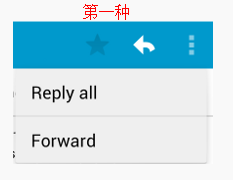 Android 選單機制(三):PopupMenu 彈出式選單實作
選單系列的最後一篇,來看 PopupMenu。與 Options Menu 佔據標題欄、Context Menu 綁定長按不同,PopupMenu 是「錨定在某個 Vie
 Android 應用本地化:用 values-it 讓同一支 App 說不同語言
同一支 App 會在不同國家、不同語言環境的裝置上被開啟。若希望它在義大利使用者面前說義大利文、在法國使用者面前說法文,就不能把文字寫死在程式碼裡,而必須交給 Andro
 Android 載入轉圈動畫(Spinner)怎麼做
使用者按下按鈕後,如果背後要跑一段時間的作業,畫面若完全沒有反應,往往會被誤以為當機。這時候進度提示就派上用場了。 Android 的 ProgressBar 有兩種常
 Android JSON 資料解析:天氣 API 實作範例
JSON 解析在 Android 中常用於 API 回傳。本文以天氣資料為例,說明如何從 JSON 字串取出溫度、濕度與氣壓。 四個常用類別 JSONArray 處理陣列