

編輯:Android 資訊
寫程序時,我遇到了 Tween 動畫的幾個疑惑:
1. 執行動畫時,點擊事件為何仍停留在動畫開始的位置?
2. XXXAnimation 構造函數裡的參數具體是什麼含義?
3. 平移動畫的 fromXValue/toXValue、旋轉動畫的 fromDegrees/toDegrees 取正負值有何不同?
4. RotateAnimation 的 pivotXType、pivotXValue、pivotYType、pivotYValue 四個參數是如何確定旋轉原點的?原點又在哪裡?
Android 動畫分為:
Tween Animation(View 動畫,也叫補間動畫);
Drawable Animation(也叫 Frame 幀動畫);
Property Animation(3.0 以後加入)。
本文主要研究 Tween 動畫。
寫程序時,我常因參數設置不當(尤其是"從多少度旋轉到多少度",有時是負度數)得不到想要的效果,於是想把動畫的實現框架研究透徹。研究之前,建議先看《Android 中圖像變換 Matrix 的原理》,了解 Matrix 矩陣知識——明白圖形的各種變換,本質就是求出對應的變換矩陣。
先說一下動畫的大致繪制流程,免得看暈:調用 startAnimation 會設置與 View 關聯的 animation 並請求重繪;重繪時調用 drawChild,此時獲取與 View 綁定的 Animation,若不為 null 且動畫未結束,便根據繪制時間求得變換矩陣,將畫布原點平移到視圖左上角,繪制新的一幀;繪完再重繪、再取新矩陣……如此循環,直到動畫結束便不再重繪。
回到 View 的 onDraw,它主要做:1. 畫背景;2. 必要時保存圖層以備淡出;3. 畫內容;4. 畫子控件;5. 必要時畫漸變邊並恢複圖層;6. 畫裝飾(如滾動條)。當是 ViewGroup 時會執行第四步 dispatchDraw(canvas):
@Override protected void dispatchDraw(Canvas canvas) { // LayoutAnimationController比較熟悉,是讓ViewGroup的子控件有動畫效果,以前沒發現竟然也是在這裡發生的。 final LayoutAnimationController controller = mLayoutAnimationController; ... // We will draw our child's animation, let's reset the flag //下面對子View動畫進行處理。 mPrivateFlags &= ~DRAW_ANIMATION; mGroupFlags &= ~FLAG_INVALIDATE_REQUIRED; boolean more = false; final long drawingTime = getDrawingTime(); if ((flags & FLAG_USE_CHILD_DRAWING_ORDER) == 0) { for (int i = 0; i < count; i++) { final View child = children[i]; if ((child.mViewFlags & VISIBILITY_MASK) == VISIBLE || child.getAnimation() != null) { more |= drawChild(canvas, child, drawingTime); } } } else { for (int i = 0; i < count; i++) { final View child = children[getChildDrawingOrder(count, i)]; if ((child.mViewFlags & VISIBILITY_MASK) == VISIBLE || child.getAnimation() != null) { more |= drawChild(canvas, child, drawingTime); } } } ... }
最終必然會執行到 drawChild(canvas, child, drawingTime),顧名思義就是繪制子控件:
protected boolean drawChild(Canvas canvas, View child, long drawingTime) { boolean more = false; final int cl = child.mLeft; final int ct = child.mTop; final int cr = child.mRight; final int cb = child.mBottom; final int flags = mGroupFlags; Transformation transformToApply = null; //取得該View綁定的動畫 final Animation a = child.getAnimation(); boolean concatMatrix = false; //如果該View有了動畫那麼就會進入if判斷執行,沒有動畫就僅僅繪制該控件。 if (a != null) { if (mInvalidateRegion == null) { mInvalidateRegion = new RectF(); } final RectF region = mInvalidateRegion; final boolean initialized = a.isInitialized(); if (!initialized) { //調用Animation的初始化函數,在這面會解析Animation的各個參數。對不同的xy類型和值進行轉換。 a.initialize(cr - cl, cb - ct, getWidth(), getHeight()); a.initializeInvalidateRegion(0, 0, cr - cl, cb - ct); child.onAnimationStart(); } if (mChildTransformation == null) { mChildTransformation = new Transformation(); } //取得變換(平移,旋轉或縮放等)信息,傳進去的drawingTime代表了繪制的時間毫秒值,取得的結果放進mChildTransformation裡面。 //mChildTransformation是一個圖形轉換信息的類,包含了一個矩陣Matrix,和alpha值。Matrix就是圖形轉換矩陣。 //more是該函數的返回值,查看代碼很容易分析出來:如果動畫沒有結束就一只返回true,知道動畫結束返回false。 more = a.getTransformation(drawingTime, mChildTransformation); transformToApply = mChildTransformation; //默認返回true concatMatrix = a.willChangeTransformationMatrix(); //more==true進入循環 if (more) { //more==true when the animation is not over if (!a.willChangeBounds()) { if ((flags & (FLAG_OPTIMIZE_INVALIDATE | FLAG_ANIMATION_DONE)) == FLAG_OPTIMIZE_INVALIDATE) { mGroupFlags |= FLAG_INVALIDATE_REQUIRED; } else if ((flags & FLAG_INVALIDATE_REQUIRED) == 0) { mPrivateFlags |= DRAW_ANIMATION; //動畫沒有結束就會不停調用invalidate函數對動畫view進行重繪 invalidate(cl, ct, cr, cb); } } else { a.getInvalidateRegion(0, 0, cr - cl, cb - ct, region, transformToApply); mPrivateFlags |= DRAW_ANIMATION; final int left = cl + (int) region.left; final int top = ct + (int) region.top; //動畫沒有結束就會不停調用invalidate函數對動畫view進行重繪 invalidate(left, top, left + (int) region.width(), top + (int) region.height()); } } } else if ((flags & FLAG_SUPPORT_STATIC_TRANSFORMATIONS) == FLAG_SUPPORT_STATIC_TRANSFORMATIONS) { if (mChildTransformation == null) { mChildTransformation = new Transformation(); } final boolean hasTransform = getChildStaticTransformation(child, mChildTransformation); if (hasTransform) { final int transformType = mChildTransformation.getTransformationType(); transformToApply = transformType != Transformation.TYPE_IDENTITY ? mChildTransformation : null; concatMatrix = (transformType & Transformation.TYPE_MATRIX) != 0; } } ... child.computeScroll(); //分析簡單情況下視圖都是在可視范圍內,sx和sy應該等於0?? final int sx = child.mScrollX; final int sy = child.mScrollY; ... final boolean hasNoCache = cache == null; final int restoreTo = canvas.save(); if (hasNoCache) { canvas.translate(cl - sx, ct - sy); } else { //將畫布平移到(cl,ct)點,cl和ct是childView的左上角到屏幕(0,0)點的距離。這點非常重要,在重繪動畫的時候畫布的左邊在發生變化!!!並不是一直在屏幕的(0,0)點。 //平移後的坐標體系和最初不一樣,一般情況下坐標的原點會移動至View的左上角。 canvas.translate(cl, ct); if (scalingRequired) { final float scale = 1.0f / mAttachInfo.mApplicationScale; canvas.scale(scale, scale); } } float alpha = 1.0f; if (transformToApply != null) { if (concatMatrix) { int transX = 0; int transY = 0; if (hasNoCache) { transX = -sx; transY = -sy; } //兩個參數為0 canvas.translate(-transX, -transY); // transformToApply是從Animation取得的轉換信息類,取得變換矩陣。這個變換矩陣在不同時刻都不一樣,因為傳過去的drawingTime不一樣。 //對畫布進行變換矩陣轉換,實現動畫效果。 canvas.concat(transformToApply.getMatrix()); canvas.translate(transX, transY); mGroupFlags |= FLAG_CLEAR_TRANSFORMATION; } ... if (alpha < 1.0f && hasNoCache) { final int multipliedAlpha = (int) (255 * alpha); if (!child.onSetAlpha(multipliedAlpha)) { canvas.saveLayerAlpha(sx, sy, sx + cr - cl, sy + cb - ct, multipliedAlpha, Canvas.HAS_ALPHA_LAYER_SAVE_FLAG | Canvas.CLIP_TO_LAYER_SAVE_FLAG); } else { child.mPrivateFlags |= ALPHA_SET; } } } else if ((child.mPrivateFlags & ALPHA_SET) == ALPHA_SET) { child.onSetAlpha(255); } ... return more; }
接著看 Animation 類,其中有兩個重要函數:applyTransformation(float interpolatedTime, Transformation t) 和 getTransformation(long currentTime, Transformation outTransformation)。Transformation 類包含一個變換矩陣和 alpha 值。applyTransformation 傳入差值時間並填充一個 Transformation,會在 getTransformation 中被調用;它在 Animation 中是空實現,具體由 XXXAnimation 繼承時重寫。getTransformation 則在 drawChild 中被調用:
public boolean getTransformation(long currentTime, Transformation outTransformation) { // currentTime 會在drawChild函數中通過getDrawTime傳過來 if (mStartTime == -1) { mStartTime = currentTime; } final long startOffset = getStartOffset(); final long duration = mDuration; float normalizedTime; if (duration != 0) { //歸一化時間,這樣normalizedTime是介於0和1之間的值。 normalizedTime = ((float) (currentTime - (mStartTime + startOffset))) / (float) duration; } else { normalizedTime = currentTime < mStartTime ? 0.0f : 1.0f; } // expired表示動畫結束了 final boolean expired = normalizedTime >= 1.0f; mMore = !expired; if (!mFillEnabled) normalizedTime = Math.max(Math.min(normalizedTime, 1.0f), 0.0f); if ((normalizedTime >= 0.0f || mFillBefore) && (normalizedTime <= 1.0f || mFillAfter)) { if (!mStarted) { if (mListener != null) { mListener.onAnimationStart(this); } mStarted = true; } if (mFillEnabled) normalizedTime = Math.max(Math.min(normalizedTime, 1.0f), 0.0f); if (mCycleFlip) { normalizedTime = 1.0f - normalizedTime; } //通過歸一化的時間得到插值時間 final float interpolatedTime = mInterpolator.getInterpolation(normalizedTime); //調用applyTransformation函數 applyTransformation(interpolatedTime, outTransformation); } if (expired) { if (mRepeatCount == mRepeated) { if (!mEnded) { mEnded = true; if (mListener != null) { mListener.onAnimationEnd(this); } } } else { if (mRepeatCount > 0) { mRepeated++; } if (mRepeatMode == REVERSE) { mCycleFlip = !mCycleFlip; } mStartTime = -1; mMore = true; if (mListener != null) { mListener.onAnimationRepeat(this); } } } if (!mMore && mOneMoreTime) { mOneMoreTime = false; return true; } return mMore; }
applyTransformation 在 Animation 中默認空實現,自定義動畫需重寫它。插值類 Interpolator 是個隻有一個函數的接口:
public interface Interpolator { float getInterpolation(float input); }
常用子類有:
AccelerateDecelerateInterpolator:開始與結束較慢,中間加速;
AccelerateInterpolator:開始較慢然後加速;
AnticipateInterpolator:開始時先向後再向前甩;
AnticipateOvershootInterpolator:先向後再向前甩過頭再返回;
BounceInterpolator:動畫結束時彈起;
CycleInterpolator:沿正弦曲線循環指定次數;
DecelerateInterpolator:開始快然後慢;
LinearInterpolator:常量速率;
OvershootInterpolator:向前甩過頭再回到原位。
也可以自定義 Interpolator,隻需實現 getInterpolation 即可。
下面以平移動畫為例走一遍完整流程:
1. 定義好 XXXAnimation 後調用 View 的 startAnimation:
public void startAnimation(Animation animation) { animation.setStartTime(Animation.START_ON_FIRST_FRAME); setAnimation(animation); invalidate(); }
setAnimation 把動畫賦給 mCurrentAnimation:
public void setAnimation(Animation animation) { mCurrentAnimation = animation; if (animation != null) { animation.reset(); } }
2. 請求重繪後依次走到 onDraw、dispatchDraw,最終執行 drawChild(canvas, child, drawingTime),drawingTime 為本次繪制的毫秒時間。
3. 先取關聯的 Animation 並調用初始化函數解析參數。TranslateAnimation 的 initialize 直接調用 resolveSize 解析構造參數:
public void initialize(int width, int height, int parentWidth, int parentHeight) { super.initialize(width, height, parentWidth, parentHeight); mFromXDelta = resolveSize(mFromXType, mFromXValue, width, parentWidth); mToXDelta = resolveSize(mToXType, mToXValue, width, parentWidth); mFromYDelta = resolveSize(mFromYType, mFromYValue, height, parentHeight); mToYDelta = resolveSize(mToYType, mToYValue, height, parentHeight); }
resolveSize 根據絕對坐標、相對自身或相對父控件解析出實際值——絕對坐標直接返回,相對則用比例乘以相應寬高:
protected float resolveSize(int type, float value, int size, int parentSize) { switch (type) { case ABSOLUTE: return value; case RELATIVE_TO_SELF: return size * value; case RELATIVE_TO_PARENT: return parentSize * value; default: return value; } }
4. 再根據繪制時間通過 getTransformation 取對應矩陣,其中先算出插值時間,再調用 applyTransformation。TranslateAnimation 的實現如下:
protected void applyTransformation(float interpolatedTime, Transformation t) { float dx = mFromXDelta; float dy = mFromYDelta; if (mFromXDelta != mToXDelta) { dx = mFromXDelta + ((mToXDelta - mFromXDelta) * interpolatedTime); } if (mFromYDelta != mToYDelta) { dy = mFromYDelta + ((mToYDelta - mFromYDelta) * interpolatedTime); } t.getMatrix().setTranslate(dx, dy); }
只要動畫未結束,getTransformation 就一直返回 true,於是觸發 invalidate 重繪,重復上述過程;由於每次繪制時間不同,矩陣不同,視圖位置也就隨之變化。返回 false 則表示動畫完成、不再重繪。繪制時先 canvas.translate 把坐標系移到動畫視圖左上角,再 canvas.concat 疊加矩陣,從而呈現動畫效果。
回過頭看最初的幾個問題:
1. 執行動畫時,並不是控件本身在移動,而是它的父 View 在完成繪制。startAnimation 隻是給 View 設了一個 animation,其位置仍由 layout 決定,並未真正改變——這也解釋了為何點擊事件仍在原位置。
2. 參數含義已在代碼注釋中說明。
3. fromXValue/toXValue、fromDegrees/toDegrees 取正負是有區別的,關鍵看矩陣如何生成。以平移為例:dx = mFromXDelta + ((mToXDelta - mFromXDelta) * interpolatedTime),插值時間從 0 變到 1。假設相對自身、控件寬 100:從 0 變到 1.0f 表示從當前位置向右平移 100(首帧 dx=0,末帧 dx=100);從 -1.0f 變到 0 表示從左側 100 處平移到當前位置(首帧 dx=-100,末帧 dx=0)。旋轉動畫用正負始末角度控制順/逆時針也是同理。可自義務味下面四段的差別:
rotateAnimation= new RotateAnimation(0, 90, Animation.RELATIVE_TO_PARENT, -0.5f, Animation.RELATIVE_TO_PARENT,0); rotateAnimation= new RotateAnimation(90, 0, Animation.RELATIVE_TO_PARENT, -0.5f,Animation.RELATIVE_TO_PARENT, 0); rotateAnimation= new RotateAnimation(-90, 0, Animation.RELATIVE_TO_PARENT, -0.5f,Animation.RELATIVE_TO_PARENT, 0); rotateAnimation = new RotateAnimation(0, -90,Animation.RELATIVE_TO_PARENT, -0.5f, Animation.RELATIVE_TO_PARENT, 0);
4. 關於 pivotXType、pivotXValue、pivotYType、pivotYValue 四個參數:由於動畫時畫布已平移到 View 左上角,因此旋轉動畫的坐標原點始終是 View 左上角,而旋轉中心可任意指定,其參考坐標就是這個左上角。
想以屏幕最左邊中點為圓心旋轉 360 度:
new RotateAnimation(0, 360, Animation.RELATIVE_TO_PARENT,-0.5f, Animation.RELATIVE_TO_PARENT, 0);//注意是-0.5f
以屏幕左上角旋轉:
new RotateAnimation(0, 360, Animation.RELATIVE_TO_PARENT,-0.5f, Animation.RELATIVE_TO_PARENT, -0.5f);//注意是負的
以自己中心旋轉:
new RotateAnimation(0, 360, Animation.RELATIVE_TO_SELF, 0.5f,Animation.RELATIVE_TO_SELF, 0.5f);
以自己最下邊中點旋轉:
new RotateAnimation(0, 360, Animation.RELATIVE_TO_SELF, 0.5f,Animation.RELATIVE_TO_SELF, 1.0f);
其他旋轉點以此類推。我曾想當然地寫成 new RotateAnimation(0, 360, Animation.RELATIVE_TO_PARENT, 0, Animation.RELATIVE_TO_PARENT, 0); 以為相對於父 View 的 (0,0) 就是屏幕左上角,結果並不正確——此時旋轉點仍是 View 的左上角,與 RELATIVE_TO_PARENT 沒有關系。
總結一句:這四個參數隻能算出相對於畫布坐標的距離,切莫因為用了 RELATIVE_TO_PARENT 就忘了畫布原點究竟在哪裡。
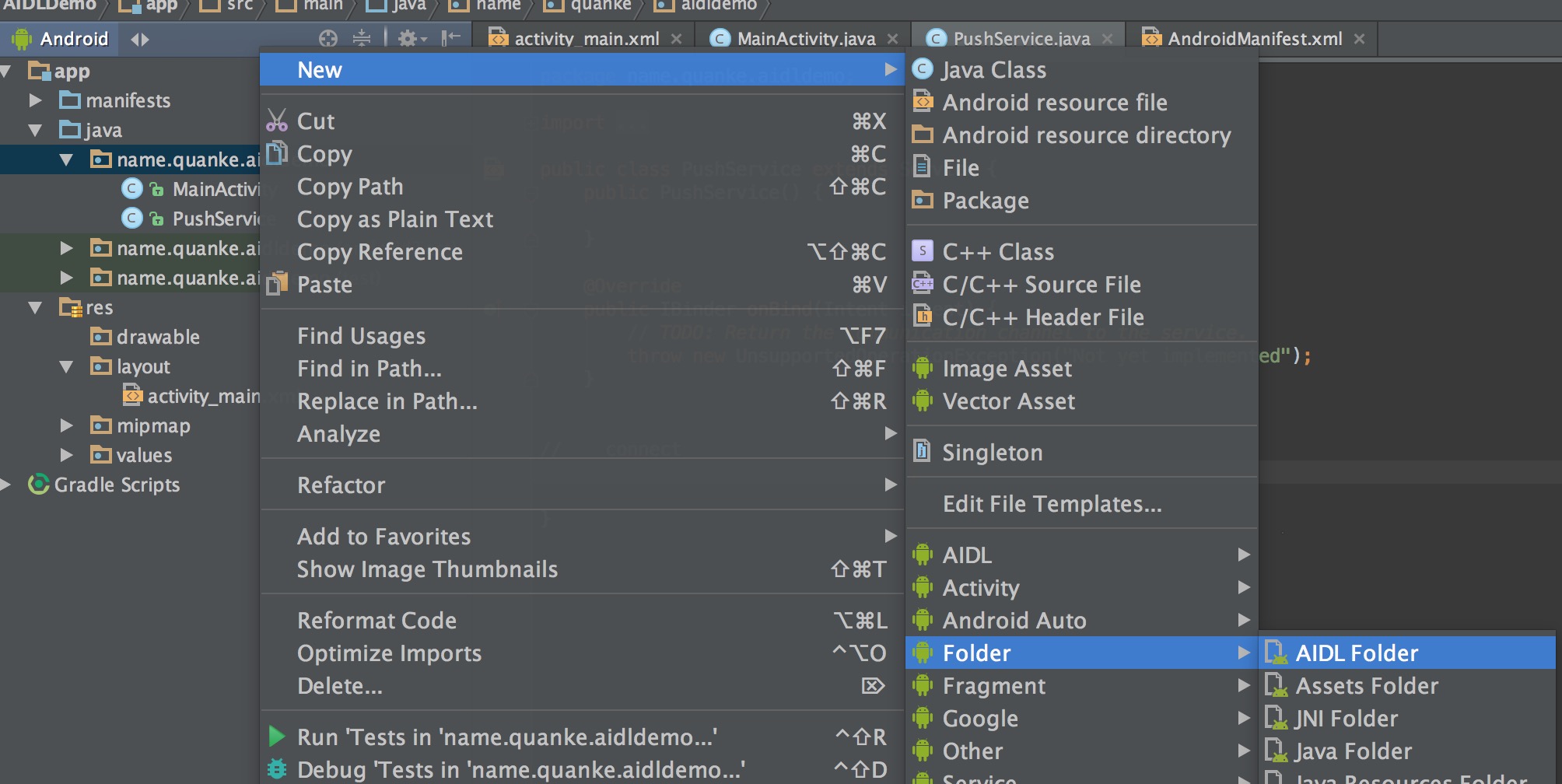 Android Studio 中的 Service 與 AIDL 實戰:跨進程通信入門
AIDL 是 Android 中常見的跨進程通信方式之一。它適合用於多個應用共享同一個 Service,或需要跨進程呼叫服務方法的場景。本文以 Android Studi
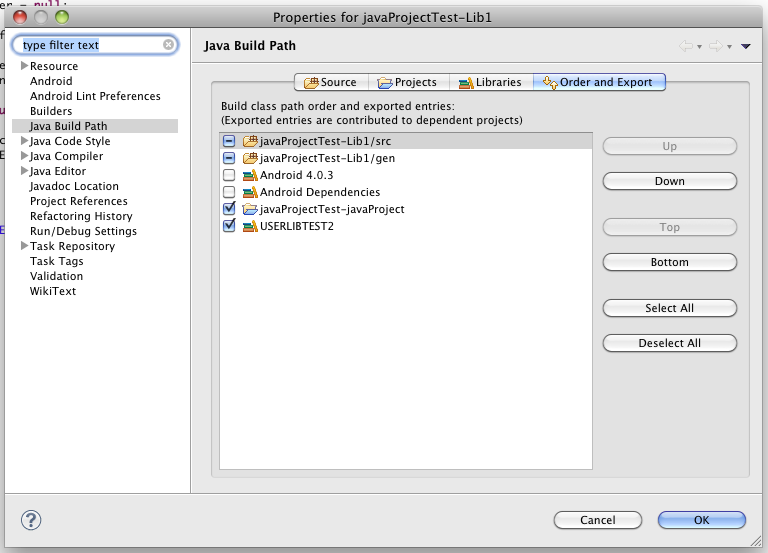 Android 專案的依賴關係解析
前言 Android 專案常會依賴其他 library project 或 jar 檔。若依賴關係沒有整理好,容易出現類別重複、資源找不到或建置錯誤等問題。 依賴來源 A
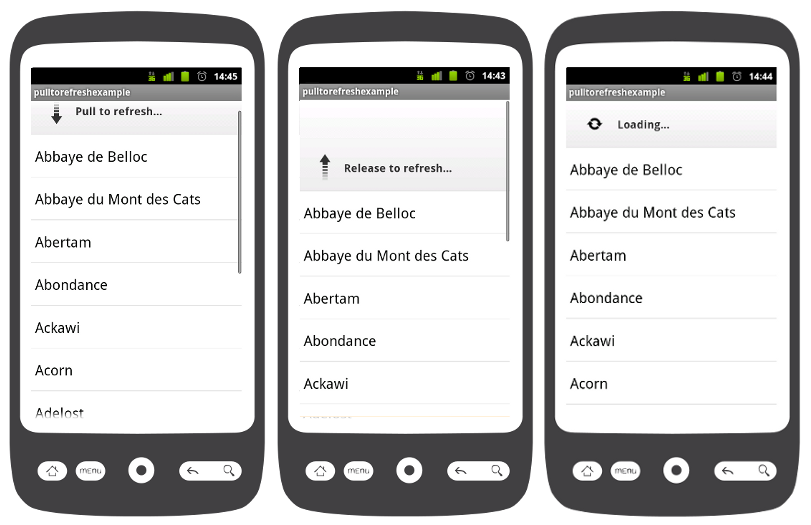 Android 下拉刷新元件 PullToRefresh 使用解析
本文由碼農網 – 小峰原創,轉載請看清文末的轉載要求,歡迎參與我們的付費投稿計劃!PullToRefresh 是一套經典的開源下拉刷新元件,只要替換原本的 ListVie
 BGATitlebar:一個可定製的 iOS 風格標題欄
工作以來,公司 UI 設計師給的 Android 效果圖一直是 iOS 風格的 Titlebar。新項目還要沿用同一套,實在不想重複造輪子,於是趁著這次練習「仿新浪微博