

編輯:關於 Android 程式設計
App 與伺服器進行網路互動時,通常需要一個載入中的提示框,如下圖:
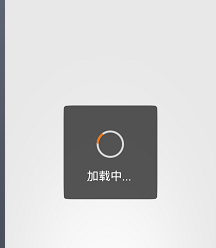
這時可以自訂一個載入中的 Dialog,程式碼如下:
public class LoadingDialog extends Dialog { private static final int CHANGE_TITLE_WHAT = 1; private static final int CHNAGE_TITLE_DELAYMILLIS = 300; private static final int MAX_SUFFIX_NUMBER = 3; private static final char SUFFIX = '.'; private ImageView iv_route; private TextView detail_tv; private TextView tv_point; private RotateAnimation mAnim; private Handler handler = new Handler() { private int num = 0; public void handleMessage(android.os.Message msg) { if (msg.what == CHANGE_TITLE_WHAT) { StringBuilder builder = new StringBuilder(); if (num >= MAX_SUFFIX_NUMBER) { num = 0; } num++; for (int i = 0; i < num; i++) { builder.append(SUFFIX); } tv_point.setText(builder.toString()); if (isShowing()) { handler.sendEmptyMessageDelayed(CHANGE_TITLE_WHAT, CHNAGE_TITLE_DELAYMILLIS); } else { num = 0; } } }; }; public LoadingDialog(Context context) { super(context, R.style.Dialog_bocop); init(); } public LoadingDialog(Context context, boolean isTrans) { super(context, isTrans ? R.style.Loading_Dialog_trans : R.style.Dialog_bocop); init(); } private void init() { setContentView(R.layout.common_dialog_loading_layout); iv_route = (ImageView) findViewById(R.id.iv_route); detail_tv = (TextView) findViewById(R.id.detail_tv); tv_point = (TextView) findViewById(R.id.tv_point); initAnim(); getWindow().setWindowAnimations(R.anim.alpha_in); } private void initAnim() { // mAnim = new RotateAnimation(360, 0, Animation.RESTART, 0.5f, Animation.RESTART, 0.5f); mAnim = new RotateAnimation(0, 360, Animation.RESTART, 0.5f, Animation.RESTART, 0.5f); mAnim.setDuration(2000); mAnim.setRepeatCount(Animation.INFINITE); mAnim.setRepeatMode(Animation.RESTART); mAnim.setStartTime(Animation.START_ON_FIRST_FRAME); } @Override public void show() {//在要用到的地方調用這個方法 iv_route.startAnimation(mAnim); handler.sendEmptyMessage(CHANGE_TITLE_WHAT); super.show(); } @Override public void dismiss() { mAnim.cancel(); super.dismiss(); } @Override public void setTitle(CharSequence title) { if (TextUtils.isEmpty(title)) { detail_tv.setText("正在加載"); } else { detail_tv.setText(title); } } @Override public void setTitle(int titleId) { setTitle(getContext().getString(titleId)); } public static void dismissDialog(LoadingDialog loadingDialog) { if (null == loadingDialog) { return; } loadingDialog.dismiss(); } }
這個實作有兩個細節值得留意:省略號的部分是以 Handler 每 300 毫秒遞送一次訊息,讓點數在 0~3 之間循環;而動畫與訊息都在 show() 中啟動、在 dismiss() 中取消,確保不會有殘留的排程持續佔用資源。
對應的版面配置
<?xml version="1.0" encoding="utf-8"?> <LinearLayout xmlns:android="https://schemas.android.com/apk/res/android" android:layout_width="160dp" android:layout_height="160dp" android:layout_gravity="center" android:background="@drawable/common_show_dialog" android:orientation="vertical" > <RelativeLayout android:layout_width="fill_parent" android:layout_height="0dp" android:layout_weight="3" android:paddingTop="22dp" android:gravity="center" > <ImageView android:id="@+id/iv_route" android:layout_width="wrap_content" android:layout_height="wrap_content" android:layout_centerHorizontal="true" android:layout_centerVertical="true" android:background="@drawable/dialog_bocop_loading_rotate_anim_img" /> </RelativeLayout> <RelativeLayout android:layout_width="fill_parent" android:layout_height="0dp" android:layout_marginBottom="15dp" android:layout_marginLeft="10dp" android:layout_marginRight="10dp" android:layout_weight="1" android:gravity="center_horizontal" > <TextView android:id="@+id/detail_tv" android:layout_width="wrap_content" android:layout_height="wrap_content" android:layout_toLeftOf="@+id/tv_point" android:ellipsize="marquee" android:gravity="center" android:singleLine="true" android:text="正在加載..." android:textColor="#ffffff" android:textSize="20sp" /> <TextView android:id="@+id/tv_point" android:layout_width="20dp" android:layout_height="wrap_content" android:layout_alignParentRight="true" android:text="..." android:textColor="#ffffff" android:textSize="20sp" /> </RelativeLayout> </LinearLayout>
版面刻意為省略號預留了一個固定寬度的 TextView(tv_point),這樣點數變化時,前面的提示文字不會跟著左右位移,視覺上更穩定。
在 Activity 中呼叫
LoadingDialog loadingDialog ; if (null == loadingDialog) { loadingDialog = new LoadingDialog(aty); loadingDialog.setOnCancelListener(this); } loadingDialog.setTitle(“數據加載中”); if (!loadingDialog.isShowing()) loadingDialog.show();
呼叫前先判斷是否為 null、顯示前再判斷 isShowing(),這兩個檢查能有效避免重複建立視窗所造成的錯誤。
以上就是本文的全部內容,希望對你的學習有所幫助。
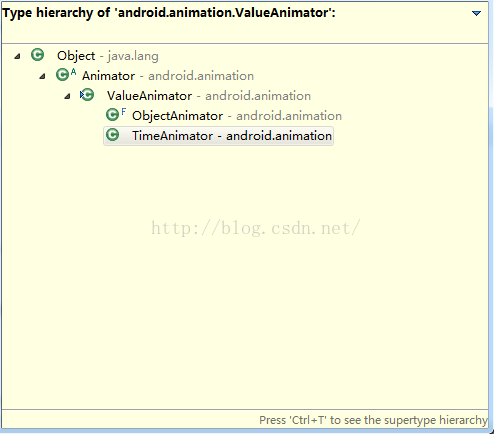 Android 屬性動畫完全指南:從 ObjectAnimator 到自定義 TypeEvaluator
當我們看到別人的 App 裡那些炫酷的動畫效果時,是否會心癢癢地想知道源代碼到底怎麼寫的,為什麼自己只能做出平移、縮放、旋轉、透明度變化這幾種簡單動畫呢?如果有這種困惑,
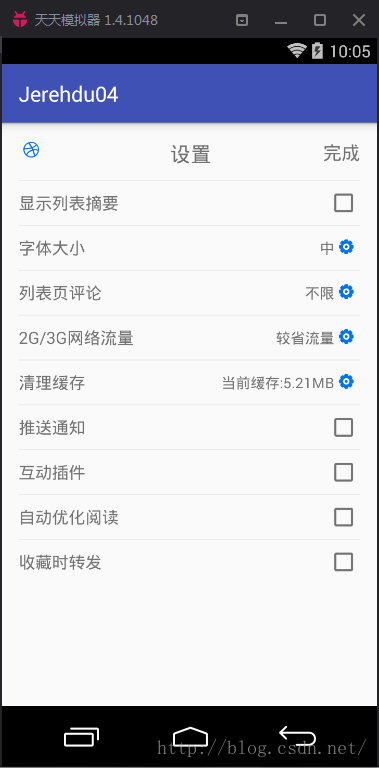 Android 如何保存用戶設定?以實體類為媒介存入內部儲存與 SD 卡
本次實例要做的,是把用戶的設定資訊,以實體類為媒介,保存到內部儲存或 SD 卡的檔案裡。再次打開應用時,程式會自動讀取檔案中的實體類,並對設定資訊進行套用,使其恢復到用戶
 Android 打飛機遊戲實戰:無限滾動的背景圖(2)
先來盤點一下遊戲畫面裡會出現的元素:可無限滾動的背景、可操作的主角、主角的子彈、主角的血量、兩種怪物(敵機),還有一個 Boss 以及 Boss 的爆炸效果。本篇先從最基
 Android 手機無法連接無線網路的解決辦法大全
Android 手機連不上 Wi-Fi,是許多使用者都碰過的困擾。問題可能出在手機端、路由器端,或是 IP 設定上。以下依三種常見情境,整理了完整的排查思路。 一、手機