

編輯:關於 Android 程式設計
傳統的 px、dp 寫法在多尺寸適配上總讓人提心吊膽,百分比版面配置(Percent Layout)提供了一個更直觀的思路:寬高直接寫成相對父容器的比例。
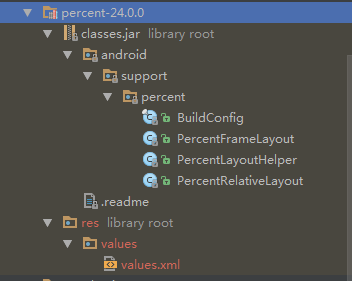
compile 'com.android.support:percent:24.0.0'
套件主要提供兩個版面配置類 PercentFrameLayout、PercentRelativeLayout,加上一個工具類 PercentLayoutHelper。
public class PercentRelativeLayout extends RelativeLayout {
    private final PercentLayoutHelper mHelper = new PercentLayoutHelper(this);

    @Override
    protected void onMeasure(int widthMeasureSpec, int heightMeasureSpec) {
        // 重點就在這一行
        mHelper.adjustChildren(widthMeasureSpec, heightMeasureSpec);
        super.onMeasure(widthMeasureSpec, heightMeasureSpec);
        if (mHelper.handleMeasuredStateTooSmall()) {
            super.onMeasure(widthMeasureSpec, heightMeasureSpec);
        }
    }

    @Override
    protected void onLayout(boolean changed, int left, int top,
                            int right, int bottom) {
        super.onLayout(changed, left, top, right, bottom);
        mHelper.restoreOriginalParams();
    }
}
可以看到它在 onMeasure 與 onLayout 中各呼叫了 Helper 的方法,並定義了自己的 LayoutParams,而這個 LayoutParams 也不複雜:
public static class LayoutParams extends RelativeLayout.LayoutParams
        implements PercentLayoutHelper.PercentLayoutParams {
    private PercentLayoutHelper.PercentLayoutInfo mPercentLayoutInfo;

    public LayoutParams(Context c, AttributeSet attrs) {
        super(c, attrs);
        mPercentLayoutInfo = PercentLayoutHelper.getPercentLayoutInfo(c, attrs);
    }

    @Override
    public PercentLayoutHelper.PercentLayoutInfo getPercentLayoutInfo() {
        if (mPercentLayoutInfo == null) {
            mPercentLayoutInfo = new PercentLayoutHelper.PercentLayoutInfo();
        }
        return mPercentLayoutInfo;
    }
}
真正的關鍵是 adjustChildren:它遍歷每個子 View,把配置檔中寫的百分比換算成像素。百分比在 Helper 的內部類 PercentLayoutInfo 中就已經算好:
public void adjustChildren(int widthMeasureSpec, int heightMeasureSpec) {
    // 扣掉自身的 padding,才是可供子 View 使用的空間
    int widthHint = View.MeasureSpec.getSize(widthMeasureSpec)
            - mHost.getPaddingLeft() - mHost.getPaddingRight();
    int heightHint = View.MeasureSpec.getSize(heightMeasureSpec)
            - mHost.getPaddingTop() - mHost.getPaddingBottom();
    for (int i = 0, N = mHost.getChildCount(); i < N; i++) {
        View view = mHost.getChildAt(i);
        ViewGroup.LayoutParams params = view.getLayoutParams();
        if (params instanceof PercentLayoutParams) {
            PercentLayoutInfo info =
                    ((PercentLayoutParams) params).getPercentLayoutInfo();
            if (info != null) {
                if (params instanceof ViewGroup.MarginLayoutParams) {
                    info.fillMarginLayoutParams(view,
                            (ViewGroup.MarginLayoutParams) params,
                            widthHint, heightHint);
                } else {
                    info.fillLayoutParams(params, widthHint, heightHint);
                }
            }
        }
    }
}
記得引入 xmlns:app 命名空間,接著就能寫百分比了:
<android.support.percent.PercentRelativeLayout
    xmlns:android="https://schemas.android.com/apk/res/android"
    xmlns:app="https://schemas.android.com/apk/res-auto"
    android:layout_width="match_parent"
    android:layout_height="match_parent"
    android:background="@color/background_color" >
    <TextView
        android:id="@+id/mian_tab_name"
        android:layout_width="wrap_content"
        android:layout_height="wrap_content"
        android:gravity="center"
        android:textSize="15sp"
        android:text="name" />
    <ImageView
        app:layout_widthPercent="50%"
        app:layout_heightPercent="50%"
        android:layout_below="@+id/mian_tab_name"
        android:scaleType="fitXY"
        android:background="@color/black" />
</android.support.percent.PercentRelativeLayout>
widthPercent 與 heightPercent 都是相對父容器的,那如果想顯示一張正方形圖片、以寬度的 50% 為基準呢?這時用 layout_aspectRatio:
<ImageView
    app:layout_widthPercent="50%"
    app:layout_aspectRatio="100%"
    android:scaleType="fitXY"
    android:layout_below="@+id/mian_tab_name"
    android:background="@color/CS_black" />
設了 aspectRatio 之後就不要再寫 heightPercent。原始碼裡這段邏輯很清楚:
public void fillLayoutParams(ViewGroup.LayoutParams params,
                            int widthHint, int heightHint) {
    mPreservedParams.width = params.width;
    mPreservedParams.height = params.height;
    // 寬高為 0 視為未設定,這個資訊只用於寬高比計算
    final boolean widthNotSet =
            (mPreservedParams.mIsWidthComputedFromAspectRatio
                    || mPreservedParams.width == 0) && (widthPercent < 0);
    final boolean heightNotSet =
            (mPreservedParams.mIsHeightComputedFromAspectRatio
                    || mPreservedParams.height == 0) && (heightPercent < 0);
    if (widthPercent >= 0) {
        params.width = (int) (widthHint * widthPercent);
    }
    if (heightPercent >= 0) {
        params.height = (int) (heightHint * heightPercent);
    }
    // aspectRatio 為寬高比
    if (aspectRatio >= 0) {
        if (widthNotSet) {
            // 寬未設定,以高為基準
            params.width = (int) (params.height * aspectRatio);
            mPreservedParams.mIsWidthComputedFromAspectRatio = true;
        }
        if (heightNotSet) {
            // 高未設定,以寬為基準
            params.height = (int) (params.width / aspectRatio);
            mPreservedParams.mIsHeightComputedFromAspectRatio = true;
        }
    }
}
做法很直接:繼承 LinearLayout,再仿照 PercentRelativeLayout 定義一份 LayoutParams 即可。
那官方為什麼只提供 FrameLayout 與 RelativeLayout 兩個版本?大概因為 LinearLayout 本來就有 layout_weight,等價的百分比能力早已內建,沒有重複實作的必要。
 MPAndroidChart 系列:玩轉 PieChart 餅圖
簡介MPAndroidChart 是 PhilJay 給 Android 開發者帶來的一份大禮。它功能強大、API 設計靈活,同時支持 Android 與 iOS,本文只
 Android 開發時連接埠被佔用的排查與解法
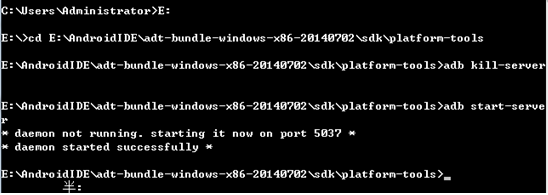
開發過程中時常遇到 adb 相關的連接埠被佔用,導致程式無法部署或模擬器連不上,訊息通常類似「Unable to open connection to server」或索
 自定義 View 時如何加上自己的監聽器
監聽器在 Java 裡無所不在。寫自定義控制項時,往往需要對外通報某些狀態變化,這時就得自己定義監聽器。它與 C++ 的回呼函式概念相通:初始化時把函式交出去,事件發生時
 微信辦理港澳通行證續簽教學:掃一掃輕鬆搞定
其實微信不只能辦護照,還能續簽港澳通行證,但知道的人並不多。對於經常出差旅行的朋友來說,這項功能帶來了極大便利。那麼微信究竟該如何辦理港澳通行證續簽?以下手把手帶你操作。