

編輯:關於 Android 程式設計
這個效果來自實際專案的開發過程。做完之後覺得它可以獨立成一個小功能,於是整理成一份 Demo 放出來,方便其他開發者直接取用。
原本打算等整個客戶端完成再一起公布,但這樣就無法逐一說明每個功能的實作思路,而且開發週期太長。因此改成完成一部分就分享一部分。
這種菜單彈出效果在很多新聞閱讀器裡都看得到,例如今日頭條、360 新聞等:
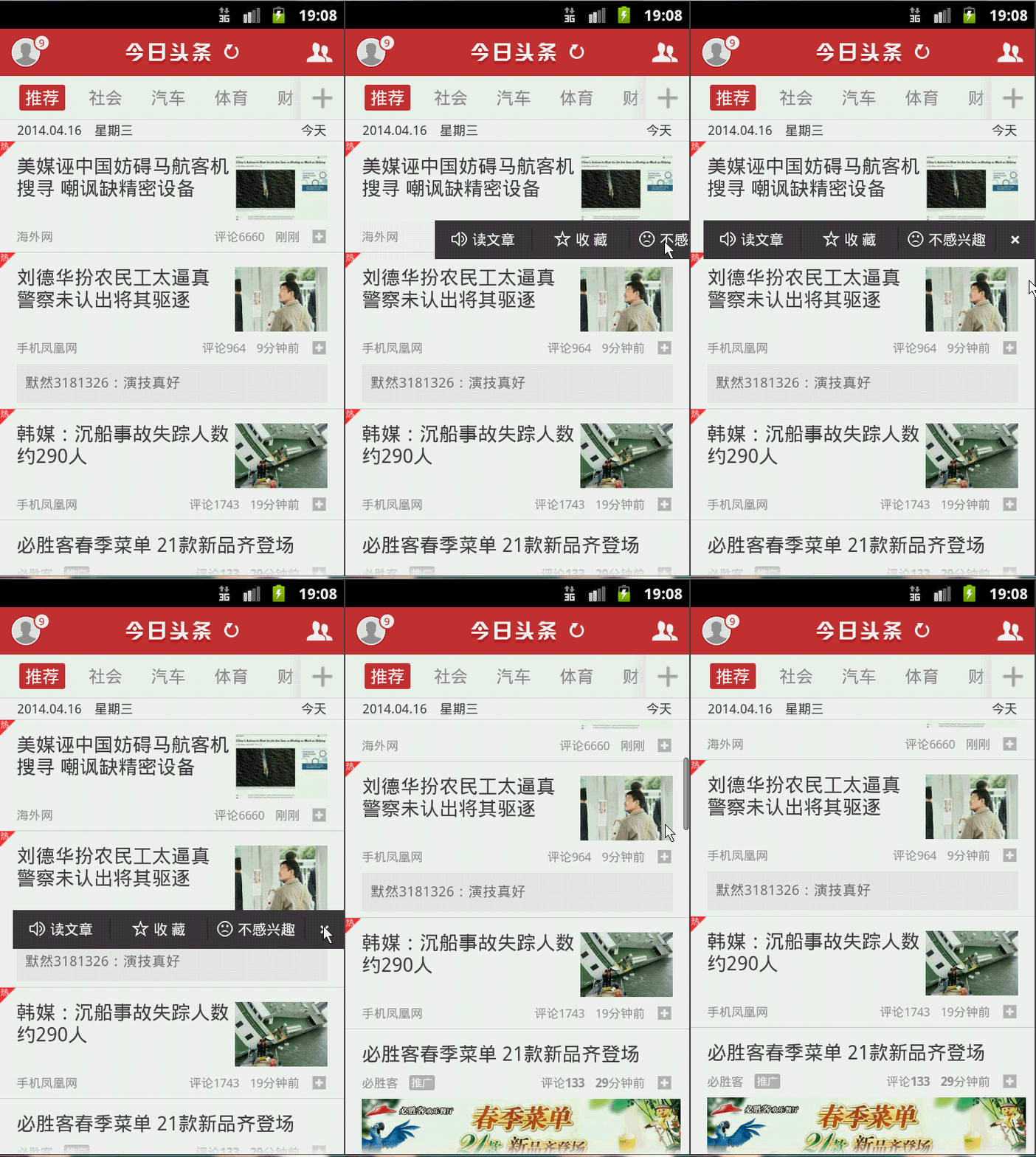
看起來很花俏,實作起來其實非常單純。本質上就是一個 PopupWindow,加上三件事:
showAtLocation();由於整個畫面是一個 ListView,我把點擊事件寫在 Adapter 裡,讓每個項目自己知道該在哪裡彈出菜單。
 public class MyAdapter extends BaseAdapter {
     LayoutInflater inflater = null;
     Activity activity;
     ArrayList<News> newslist;
     private PopupWindow popupWindow;
     private ImageView btn_pop_close;

     public MyAdapter(Activity activity, ArrayList<News> newslist) {
         this.activity = activity;
         this.newslist = newslist;
         inflater = (LayoutInflater) activity.getSystemService(Context.LAYOUT_INFLATER_SERVICE);
         initPopWindow();
     }

     @Override
     public int getCount() {
         return newslist != null ? newslist.size() : 0;
     }

     @Override
     public News getItem(int position) {
         if (newslist != null && newslist.size() != 0) {
             return newslist.get(position);
         }
         return null;
     }

     @Override
     public long getItemId(int position) {
         return position;
     }

     @Override
     public View getView(final int position, View convertView, ViewGroup parent) {
         View vi = convertView;
         final ViewHolder holder;
         if (vi == null) {
             vi = inflater.inflate(R.layout.listview_item, null);
             holder = new ViewHolder();
             holder.item_title = (TextView) vi.findViewById(R.id.item_title);
             holder.item_content = (TextView) vi.findViewById(R.id.item_content);
             holder.button_showpop = (ImageView) vi.findViewById(R.id.button_showpop);
             vi.setTag(holder);
         } else {
             holder = (ViewHolder) vi.getTag();
         }
         News news = getItem(position);
         holder.item_title.setText(news.getTitle());
         holder.item_content.setText(news.getContent());
         holder.button_showpop.setOnClickListener(new popAction(position));
         return vi;
     }

     public class ViewHolder {
         TextView item_title;
         TextView item_content;
         ImageView button_showpop;
     }

     /** 初始化 PopupWindow */
     private void initPopWindow() {
         View popView = inflater.inflate(R.layout.listview_pop, null);
         popupWindow = new PopupWindow(popView, LayoutParams.WRAP_CONTENT, LayoutParams.WRAP_CONTENT);
         popupWindow.setBackgroundDrawable(new ColorDrawable(0));
         popupWindow.setAnimationStyle(R.style.PopMenuAnimation);   // 進出場動畫
         btn_pop_close = (ImageView) popView.findViewById(R.id.btn_pop_close);
     }

     /** 顯示 PopupWindow */
     public void showPop(View parent, int x, int y, int postion) {
         popupWindow.showAtLocation(parent, 0, x, y);   // 以按鈕座標為錨點
         popupWindow.setFocusable(true);                // 取得焦點
         popupWindow.setOutsideTouchable(true);         // 點擊外部關閉
         popupWindow.update();

         btn_pop_close.setOnClickListener(new OnClickListener() {
             public void onClick(View paramView) {
                 popupWindow.dismiss();
             }
         });
     }

     /** 每個項目 more 按鈕的點擊行為 */
     public class popAction implements OnClickListener {
         int position;

         public popAction(int position) {
             this.position = position;
         }

         @Override
         public void onClick(View v) {
             int[] arrayOfInt = new int[2];
             v.getLocationOnScreen(arrayOfInt);   // 取得按鈕在螢幕上的座標
             showPop(v, arrayOfInt[0], arrayOfInt[1], position);
         }
     }
 }
getLocationOnScreen() 回傳的是按鈕在整個螢幕上的絕對座標,不是相對於父容器的位置。這一點很重要——如果用 getLeft()/getTop(),在巢狀版面裡就會算錯。
setBackgroundDrawable(new ColorDrawable(0)) 這行看似多餘,其實是必要的。若不設定背景,PopupWindow 在某些情境下會無法正常接收返回鍵與外部點擊事件。
動畫的部分則定義在 styles.xml 中,透過 android:windowEnterAnimation 與 android:windowExitAnimation 指定進出場效果即可。
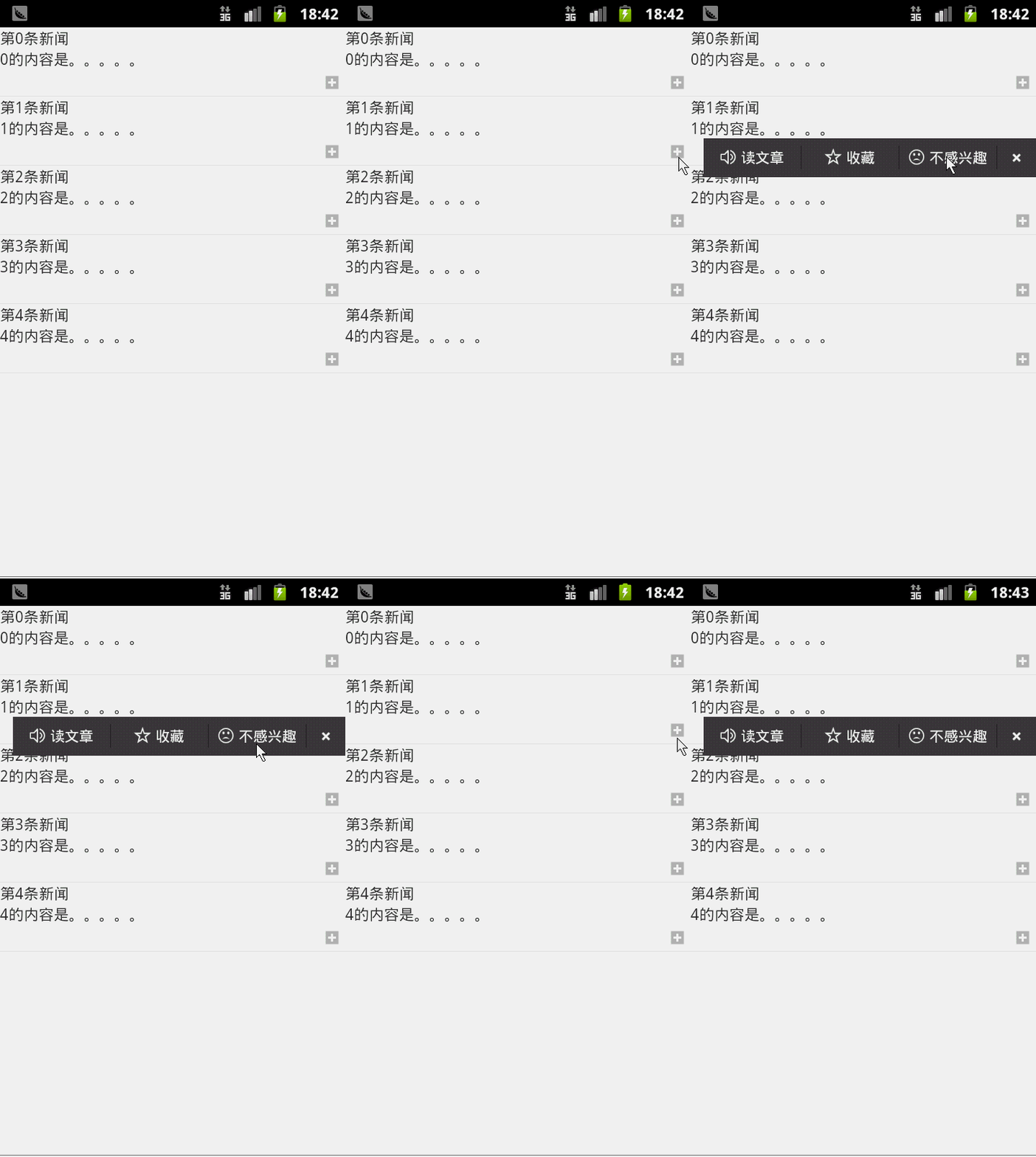
整份實作下來不到一百行,之後再遇到類似需求就不必重新摸索了。
Demo 原始碼下載請見原專案頁面。
 【Android 仿微信通訊錄 下】自訂 View 為 RecyclerView 打造右側索引導航欄 IndexBar
一、概述 我們用 ItemDecoration 為 RecyclerView 打造了帶懸浮頭部的分組列表。其實 Android 版微信的通訊錄介面,它的分組 title
 Android BroadcastReceiver 廣播接收器實戰三例
本文透過三個實作範例,帶你完整認識 Android 中的廣播接收器(BroadcastReceiver),從撥號應用、簡訊處理到自訂廣播,逐步理解其運作方式。 一、IP
 Android 動畫插值器 Interpolator 全解析
備註:在 AnimationSet 中,Scale 應該比 Translate 更早加入。 Interpolator 是時間插值類,用來定義動畫變換的速度曲線,能為 a
 手機卡未實名要被停機?三種辦理途徑整理
手機卡未實名可能面臨停機,那實名登記該怎麼辦?隨著手機卡實名制於9月1日大規模推行,不少用戶開始著急。下面小編把辦理方式整理清楚。 整體來看,辦理實名可分為線下與線上兩大