

編輯:關於 Android 程式設計
傳統的介面排版總是行列分明、井然有序,看久了難免讓人生出幾分審美疲勞。就在這個時候,瀑布流布局憑藉它看似隨性、實則別有韻味的排列方式,為使用者帶來耳目一新的感受,也難怪有這麼多網站與 App 爭相採用這種新穎的設計。
在此之前,我曾寫過一篇關於在 Android 上打造照片牆的文章,但那時用的是 GridView 來排版。這種方式只適合「牆」上每張圖片尺寸都相同的情況,一旦圖片大小參差不齊,用 GridView 顯示就會相當難看。而瀑布流布局恰好能漂亮地解決這個問題,所以今天我們也來追上潮流,看看如何在 Android 上實作瀑布流照片牆。
先談原理。瀑布流布局看起來排列得很隨意,其實背後有相當科學的規則。整個介面會依螢幕寬度劃分成若干等寬的欄位,由於手機螢幕不大,這裡我們分成三欄。每當要加入一張圖片時,先把它的寬度縮放到與欄位等寬,再依同樣的比例縮放高度,接著在這三欄中找出目前高度最小的一欄,把圖片放進去。之後每加入一張新圖,都重複這個動作,自然就形成了瀑布流般的照片牆,示意圖如下。
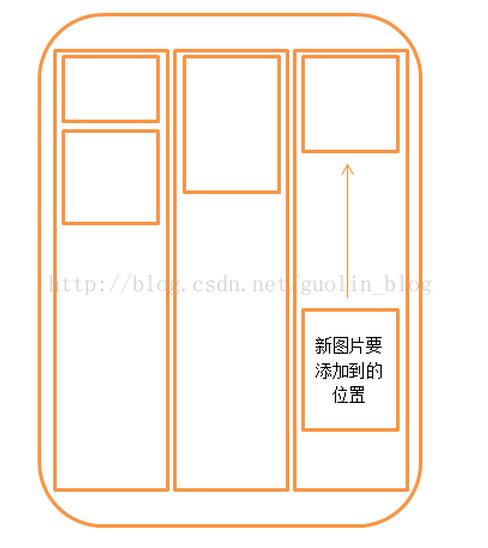
聽我這麼一說,你可能會覺得:瀑布流布局不就三個 LinearLayout 平分螢幕寬度,然後動態 addView() 塞進去就好了?確實,若只求功能實現,就是這麼簡單。但別忘了,我們是在手機上開發,如果不停地往 LinearLayout 裡塞圖片,程式很快就會 OOM。因此我們還需要一套合理的資源釋放方案,這裡同樣採用 LruCache 演算法。對這個演算法不熟的朋友,可以先參考〈Android 高效載入大圖、多圖方案,有效避免 OOM〉。
下面正式開始。新建一個 Android 專案,取名 PhotoWallFallsDemo,並選擇 4.0 的 API。
第一個要解決的問題是:這些大小不一的圖片要從哪裡收集?我事先在網上蒐集了不少風景圖,並為了確保存取的穩定性,把它們都上傳到了自己的相簿,程式只要從那裡下載即可。新建一個 Images 類別,把所有圖片的網址配置進去,程式碼如下:
public class Images { public final static String[] imageUrls = new String[] { "https://img.my.csdn.net/uploads/201309/01/1378037235_3453.jpg", "https://img.my.csdn.net/uploads/201309/01/1378037235_7476.jpg", "https://img.my.csdn.net/uploads/201309/01/1378037235_9280.jpg", "https://img.my.csdn.net/uploads/201309/01/1378037234_3539.jpg", "https://img.my.csdn.net/uploads/201309/01/1378037234_6318.jpg", "https://img.my.csdn.net/uploads/201309/01/1378037194_2965.jpg", "https://img.my.csdn.net/uploads/201309/01/1378037193_1687.jpg", "https://img.my.csdn.net/uploads/201309/01/1378037193_1286.jpg", "https://img.my.csdn.net/uploads/201309/01/1378037192_8379.jpg", "https://img.my.csdn.net/uploads/201309/01/1378037178_9374.jpg", "https://img.my.csdn.net/uploads/201309/01/1378037177_1254.jpg", "https://img.my.csdn.net/uploads/201309/01/1378037177_6203.jpg", "https://img.my.csdn.net/uploads/201309/01/1378037152_6352.jpg", "https://img.my.csdn.net/uploads/201309/01/1378037151_9565.jpg", "https://img.my.csdn.net/uploads/201309/01/1378037151_7904.jpg", "https://img.my.csdn.net/uploads/201309/01/1378037148_7104.jpg", "https://img.my.csdn.net/uploads/201309/01/1378037129_8825.jpg", "https://img.my.csdn.net/uploads/201309/01/1378037128_5291.jpg", "https://img.my.csdn.net/uploads/201309/01/1378037128_3531.jpg", "https://img.my.csdn.net/uploads/201309/01/1378037127_1085.jpg", "https://img.my.csdn.net/uploads/201309/01/1378037095_7515.jpg", "https://img.my.csdn.net/uploads/201309/01/1378037094_8001.jpg", "https://img.my.csdn.net/uploads/201309/01/1378037093_7168.jpg", "https://img.my.csdn.net/uploads/201309/01/1378037091_4950.jpg", "https://img.my.csdn.net/uploads/201308/31/1377949643_6410.jpg", "https://img.my.csdn.net/uploads/201308/31/1377949642_6939.jpg", "https://img.my.csdn.net/uploads/201308/31/1377949630_4505.jpg", "https://img.my.csdn.net/uploads/201308/31/1377949630_4593.jpg", "https://img.my.csdn.net/uploads/201308/31/1377949629_7309.jpg", "https://img.my.csdn.net/uploads/201308/31/1377949629_8247.jpg", "https://img.my.csdn.net/uploads/201308/31/1377949615_1986.jpg", "https://img.my.csdn.net/uploads/201308/31/1377949614_8482.jpg", "https://img.my.csdn.net/uploads/201308/31/1377949614_3743.jpg", "https://img.my.csdn.net/uploads/201308/31/1377949614_4199.jpg", "https://img.my.csdn.net/uploads/201308/31/1377949599_3416.jpg", "https://img.my.csdn.net/uploads/201308/31/1377949599_5269.jpg", "https://img.my.csdn.net/uploads/201308/31/1377949598_7858.jpg", "https://img.my.csdn.net/uploads/201308/31/1377949598_9982.jpg", "https://img.my.csdn.net/uploads/201308/31/1377949578_2770.jpg", "https://img.my.csdn.net/uploads/201308/31/1377949578_8744.jpg", "https://img.my.csdn.net/uploads/201308/31/1377949577_5210.jpg", "https://img.my.csdn.net/uploads/201308/31/1377949577_1998.jpg", "https://img.my.csdn.net/uploads/201308/31/1377949482_8813.jpg", "https://img.my.csdn.net/uploads/201308/31/1377949481_6577.jpg", "https://img.my.csdn.net/uploads/201308/31/1377949480_4490.jpg", "https://img.my.csdn.net/uploads/201308/31/1377949455_6792.jpg", "https://img.my.csdn.net/uploads/201308/31/1377949455_6345.jpg", "https://img.my.csdn.net/uploads/201308/31/1377949442_4553.jpg", "https://img.my.csdn.net/uploads/201308/31/1377949441_8987.jpg", "https://img.my.csdn.net/uploads/201308/31/1377949441_5454.jpg", "https://img.my.csdn.net/uploads/201308/31/1377949454_6367.jpg", "https://img.my.csdn.net/uploads/201308/31/1377949442_4562.jpg" }; }
接著新建一個 ImageLoader 類別,用來方便地管理圖片,程式碼如下:
public class ImageLoader { /** * 圖片緩存技術的核心類,用於緩存所有下載好的圖片,在程序內存達到設定值時會將最少最近使用的圖片移除掉。 */ private static LruCache<String, Bitmap> mMemoryCache; /** * ImageLoader的實例。 */ private static ImageLoader mImageLoader; private ImageLoader() { // 獲取應用程序最大可用內存 int maxMemory = (int) Runtime.getRuntime().maxMemory(); int cacheSize = maxMemory / 8; // 設置圖片緩存大小為程序最大可用內存的1/8 mMemoryCache = new LruCache<String, Bitmap>(cacheSize) { @Override protected int sizeOf(String key, Bitmap bitmap) { return bitmap.getByteCount(); } }; } /** * 獲取ImageLoader的實例。 * * @return ImageLoader的實例。 */ public static ImageLoader getInstance() { if (mImageLoader == null) { mImageLoader = new ImageLoader(); } return mImageLoader; } /** * 將一張圖片存儲到LruCache中。 * * @param key * LruCache的鍵,這裡傳入圖片的URL地址。 * @param bitmap * LruCache的鍵,這裡傳入從網絡上下載的Bitmap對象。 */ public void addBitmapToMemoryCache(String key, Bitmap bitmap) { if (getBitmapFromMemoryCache(key) == null) { mMemoryCache.put(key, bitmap); } } /** * 從LruCache中獲取一張圖片,如果不存在就返回null。 * * @param key * LruCache的鍵,這裡傳入圖片的URL地址。 * @return 對應傳入鍵的Bitmap對象,或者null。 */ public Bitmap getBitmapFromMemoryCache(String key) { return mMemoryCache.get(key); } public static int calculateInSampleSize(BitmapFactory.Options options, int reqWidth) { // 源圖片的寬度 final int width = options.outWidth; int inSampleSize = 1; if (width > reqWidth) { // 計算出實際寬度和目標寬度的比率 final int widthRatio = Math.round((float) width / (float) reqWidth); inSampleSize = widthRatio; } return inSampleSize; } public static Bitmap decodeSampledBitmapFromResource(String pathName, int reqWidth) { // 第一次解析將inJustDecodeBounds設置為true,來獲取圖片大小 final BitmapFactory.Options options = new BitmapFactory.Options(); options.inJustDecodeBounds = true; BitmapFactory.decodeFile(pathName, options); // 調用上面定義的方法計算inSampleSize值 options.inSampleSize = calculateInSampleSize(options, reqWidth); // 使用獲取到的inSampleSize值再次解析圖片 options.inJustDecodeBounds = false; return BitmapFactory.decodeFile(pathName, options); } }
這裡把 ImageLoader 設計成單例,並在構造函式中初始化 LruCache,把它的最大快取容量設為可用最大記憶體的 1/8。同時還提供了幾個方法來操作 LruCache,以及對圖片進行壓縮與讀取。
接著新建 MyScrollView,繼承自 ScrollView,程式碼如下:
public class MyScrollView extends ScrollView implements OnTouchListener { /** * 每頁要加載的圖片數量 */ public static final int PAGE_SIZE = 15; /** * 記錄當前已加載到第幾頁 */ private int page; /** * 每一列的寬度 */ private int columnWidth; /** * 當前第一列的高度 */ private int firstColumnHeight; /** * 當前第二列的高度 */ private int secondColumnHeight; /** * 當前第三列的高度 */ private int thirdColumnHeight; /** * 是否已加載過一次layout,這裡onLayout中的初始化只需加載一次 */ private boolean loadOnce; /** * 對圖片進行管理的工具類 */ private ImageLoader imageLoader; /** * 第一列的布局 */ private LinearLayout firstColumn; /** * 第二列的布局 */ private LinearLayout secondColumn; /** * 第三列的布局 */ private LinearLayout thirdColumn; /** * 記錄所有正在下載或等待下載的任務。 */ private static Set<LoadImageTask> taskCollection; /** * MyScrollView下的直接子布局。 */ private static View scrollLayout; /** * MyScrollView布局的高度。 */ private static int scrollViewHeight; /** * 記錄上垂直方向的滾動距離。 */ private static int lastScrollY = -1; /** * 記錄所有界面上的圖片,用以可以隨時控制對圖片的釋放。 */ private List<ImageView> imageViewList = new ArrayList<ImageView>(); /** * 在Handler中進行圖片可見性檢查的判斷,以及加載更多圖片的操作。 */ private static Handler handler = new Handler() { public void handleMessage(android.os.Message msg) { MyScrollView myScrollView = (MyScrollView) msg.obj; int scrollY = myScrollView.getScrollY(); // 如果當前的滾動位置和上次相同,表示已停止滾動 if (scrollY == lastScrollY) { // 當滾動的最底部,並且當前沒有正在下載的任務時,開始加載下一頁的圖片 if (scrollViewHeight + scrollY >= scrollLayout.getHeight() && taskCollection.isEmpty()) { myScrollView.loadMoreImages(); } myScrollView.checkVisibility(); } else { lastScrollY = scrollY; Message message = new Message(); message.obj = myScrollView; // 5毫秒後再次對滾動位置進行判斷 handler.sendMessageDelayed(message, 5); } }; }; /** * MyScrollView的構造函數。 * * @param context * @param attrs */ public MyScrollView(Context context, AttributeSet attrs) { super(context, attrs); imageLoader = ImageLoader.getInstance(); taskCollection = new HashSet<LoadImageTask>(); setOnTouchListener(this); } /** * 進行一些關鍵性的初始化操作,獲取MyScrollView的高度,以及得到第一列的寬度值。並在這裡開始加載第一頁的圖片。 */ @Override protected void onLayout(boolean changed, int l, int t, int r, int b) { super.onLayout(changed, l, t, r, b); if (changed && !loadOnce) { scrollViewHeight = getHeight(); scrollLayout = getChildAt(0); firstColumn = (LinearLayout) findViewById(R.id.first_column); secondColumn = (LinearLayout) findViewById(R.id.second_column); thirdColumn = (LinearLayout) findViewById(R.id.third_column); columnWidth = firstColumn.getWidth(); loadOnce = true; loadMoreImages(); } } /** * 監聽用戶的觸屏事件,如果用戶手指離開屏幕則開始進行滾動檢測。 */ @Override public boolean onTouch(View v, MotionEvent event) { if (event.getAction() == MotionEvent.ACTION_UP) { Message message = new Message(); message.obj = this; handler.sendMessageDelayed(message, 5); } return false; } /** * 開始加載下一頁的圖片,每張圖片都會開啟一個異步線程去下載。 */ public void loadMoreImages() { if (hasSDCard()) { int startIndex = page * PAGE_SIZE; int endIndex = page * PAGE_SIZE + PAGE_SIZE; if (startIndex < Images.imageUrls.length) { Toast.makeText(getContext(), "正在加載...", Toast.LENGTH_SHORT) .show(); if (endIndex > Images.imageUrls.length) { endIndex = Images.imageUrls.length; } for (int i = startIndex; i < endIndex; i++) { LoadImageTask task = new LoadImageTask(); taskCollection.add(task); task.execute(Images.imageUrls[i]); } page++; } else { Toast.makeText(getContext(), "已沒有更多圖片", Toast.LENGTH_SHORT) .show(); } } else { Toast.makeText(getContext(), "未發現SD卡", Toast.LENGTH_SHORT).show(); } } /** * 遍歷imageViewList中的每張圖片,對圖片的可見性進行檢查,如果圖片已經離開屏幕可見范圍,則將圖片替換成一張空圖。 */ public void checkVisibility() { for (int i = 0; i < imageViewList.size(); i++) { ImageView imageView = imageViewList.get(i); int borderTop = (Integer) imageView.getTag(R.string.border_top); int borderBottom = (Integer) imageView .getTag(R.string.border_bottom); if (borderBottom > getScrollY() && borderTop < getScrollY() + scrollViewHeight) { String imageUrl = (String) imageView.getTag(R.string.image_url); Bitmap bitmap = imageLoader.getBitmapFromMemoryCache(imageUrl); if (bitmap != null) { imageView.setImageBitmap(bitmap); } else { LoadImageTask task = new LoadImageTask(imageView); task.execute(imageUrl); } } else { imageView.setImageResource(R.drawable.empty_photo); } } } /** * 判斷手機是否有SD卡。 * * @return 有SD卡返回true,沒有返回false。 */ private boolean hasSDCard() { return Environment.MEDIA_MOUNTED.equals(Environment .getExternalStorageState()); } /** * 異步下載圖片的任務。 * * @author guolin */ class LoadImageTask extends AsyncTask<String, Void, Bitmap> { /** * 圖片的URL地址 */ private String mImageUrl; /** * 可重復使用的ImageView */ private ImageView mImageView; public LoadImageTask() { } /** * 將可重復使用的ImageView傳入 * * @param imageView */ public LoadImageTask(ImageView imageView) { mImageView = imageView; } @Override protected Bitmap doInBackground(String... params) { mImageUrl = params[0]; Bitmap imageBitmap = imageLoader .getBitmapFromMemoryCache(mImageUrl); if (imageBitmap == null) { imageBitmap = loadImage(mImageUrl); } return imageBitmap; } @Override protected void onPostExecute(Bitmap bitmap) { if (bitmap != null) { double ratio = bitmap.getWidth() / (columnWidth * 1.0); int scaledHeight = (int) (bitmap.getHeight() / ratio); addImage(bitmap, columnWidth, scaledHeight); } taskCollection.remove(this); } /** * 根據傳入的URL,對圖片進行加載。如果這張圖片已經存在於SD卡中,則直接從SD卡裡讀取,否則就從網絡上下載。 * * @param imageUrl * 圖片的URL地址 * @return 加載到內存的圖片。 */ private Bitmap loadImage(String imageUrl) { File imageFile = new File(getImagePath(imageUrl)); if (!imageFile.exists()) { downloadImage(imageUrl); } if (imageUrl != null) { Bitmap bitmap = ImageLoader.decodeSampledBitmapFromResource( imageFile.getPath(), columnWidth); if (bitmap != null) { imageLoader.addBitmapToMemoryCache(imageUrl, bitmap); return bitmap; } } return null; } /** * 向ImageView中添加一張圖片 * * @param bitmap * 待添加的圖片 * @param imageWidth * 圖片的寬度 * @param imageHeight * 圖片的高度 */ private void addImage(Bitmap bitmap, int imageWidth, int imageHeight) { LinearLayout.LayoutParams params = new LinearLayout.LayoutParams( imageWidth, imageHeight); if (mImageView != null) { mImageView.setImageBitmap(bitmap); } else { ImageView imageView = new ImageView(getContext()); imageView.setLayoutParams(params); imageView.setImageBitmap(bitmap); imageView.setScaleType(ScaleType.FIT_XY); imageView.setPadding(5, 5, 5, 5); imageView.setTag(R.string.image_url, mImageUrl); findColumnToAdd(imageView, imageHeight).addView(imageView); imageViewList.add(imageView); } } /** * 找到此時應該添加圖片的一列。原則就是對三列的高度進行判斷,當前高度最小的一列就是應該添加的一列。 * * @param imageView * @param imageHeight * @return 應該添加圖片的一列 */ private LinearLayout findColumnToAdd(ImageView imageView, int imageHeight) { if (firstColumnHeight <= secondColumnHeight) { if (firstColumnHeight <= thirdColumnHeight) { imageView.setTag(R.string.border_top, firstColumnHeight); firstColumnHeight += imageHeight; imageView.setTag(R.string.border_bottom, firstColumnHeight); return firstColumn; } imageView.setTag(R.string.border_top, thirdColumnHeight); thirdColumnHeight += imageHeight; imageView.setTag(R.string.border_bottom, thirdColumnHeight); return thirdColumn; } else { if (secondColumnHeight <= thirdColumnHeight) { imageView.setTag(R.string.border_top, secondColumnHeight); secondColumnHeight += imageHeight; imageView .setTag(R.string.border_bottom, secondColumnHeight); return secondColumn; } imageView.setTag(R.string.border_top, thirdColumnHeight); thirdColumnHeight += imageHeight; imageView.setTag(R.string.border_bottom, thirdColumnHeight); return thirdColumn; } } /** * 將圖片下載到SD卡緩存起來。 * * @param imageUrl * 圖片的URL地址。 */ private void downloadImage(String imageUrl) { HttpURLConnection con = null; FileOutputStream fos = null; BufferedOutputStream bos = null; BufferedInputStream bis = null; File imageFile = null; try { URL url = new URL(imageUrl); con = (HttpURLConnection) url.openConnection(); con.setConnectTimeout(5 * 1000); con.setReadTimeout(15 * 1000); con.setDoInput(true); con.setDoOutput(true); bis = new BufferedInputStream(con.getInputStream()); imageFile = new File(getImagePath(imageUrl)); fos = new FileOutputStream(imageFile); bos = new BufferedOutputStream(fos); byte[] b = new byte[1024]; int length; while ((length = bis.read(b)) != -1) { bos.write(b, 0, length); bos.flush(); } } catch (Exception e) { e.printStackTrace(); } finally { try { if (bis != null) { bis.close(); } if (bos != null) { bos.close(); } if (con != null) { con.disconnect(); } } catch (IOException e) { e.printStackTrace(); } } if (imageFile != null) { Bitmap bitmap = ImageLoader.decodeSampledBitmapFromResource( imageFile.getPath(), columnWidth); if (bitmap != null) { imageLoader.addBitmapToMemoryCache(imageUrl, bitmap); } } } /** * 獲取圖片的本地存儲路徑。 * * @param imageUrl * 圖片的URL地址。 * @return 圖片的本地存儲路徑。 */ private String getImagePath(String imageUrl) { int lastSlashIndex = imageUrl.lastIndexOf("/"); String imageName = imageUrl.substring(lastSlashIndex + 1); String imageDir = Environment.getExternalStorageDirectory() .getPath() + "/PhotoWallFalls/"; File file = new File(imageDir); if (!file.exists()) { file.mkdirs(); } String imagePath = imageDir + imageName; return imagePath; } } }
MyScrollView 是實作瀑布流照片牆的核心類別,這裡重點說明。由於它繼承自 ScrollView,使用者可以透過捲動瀏覽更多圖片。其中 loadMoreImages() 專門負責載入下一頁,因此我們要在 onLayout() 中先呼叫一次,以初始化第一頁;而在 onTouch 裡,每當偵測到手指離開螢幕,就會透過一個 handler 判斷目前的捲動狀態,若發現已捲到最底部,便再次呼叫 loadMoreImages() 載入下一頁。
來看 loadMoreImages() 的細節。這個方法用一個迴圈載入本頁的每張圖片,每次都會啟動一個 LoadImageTask 做非同步載入。在 LoadImageTask 中,會先檢查圖片是否已存在於 SD 卡,若沒有就從網路下載,再把圖片放進 LruCache。接著依比例壓縮這張圖,並找出目前高度最小的一欄,把壓縮後的圖片塞進去。
此外,為了讓照片牆上的圖片都能被妥善回收,這裡還加入了一個可見性檢查方法 checkVisibility()。它的核心思路是遍歷目前照片牆上的所有圖片,判斷哪些可見、哪些不可見,然後把不可見的圖片都替換成一張空圖,如此一來程式就不會佔用過高記憶體。當這些圖片再次變為可見時,只要從 LruCache 中重新取出即可;若某張圖片已被 LruCache 移除,就會啟動一個 LoadImageTask 把它重新載入記憶體。
接著打開或新建 activity_main.xml,設定好瀑布流的布局方式,如下:
<com.example.photowallfallsdemo.MyScrollView xmlns:android="https://schemas.android.com/apk/res/android" android:id="@+id/my_scroll_view" android:layout_width="match_parent" android:layout_height="match_parent" > <LinearLayout android:layout_width="match_parent" android:layout_height="wrap_content" android:orientation="horizontal" > <LinearLayout android:id="@+id/first_column" android:layout_width="0dp" android:layout_height="wrap_content" android:layout_weight="1" android:orientation="vertical" > </LinearLayout> <LinearLayout android:id="@+id/second_column" android:layout_width="0dp" android:layout_height="wrap_content" android:layout_weight="1" android:orientation="vertical" > </LinearLayout> <LinearLayout android:id="@+id/third_column" android:layout_width="0dp" android:layout_height="wrap_content" android:layout_weight="1" android:orientation="vertical" > </LinearLayout> </LinearLayout> </com.example.photowallfallsdemo.MyScrollView>
這裡我們用剛寫好的 MyScrollView 作為根布局,裡面放一個直接子布局 LinearLayout 用來統計捲動布局的高度,再在其下加入三個等寬的 LinearLayout,分別作為第一、二、三欄,如此一來 MyScrollView 就能動態地往這三欄裡添加圖片了。
最後,由於我們用到了網路與 SD 卡儲存功能,還需要在 AndroidManifest.xml 中加入以下權限:
<uses-permission android:name="android.permission.WRITE_EXTERNAL_STORAGE" /> <uses-permission android:name="android.permission.INTERNET" />
至此所有編碼工作就完成了,可以運行看看效果:
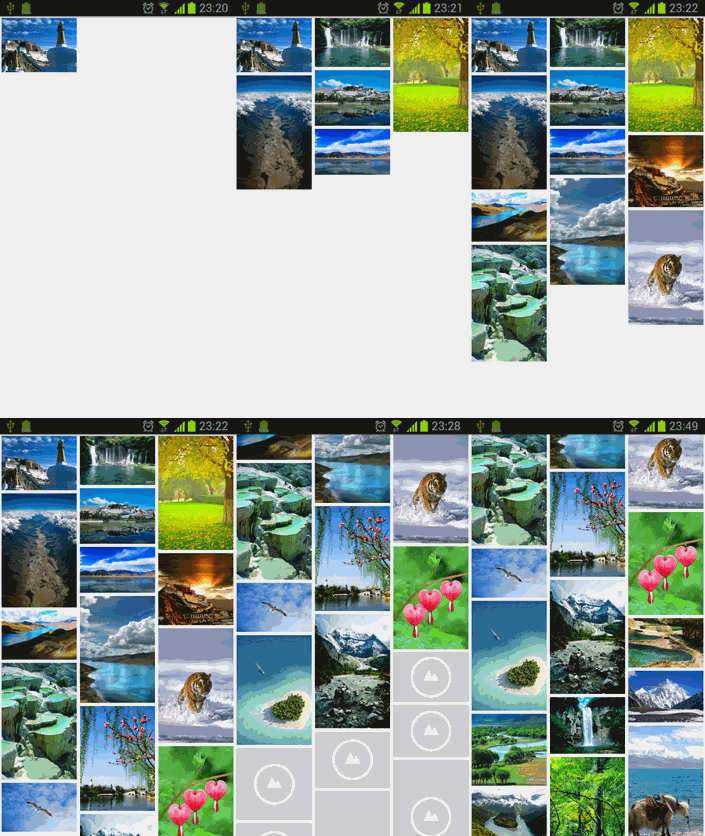
瀑布流式的照片牆果然非常美觀吧!而且由於我們有完善的資源釋放機制,無論你在牆上加入多少圖片,程式佔用的記憶體都會維持在合理範圍內。在下一篇中,我會帶大家進一步完善這個程式,加入點擊查看大圖與多點觸控縮放功能,有興趣的朋友請繼續閱讀〈Android 多點觸控技術實戰,自由地對圖片進行縮放和移動〉。
源碼下載:https://xiazai.jb51.net/201610/yuanma/AndroidPhotoWallFalls(jb51.net).rar
以上就是本文的全部內容,希望對你的學習有所幫助,也歡迎持續支持本站。
 XUtils 注解機制原理解析
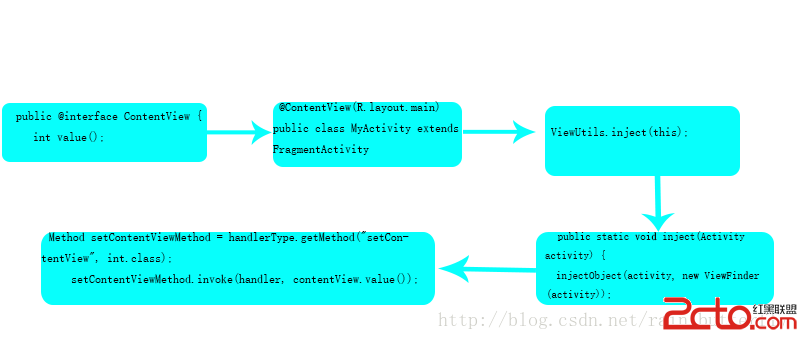
XUtils 是 Android 常見的快速開發框架之一,其中大量使用 Java 注解來簡化 View 綁定與事件設定。理解注解機制,有助於看懂這類框架的底層設計。Jav
 [Android] 深入透徹理解 Activity 的生命週期
想學好 Android 開發,就必須理解軟件的生命週期,搞明白一個 Activity 的創建、啟動、暫停、停止、重啟與銷毀過程,知道各階段會調用哪些函數來處理不同情況。這
 Android 拍照與相簿選圖後裁剪頭像的完整做法
先看成果,如果這正是你想要的效果,那這段程式碼就可以直接參考;實際套用時記得依需求靈活調整。 布局檔 <LinearLayout xmlns:android=
 Android 效能優化指南解析
為什麼要關注性能 使用者對應用的第一印象,往往來自流暢度、回應速度與穩定性。若操作卡頓、動畫不順或容易閃退,即使功能豐富,也容易導致負評。性能優化不是出了問題才補救,而應