

編輯:關於 Android 程式設計
前言
前面幾篇談過補間動畫、逐幀動畫與屬性動畫,對象基本都是單一 View。那如果我想讓整個 ViewGroup 在子項增刪時有過渡效果呢?這就是「布局動畫」要處理的事。本文以一個多行圖片選擇器為例來說明。
先自訂一個能排多行圖片的 ViewGroup
自訂控件的基礎這裡不再重述,有興趣可參考作者先前的自訂控件系列文章。先宣告三個屬性:
<declare-styleable name="GridImageViewGroup"> <attr name="childVerticalSpace" format="dimension"/> <attr name="childHorizontalSpace" format="dimension"/> <attr name="columnNum" format="integer"/> </declare-styleable>
public class GridImageViewGroup extends ViewGroup { private int childVerticalSpace = 0; private int childHorizontalSpace = 0; private int columnNum = 3; private int childWidth = 0; private int childHeight = 0; public GridImageViewGroup(Context context, AttributeSet attrs) { super(context, attrs); TypedArray attributes = context.obtainStyledAttributes(attrs, R.styleable.GridImageViewGroup); if (attributes != null) { childVerticalSpace = attributes.getDimensionPixelSize(R.styleable.GridImageViewGroup_childVerticalSpace, 0); childHorizontalSpace = attributes.getDimensionPixelSize(R.styleable.GridImageViewGroup_childHorizontalSpace, 0); columnNum = attributes.getInt(R.styleable.GridImageViewGroup_columnNum, 3); attributes.recycle(); } } @Override protected void onMeasure(int widthMeasureSpec, int heightMeasureSpec) { super.onMeasure(widthMeasureSpec, heightMeasureSpec); int rw = MeasureSpec.getSize(widthMeasureSpec); int rh = MeasureSpec.getSize(heightMeasureSpec); int childCount = getChildCount(); if (childCount > 0) { childWidth = (rw - (columnNum - 1) * childHorizontalSpace) / columnNum; childHeight = childWidth; int vw = rw; if (childCount < columnNum) { vw = childCount * (childHeight + childVerticalSpace); } int rowCount = childCount / columnNum + (childCount % columnNum != 0 ? 1 : 0); int vh = rowCount * childHeight + (rowCount > 0 ? rowCount - 1 : 0) * childVerticalSpace; setMeasuredDimension(vw, vh); } } @Override protected void onLayout(boolean changed, int l, int t, int r, int b) { int left = 0; int top = 0; int count = getChildCount(); for (int i = 0; i < count; i++) { View child = getChildAt(i); left = (i % columnNum) * (childWidth + childHorizontalSpace); top = (i / columnNum) * (childHeight + childVerticalSpace); child.layout(left, top, left + childWidth, top + childHeight); } }
XML 中引用:
<com.whoislcj.animation.GridImageViewGroup android:id="@+id/image_layout" android:layout_width="match_parent" android:layout_height="wrap_content" android:layout_margin="10dp" android:animateLayoutChanges="true" lee:childHorizontalSpace="10dp" lee:childVerticalSpace="10dp" lee:columnNum="3"/>
Activity 中動態增刪:
private void initViews() { mImageViewGroup = (GridImageViewGroup) findViewById(R.id.image_layout); ImageView imageView = new ImageView(this); imageView.setImageResource(R.mipmap.add_image); imageView.setOnClickListener(new View.OnClickListener() { @Override public void onClick(View v) { addImageView(); } }); mImageViewGroup.addView(imageView); } public void addImageView() { final ImageView imageView = new ImageView(MainActivity4.this); imageView.setImageResource(R.mipmap.lottery); imageView.setOnClickListener(new View.OnClickListener() { @Override public void onClick(View v) { mImageViewGroup.removeView(imageView); } }); mImageViewGroup.addView(imageView, 0); }
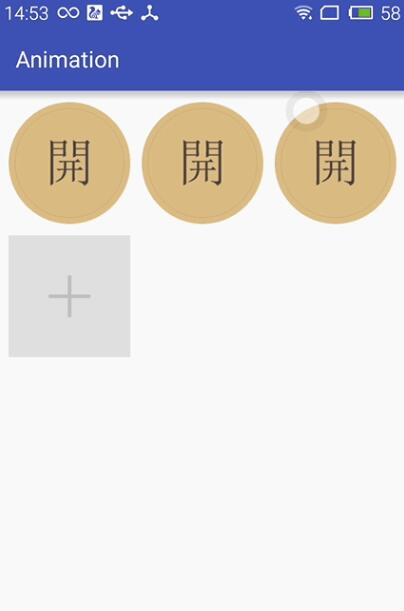
目前的效果:
為什麼需要布局動畫
從上面的效果可以看出,圖片增刪時是「啪」一下就出現或消失,其餘子項瞬間位移,觀感相當突兀。其實平時呼叫 View.setVisibility() 時也有同樣的彆扭感——這正是布局動畫存在的理由:ViewGroup 在重新布局時產生的過渡效果。
第一種:一行屬性搞定
在 XML 上對 ViewGroup 加上 android:animateLayoutChanges="true":
<com.whoislcj.animation.GridImageViewGroup android:id="@+id/image_layout" android:layout_width="match_parent" android:layout_height="wrap_content" android:layout_margin="10dp" android:animateLayoutChanges="true" lee:childHorizontalSpace="10dp" lee:childVerticalSpace="10dp" lee:columnNum="3"/>
效果立刻不一樣:
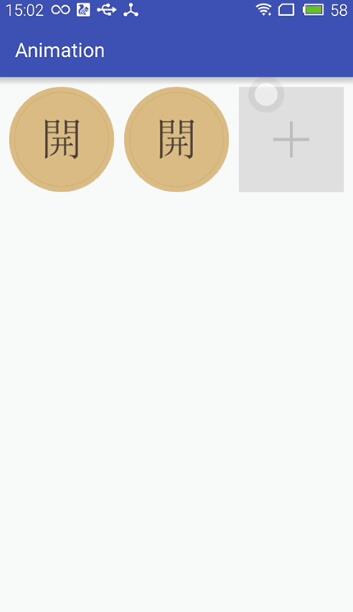
優點是極簡,缺點是動畫樣式固定、無法客製。
第二種:LayoutTransition 自訂過渡
LayoutTransition mLayoutTransition = new LayoutTransition(); //設置每個動畫持續的時間 mLayoutTransition.setStagger(LayoutTransition.CHANGE_APPEARING, 50); mLayoutTransition.setStagger(LayoutTransition.CHANGE_DISAPPEARING, 50); mLayoutTransition.setStagger(LayoutTransition.APPEARING, 50); mLayoutTransition.setStagger(LayoutTransition.DISAPPEARING, 50); PropertyValuesHolder appearingScaleX = PropertyValuesHolder.ofFloat("scaleX", 0.5f, 1.0f); PropertyValuesHolder appearingScaleY = PropertyValuesHolder.ofFloat("scaleY", 0.5f, 1.0f); PropertyValuesHolder appearingAlpha = PropertyValuesHolder.ofFloat("alpha", 0f, 1f); ObjectAnimator mAnimatorAppearing = ObjectAnimator.ofPropertyValuesHolder(this, appearingAlpha, appearingScaleX, appearingScaleY); //為LayoutTransition設置動畫及動畫類型 mLayoutTransition.setAnimator(LayoutTransition.APPEARING, mAnimatorAppearing); PropertyValuesHolder disappearingAlpha = PropertyValuesHolder.ofFloat("alpha", 1f, 0f); PropertyValuesHolder disappearingRotationY = PropertyValuesHolder.ofFloat("rotationY", 0.0f, 90.0f); ObjectAnimator mAnimatorDisappearing = ObjectAnimator.ofPropertyValuesHolder(this, disappearingAlpha, disappearingRotationY); mLayoutTransition.setAnimator(LayoutTransition.DISAPPEARING, mAnimatorDisappearing); ObjectAnimator mAnimatorChangeDisappearing = ObjectAnimator.ofFloat(null, "alpha", 1f, 0f); mLayoutTransition.setAnimator(LayoutTransition.CHANGE_DISAPPEARING, mAnimatorChangeDisappearing); ObjectAnimator mAnimatorChangeAppearing = ObjectAnimator.ofFloat(null, "alpha", 1f, 0f); mLayoutTransition.setAnimator(LayoutTransition.CHANGE_APPEARING, mAnimatorChangeAppearing); //為容器設置 LayoutTransition mImageViewGroup.setLayoutTransition(mLayoutTransition);
若只想用系統預設動畫,不做任何 setAnimator 即可。
LayoutTransition 的四種過渡時機:
•APPEARING —— 元素本身出現在容器中
•CHANGE_APPEARING —— 因為有新元素進來,其他元素的位置變化
•DISAPPEARING —— 元素本身從容器中消失
•CHANGE_DISAPPEARING —— 因為某元素要離開,其他元素的位置變化
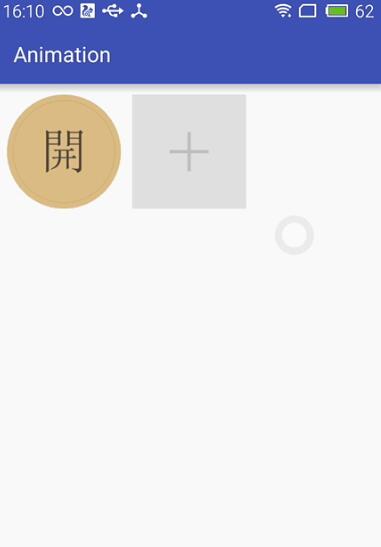
客製後的效果:
第三種:LayoutAnimation 逐項延遲進場
AlphaAnimation alphaAnimation = new AlphaAnimation(0f, 1f); alphaAnimation.setDuration(200); LayoutAnimationController animationController = new LayoutAnimationController(alphaAnimation, 0.5f); animationController.setOrder(LayoutAnimationController.ORDER_NORMAL); mImageViewGroup.setLayoutAnimation(animationController);
顯示順序可選:
•ORDER_NORMAL 順序
•ORDER_REVERSE 反序
•ORDER_RANDOM 隨機
也能純 XML 宣告:
<?xml version="1.0" encoding="utf-8"?> <layoutAnimation xmlns:android="https://schemas.android.com/apk/res/android" android:delay="0.5" android:animationOrder="normal" android:animation="@anim/alpha" />
並在 ViewGroup 上引用:
<com.whoislcj.animation.GridImageViewGroup android:id="@+id/image_layout" android:layout_width="match_parent" android:layout_height="wrap_content" android:layout_margin="10dp" android:layoutAnimation="@anim/layoutanimation" lee:childHorizontalSpace="10dp" lee:childVerticalSpace="10dp" lee:columnNum="3"/>
這種寫法用的是傳統補間動畫,效果相對單調,目前個人較少採用。
總結
三種方式的定位其實很清楚:animateLayoutChanges 適合快速搞定、要求不高時;LayoutTransition 適合需要客製進出場動畫;LayoutAnimation 則偏向清單初次載入時的逐項進場。實際專案可以混用,例如列表首次載入用 LayoutAnimation,後續增刪交給 LayoutTransition。
 Android 下拉刷新 SwipeRefreshLayout 使用指南:ListView 與 RecyclerView
SwipeRefreshLayout 的定位 SwipeRefreshLayout 是 Android Support Library 提供的下拉刷新布局。使用者向下滑動
 Android開發學習之路:RxAndroid與Lambda的相遇
前面基本掌握了 RxJava 的簡單用法,接下來還有一個頗有意思的東西——Java 8 才引入的 Lambda。 一、在 Android Studio 下搭建 Lamb
 Android 記憶體優化:以 SparseArray 與 ArrayMap 取代 HashMap
HashMap 在 Android 的問題 HashMap 使用方便,但內部需要維護 Entry 物件、hash 值與鏈表結構。當資料量很大時,會產生額外物件與記憶體負擔
 Android 自動補全與滾動容器:AutoCompleteTextView 與 ScrollView 實務
AutoCompleteTextView 基本用法AutoCompleteTextView 會在使用者輸入時顯示建議清單。最簡單的方式是搭配 ArrayAdapter,並