

編輯:關於 Android 程式設計
本文來談 MediaPlayer。它可以播放音訊與影片,是 Android 多媒體播放的核心類別。
如果只是要播影片,VideoView 更簡單易用;但客製化程度不如 MediaPlayer,兩者該怎麼選要看需求。另外要特別注意:用 MediaPlayer 播放音訊很簡單,但要播放影片就必須搭配 SurfaceView。SurfaceView 在繪圖上比普通的自定義 View 更有優勢,它支援完整的 OpenGL ES 庫,並擁有一層獨立的繪圖表面。
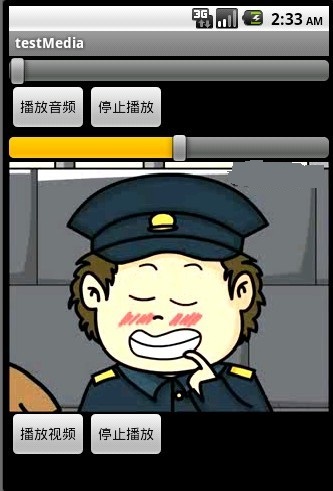
程式執行結果如下。上方是音訊的播放/停止控制,用 SeekBar 調整進度;下方是影片的播放/停止,同樣用 SeekBar 調進度:
<LinearLayout
    android:id="@+id/LinearLayout01"
    android:layout_width="fill_parent"
    android:layout_height="fill_parent"
    xmlns:android="https://schemas.android.com/apk/res/android"
    android:orientation="vertical">

    <!-- 音訊進度 -->
    <SeekBar
        android:id="@+id/SeekBar01"
        android:layout_height="wrap_content"
        android:layout_width="fill_parent">
    </SeekBar>

    <LinearLayout
        android:id="@+id/LinearLayout02"
        android:layout_width="wrap_content"
        android:layout_height="wrap_content">

        <Button
            android:id="@+id/Button01"
            android:layout_width="wrap_content"
            android:layout_height="wrap_content"
            android:text="播放音頻">
        </Button>

        <Button
            android:id="@+id/Button02"
            android:layout_width="wrap_content"
            android:layout_height="wrap_content"
            android:text="停止播放">
        </Button>
    </LinearLayout>

    <!-- 影片進度 -->
    <SeekBar
        android:id="@+id/SeekBar02"
        android:layout_height="wrap_content"
        android:layout_width="fill_parent">
    </SeekBar>

    <!-- 影片必須畫在 SurfaceView 上 -->
    <SurfaceView
        android:id="@+id/SurfaceView01"
        android:layout_width="fill_parent"
        android:layout_height="250px">
    </SurfaceView>

    <LinearLayout
        android:id="@+id/LinearLayout03"
        android:layout_width="wrap_content"
        android:layout_height="wrap_content">

        <Button
            android:layout_width="wrap_content"
            android:layout_height="wrap_content"
            android:id="@+id/Button03"
            android:text="播放視頻">
        </Button>

        <Button
            android:layout_width="wrap_content"
            android:layout_height="wrap_content"
            android:text="停止播放"
            android:id="@+id/Button04">
        </Button>
    </LinearLayout>
</LinearLayout>
package com.testMedia;

import java.io.IOException;
import java.util.Timer;
import java.util.TimerTask;

import android.app.Activity;
import android.media.AudioManager;
import android.media.MediaPlayer;
import android.os.Bundle;
import android.view.SurfaceHolder;
import android.view.SurfaceView;
import android.view.View;
import android.widget.Button;
import android.widget.SeekBar;
import android.widget.Toast;

public class testMedia extends Activity {

    private SeekBar skb_audio = null;
    private Button btn_start_audio = null;
    private Button btn_stop_audio = null;

    private SeekBar skb_video = null;
    private Button btn_start_video = null;
    private Button btn_stop_video = null;

    private SurfaceView surfaceView;
    private SurfaceHolder surfaceHolder;

    private MediaPlayer m = null;
    private Timer mTimer;
    private TimerTask mTimerTask;

    /** 互斥變數:避免定時器更新進度與使用者拖動 SeekBar 時互相衝突 */
    private boolean isChanging = false;

    @Override
    public void onCreate(Bundle savedInstanceState) {
        super.onCreate(savedInstanceState);
        setContentView(R.layout.main);

        // ---------- MediaPlayer 設定 ----------
        m = new MediaPlayer();
        // 播放結束後的處理
        m.setOnCompletionListener(new MediaPlayer.OnCompletionListener() {
            @Override
            public void onCompletion(MediaPlayer arg0) {
                Toast.makeText(testMedia.this, "播放結束", 1000).show();
                m.release();   // 記得釋放,否則會佔用硬體解碼器
            }
        });

        // ---------- 定時器:定期把播放進度同步到 SeekBar ----------
        mTimer = new Timer();
        mTimerTask = new TimerTask() {
            @Override
            public void run() {
                if (isChanging == true) return;   // 使用者正在拖動,跳過
                if (m.getVideoHeight() == 0) {
                    // 沒有影片尺寸 → 目前是純音訊播放
                    skb_audio.setProgress(m.getCurrentPosition());
                } else {
                    skb_video.setProgress(m.getCurrentPosition());
                }
            }
        };
        mTimer.schedule(mTimerTask, 0, 10);

        btn_start_audio = (Button) this.findViewById(R.id.Button01);
        btn_stop_audio = (Button) this.findViewById(R.id.Button02);
        btn_start_audio.setOnClickListener(new ClickEvent());
        btn_stop_audio.setOnClickListener(new ClickEvent());

        skb_audio = (SeekBar) this.findViewById(R.id.SeekBar01);
        skb_audio.setOnSeekBarChangeListener(new SeekBarChangeEvent());

        btn_start_video = (Button) this.findViewById(R.id.Button03);
        btn_stop_video = (Button) this.findViewById(R.id.Button04);
        btn_start_video.setOnClickListener(new ClickEvent());
        btn_stop_video.setOnClickListener(new ClickEvent());

        skb_video = (SeekBar) this.findViewById(R.id.SeekBar02);
        skb_video.setOnSeekBarChangeListener(new SeekBarChangeEvent());

        surfaceView = (SurfaceView) findViewById(R.id.SurfaceView01);
        surfaceHolder = surfaceView.getHolder();
        surfaceHolder.setFixedSize(100, 100);
        surfaceHolder.setType(SurfaceHolder.SURFACE_TYPE_PUSH_BUFFERS);
    }

    /** 按鍵事件處理 */
    class ClickEvent implements View.OnClickListener {
        @Override
        public void onClick(View v) {
            if (v == btn_start_audio) {
                m.reset();   // 回到未初始化狀態,讓 MediaPlayer 可重複使用
                m = MediaPlayer.create(testMedia.this, R.raw.big);   // 載入音訊
                skb_audio.setMax(m.getDuration());                   // SeekBar 上限 = 總長度
                try {
                    m.prepare();
                } catch (IllegalStateException e) {
                    e.printStackTrace();
                } catch (IOException e) {
                    e.printStackTrace();
                }
                m.start();

            } else if (v == btn_stop_audio || v == btn_stop_video) {
                m.stop();

            } else if (v == btn_start_video) {
                m.reset();
                m = MediaPlayer.create(testMedia.this, R.raw.test);   // 載入影片
                skb_video.setMax(m.getDuration());
                m.setAudioStreamType(AudioManager.STREAM_MUSIC);
                m.setDisplay(surfaceHolder);                          // 指定畫面輸出的 Surface
                try {
                    m.prepare();
                } catch (IllegalArgumentException e) {
                    e.printStackTrace();
                } catch (IllegalStateException e) {
                    e.printStackTrace();
                } catch (IOException e) {
                    e.printStackTrace();
                }
                m.start();
            }
        }
    }

    /** SeekBar 進度變更事件 */
    class SeekBarChangeEvent implements SeekBar.OnSeekBarChangeListener {
        @Override
        public void onProgressChanged(SeekBar seekBar, int progress, boolean fromUser) { }

        @Override
        public void onStartTrackingTouch(SeekBar seekBar) {
            isChanging = true;   // 開始拖動,暫停定時器覆寫進度
        }

        @Override
        public void onStopTrackingTouch(SeekBar seekBar) {
            m.seekTo(seekBar.getProgress());   // 放手後才真正跳轉
            isChanging = false;
        }
    }
}
MediaPlayer 進入 Stopped 或 Ended 狀態後,不能直接再 start(),必須先呼叫 reset() 回到 Idle 狀態重新配置。範例中「播放結束就 release()」是比較乾淨的做法;若要重複播放同一個檔案,則改用 reset() + 重新 create()。
這裡用 m.getVideoHeight() == 0 來區分「目前播的是純音訊還是影片」,藉此決定該更新哪一個 SeekBar。這是個取巧的判斷,實務上更清楚的做法是自行維護一個狀態變數(例如 isPlayingVideo)。
定時器每 10ms 就把 getCurrentPosition() 寫進 SeekBar,而使用者拖動 SeekBar 時又想改播放位置——兩者會互相拉扯,畫面看起來就是進度條一直「跳回來」。用一個旗標在 onStartTrackingTouch 暫停同步、onStopTrackingTouch 才真正 seekTo(),是標準解法。
SurfaceHoldersetDisplay(surfaceHolder) 把畫面綁到這個 SurfacesetAudioStreamType(AudioManager.STREAM_MUSIC),讓音量鍵控制的是媒體音量而不是鈴聲MediaPlayer 適合簡單場景或維護舊專案。Timer 只有單一執行緒,任一任務拋出例外就會讓整個定時器停止;而且 10ms 的更新頻率對 UI 來說太高,30~50ms 已經足夠順暢。AudioFocusRequest 正確歸還焦點。android:foregroundServiceType="mediaPlayback" 並建立前台服務,否則 App 切到背景後音訊會被中斷。以上就是 21 天學習 Android 開發系列關於 MediaPlayer 的介紹,希望對你的學習有所幫助。
 Android 自訂控制項輕鬆實現側滑菜單效果
側滑菜單在許多應用中都會見到,最近 QQ 5.0 的側滑還玩了點花樣。對於側滑菜單,一般人通常會自訂 ViewGroup,然後隱藏菜單欄,手指滑動時透過 Scroller
 Android 自定義控制項實作(下):帶清除鍵的 ClearEditText 與表情輸入框
上一篇《Android UI 編程之自定義控制項初步(上)——ImageButton》已經把自定義控制項的基本流程走過一遍。這篇接著挑戰 EditText,做兩個實用的小
 Android 修改應用程式捷徑圖示的實作步驟
更換 Android 應用程式啟動捷徑圖示,看似簡單,但常因為快取或既有安裝版本干擾,導致修改後沒有立即反映。以下整理一套可操作的流程。 準備新的圖示資源 先將新的 ic
 再見 Eclipse:Android Studio 新手入門(二)專案導入與踩坑記錄
上一篇談了 Android Studio 的常用設定,工具調教妥當之後,自然要開始動工。從零新建專案很簡單,這篇要講的是另一條更痛的路:把舊的 Eclipse 專案搬進