

編輯:關於 Android 程式設計
做 Android 開發時,官方提供了琳瑯滿目的控制項,但總有需要它們都滿足不了、必須自己動手的時候。本篇就和大家一起把自訂 ViewGroup 的相關知識梳理清楚。
先來看官方文件怎麼描述:ViewGroup 是一種特殊的 View,可以容納其他 View(稱為它的孩子),它是布局與視圖容器的基類,同時也定義了 ViewGroup.LayoutParams 作為布局參數的基類。也就是說,ViewGroup 本質上就是裝控制項的容器,例如官方自帶的 LinearLayout、RelativeLayout 等等。

自訂 ViewGroup 有兩個必須掌握的方法:onMeasure 與 onLayout,其中 onLayout 是一定要重寫的。
它負責測量自身尺寸,為後續正式布局提供建議——注意,只是建議,用不用要看 onLayout。
如果 layout_width 和 layout_height 是 match_parent 或具體的 xxdp,那就很簡單,直接呼叫 setMeasuredDimension() 設定寬高即可。但如果是 wrap_content,就麻煩得多:需要遍歷所有子 View,逐一測量,再依排列規則算出 ViewGroup 最終的尺寸。不重寫 onMeasure() 的話,系統不知道該給多大,就會預設填滿整個父布局。所以重寫它的目的,就是讓 View 在 wrap_content 下有一個合理的預設大小。
呼叫時會傳進兩個參數:int widthMeasureSpec 和 int heightMeasureSpec。它們是父類傳下來的建議值,看似普通的 int,實際上由 mode 和 size 兩部分組成。轉成二進位後共 30 位:前兩位是 mode(測量模式),後 28 位才是真正的數值 size。分別用 MeasureSpec.getMode() 與 MeasureSpec.getSize() 取出。
三種模式:
EXACTLY:表示指定了精確值。當子 View 的寬高被設為具體數值(如 50dp)或 match_parent 時,ViewGroup 會給它這個模式。
AT_MOST:表示子 View 被限制在一個最大值內。當子 View 的寬高設為 wrap_content 時,ViewGroup 會給它這個模式。
UNSPECIFIED:表示子 View 想多大就多大,常見於 AdapterView 的 item heightMode、ScrollView 的 childView heightMode 中,比較少見。
可以直接拿這段當模板:
@Override
protected void onMeasure(int widthMeasureSpec, int heightMeasureSpec) {
    setMeasuredDimension(measureWidth(widthMeasureSpec), measureHeight(heightMeasureSpec));
}

private int measureWidth(int measureSpec) {
    int result = 0;
    int specMode = MeasureSpec.getMode(measureSpec);
    int specSize = MeasureSpec.getSize(measureSpec);

    if (specMode == MeasureSpec.EXACTLY) {
        // 精確值模式,直接用指定數值
        result = specSize;
    } else {
        result = 200; // 先給一個預設大小
        if (specMode == MeasureSpec.AT_MOST) {
            // 最大值模式:取我們指定的大小與 specSize 中較小的一個
            result = Math.min(result, specSize);
        }
        // MeasureSpec.UNSPECIFIED:不限制大小,View 想多大就多大
    }
    return result;
}
getChildCount() 取得子 View 數量,配合迴圈遍歷。
getChildAt(int index) 取出指定下標的子 View。
透過 childView.getMeasuredWidth() 和 childView.getMeasuredHeight() 取得子控制項尺寸——但前提是子控制項已經完成自身的測量。觸發測量有三種方式:
measureChild(view, wSpec, hSpec):ViewGroup 提供的、針對單個子 View 的測量方法。
measureChildren(wSpec, hSpec):針對所有子 View 的測量方法。
view.measure(wSpec, hSpec):子 View 自身的測量方法。
measureChildWithMargins(view, wSpec, wUsed, hSpec, hUsed):針對某一個子 View,內部會把 ViewGroup 的 padding、margin 以及傳入的 wUsed、hUsed 一併計算進去。
onLayout() 的作用是為每一個子控制項設定擺放位置。View 都是依矩形空間定位的,傳下來的 l、t、r、b 是父控制項可用空間(已扣除 margin 與 padding)的左上角 left/top 與右下角 right/bottom,參數 changed 表示 view 是否有新的尺寸或位置。
@Override
protected void onLayout(boolean changed, int l, int t, int r, int b) {
    if (changed) {
        int childLeft = 0;
        final int childCount = getChildCount();
        for (int i = 0; i < childCount; i++) {
            final View childView = getChildAt(i);
            if (childView.getVisibility() != View.GONE) {
                final int childWidth = childView.getMeasuredWidth();
                childView.layout(childLeft, 0, childLeft + childWidth,
                        childView.getMeasuredHeight());
                childLeft += childWidth;
            }
        }
    }
}
注意:如果你需要動態往 ViewGroup 裡加 View,要把 if (changed) 這個判斷去掉,否則會遇到讓人頭疼的子 View 不顯示問題。
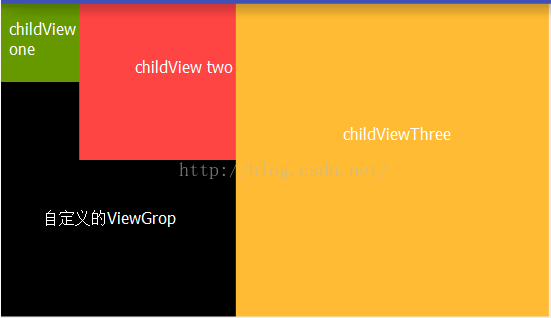
目標效果:自訂 ViewGroup 裡三個子控制項並排顯示,ViewGroup 的高度等於最高的子 View,寬度等於所有子 View 寬度之和。
public class MyView extends ViewGroup {

    public MyView(Context context) { this(context, null); }
    public MyView(Context context, AttributeSet attrs) { this(context, attrs, 0); }
    public MyView(Context context, AttributeSet attrs, int defStyleAttr) {
        super(context, attrs, defStyleAttr);
    }

    @Override
    protected void onMeasure(int widthMeasureSpec, int heightMeasureSpec) {
        // 先對子控制項進行測量
        measureChildren(widthMeasureSpec, heightMeasureSpec);
        setMeasuredDimension(measureWidth(widthMeasureSpec), measureHeight(heightMeasureSpec));
    }

    private int measureWidth(int widthMeasureSpec) {
        int specMode = MeasureSpec.getMode(widthMeasureSpec);
        int specSize = MeasureSpec.getSize(widthMeasureSpec);
        int result = 0;
        if (specMode == MeasureSpec.AT_MOST) {
            int size = 0;
            // 所有子控制項寬度累加
            for (int x = 0; x < getChildCount(); x++) {
                size += getChildAt(x).getMeasuredWidth();
            }
            result = size;
        } else {
            result = specSize;
        }
        return result;
    }

    private int measureHeight(int heightMeasureSpec) {
        int heightMode = MeasureSpec.getMode(heightMeasureSpec);
        int heightSize = MeasureSpec.getSize(heightMeasureSpec);
        int result = 0;
        if (heightMode == MeasureSpec.AT_MOST) {
            // 取子控制項中最大的高度
            for (int x = 0; x < getChildCount(); x++) {
                result = Math.max(result, getChildAt(x).getMeasuredHeight());
            }
        } else {
            result = heightSize;
        }
        return result;
    }

    @Override
    protected void onLayout(boolean changed, int l, int t, int r, int b) {
        int childCount = getChildCount();
        int left = 0;
        for (int i = 0; i < childCount; i++) {
            View child = getChildAt(i);
            int width = child.getMeasuredWidth();
            child.layout(left, 0, left + width, child.getMeasuredHeight());
            left += width;
        }
    }
}
布局檔:
<com.dapeng.viewgropdemo.MyView
    xmlns:android="https://schemas.android.com/apk/res/android"
    android:layout_width="wrap_content"
    android:layout_height="wrap_content"
    android:background="@android:color/black">

    <View
        android:layout_width="50dip"
        android:layout_height="50dip"
        android:background="@android:color/holo_green_dark" />

    <View
        android:layout_width="100dip"
        android:layout_height="100dip"
        android:background="@android:color/holo_red_light" />

    <View
        android:layout_width="200dip"
        android:layout_height="200dip"
        android:background="@android:color/holo_orange_light" />
</com.dapeng.viewgropdemo.MyView>
這是一個很容易出錯的地方。兩者的值大部分時候相同,但含義完全不同:
1. getMeasuredWidth() 在 measure() 流程結束後就能取得,而 getWidth() 必須等 layout() 流程結束後才有值。
2. getMeasuredWidth() 的值由 setMeasuredDimension() 設定,getWidth() 的值則由 layout(left, top, right, bottom) 設定。
自訂 ViewGroup 時常會遇到這樣的困惑:在布局檔裡給子控制項寫了 margin,結果完全沒有效果。原因很簡單——測量和布局都是我們自己實作的,onLayout() 裡沒有依 margin 定位,自然看不到效果;而且預設的 generateLayoutParams() 只會提取 layout_width、layout_height,只有 MarginLayoutParams 才具備提取 margin 的能力。
還要特別注意:如果 onLayout() 裡按 margin 布局,那麼 onMeasure() 計算容器大小時也必須把 margin 加進去,否則容器會偏小,控制項顯示不全。
LayoutParams 相當於一個布局資訊包,封裝了位置、寬、高等資訊。可以這樣理解:棋盤上每個棋子都佔據一個格子,「4 行 4 列」就是這個棋子的 LayoutParams。View 透過 LayoutParams 告訴父視圖自己想要多大,寬高可以設為三種值:一個確定值、FILL_PARENT(填滿父容器)、WRAP_CONTENT(包裹內容)。
ViewGroup 子類可以實作自訂 LayoutParams,擴充更多屬性,例如 margin:
// 使用自訂 LayoutParams 必須重寫下面四個方法
@Override
protected boolean checkLayoutParams(ViewGroup.LayoutParams p) {
    return p instanceof LayoutParams;
}

@Override
protected LayoutParams generateDefaultLayoutParams() {
    return new LayoutParams(LayoutParams.WRAP_CONTENT, LayoutParams.WRAP_CONTENT);
}

@Override
public LayoutParams generateLayoutParams(AttributeSet attrs) {
    return new LayoutParams(getContext(), attrs);
}

@Override
protected LayoutParams generateLayoutParams(ViewGroup.LayoutParams p) {
    return new LayoutParams(p.width, p.height);
}
如果要支援 margin,把上面四處改成 MarginLayoutParams 即可:
@Override
public LayoutParams generateLayoutParams(AttributeSet attrs) {
    return new MarginLayoutParams(getContext(), attrs);
}

@Override
protected LayoutParams generateDefaultLayoutParams() {
    return new MarginLayoutParams(LayoutParams.MATCH_PARENT, LayoutParams.MATCH_PARENT);
}

@Override
protected LayoutParams generateLayoutParams(ViewGroup.LayoutParams p) {
    return new MarginLayoutParams(p);
}
使用時就能取出相關參數:
MarginLayoutParams cParams = (MarginLayoutParams) childView.getLayoutParams();
int bottomMargin = cParams.bottomMargin;
int topMargin = cParams.topMargin;
int leftMargin = cParams.leftMargin;
int rightMargin = cParams.rightMargin;
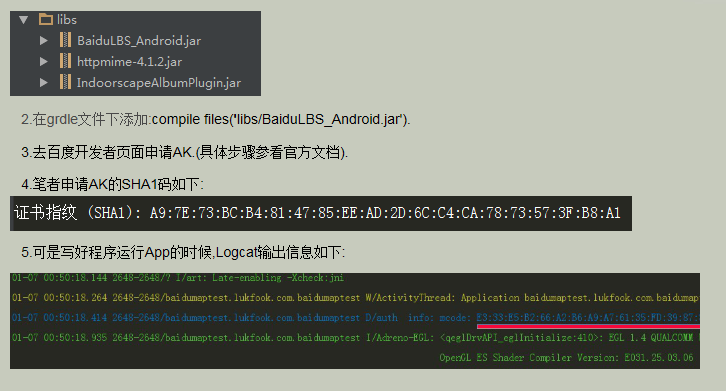 百度地圖 API「230 錯誤 APP Scode 校驗失敗」解決辦法
近兩天在 Android Studio 上玩百度地圖時,筆者遇到了常見的「230 錯誤 APP Scode 校驗失敗」問題。這個錯誤會導致地圖無法加載、只顯示方格子。下面
 Android Activity 生命週期全總結:七大函數與四大狀態
概述 有圖有真相,所以先上圖: 上圖是從 Android 官網截下的 Activity 生命週期流程圖,結構非常清晰,描述了 Activity 在其生命週期內所有可能發
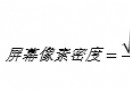 Android TV 開發總結:TV 屏幕適配規則與資源讀取優先級
背景知識 Android 屏幕適配涉及尺寸、解析度與像素密度等概念。屏幕尺寸通常以對角線英寸表示,解析度表示橫向與縱向像素數,像素密度則是每英寸像素數。 以 Nexus
 微信電腦版怎麼發起視頻通話
微信電腦版同樣支持視頻聊天,來看看具體怎麼操作。 1、首先需要把微信電腦版更新到 1.5 及以上版本,舊版本沒有這個入口。 2、發起方式有兩種。第一種是在手機微信上選中想