

編輯:關於 Android 程式設計
對話框是 Android 開發中不可或缺的交互組件。相比傳統的 Dialog,DialogFragment 在生命周期管理、屏幕旋轉等方面具有明顯優勢。本文將介紹 DialogFragment 的用法,并梳理各類常用對話框的實現。
DialogFragment 相比傳統 Dialog 有幾個突出優點:
1)能更好地管理屏幕選擇和返回鍵相關的生命周期方法;
2)允許開發者把 Dialog 作為內嵌組件復用,類似 Fragment,可在大屏與小屏上呈現不同效果;
3)在橫豎屏切換時,傳統的 new AlertDialog 在屏幕旋轉時不會保存用戶輸入的值,而基于 DialogFragment 實現的對話框則完全不必擔心旋轉問題。
創建方式有兩種:一是重寫 onCreateView,使用自定義的 XML 布局展示 Dialog;二是重寫 onCreateDialog,利用 AlertDialog 或 Dialog 構建。
方式一(onCreateView):
public class EditNameDialogFragment extends DialogFragment{ @Nullable @Override public View onCreateView(LayoutInflater inflater, ViewGroup container, Bundle savedInstanceState) { getDialog().requestWindowFeature(Window.FEATURE_NO_TITLE); View view = inflater.inflate(R.layout.dialog_fragment, container); return view; } }
方式二(onCreateDialog):直接在代碼中構建 Dialog,并通過自定義接口把數據傳回 Activity:
public class LoginLoginDialogFragment extends DialogFragment { private EditText mUsername; private EditText mPassword; public interface LoginInputListenner{ void onLoginInputListenner(String usename, String password); } @Override public Dialog onCreateDialog(Bundle savedInstanceState) { AlertDialog.Builder builder = new AlertDialog.Builder(getActivity()); View view = getActivity().getLayoutInflater().inflate(R.layout.login_fragment, null); mUsername = (EditText) view.findViewById(R.id.id_txt_username); mPassword = (EditText) view.findViewById(R.id.id_txt_password); builder.setView(view).setPositiveButton("Sign in", new DialogInterface.OnClickListener() { @Override public void onClick(DialogInterface dialog, int which) { LoginInputListenner listenner = (LoginInputListenner) getActivity(); listenner.onLoginInputListenner(mUsername.getText().toString(), mPassword.getText().toString()); } }).setNegativeButton("Cancel", null); return builder.create(); } }
(1)簡單警告框:通過 AlertDialog.Builder 設置標題、內容、圖標后 show 即可。
Dialog dialog = new AlertDialog.Builder(this) .setTitle("對話框") .setMessage("顯示提示信息") .setIcon(R.drawable.pic_m) .create(); dialog.show();
(2)多種操作按鈕:可同時設置 Positive、Neutral、Negative 三種按鈕。
Dialog dialog = new AlertDialog.Builder(MyDialogDemo.this) .setTitle("確定刪除?") .setMessage("您確定要刪除該條信息嗎?") .setIcon(R.drawable.pic_m) .setPositiveButton("刪除", new DialogInterface.OnClickListener() { @Override public void onClick(DialogInterface dialog, int which) { } }).setNeutralButton("查看詳情", new DialogInterface.OnClickListener() { @Override public void onClick(DialogInterface dialog, int which) { } }).setNegativeButton("取消", new DialogInterface.OnClickListener() { @Override public void onClick(DialogInterface dialog, int which) { } }).create(); dialog.show();
(3)退出確認框:常在 onKeyDown 中監聽返回鍵,彈出確認對話框后再 finish。
private void exitDialog(){ Dialog dialog = new AlertDialog.Builder(MyDialogDemo.this) .setTitle("程序退出?") .setMessage("您確定要退出本程序嗎?") .setIcon(R.drawable.pic_m) .setPositiveButton("確定", new DialogInterface.OnClickListener() { @Override public void onClick(DialogInterface dialog, int which) { MyDialogDemo.this.finish(); } }).setNegativeButton("取消", new DialogInterface.OnClickListener() { @Override public void onClick(DialogInterface dialog, int which) { } }).create(); dialog.show(); }
(4)列表對話框:通過 setItems 展示單選列表,點擊后獲取選中項。
Dialog dialog = new AlertDialog.Builder(MyDialogDemo.this) .setIcon(R.drawable.pic_m) .setTitle("請選擇你喜歡吃的水果?") .setItems(MyDialogDemo.this.fruitData, new DialogInterface.OnClickListener() { @Override public void onClick(DialogInterface dialog, int which) { MyDialogDemo.this.mych.setText("您選擇的水果是:" + MyDialogDemo.this.fruitData[which]); } }).create();
(5)單選對話框:通過 setSingleChoiceItems 實現互斥單選。
Dialog dialog = new AlertDialog.Builder(MyDialogDemo.this) .setIcon(R.drawable.pic_m) .setTitle("請選擇你喜歡吃的水果?") .setPositiveButton("確定", new DialogInterface.OnClickListener() { @Override public void onClick(DialogInterface dialog, int which) { MyDialogDemo.this.mych.setText(MyDialogDemo.this.fruitData[MyDialogDemo.this.chNum]); } }) .setNegativeButton("取消", null) .setSingleChoiceItems(MyDialogDemo.this.fruitData, 0, new DialogInterface.OnClickListener() { @Override public void onClick(DialogInterface dialog, int which) { MyDialogDemo.this.mytext.setText(MyDialogDemo.this.fruitDesc[which]); MyDialogDemo.this.chNum = which; } }).create();
(6)復選框對話框:通過 setMultiChoiceItems 實現多選。
Dialog dialog = new AlertDialog.Builder(MyDialogDemo.this) .setIcon(R.drawable.pic_m) .setTitle("請選擇你喜歡吃的水果?") .setPositiveButton("確定", null) .setNegativeButton("取消", null) .setMultiChoiceItems(MyDialogDemo.this.fruitData, MyDialogDemo.this.chData, new DialogInterface.OnMultiChoiceClickListener() { @Override public void onClick(DialogInterface dialog, int which, boolean isChecked) { if (isChecked) { MyDialogDemo.this.mych.append(MyDialogDemo.this.fruitData[which] + "、"); } } }).create();
(7)進度對話框:用 ProgressDialog.show 顯示等待提示,并在后臺線程完成后 dismiss。
final ProgressDialog proDia = ProgressDialog.show(MyDialogDemo.this, "搜索網絡", "請耐心等待..."); new Thread(){ public void run(){ try { Thread.sleep(3000); } catch (Exception e) { } finally { proDia.dismiss(); } } }.start();
(8)水平進度條:通過 setProgressStyle(ProgressDialog.STYLE_HORIZONTAL) 設置水平樣式,并可在后臺線程中通過 incrementProgressBy 遞增進度。
final ProgressDialog proDia = new ProgressDialog(MyDialogDemo.this); proDia.setTitle("搜索網絡"); proDia.setMessage("請耐心等待"); proDia.setProgressStyle(ProgressDialog.STYLE_HORIZONTAL); proDia.setMax(MAX_PROGRESS); proDia.setProgress(30); new Thread(){ public void run(){ for (int x = 0; x < MAX_PROGRESS; x++) { try { Thread.sleep(500); } catch (Exception e) { } proDia.incrementProgressBy(1); } proDia.dismiss(); } }.start(); proDia.show();
掌握這些對話框的用法,并善用 DialogFragment 帶來的復用性與旋轉安全性,能讓界面交互更加穩健、優雅。
 在 Android 中生成並保存 Excel 表格的完整實現
人們常說程序員與產品經理互相看不順眼,但其實有時遇到一些不靠譜的後台開發人員也會頗感無奈。最近項目有個需求:生成一個 Excel 文件並通過郵件發送給客戶。結果後台人員直
 Android Studio 調試技巧十連:那些被忽略的效率神器
說到 Android Studio 的調試,很多人會覺得:不就是打個斷點、單步跟進嗎?我剛開始也這麼認為。直到真正把這些功能用熟,才發現調試原來可以這麼高效。以下逐一介紹
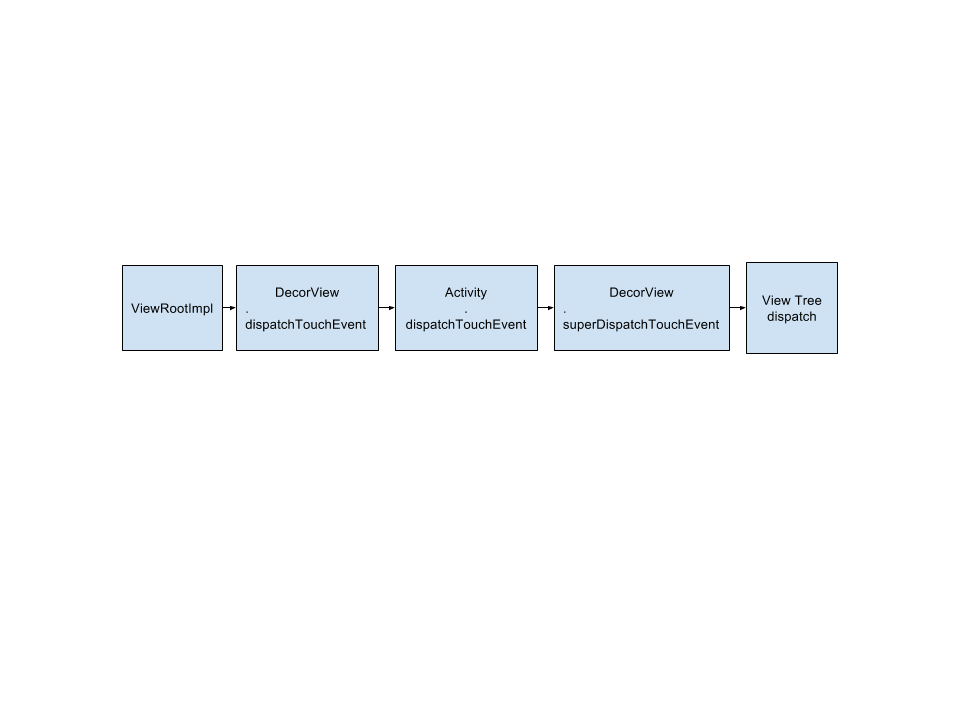 Android 事件派發機制深度解析:從觸摸螢幕到 View 樹
網路上介紹 Android 事件派發流程的文章很多,但實際照著寫代碼時,還是常常踩到反直覺的行為。本文回頭把整條鏈路從源碼層面梳理一遍:從手指觸摸螢幕開始,一路到事件在
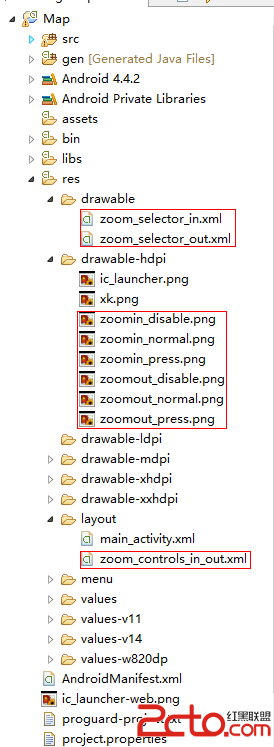 自訂 Android 百度地圖縮放圖標的實作教學
百度地圖 SDK 內建的縮放控制項外觀往往無法符合產品設計稿的要求,這時我們可以透過自訂一個縮放控制元件來達成客製化的效果。以下示範如何打造一組具備放大、縮小功能的圖標,