

編輯:關於 Android 程式設計
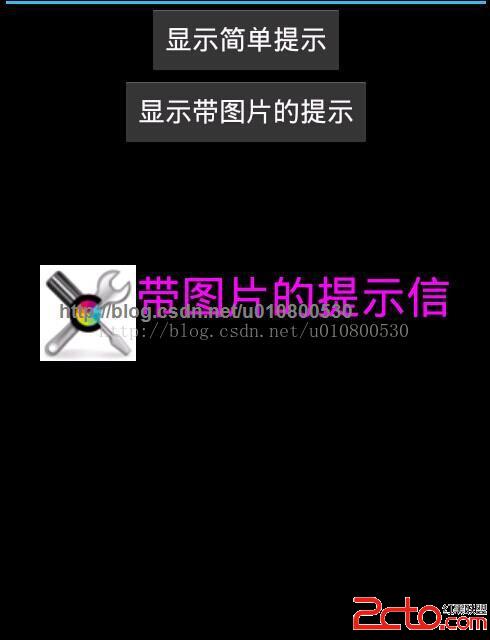
Toast 是 Android 中最常見的輕量提示元件,但預設樣式只是一行純文字。若想讓提示更具辨識度,可以放進圖示,甚至完全自定義版面。
實作起來並不難,核心只有兩步:
Toast.setView() 把它設給 Toast 顯示。這裡的做法是用 LinearLayout 當容器,裡面放一個 ImageView 加一個 TextView。
先在一個 Android 專案中編輯 main.xml,放兩個按鈕分別觸發兩種樣式:
<?xml version="1.0" encoding="utf-8"?>
<LinearLayout xmlns:android="https://schemas.android.com/apk/res/android"
    android:orientation="vertical"
    android:layout_width="fill_parent"
    android:layout_height="fill_parent"
    android:gravity="center_horizontal" >

    <Button
        android:id="@+id/simple"
        android:layout_width="wrap_content"
        android:layout_height="wrap_content"
        android:text="顯示簡單提示" />

    <Button
        android:id="@+id/bn"
        android:layout_width="wrap_content"
        android:layout_height="wrap_content"
        android:text="顯示帶圖片的提示" />
</LinearLayout>
import android.app.Activity;
import android.graphics.Color;
import android.os.Bundle;
import android.view.Gravity;
import android.view.View;
import android.view.View.OnClickListener;
import android.widget.Button;
import android.widget.ImageView;
import android.widget.LinearLayout;
import android.widget.TextView;
import android.widget.Toast;

public class ToastTest extends Activity {

    @Override
    public void onCreate(Bundle savedInstanceState) {
        super.onCreate(savedInstanceState);
        setContentView(R.layout.main);

        // 一般樣式
        Button simple = (Button) findViewById(R.id.simple);
        simple.setOnClickListener(new OnClickListener() {
            @Override
            public void onClick(View source) {
                Toast toast = Toast.makeText(ToastTest.this,
                        "簡單的提示信息", Toast.LENGTH_SHORT);
                toast.show();
            }
        });

        // 自定義樣式
        Button bn = (Button) findViewById(R.id.bn);
        bn.setOnClickListener(new OnClickListener() {
            @Override
            public void onClick(View source) {
                Toast toast = new Toast(ToastTest.this);
                toast.setGravity(Gravity.CENTER, 0, 0); // 設定顯示位置

                // 建立圖示
                ImageView image = new ImageView(ToastTest.this);
                image.setImageResource(R.drawable.tools);

                // 建立文字
                TextView textView = new TextView(ToastTest.this);
                textView.setText("帶圖片的提示信");
                textView.setTextSize(30);
                textView.setTextColor(Color.MAGENTA);

                // 組裝容器
                LinearLayout ll = new LinearLayout(ToastTest.this);
                ll.addView(image);
                ll.addView(textView);

                toast.setView(ll);                       // 套用自定義視圖
                toast.setDuration(Toast.LENGTH_LONG);    // 設定顯示時間
                toast.show();
            }
        });
    }
}
執行結果如下:
setView() 與 setText() 是兩套互斥的呈現方式,混用會拋出異常。setGravity() 決定。LENGTH_SHORT 與 LENGTH_LONG。雖然 setDuration() 接受任意毫秒數,但系統會忽略自訂值。 Android 兩數相乘範例:Intent 傳值、跨頁跳轉與 Options Menu 一次學會
開發環境:Android 4.1 這個看起來很單純的計算機,其實包辦了 Android 入門階段最該練會的三件事:Intent 帶值跳頁、跨 Activity 取回資料
 Android 智慧簡訊開發實戰:會話列表與選單動畫
畫面結構與互動目標 智慧簡訊的會話頁通常由兩部分組成:上方是可滾動的會話列表,下方則是操作選單。列表負責呈現最近的對話內容,而底部選單提供編輯、新增簡訊等功能。為了讓操作
 布局動畫實戰:為自訂 ViewGroup 加上進出場過渡(三種寫法)
前言 前面幾篇談過補間動畫、逐幀動畫與屬性動畫,對象基本都是單一 View。那如果我想讓整個 ViewGroup 在子項增刪時有過渡效果呢?這就是「布局動畫」要處理的事。
 vivo X7怎麼換字型?替換系統字型檔案的步驟與風險
有些使用者對 vivo X7 的系統預設字型不太滿意,想換成自己喜歡的樣式。這件事在 Android 上做得到,但需要解鎖系統權限並替換字型檔案,屬於高風險操作,請先讀完