

編輯:關於 Android 程式設計
NineOldAndroids 是一個把 Honeycomb 之後才有的 Android 動畫 API 向下移植的框架,包含 ViewAnimator、ObjectAnimator、ViewPropertyAnimator 等一整套介面。它解決了 Tween 動畫的老問題:動畫播放時只有「位移效果」,被移動的元件本身其實沒有真的換位置,導致點擊事件仍然落在原本的座標上。改用屬性動畫之後,物件的屬性真的被改寫,互動行為才會跟視覺一致。
ObjectAnimator anim1 = ObjectAnimator.ofFloat(
        balls.get(0), "y", 0f, getHeight() - balls.get(0).getHeight())
        .setDuration(500);

// 啟動動畫
animation.start();

// 複製一份
ObjectAnimator anim2 = anim1.clone();
ObjectAnimator animDown = ObjectAnimator.ofFloat(
        balls.get(2), "y", 0f, getHeight() - balls.get(2).getHeight())
        .setDuration(500);
ObjectAnimator animUp = ObjectAnimator.ofFloat(
        balls.get(2), "y", getHeight() - balls.get(2).getHeight(), 0f)
        .setDuration(500);

AnimatorSet s1 = new AnimatorSet();
// 依序播放,讓動畫具有連貫性
s1.playSequentially(animDown, animUp);

// 同時播放,讓多段動畫的起始時間對齊
animation.playTogether(anim1, anim2, s1);
ValueAnimator alphaAnimator = (ValueAnimator) AnimatorInflater
        .loadAnimator(AnimationLoading.this, R.anim.animator);
alphaAnimator.setTarget(balls.get(1));
alphaAnimator.addUpdateListener(new AnimatorUpdateListener() {
    @Override
    public void onAnimationUpdate(ValueAnimator animation) {
        balls.get(1).setAlpha((Float) animation.getAnimatedValue());
    }
});
// 動畫集
AnimatorSet s1 = (AnimatorSet) AnimatorInflater
        .loadAnimator(AnimationLoading.this, R.anim.animator_set);
s1.setTarget(balls.get(2));

// 物件動畫(位移/顏色變化)
ObjectAnimator s2 = (ObjectAnimator) AnimatorInflater
        .loadAnimator(AnimationLoading.this, R.anim.color_animator);
s2.setTarget(balls.get(3));

// 定義動畫順序
((AnimatorSet) animation).play(animX).before(animY);  // animX 先於 animY
((AnimatorSet) animation).play(animX).with(animY);    // animX 與 animY 同步執行

// 圓弧加速器
new CycleInterpolator(2.0f)
PropertyValuesHolder animY = PropertyValuesHolder.ofFloat(
        "y", balls.get(1).getY(), getHeight() - 100);
PropertyValuesHolder alpha = PropertyValuesHolder.ofFloat("alpha", 1.0f, 0.5f);

ObjectAnimator pvhAlpha = ObjectAnimator.ofPropertyValuesHolder(
        balls.get(1), animY, alpha).setDuration(1000);
放大動畫的寫法,同時改變寬高與座標,讓物件以中心為基準放大:
PropertyValuesHolder widthHolder = PropertyValuesHolder.ofFloat(
        "width", ball.getWidth(), ball.getWidth() * 2);
PropertyValuesHolder heightHolder = PropertyValuesHolder.ofFloat(
        "height", ball.getHeight(), ball.getHeight() * 2);
PropertyValuesHolder xPt = PropertyValuesHolder.ofFloat(
        "x", ball.getX(), ball.getX() - BALL_SIZE / 2f);
PropertyValuesHolder yPt = PropertyValuesHolder.ofFloat(
        "y", ball.getY(), ball.getY() - BALL_SIZE / 2f);

ObjectAnimator sumAnimator = ObjectAnimator.ofPropertyValuesHolder(
        ball, widthHolder, heightHolder, xPt, yPt).setDuration(750);
sumAnimator.setRepeatMode(ValueAnimator.REVERSE);
sumAnimator.setRepeatCount(1);   // repeatCount = 1 使其恢復原樣
位移(單位為像素,可指定多個關鍵位置):
ObjectAnimator.ofFloat(target, "translationX", 0, 50).setDuration(duration).start();
ObjectAnimator.ofFloat(target, "translationY", 0, 50, -50, 0).setDuration(duration).start();
縮放(1.0f 代表原始尺寸的一倍,倍數相對於最初設定的寬高):
ObjectAnimator.ofFloat(target, "scaleX", 1, 2, 1).setDuration(duration).start();
ObjectAnimator.ofFloat(target, "scaleY", 1, 2).setDuration(duration).start();
透明度(1.0f 為不透明,0 為全透明):
ObjectAnimator.ofFloat(target, "alpha", 1, 0, 1).setDuration(duration).start();
旋轉:
ObjectAnimator.ofFloat(target, "rotationX", 0, 180, 0).setDuration(duration).start();
ObjectAnimator.ofFloat(target, "rotationY", 0, 360).setDuration(duration).start();
ObjectAnimator.ofFloat(target, "rotation", 0, 180, 0).setDuration(duration).start();
設定變換中心(多個動畫組合成複合變換時特別有用):
ViewHelper.setPivotX(target, target.getWidth() / 2);
ViewHelper.setPivotY(target, target.getHeight() / 2);
animate(target).setDuration(2000);

animate(animatingButton).alpha(0);
animate(animatingButton).x(xValue).y(yValue);
animate(animatingButton).rotationYBy(720);
實務建議:單一屬性的簡單動畫用 ViewPropertyAnimator 最省事;需要多屬性協同、動畫序列或從 XML 載入時,改用 ObjectAnimator 搭配 AnimatorSet 會更清楚。另外提醒,NineOldAndroids 屬於相容性移植方案,若專案 minSdk 已高於 API 11,直接用系統原生的 android.animation 即可,不必額外引入。
 Android 使用 WebView 顯示網頁完全解析
Android 使用 WebView 顯示網頁WebView 是安卓提供用來顯示 Web 界面的工具類,效果就像 PC 端瀏覽器:其實也可以不用 WebView,僅三行代
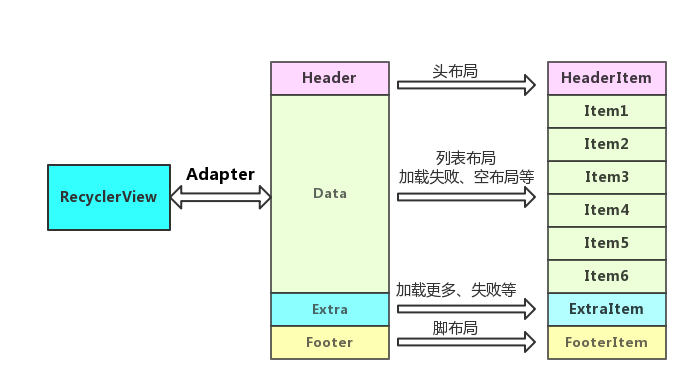 深入解析 Android 中 RecyclerView Adapter 的封裝思路
前言 關於 Adapter 的封裝,網路上已有許多成熟開源庫可以直接取用,省下不少功夫。最近閒來無事,便想自己動手封裝一個。 問題所在 一般封裝時,通常可以簡化到下面這個
 PagerSlidingTabStrip 實現 Android 導航標題頁籤
PagerSlidingTabStrip 是搭配 ViewPager 使用的互動式頁籤指示器,可讓頁面切換更直覺。基本屬性可設定 indicatorColor、under
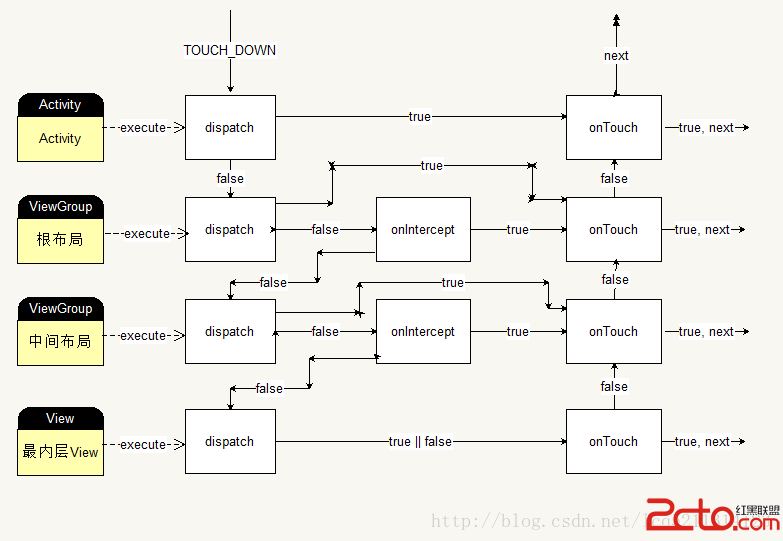 Android 事件處理機制:dispatchTouchEvent、onInterceptTouchEvent 與 onTouchEvent 全解析
在 Android 的所有事件類型中,Touch 事件是最複雜的一類。它包含 ACTION_DOWN、ACTION_MOVE、ACTION_UP、ACTION_CANCE