

編輯:關於 Android 程式設計
ArrayAdapter 透過泛型把「Adapter 視圖」綁定到某個類別的物件陣列上。要讓清單顯示的不再是純字串,而是帶有時間的任務,就必須自訂 ArrayAdapter——關鍵在於重載 getView(),手動把物件屬性指派到版面配置上。
本文在一個待辦清單的基礎上,為每一項加上建立時間。環境為 Android Studio 0.5.1。
package mzx.spike.todolist.app;

import java.text.SimpleDateFormat;
import java.util.Date;

public class ToDoItem {

    String task;
    Date created;

    public ToDoItem(String _task) {
        this(_task, new Date(System.currentTimeMillis()));
    }

    public ToDoItem(String _task, Date _created) {
        task = _task;
        created = _created;
    }

    public String getTask() {
        return task;
    }

    public Date getCreated() {
        return created;
    }

    @Override
    public String toString() {
        SimpleDateFormat sdf = new SimpleDateFormat("dd/MM/yy");
        return "(" + sdf.format(created) + ") " + task;
    }
}
兩個欄位分別存放任務與日期,提供兩個建構式(第二個方便測試時指定時間),並重載 toString 以決定純文字顯示時的樣子。
<?xml version="1.0" encoding="utf-8"?>
<RelativeLayout xmlns:android="https://schemas.android.com/apk/res/android"
    android:layout_width="match_parent"
    android:layout_height="match_parent">

    <TextView
        android:id="@+id/rowDate"
        android:layout_width="wrap_content"
        android:layout_height="match_parent"
        android:layout_alignParentRight="true"
        android:background="@color/notepad_paper"
        android:padding="10dp"
        android:textColor="#F000" />

    <mzx.spike.todolist.app.ToDoListItemView
        android:id="@+id/row"
        android:layout_width="match_parent"
        android:layout_height="match_parent"
        android:layout_toLeftOf="@+id/rowDate"
        android:padding="10dp"
        android:textColor="@color/notepad_text" />
</RelativeLayout>
要點:以 RelativeLayout 排列;TextView 顯示日期;自定義的 ToDoListItemView 顯示任務內容;layout_toLeftOf 讓任務區塊落在日期的左側。
package mzx.spike.todolist.app;

import android.content.Context;
import android.view.LayoutInflater;
import android.view.View;
import android.view.ViewGroup;
import android.widget.ArrayAdapter;
import android.widget.LinearLayout;
import android.widget.TextView;

import java.text.SimpleDateFormat;
import java.util.Date;
import java.util.List;

public class ToDoItemAdapter extends ArrayAdapter<ToDoItem> {

    int resource;

    public ToDoItemAdapter(Context context, int _resource, List<ToDoItem> items) {
        super(context, _resource, items);
        this.resource = _resource;
    }

    @Override
    public View getView(int position, View convertView, ViewGroup parent) {
        LinearLayout toDoView;
        ToDoItem item = getItem(position);
        String taskString = item.getTask();
        String dateString = new SimpleDateFormat("dd/MM/yy").format(item.getCreated());

        if (convertView == null) {
            toDoView = new LinearLayout(getContext());
            LayoutInflater li = (LayoutInflater) getContext()
                    .getSystemService(Context.LAYOUT_INFLATER_SERVICE);
            li.inflate(resource, toDoView, true);
        } else {
            toDoView = (LinearLayout) convertView;
        }

        TextView dateView = (TextView) toDoView.findViewById(R.id.rowDate);
        TextView taskView = (TextView) toDoView.findViewById(R.id.row);
        dateView.setText(dateString);
        taskView.setText(taskString);

        return toDoView;
    }
}
流程很單純:建構式接收上下文、版面資源 id 與資料清單;getView() 先用 getItem(position) 取出項目,首次需要 inflate 版面,之後重用 convertView;再以 findViewById 取得兩個子控制項並賦值;最後回傳視圖。
public class ToDoListActivity extends ActionBarActivity
        implements NewItemFragment.OnNewItemAddedListener {

    private ToDoItemAdapter aa;
    private ArrayList<ToDoItem> toDoItems;

    @Override
    protected void onCreate(Bundle savedInstanceState) {
        super.onCreate(savedInstanceState);
        setContentView(R.layout.activity_to_do_list);

        FragmentManager fm = getFragmentManager();
        ToDoListFragment toDoListFragment =
                (ToDoListFragment) fm.findFragmentById(R.id.ToDoListFragment);

        toDoItems = new ArrayList<ToDoItem>();
        int resID = R.layout.todolist_item;
        aa = new ToDoItemAdapter(this, resID, toDoItems);
        toDoListFragment.setListAdapter(aa);
    }

    @Override
    public void onNewItemAdded(String newItem) {
        ToDoItem newToDoItem = new ToDoItem(newItem);
        toDoItems.add(0, newToDoItem);
        aa.notifyDataSetChanged();
    }
}
與原本的寫法相比,只有兩處替換:資料集合由 String 改成 ToDoItem,Adapter 由 ArrayAdapter 改成 ToDoItemAdapter。新增項目時記得呼叫 notifyDataSetChanged(),清單才會刷新。

完整程式碼:https://download.csdn.net/detail/u012515223/7054943
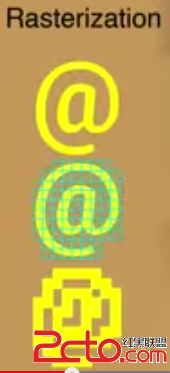 Android 性能優化:Google 課程之渲染(Render)篇
術語預備 texture(紋理)與 meshes:打個比方,做一個飛機模型,你要先雕刻出立體的飛機模型(mesh),此時它還沒上色,於是你要用一張紙把它包起來、在上面畫上
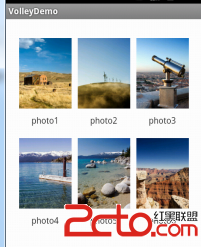 Android 中使用 Volley 加載網路圖片(一)
在 Android 中,若我們要展示的圖片儲存在網路上,就必須透過 HttpClient 或 HttpUrlConnection 進行網路操作。以下利用 GridView
 用 ViewPager 實作自動輪播的廣告 Banner
首頁頂部自動輪播的 Banner 幾乎是內容型 App 的標配。本文示範以 ViewPager 搭配定時器實作,含底部指示點同步與點擊跳轉。 先釐清需求,這個效果包
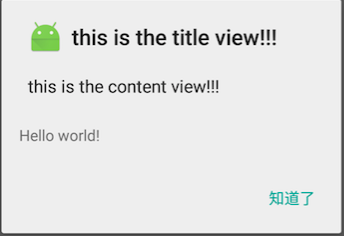 Android 源碼解析(十九):Dialog 的加載與繪制流程
前面兩篇我們拆解了 Activity 的布局加載與繪制流程,對系統界面的顯示機制算是有了整體認識。其實 Android 中所有顯示控件的流程都大同小異——Dialog、P