

編輯:關於 Android 程式設計
Pull-to-refresh 已經是行動應用的標準互動模式,微博、微信、QQ 都在用。這個範例實作一個下拉刷新動畫,並額外加上圖片縮放、透明度變化與位移等效果——這些手法在其他場合也經常派得上用場。
效果影片:https://v.youku.com/v_show/id_XNjY0MTQzODQ4.html
package com.buptfarmer.devapp;

import static com.nineoldandroids.view.ViewPropertyAnimator.animate;
import com.nineoldandroids.animation.Animator;
import com.nineoldandroids.animation.AnimatorListenerAdapter;
import com.nineoldandroids.view.ViewHelper;

import android.app.Activity;
import android.os.Bundle;
import android.view.MotionEvent;
import android.view.View;
import android.view.ViewConfiguration;
import android.view.View.OnTouchListener;
import android.view.animation.RotateAnimation;
import android.widget.ImageView;
import android.widget.LinearLayout;
import android.widget.TextView;

public class PullAnimationExample extends Activity {

    private TextView mRefreshText;
    private TextView mAaaText;
    private ImageView mHeaderImg;
    private LinearLayout mBottom;
    private LinearLayout mHolder;

    private int mCount;
    private RotateAnimation mFlipAnimation;
    private RotateAnimation mReverseFlipAnimation;

    private int mSlop;
    private boolean mSwiping;

    @Override
    protected void onCreate(Bundle savedInstanceState) {
        super.onCreate(savedInstanceState);

        // 取得系統定義的觸控最小位移閾值
        ViewConfiguration vc = ViewConfiguration.get(this);
        mSlop = vc.getScaledTouchSlop();

        initView();

        mFlipAnimation = new RotateAnimation(0, -180,
                RotateAnimation.RELATIVE_TO_SELF, 0.5f,
                RotateAnimation.RELATIVE_TO_SELF, 0.5f);
        mFlipAnimation.setFillAfter(true);

        mReverseFlipAnimation = new RotateAnimation(-180, 0,
                RotateAnimation.RELATIVE_TO_SELF, 0.5f,
                RotateAnimation.RELATIVE_TO_SELF, 0.5f);
        mReverseFlipAnimation.setFillAfter(true);
    }

    private void initView() {
        setContentView(R.layout.pull_animation_example);

        mHolder = (LinearLayout) findViewById(R.id.holder);
        mHeaderImg = (ImageView) findViewById(R.id.header_img);
        ViewHelper.setAlpha(mHeaderImg, 0.3f);

        mRefreshText = (TextView) findViewById(R.id.refresh);
        mRefreshText.setVisibility(View.INVISIBLE);

        mAaaText = (TextView) findViewById(R.id.aaa);
        mBottom = (LinearLayout) findViewById(R.id.buttom);

        mHolder.setOnTouchListener(new OnTouchListener() {
            private float mDownX;
            private float mDownY;

            @Override
            public boolean onTouch(View v, MotionEvent event) {
                switch (event.getAction()) {

                    case MotionEvent.ACTION_DOWN: {
                        mDownX = event.getX();
                        mDownY = event.getY();
                        mRefreshText.setVisibility(View.VISIBLE);
                        mRefreshText.setText("pull to refresh");
                        break;
                    }

                    case MotionEvent.ACTION_MOVE: {
                        float deltaX = Math.abs(event.getX() - mDownX);
                        float deltaY = Math.abs(event.getY() - mDownY);

                        // 位移超過閾值,且垂直移動量明顯大於水平,才判定為下拉手勢
                        if (deltaY > mSlop && deltaY > deltaX) {
                            mSwiping = true;
                            v.getParent().requestDisallowInterceptTouchEvent(true);

                            // 以 header 高度為基準換算比例,並限制上限避免放大過度
                            float percent = Math.min(0.2f,
                                    Math.abs(deltaY) / mHeaderImg.getMeasuredHeight());

                            ViewHelper.setScaleX(mHeaderImg, 1f + 3f * percent);
                            ViewHelper.setScaleY(mHeaderImg, 1f + 3f * percent);
                            ViewHelper.setAlpha(mHeaderImg,
                                    Math.min(1f, 0.3f + 3f * percent));

                            // 下方內容跟手位移
                            ViewHelper.setTranslationY(mBottom, deltaY);

                            // 超過一定距離後改變提示文字
                            if (deltaY > mRefreshText.getHeight()) {
                                mRefreshText.setText("release to refresh");
                            }
                        }
                        break;
                    }

                    case MotionEvent.ACTION_UP: {
                        if (mSwiping) {
                            mSwiping = false;

                            // 復位
                            ViewHelper.setScaleX(mHeaderImg, 1f);
                            ViewHelper.setScaleY(mHeaderImg, 1f);
                            ViewHelper.setAlpha(mHeaderImg, 0.3f);
                            animate(mHeaderImg).alpha(0.3f).scaleX(1f).scaleY(1f)
                                    .setListener(null);
                            animate(mBottom).translationY(0).setListener(null);

                            updateText();

                            mRefreshText.setVisibility(View.INVISIBLE);
                            mRefreshText.setText("refreshing...");
                        }
                        break;
                    }

                    default:
                        break;
                }
                return true;
            }
        });
    }

    /** 更新文字並搭配進場動畫 */
    private void updateText() {
        animateText(mAaaText, new AnimationCallback() {
            @Override
            public void onAnimation() {
                mAaaText.setText("update " + mCount++);
            }
        });
    }

    /** 通用文字切換動畫:先淡出縮小,換字後再淡入放大 */
    public static void animateText(final View view, final AnimationCallback callback) {
        int origHeight = view.getHeight();

        animate(view).translationY(origHeight).alpha(0).scaleX(0.5f).scaleY(0.5f)
                .setListener(new AnimatorListenerAdapter() {
                    @Override
                    public void onAnimationEnd(Animator animation) {
                        if (callback != null) {
                            callback.onAnimation();
                        }
                        animate(view).translationY(0).alpha(1).scaleX(1f).scaleY(1f)
                                .setListener(null);
                    }
                });
    }

    public interface AnimationCallback {
        public void onAnimation();
    }
}
<?xml version="1.0" encoding="utf-8"?>
<LinearLayout xmlns:android="https://schemas.android.com/apk/res/android"
    android:id="@+id/holder"
    android:layout_width="match_parent"
    android:layout_height="match_parent"
    android:orientation="vertical">

    <RelativeLayout
        android:layout_width="match_parent"
        android:layout_height="fill_parent">

        <ImageView
            android:id="@+id/header_img"
            android:layout_width="match_parent"
            android:layout_height="wrap_content"
            android:layout_centerHorizontal="true"
            android:src="@drawable/all_in_one" />

        <TextView
            android:id="@+id/refresh"
            android:layout_width="wrap_content"
            android:layout_height="wrap_content"
            android:layout_alignParentTop="true"
            android:layout_centerHorizontal="true"
            android:text="pull to refresh"
            android:textColor="@color/blue"
            android:textSize="20sp" />

        <TextView
            android:id="@+id/aaa"
            android:layout_width="wrap_content"
            android:layout_height="wrap_content"
            android:layout_below="@id/refresh"
            android:layout_centerHorizontal="true"
            android:text="aaaaaa text"
            android:textColor="@color/red"
            android:textSize="20sp" />

        <LinearLayout
            android:id="@+id/buttom"
            android:layout_width="match_parent"
            android:layout_height="match_parent"
            android:layout_below="@id/header_img"
            android:gravity="center_horizontal"
            android:orientation="vertical">

            <TextView
                android:layout_width="wrap_content"
                android:layout_height="wrap_content"
                android:text="bbbbbb text"
                android:textSize="20sp" />

            <TextView
                android:layout_width="wrap_content"
                android:layout_height="wrap_content"
                android:text="bbbbbb text"
                android:textSize="20sp" />

            <TextView
                android:layout_width="wrap_content"
                android:layout_height="wrap_content"
                android:text="bbbbbb text"
                android:textSize="20sp" />
        </LinearLayout>
    </RelativeLayout>
</LinearLayout>
用系統的 touch slop 而非自訂門檻。ViewConfiguration.getScaledTouchSlop() 取得的值是 Android 判斷「使用者是否已開始拖動」的官方標準,在不同裝置與不同使用者偏好設定下都能給出合適的門檻。自訂固定像素值在高低解析度螢幕上表現會不一致。
判斷手勢方向。原始程式碼只檢查 deltaY > mSlop,這會導致水平滑動時也被誤判為下拉。上面已補上 deltaY > deltaX 的條件,確保只有明顯垂直的移動才觸發。
requestDisallowInterceptTouchEvent 的必要性。若父層是 ListView、ViewPager 或任何會攔截觸控事件的容器,不主動呼叫這個方法,下拉手勢會在中途被父層搶走,導致動畫做一半就中斷。
percent 的上限保護。用 Math.min(0.2f, ...) 限制比例,避免使用者大幅拖動時圖片被放大到超出畫面。這種「跟手但有阻尼」的手感是下拉動畫設計的關鍵。
nineoldandroids 的角色。範例使用 nineoldandroids 是為了相容 API 8 以下的裝置。若專案的 minSdk 已高於 11,可以直接改用系統原生的 ViewPropertyAnimator 與 View.setScaleX / setAlpha / setTranslationY,省去這個相依性。
這個範例是互動原型,距離量產還有一段路:真正的下拉刷新元件通常會實作 SwipeRefreshLayout 那樣的「閾值判斷 + 觸發回呼 + 載入中狀態」三段式流程,並把刷新邏輯以 listener 形式對外暴露。若只是要功能,直接用官方 SwipeRefreshLayout 即可;這個實作的價值在於展示如何自己控制縮放、透明度與位移的連動關係——那些客製化視覺效果是官方元件無法直接提供的。
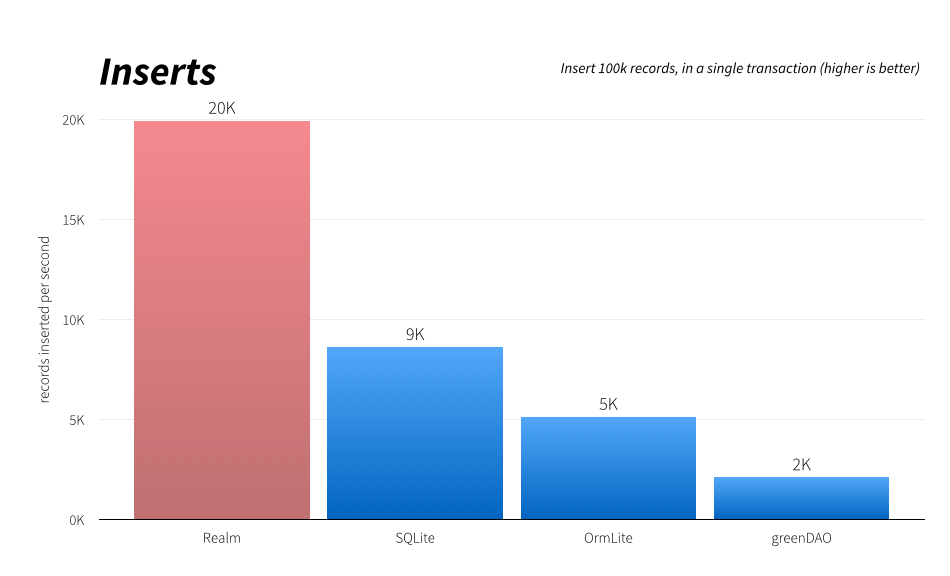 Realm 行動資料庫入門:跨平台 ORM、效能優勢與學習重點
Realm 是什麼Realm 是一套跨平台行動資料庫引擎,支援 iOS、OS X 與 Android。它並非建立在 SQLite 之上的 ORM,而是使用自有核心引擎,目
 Android 滑動效果全解析:從座標系到七種實作手法
滑動效果背後的原理 Android 座標系 要取得 View 相對於螢幕的座標(也就是 View 左上角的絕對位置),可以這樣做: View view = (Vie
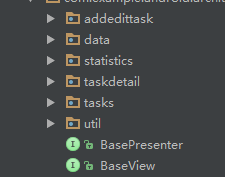 如何更高效地使用 MVP:Base 類封裝與官方 MVP 架構解析
一、Presenter 持有 Activity 造成的記憶體洩漏 只要寫過 MVP,大概都碰過這個問題。Presenter 持有 View 參考,若 Presenter
 Android 底部彈出全屏 Dialog 實作教學:從佈局到進出動畫
專案裡「從底部彈出一個橫向滿屏的 Dialog」幾乎是標配需求,分享面板、操作選單都靠它。這裡整理一套自己用起來最順手的寫法,從佈局、動畫到呼叫方式一次交代清楚。 先看