

編輯:關於 Android 程式設計
新聞、文章、簡訊內容常常需要「一張圖 + 一段文字 + 再一張圖」這樣交錯呈現。系統的 TextView 雖然支援 Html.fromHtml() 搭配 <img> 標籤,但要控制每張圖的尺寸、對齊與非同步載入就顯得綁手。這一題可以用自訂 View 解決:讓一個元件同時吃「圖片」與「文字」兩種內容,依序排列出來。
attrs.xml,宣告自訂屬性、型別與樣式。android.content.res.TypedArray 讀取這些屬性:
TypedArray typedArray = context.obtainStyledAttributes(attrs, R.styleable.customTextView);
xmlns:custom="https://schemas.android.com/apk/res/com.custom.textview"
<com.custom.textview.CustomTextView ... />
HashMap 清單描述內容序列:key 是型別(image / text),value 是內容(圖片網址或文字)。LinearLayout.LayoutParams 依內容型別動態設定每個子元件的版面參數。<manifest xmlns:android="https://schemas.android.com/apk/res/android"
package="com.custom.textview"
android:versionCode="1"
android:versionName="1.0" >
<uses-sdk
android:minSdkVersion="8"
android:targetSdkVersion="15" />
<uses-permission android:name="android.permission.INTERNET"/>
<application
android:icon="@drawable/ic_launcher"
android:label="@string/app_name">
<activity
android:name=".MainActivity"
android:label="@string/app_name" >
<intent-filter>
<action android:name="android.intent.action.MAIN" />
<category android:name="android.intent.category.LAUNCHER" />
</intent-filter>
</activity>
</application>
</manifest>
因為要載入網路圖片,INTERNET 權限是必須的。
<?xml version="1.0" encoding="utf-8"?>
<resources>
    <declare-styleable name="customTextView">
        <attr name="image_width" format="dimension" />
        <attr name="image_height" format="dimension" />
        <attr name="text_color" format="color" />
        <attr name="text_size" format="dimension" />
    </declare-styleable>
</resources>
<?xml version="1.0" encoding="utf-8" ?>
<LinearLayout xmlns:android="https://schemas.android.com/apk/res/android"
    xmlns:custom="https://schemas.android.com/apk/res/com.custom.textview"
    android:layout_width="match_parent"
    android:layout_height="match_parent"
    android:orientation="vertical"
    android:background="@android:color/white" >

    <com.custom.textview.CustomTextView
        android:id="@+id/textView"
        android:layout_width="match_parent"
        android:layout_height="wrap_content"
        custom:image_width="200dp"
        custom:image_height="50dp" />

</LinearLayout>
這個自訂元件繼承 LinearLayout(垂直排列),在 setText() 中依序走訪資料清單,遇到 image 就建立 ImageView 並啟動背景執行緒下載,遇到 text 就建立 TextView。
package com.custom.textview;

import java.net.URL;
import java.util.ArrayList;
import java.util.HashMap;

import android.content.Context;
import android.content.res.TypedArray;
import android.graphics.drawable.Drawable;
import android.os.Handler;
import android.os.Message;
import android.os.SystemClock;
import android.text.Html;
import android.util.AttributeSet;
import android.view.Gravity;
import android.widget.ImageView;
import android.widget.LinearLayout;
import android.widget.TextView;

public class CustomTextView extends LinearLayout {
    private Context context;
    private TypedArray typedArray;
    private LayoutParams params;

    public CustomTextView(Context context) {
        super(context);
    }

    public CustomTextView(Context context, AttributeSet attrs) {
        super(context, attrs);
        this.context = context;
        this.setOrientation(LinearLayout.VERTICAL);
        // 從 attrs.xml 取得自訂屬性
        typedArray = context.obtainStyledAttributes(attrs, R.styleable.customTextView);
    }

    public void setText(ArrayList<HashMap<String, String>> data) {
        for (HashMap<String, String> hashMap : data) {
            String type = hashMap.get("type");
            String value = hashMap.get("value");

            if (type.equals("image")) {
                int imageWidth = typedArray.getDimensionPixelOffset(R.styleable.customTextView_image_width, 100);
                int imageHeight = typedArray.getDimensionPixelOffset(R.styleable.customTextView_image_height, 100);

                ImageView imageView = new ImageView(context);
                params = new LayoutParams(imageWidth, imageHeight);
                params.gravity = Gravity.CENTER_HORIZONTAL;
                imageView.setLayoutParams(params);
                imageView.setImageResource(R.drawable.ic_launcher);  // 先放佔位圖
                addView(imageView);

                // 背景執行緒非同步載入圖片
                new DownloadWork(value, imageView).start();

            } else if (type.equals("text")) {
                int textColor = typedArray.getColor(R.styleable.customTextView_text_color, 0xFF0000FF);
                float textSize = typedArray.getDimension(R.styleable.customTextView_text_size, 16);

                TextView textView = new TextView(context);
                textView.setLayoutParams(new LayoutParams(LayoutParams.MATCH_PARENT, LayoutParams.WRAP_CONTENT));
                textView.setText(Html.fromHtml(value));
                textView.setTextColor(textColor);
                textView.setTextSize(textSize);
                addView(textView);
            }
        }
    }

    private class DownloadWork extends Thread {
        private String imageUrl;
        private ImageView imageView;

        public DownloadWork(String imageUrl, ImageView imageView) {
            this.imageUrl = imageUrl;
            this.imageView = imageView;
        }

        @Override
        public void run() {
            URL url = null;
            Drawable drawable = null;
            int newImageWidth = 0;
            int newImageHeight = 0;
            try {
                url = new URL(imageUrl);
                drawable = Drawable.createFromStream(url.openStream(), "image");
                newImageWidth = drawable.getIntrinsicWidth() / 3;
                newImageHeight = drawable.getIntrinsicHeight() / 3;
            } catch (Exception e) {
                e.printStackTrace();
            }
            SystemClock.sleep(2000);

            HashMap<String, Object> map = new HashMap<String, Object>();
            map.put("imageView", imageView);
            map.put("drawable", drawable);
            Message msg = handler.obtainMessage();
            msg.obj = map;
            msg.arg1 = newImageWidth;
            msg.arg2 = newImageHeight;
            handler.sendMessage(msg);
        }
    }

    private Handler handler = new Handler() {
        public void handleMessage(Message msg) {
            @SuppressWarnings("unchecked")
            HashMap<String, Object> map = (HashMap<String, Object>) msg.obj;
            ImageView imageView = (ImageView) map.get("imageView");
            LayoutParams params = new LayoutParams(msg.arg1, msg.arg2);
            params.gravity = Gravity.CENTER_HORIZONTAL;
            imageView.setLayoutParams(params);
            Drawable drawable = (Drawable) map.get("drawable");
            imageView.setImageDrawable(drawable);
        }
    };
}
package com.custom.textview;

import java.util.ArrayList;
import java.util.HashMap;

import android.app.Activity;
import android.os.Bundle;

public class MainActivity extends Activity {

    private final String text = " <p> 今年浙江衛視憑《中國好聲音》一舉做大"
            + ",其巨大的影響力直接波及到了各家衛視“跨年晚會”的戰略部署。日前"
            + ",“跨年晚會”概念的鼻祖湖南衛視率先表示“退出跨年燒錢大戰”。"
            + "但據湖南衛視內部人士透露,即使如此,今年的湖南跨年晚會也將會掂出“跨年季”這個概念"
            + ",“也就是從12月27日到12月31日,連續五天,我們將相繼用《百變大咖秀》、《快樂大本營》"
            + "、《女人如歌》、《天天向上》的特別節目來連續打造這個”季“的概念,直到12月31日的那場晚會。”</p>";

    @Override
    public void onCreate(Bundle savedInstanceState) {
        super.onCreate(savedInstanceState);
        setContentView(R.layout.main);

        // 組裝要顯示的內容序列
        ArrayList<HashMap<String, String>> data = new ArrayList<HashMap<String, String>>();

        HashMap<String, String> part1 = new HashMap<String, String>();
        part1.put("type", "image");
        part1.put("value", "https://www.linuxidc.com/upload/2012_12/121218101020341.png");

        HashMap<String, String> part2 = new HashMap<String, String>();
        part2.put("type", "text");
        part2.put("value", text);

        HashMap<String, String> part3 = new HashMap<String, String>();
        part3.put("type", "image");
        part3.put("value", "https://www.linuxidc.com/upload/2012_12/121218101020341.png");

        data.add(part1);
        data.add(part2);
        data.add(part3);

        CustomTextView customTextView = (CustomTextView) findViewById(R.id.textView);
        customTextView.setText(data);
    }
}
BitmapFactory.Options.inSampleSize 做降採樣,避免大圖直接載入造成 OOM。SystemClock.sleep(2000) 只是為了看得到佔位圖效果,實作時請移除。Html.ImageGetter 實作圖片載入,程式碼量會少很多。 EventBus 源碼深度剖析:反射訂閱與粘性事件的運作奧秘
讀完這篇文章,你將能徹底搞懂兩個常被提及卻又容易含糊的問題:1、為什麼 EventBus 的事件處理方法通常要求聲明為 public?可我把它寫成 protected 也
 Material 風格下拉刷新進度條的接入實踐
近來幾款 App 的加載動畫都是這種 Material 風格,視覺上乾淨不少。上網查了些資料後自己練了一遍,把過程記錄下來。 依賴的開源庫 /ViewPagerInd
 動手做一個簡單畫板:觸摸事件、Canvas 繪線與存檔
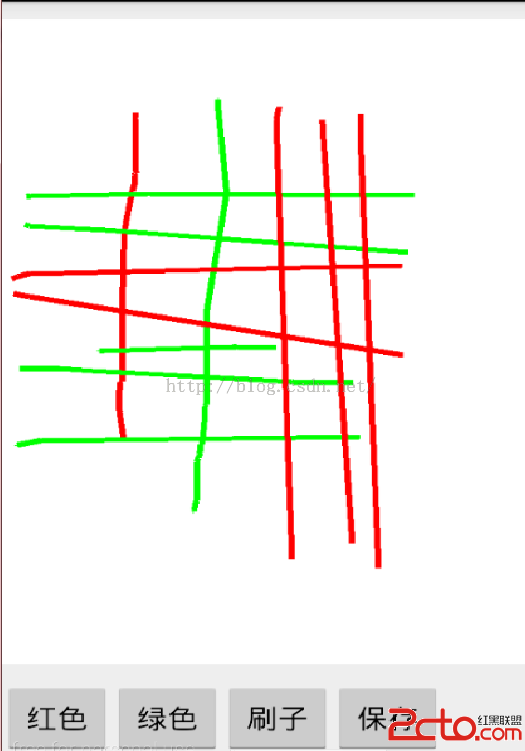
畫板是很值得做一次的練習——它同時用到觸摸事件、Bitmap 副本、Canvas 繪圖與檔案輸出,四個多媒體開發的核心概念一次到位。成品具備三個能力:自由作畫、切換顏色與
 Android 報警功能實作:鈴音、震動與狀態切換
需求說明 在某些應用场景中,例如緊急救援、保全或工業巡檢,需要加入報警功能。使用者點擊報警圖示後,應用 should 立即播放鈴音並啟動震動,同時透過畫面狀態切換提示目前