

編輯:關於 Android 程式設計
Android 的向量圖,每個屬性到底在控制什麼?下面只挑重要的講。
<vector xmlns:android="https://schemas.android.com/apk/res/android"
    android:width="200dp"
    android:height="200dp"
    android:viewportWidth="100"
    android:viewportHeight="100"
    android:alpha="0.2">

    <group
        android:name="group_name"
        android:pivotX="50"
        android:pivotY="50"
        android:translateX="20"
        android:translateY="30"
        android:rotation="90"
        android:scaleX="0.5"
        android:scaleY="0.3">

        <path
            android:name="path_name"
            android:pathData="m 0,0 L50,0 L100,100 L0,100 z"
            android:fillColor="@color/red"
            android:fillAlpha="1"
            android:strokeColor="#ff0000ff"
            android:strokeAlpha="0.5"
            android:strokeWidth="20"
            android:strokeLineCap="butt|round|square"
            android:strokeLineJoin="round|bevel|miter"
            android:trimPathStart="0.5"
            android:trimPathEnd="0.5"
            android:trimPathOffset="0.5" />

    </group>
</vector>width / height:向量圖的實際顯示尺寸,單位通常是 dp。viewportWidth / viewportHeight:虛擬畫布的尺寸,路徑座標就是相對這塊畫布來計算。兩者不一定要等於 width/height,縮放關係由此決定。alpha:整體透明度,0 到 1。group 用來把多個 path 包在一起,套用共同的變換屬性。
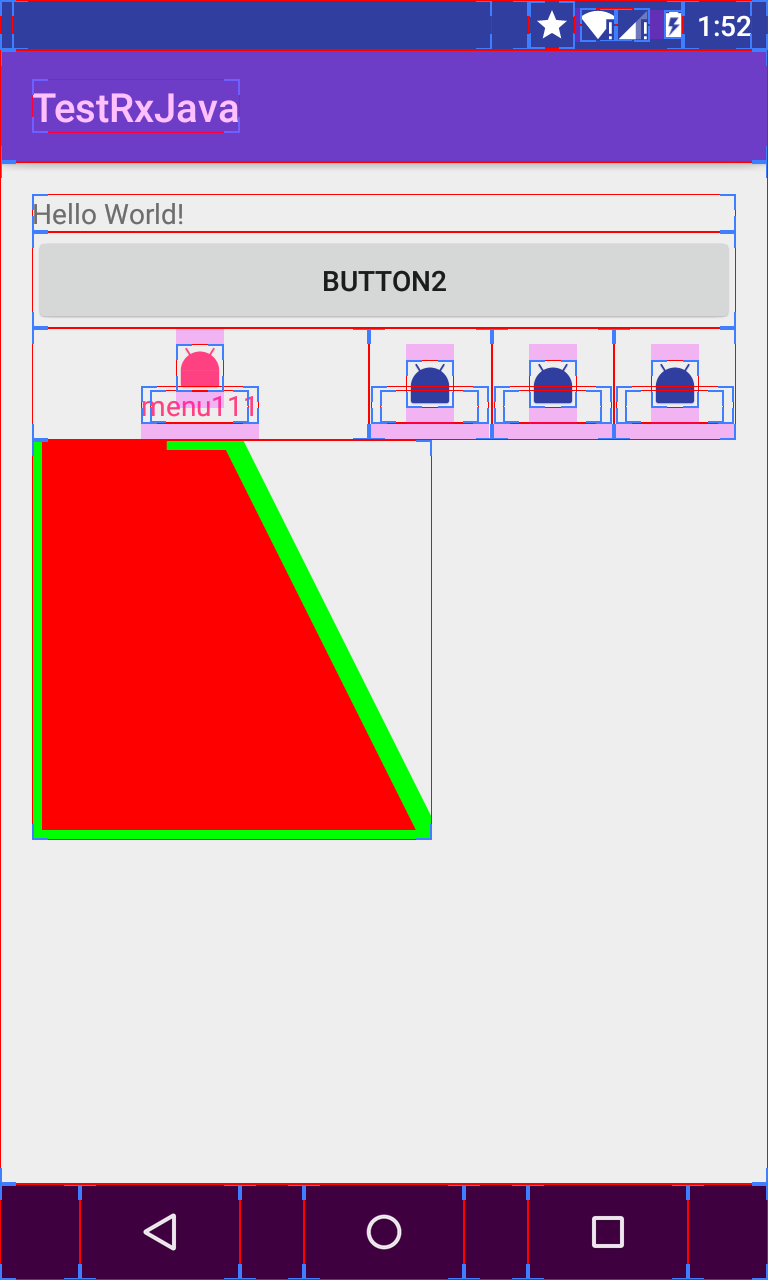
name:這一點非常關鍵。設定 objectAnimator 時,就是靠這個名字來指定動畫要施加在哪個部分。pivotX / pivotY:group 的中心點座標,取值範圍 0 到 100(相對於 viewport),旋轉與縮放時以它為基準。translateX / translateY:整個 group 在 X/Y 方向的平移量。rotation:以中心點為軸旋轉的角度,360 為一圈。scaleX / scaleY:縮放比例,1 表示 100%,0.5 表示 50%,1.5 表示 150%。name:同樣用於 objectAnimator 的 target 指定。pathData:路徑資料本身,支援 M、L、C、Q、A、Z 等指令。fillColor / fillAlpha:內部填色與填色透明度。strokeColor / strokeAlpha / strokeWidth:線條顏色、透明度與寬度。strokeLineCap:線端樣式,butt(平頭)、round(圓頭)、square(方頭,比 butt 多出半個線寬)。strokeLineJoin:轉角樣式,miter(尖角)、round(圓角)、bevel(斜切)。trimPathStart / trimPathEnd / trimPathOffset:路徑裁剪,這三個最容易搞混,下面用圖說明。trimPathStart = 0.1
從路徑的 0% 起算,把 0% 到 10% 這一段去掉。
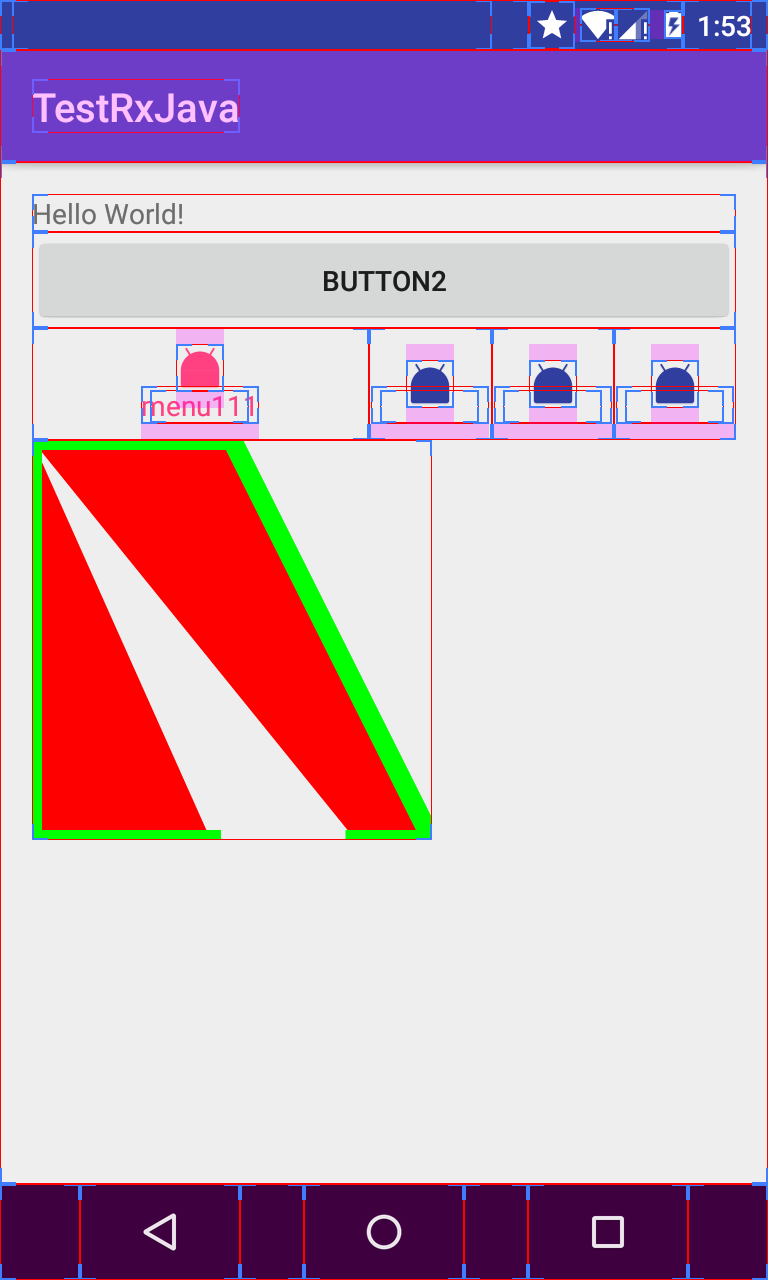
trimPathStart = 0.1,trimPathOffset = 0.5
先把路徑原點移到 50% 的位置,再以它為起點,去掉 0% 到 10% 這一段。
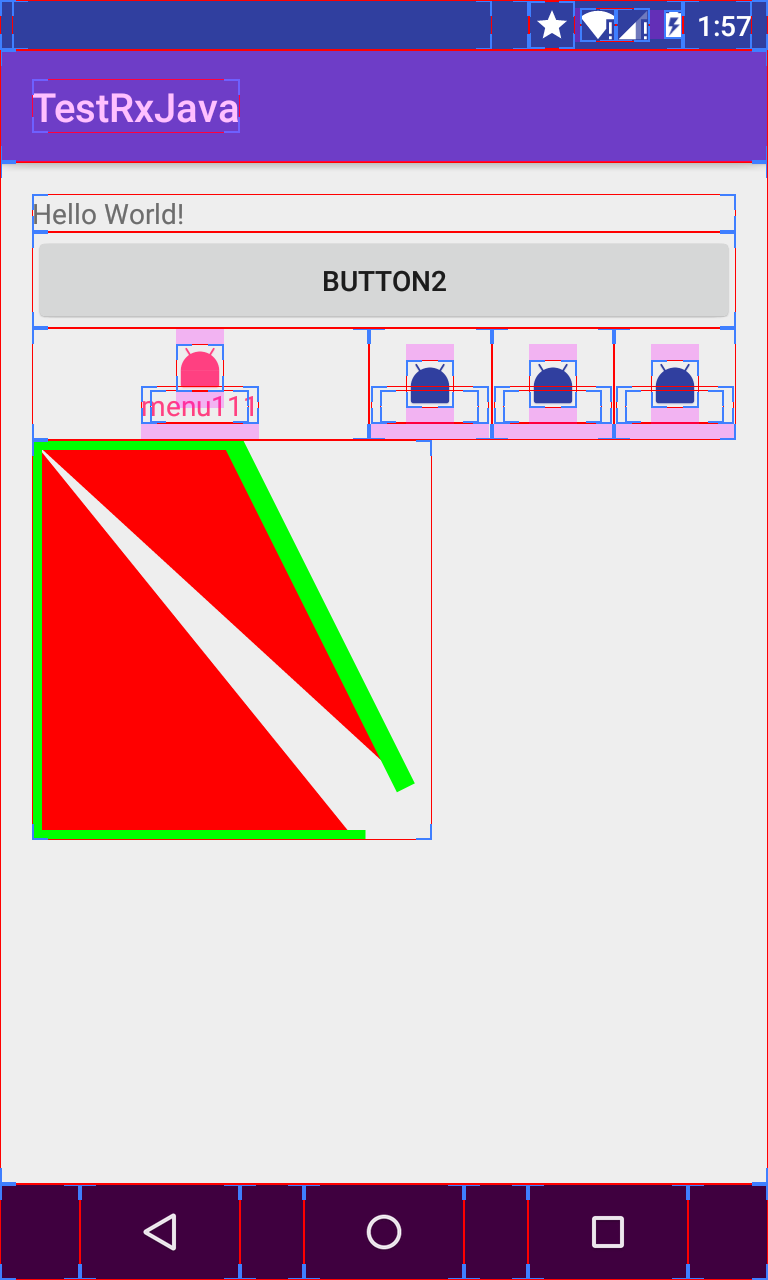
trimPathEnd = 0.9,trimPathOffset = 0.5
同樣先把原點移到 50% 位置,再以它為起點,去掉 90% 到 100% 這一段。
strokeLineCap 設為 round 或 square 時,線條視覺長度會比 butt 長,對齊計算要把它算進去。 Android 多媒體:六步完成 MediaRecorder 錄音功能
MediaRecorder 是 Android 常見的錄音元件。使用前要先理解其生命週期,才能避免狀態錯誤。 權限與參數 需要加入 RECORD_AUDIO 與 WRI
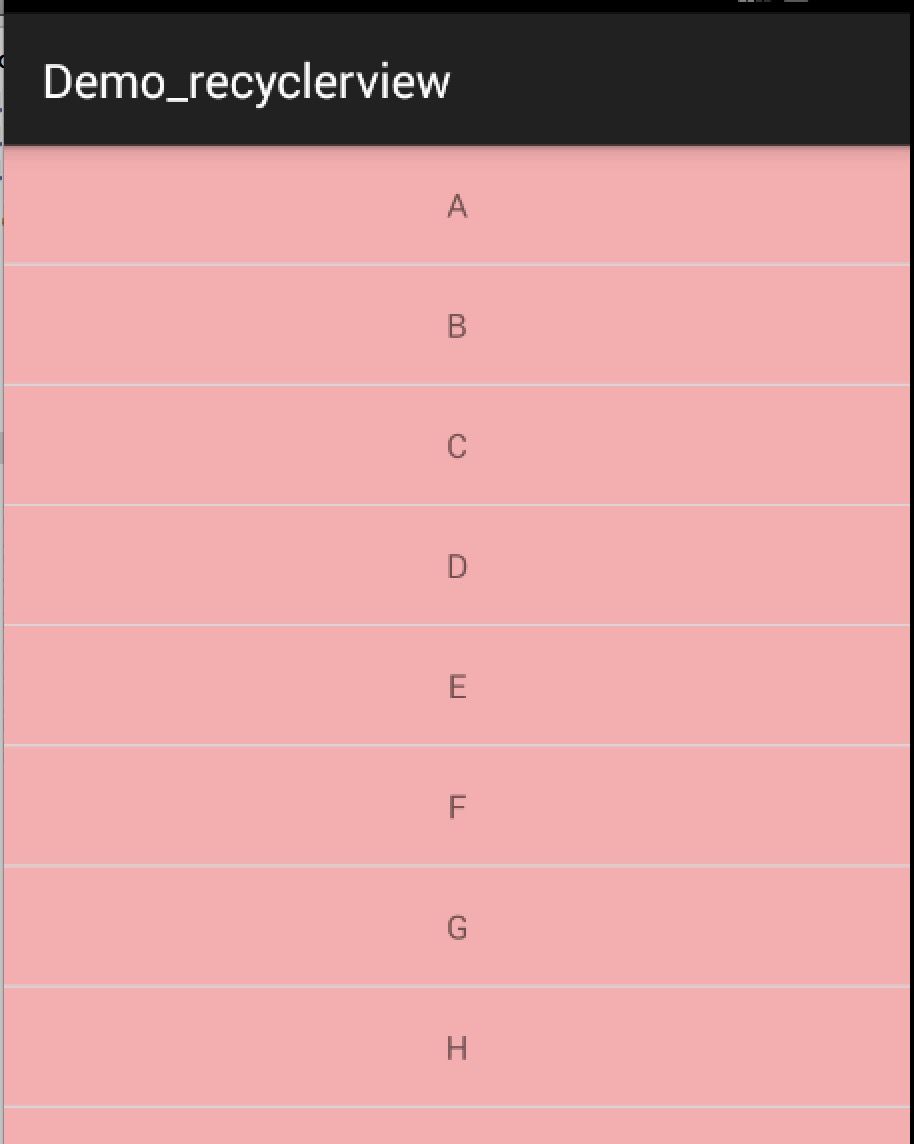 RecyclerView 完全解析:LayoutManager、ItemDecoration 與 ItemAnimator
ListView 與 GridView 幾乎出現在每一個專案裡,簡單、樣板少。但用久了會發現,現在的設計稿越來越難靠它們硬湊。RecyclerView 出現之後,這種尷尬
 Android Studio 官方文檔:構建與運行你的 APP
前言 默認情況下,Android Studio 只需點擊幾下就能把新項目設置好並部署到模擬器或真機上。借助 Instant Run(即時運行),你無需重新構建新的 APK
 仿 iPhone 風格對話框(附範例、jar 包與源碼)
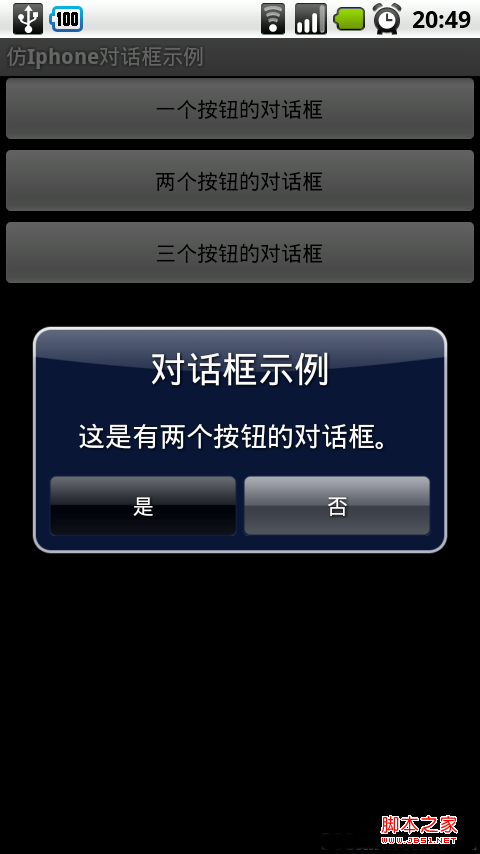
效果圖: 這個對話框完全繼承並仿照 AlertDialog,只是實作了自定義外觀。由於 iPhone 的對話框大多沒有圖標,因此這裡沒有實作 setIcon。 附件