

編輯:關於 Android 程式設計
本文介紹 CheckBox 復選框控件的使用方法,重點示範如何用 Java 代碼動態地添加復選框並取得勾選結果。
一、簡介

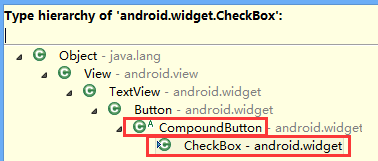
類結構圖:
二、使用方法
這裡示範用 Java 代碼在 LinearLayout 中動態添加 CheckBox:
CheckBox checkBox = (CheckBox) View.inflate(this, R.layout.checkbox, null);
ll_checkBoxList.addView(checkBox);
for (CheckBox checkBox : checkBoxList) { ... }
三、程式碼實例
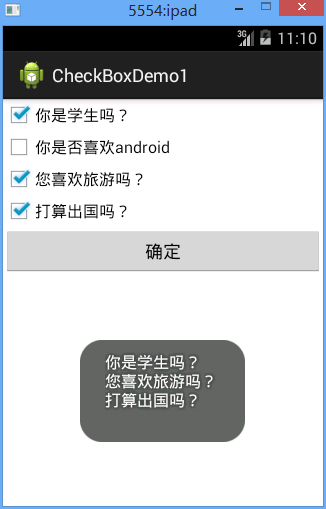
效果圖:
package fry;

import java.util.ArrayList;
import java.util.List;
import com.example.CheckBoxDemo1.R;
import android.app.Activity;
import android.os.Bundle;
import android.view.View;
import android.view.View.OnClickListener;
import android.widget.Button;
import android.widget.CheckBox;
import android.widget.LinearLayout;
import android.widget.Toast;

public class Activity01 extends Activity implements OnClickListener {
    private List<CheckBox> checkBoxList = new ArrayList<CheckBox>();
    private LinearLayout ll_checkBoxList;
    private Button btn_ok;

    @Override
    protected void onCreate(Bundle savedInstanceState) {
        super.onCreate(savedInstanceState);
        setContentView(R.layout.activity01);
        ll_checkBoxList = (LinearLayout) findViewById(R.id.ll_CheckBoxList);
        btn_ok = (Button) findViewById(R.id.btn_ok);

        String[] strArr = {"你是學生嗎?", "你是否喜歡 android", "您喜歡旅遊嗎?", "打算出國嗎?"};
        for (String str : strArr) {
            CheckBox checkBox = (CheckBox) View.inflate(this, R.layout.checkbox, null);
            checkBox.setText(str);
            ll_checkBoxList.addView(checkBox);
            checkBoxList.add(checkBox);
        }
        btn_ok.setOnClickListener(this);
    }

    @Override
    public void onClick(View v) {
        String str = "";
        for (CheckBox checkBox : checkBoxList) {
            if (checkBox.isChecked()) {
                str += checkBox.getText().toString() + "\n";
            }
        }
        Toast.makeText(this, str, Toast.LENGTH_SHORT).show();
    }
}
activity01.xml:
<?xml version="1.0" encoding="utf-8"?>
<LinearLayout xmlns:android="https://schemas.android.com/apk/res/android"
    android:layout_width="match_parent"
    android:layout_height="match_parent"
    android:orientation="vertical" >

    <LinearLayout
        android:id="@+id/ll_CheckBoxList"
        android:layout_width="match_parent"
        android:layout_height="wrap_content"
        android:orientation="vertical" >
    </LinearLayout>

    <Button
        android:id="@+id/btn_ok"
        android:layout_width="match_parent"
        android:layout_height="wrap_content"
        android:text="確定" />
</LinearLayout>
checkbox.xml:
<?xml version="1.0" encoding="utf-8"?>
<CheckBox xmlns:android="https://schemas.android.com/apk/res/android"
    android:layout_width="match_parent"
    android:layout_height="match_parent"
    android:orientation="vertical" >
</CheckBox>
四、重點整理
動態添加 CheckBox 的關鍵在於 View.inflate() 創建、addView 添加、以及用 List<CheckBox> 統一管理。最後遍歷列表、用 isChecked() 判斷勾選狀態即可取得所有被選中的項目。這種做法特別適合選項數量不固定的場景。
 Android 輸入系統剖析:InputChannel 如何把觸控事件送進 App 進程
先前幾篇關於「錘子快捷鍵」的文章已經分析過輸入事件的讀取、處理與分發。我們知道事件是以 window 為單位傳遞的:system_server 只負責把事件交給某個或多個
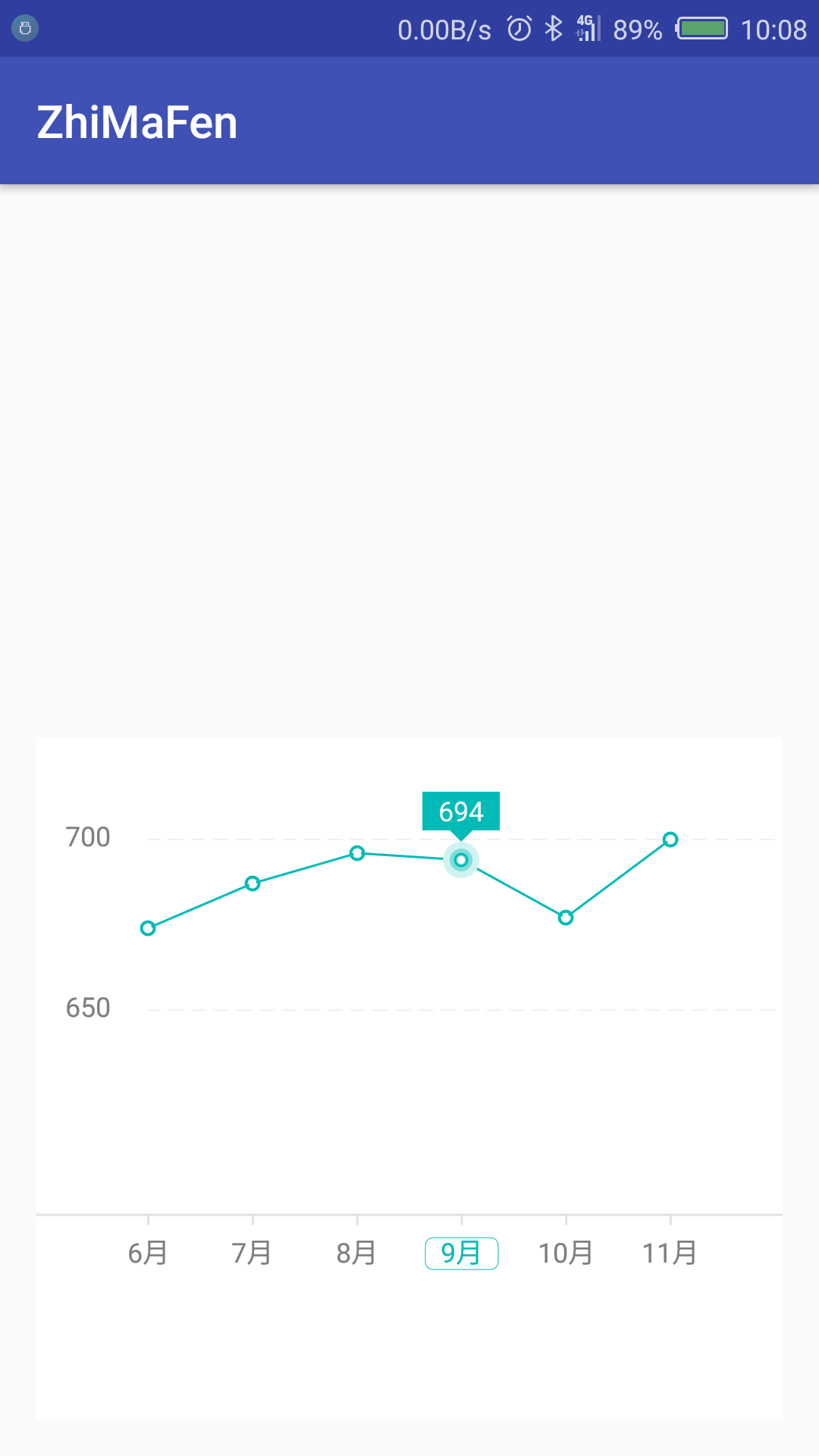 Android 自定義 View 實作芝麻分趨勢折線圖
這個效果幾天前就寫完了,只是一直沒抽出時間更新部落格。原本打算把芝麻分的雷達圖也一併做完再發文,剛好今天在公眾號上看到有人分享了雷達圖的實作,那就算互補吧。平時寫的東西不
 PowerFramework ImageTask 圖片異步加載使用心得
ImageTask 特色 PowerFramework 的 ImageTask 提供簡便的圖片異步加載能力,可指定快取路徑、顯示下載進度、載入本地或網路圖片,並可針對中文
 Android 學習教程(13):九宮格圖片展示的兩種樣式
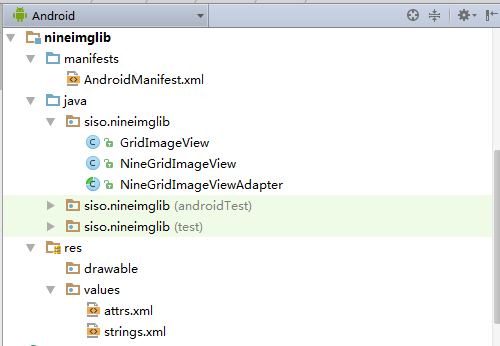
本文示範九宮格圖片展示,重點在於同一個 NineGridImageView 控制項可以透過 showStyle 屬性在「網格樣式(STYLE_GRID)」與「填充樣式(S