

編輯:關於 Android 開發
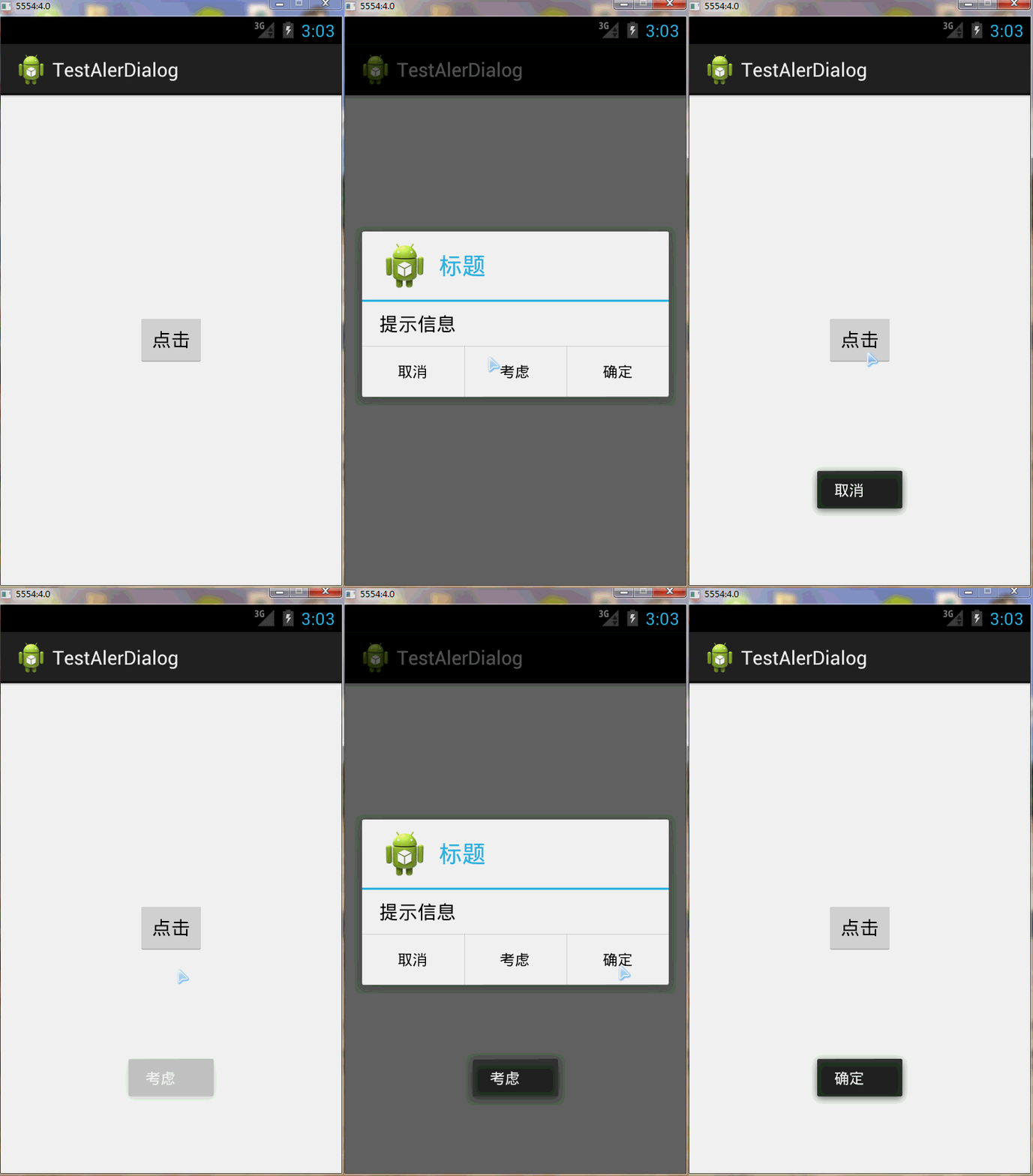
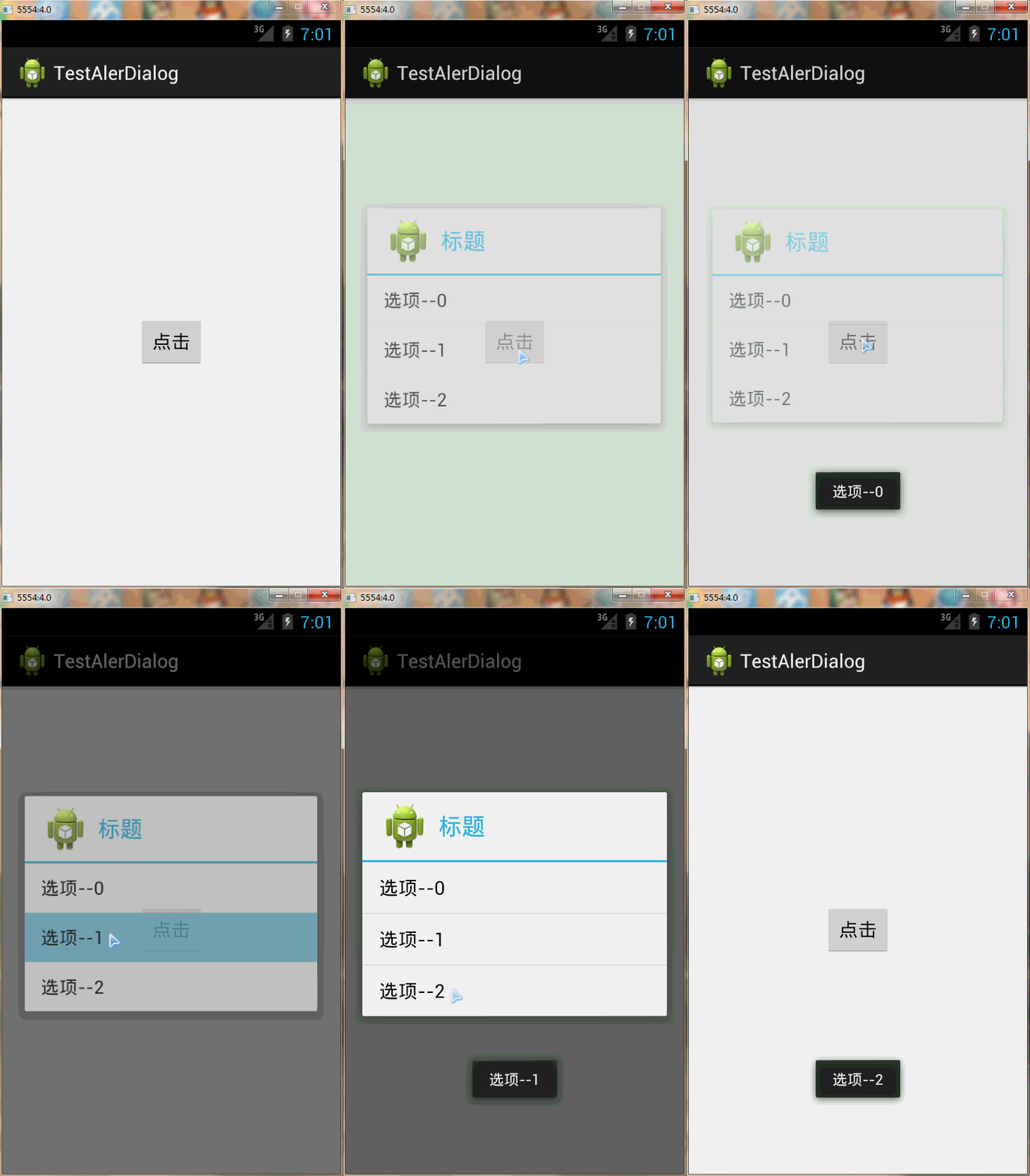
AlertDialog 是 Android 中最常用的對話框元件,可用來顯示標題、訊息、圖示,並搭配多個按鈕或選項清單。以下透過一個簡單範例,示範橫向按鈕式與縱向清單式兩種建立方式。
版面中放置一個置中的按鈕,點擊後觸發對話框。
<RelativeLayout xmlns:android="https://schemas.android.com/apk/res/android" xmlns:tools="https://schemas.android.com/tools" android:layout_width="match_parent" android:layout_height="match_parent" android:orientation="vertical" tools:context="com.zzw.testalerdialog.MainActivity" > <Button android:id="@+id/but" android:layout_width="wrap_content" android:layout_height="wrap_content" android:layout_centerInParent="true" android:text="點擊" /> </RelativeLayout>
透過 AlertDialog.Builder 建立對話框,可設定圖示、標題、訊息與多個按鈕,也能用 setItems() 建立清單式選項。DialogInterface 中的 BUTTON_POSITIVE、BUTTON_NEGATIVE、BUTTON_NEUTRAL 主要決定按鈕的顯示順序。
package com.zzw.testalerdialog; import android.app.Activity; import android.app.AlertDialog; import android.content.DialogInterface; import android.os.Bundle; import android.view.View; import android.view.View.OnClickListener; import android.widget.Toast; public class MainActivity extends Activity { @Override protected void onCreate(Bundle savedInstanceState) { super.onCreate(savedInstanceState); setContentView(R.layout.activity_main); final Activity context = this; findViewById(R.id.but).setOnClickListener(new OnClickListener() { // DialogInterface.BUTTON_POSITIVE只要作用是顯示順序 @Override public void onClick(View v) { /* //橫向顯示 AlertDialog dialog = new AlertDialog.Builder(context).create(); dialog.setIcon(R.drawable.ic_launcher); dialog.setTitle("標題"); dialog.setMessage("提示信息"); dialog.setButton(DialogInterface.BUTTON_POSITIVE, "確定", new DialogInterface.OnClickListener() { @Override public void onClick(DialogInterface dialog, int which) { Toast.makeText(context, "確定", 0).show(); } }); dialog.setButton(DialogInterface.BUTTON_NEGATIVE, "取消", new DialogInterface.OnClickListener() { @Override public void onClick(DialogInterface dialog, int which) { Toast.makeText(context, "取消", 0).show(); } }); dialog.setButton(DialogInterface.BUTTON_NEUTRAL, "考慮", new DialogInterface.OnClickListener() { @Override public void onClick(DialogInterface dialog, int which) { Toast.makeText(context, "考慮", 0).show(); } }); dialog.show(); */ //豎向顯示 final String[] items = new String[3]; for (int i = 0; i < 3; i++) { items[i] = "選項--" + i; } AlertDialog dialog = new AlertDialog.Builder(context) .setItems(items, new DialogInterface.OnClickListener() { @Override public void onClick(DialogInterface dialog, int which) { Toast.makeText(context, items[which], Toast.LENGTH_SHORT).show(); } }).create(); dialog.setTitle("標題"); dialog.setIcon(R.drawable.ic_launcher); dialog.show(); } }); } }
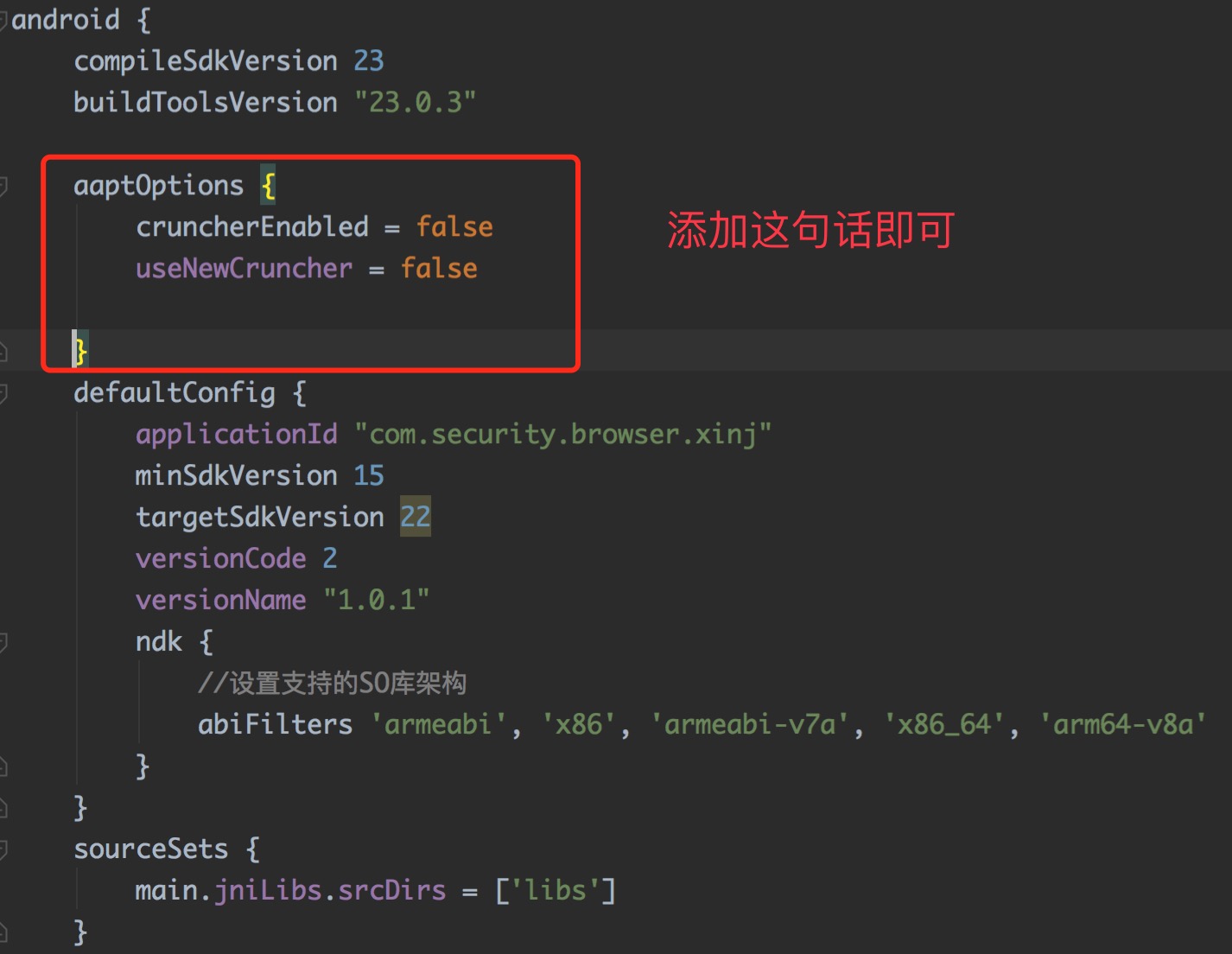 解決 Android Gradle 報錯「Some file crunching failed」:關閉圖片壓縮檢查
錯誤現象 打包時遇到類似這樣的報錯: Error: java.lang.RuntimeException: Some file crunching failed, se
 Android 圖像處理核心:Drawable 家族與 Bitmap 的實際運用
再怎麼功能強大的 App,介面醜就輸一半。使用者對品質的第一印象,往往來自視覺細節:圖示是否清晰、圖片載入是否順暢、壁紙切換是否即時。而在 Android 裡負責扛起這份
 Android 多渠道打包實戰:四種常見方案與效率比較
 只要應用接入了統計 SDK,就繞不開多渠道打包這件事。渠道包的目的很單純——讓後台能分辨每一條推廣通路各自帶來多少
 Android 樣式與主題(Styles and Themes)完整指南
 什麼是樣式 樣式(Style)是一組屬性的集合,用來指定 View 或 Window 的外觀與格