

編輯:關於 Android 開發
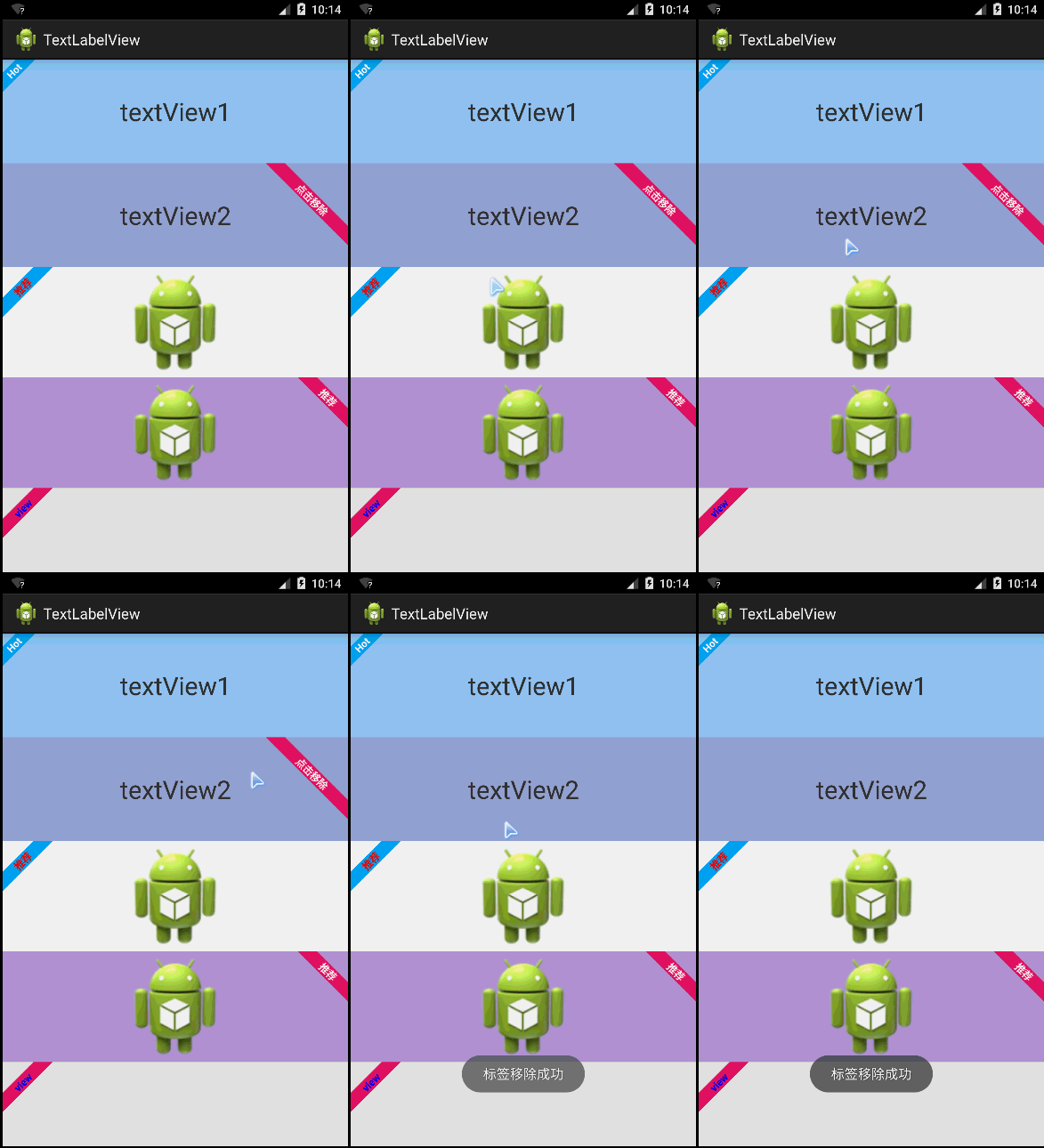
做電商、商城類 App 時,常需要在商品的左上角或右上角加上「Hot」「推薦」這類促銷角標,用來標示特徵或活動。本篇介紹的 LabelView 就是一個 GitHub 上的開源標籤庫。
專案主頁:https://github.com/linger1216/labelview
LabelView 能為一個 TextView、ImageView,或是 ListView 中 Adapter 的 getView 所返回的 View,加上一個左上角或右上角的標籤。由於它繼承自 Android 的 TextView,因此使用方式與 TextView 幾乎相同,非常簡單。
版面程式碼:
1 <LinearLayout xmlns:android="https://schemas.android.com/apk/res/android" 2 xmlns:tools="https://schemas.android.com/tools" 3 android:layout_width="match_parent" 4 android:layout_height="match_parent" 5 android:orientation="vertical" 6 tools:context="com.zzw.textlabelview.MainActivity" > 7 8 <TextView 9 android:id="@+id/textView1" 10 android:layout_width="match_parent" 11 android:layout_height="wrap_content" 12 android:layout_weight="1" 13 android:background="#90CAF9" 14 android:gravity="center" 15 android:text="textView1" 16 android:textSize="30sp" /> 17 18 <TextView 19 android:id="@+id/textView2" 20 android:layout_width="match_parent" 21 android:layout_height="wrap_content" 22 android:layout_weight="1" 23 android:background="#9FA8DA" 24 android:gravity="center" 25 android:text="textView2" 26 android:textSize="30sp" /> 27 28 <ImageView 29 android:id="@+id/imageView1" 30 android:layout_width="match_parent" 31 android:layout_height="wrap_content" 32 android:layout_weight="1" 33 android:src="@drawable/ic_launcher" /> 34 35 <ImageView 36 android:id="@+id/imageView2" 37 android:layout_width="match_parent" 38 android:layout_height="wrap_content" 39 android:layout_weight="1" 40 android:background="#B39DDB" 41 android:src="@drawable/ic_launcher" /> 42 43 <View 44 android:id="@+id/view" 45 android:layout_width="match_parent" 46 android:layout_height="100dip" 47 android:background="#e0e0e0" > 48 </View> 49 50 </LinearLayout>
Java 程式碼:
1 package com.zzw.textlabelview; 2 3 import com.lid.lib.LabelView; 4 import com.lid.lib.LabelView.Gravity; 5 6 import android.app.Activity; 7 import android.graphics.Color; 8 import android.os.Bundle; 9 import android.view.View; 10 import android.view.View.OnClickListener; 11 import android.widget.Toast; 12 13 public class MainActivity extends Activity { 14 15 @Override 16 protected void onCreate(Bundle savedInstanceState) { 17 super.onCreate(savedInstanceState); 18 setContentView(R.layout.activity_main); 19 20 //為TextView1左上角添加一個標簽 21 LabelView label1 = new LabelView(this); 22 label1.setText("Hot"); 23 label1.setBackgroundColor(0xff03a9f4); 24 label1.setTargetView(findViewById(R.id.textView1), 4, Gravity.LEFT_TOP); 25 26 //為TextView2右上角添加一個標簽,點擊標簽移除 27 final LabelView label2 = new LabelView(this); 28 label2.setText("點擊移除"); 29 label2.setBackgroundColor(0xffE91E63); 30 label2.setTargetView(findViewById(R.id.textView2), 20, 31 Gravity.RIGHT_TOP); 32 findViewById(R.id.textView2).setOnClickListener(new OnClickListener() { 33 34 @Override 35 public void onClick(View v) { 36 label2.remove(); 37 Toast.makeText(getApplicationContext(), "標簽移除成功", 0).show(); 38 } 39 }); 40 41 //為ImageView1添加一個左上角標簽,並且自定義標簽字顏色 42 LabelView label3 = new LabelView(this); 43 label3.setText("推薦"); 44 label3.setTextColor(Color.RED); 45 label3.setBackgroundColor(0xff03a9f4); 46 label3.setTargetView(findViewById(R.id.imageView1), 10, 47 Gravity.LEFT_TOP); 48 49 //為IamgeView2添加一個右上角標簽 50 LabelView label4 = new LabelView(this); 51 label4.setText("推薦"); 52 label4.setBackgroundColor(0xffE91E63); 53 label4.setTargetView(findViewById(R.id.imageView2), 10, 54 Gravity.RIGHT_TOP); 55 56 //為一個View添加一個左上角標簽(ListView用) 57 LabelView label5 = new LabelView(this); 58 label5.setText("view"); 59 label5.setTextColor(Color.BLUE); 60 label5.setBackgroundColor(0xffE91E63); 61 label5.setTargetView(findViewById(R.id.view), 10, Gravity.LEFT_TOP); 62 } 63 }
使用起來非常直覺:new 一個 LabelView,設定文字、背景色,再透過 setTargetView() 指定要掛標籤的目標 View、標籤與目標間的距離以及方位(左上角或右上角)。若要移除標籤,只要呼叫 label.remove() 即可。無論是 TextView、ImageView 還是自訂 View,甚至 ListView 的項目,都能輕鬆套上促銷角標。
 高仿京東垂直循環滾動公告欄:自定義 View 完整實作
 京東那條垂直滾動的新聞/公告欄,原理其實不複雜: 本質上是一個自定義的 LinearLayout,內部放可垂直循環
 RecyclerView 完全解析之結合 AA(Android Annotations)注入框架實例(三十)
 (一)前言 RecyclerView 已經面市很久,也在許多
 Intent 屬性詳解(二):Action 與 Category 到底怎麼配
先看效果: 一、Action:這個 Activity 能做什麼事 Action 用來說明一個元件「能執行哪些動作」。當隱式 Intent 帶著某個 action 而來,
 AsyncTask 異步任務介紹與下載圖片(含進度條)實作
AsyncTask 異步任務介紹與下載圖片實作 為什麼要用異步任務?在 Android 中只有主線程能更新 UI,其他線程無法直接操作介面。而 Android 本身是多線