

編輯:關於 Android 開發
這個庫想解決的問題很單純:讓 App 在日間與夜間主題之間切換時,畫面上的背景色、文字色能即時重繪,而不是重啟 Activity 才生效。核心思路是把顏色抽成自訂屬性(attr),再透過主題切換更換屬性對應的值。

// 背景色
android:background="?attr/zzbackground"
app:backgroundAttr="zzbackground"      // 需要立即刷新時,傳入屬性名稱即可(例如 R.attr.zzbackground 就寫 zzbackground)

// 文字色
android:textColor="?attr/zztextColor"
app:textColorAttr="zztextColor" // 需要立即刷新時同上@Override
protected void onCreate(Bundle savedInstanceState) {
// 需要立即套用切換效果的頁面這樣寫
ChangeModeController.getInstance()
.init(this, R.attr.class)
.setTheme(this, R.style.DayTheme, R.style.NightTheme);
// 其餘頁面只需這樣寫
// ChangeModeController.setTheme(this, R.style.DayTheme, R.style.NightTheme);
super.onCreate(savedInstanceState);
setContentView(R.layout.activity_main);
// 若要額外納入夜間管理的 View
// ChangeModeController.getInstance().addBackgroundColor(toolbar, R.attr.colorPrimary);
// ChangeModeController.getInstance().addBackgroundDrawable(view, R.attr.colorAccent);
// ChangeModeController.getInstance().addTextColor(view, R.attr.colorAccent);
// 切換主題
// ChangeModeController.changeDay(this, R.style.DayTheme);
// ChangeModeController.changeNight(this, R.style.NightTheme);
}
@Override
protected void onDestroy() {
super.onDestroy();
ChangeModeController.onDestory(); // 記得在 onDestroy 回收
}<?xml version="1.0" encoding="utf-8"?>
<resources>
<attr name="zzbackground" format="color|reference"/>
<attr name="zzbackgroundDrawable" format="reference"/>
<attr name="zztextColor" format="color"/>
<attr name="zzItemBackground" format="color"/>
</resources><resources>
<style name="AppTheme" parent="Theme.AppCompat.Light.DarkActionBar">
<item name="colorPrimary">@color/colorPrimary</item>
<item name="colorPrimaryDark">@color/colorPrimaryDark</item>
<item name="colorAccent">@color/colorAccent</item>
<item name="windowActionBar">false</item>
<item name="android:windowNoTitle">true</item>
<item name="windowNoTitle">true</item>
</style>
<!-- 日間模式 -->
<style name="DayTheme" parent="AppTheme">
<item name="zzbackground">@color/dayBackground</item>
<item name="zzbackgroundDrawable">@drawable/ic_launcher</item>
<item name="zztextColor">@color/dayTextColor</item>
<item name="zzItemBackground">@color/dayItemBackground</item>
</style>
<!-- 夜間模式 -->
<style name="NightTheme" parent="AppTheme">
<item name="zzbackground">@color/nightBackground</item>
<item name="zzbackgroundDrawable">@color/nightBackground</item>
<item name="zztextColor">@color/nightTextColor</item>
<item name="zzItemBackground">@color/nightItemBackground</item>
<item name="colorPrimary">@color/colorPrimaryNight</item>
<item name="colorPrimaryDark">@color/colorPrimaryDarkNight</item>
<item name="colorAccent">@color/colorAccentNight</item>
</style>
<style name="AppTheme.AppBarOverlay" parent="ThemeOverlay.AppCompat.Dark.ActionBar" />
<style name="AppTheme.PopupOverlay" parent="ThemeOverlay.AppCompat.Light" />
</resources>接著為這些屬性準備實際的色值:
<?xml version="1.0" encoding="utf-8"?>
<resources>
    <color name="dayBackground">#F2F4F7</color>
    <color name="dayTextColor">#000</color>
    <color name="dayItemBackground">#fff</color>
    <color name="nightItemBackground">#37474F</color>
    <color name="nightBackground">#263238</color>
    <color name="nightTextColor">#fff</color>
</resources><?xml version="1.0" encoding="utf-8"?>
<LinearLayout xmlns:android="https://schemas.android.com/apk/res/android"
xmlns:tools="https://schemas.android.com/tools"
xmlns:app="https://schemas.android.com/apk/res-auto"
android:layout_width="match_parent"
android:layout_height="match_parent"
android:orientation="vertical"
android:background="?attr/zzbackground"
app:backgroundAttr="zzbackground"
tools:context="com.thinkfreely.changemode.MainActivity">
<android.support.design.widget.AppBarLayout
android:layout_width="match_parent"
android:layout_height="wrap_content"
app:theme="@style/AppTheme.AppBarOverlay">
<android.support.v7.widget.Toolbar
android:id="@+id/toolbar"
android:layout_width="match_parent"
android:layout_height="?attr/actionBarSize"
android:background="?attr/colorPrimary"
app:backgroundAttr="colorPrimary"
app:titleTextColor="?attr/zztextColor"
app:popupTheme="@style/AppTheme.PopupOverlay" />
</android.support.design.widget.AppBarLayout>
<Button
android:layout_width="match_parent"
android:layout_height="120dp"
android:gravity="center"
android:textColor="?attr/zztextColor"
app:textColorAttr="zztextColor"
android:background="?attr/zzItemBackground"
app:backgroundAttr="zzItemBackground"
android:padding="10dp"
android:layout_marginBottom="8dp"
android:textSize="22sp"
android:textAllCaps="false"
android:text="夜間模式切換 by Mr.Zk" />
<android.support.v7.widget.RecyclerView
android:id="@+id/recyclerView"
android:layout_width="match_parent"
android:layout_height="match_parent"
android:scrollbars="vertical"/>
</LinearLayout>若希望目前的頁面在切換主題時立即重繪,就必須補上對應的屬性標記:
textColorAttr:修改文字顏色時設定,例如 app:textColorAttr="zztextColor"。
backgroundAttr:修改背景色或背景圖時設定,例如 app:backgroundAttr="zzbackground"。
backgroundDrawableAttr:同樣用於背景色/背景圖,例如 app:backgroundDrawableAttr="zzbackground"。
@Override
protected void onCreate(Bundle savedInstanceState) {
    // 1. 需要立即切換效果的頁面
    ChangeModeController.getInstance()
            .init(this, R.attr.class)
            .setTheme(this, R.style.DayTheme, R.style.NightTheme);

    // 其他頁面
    // ChangeModeController.setTheme(this, R.style.DayTheme, R.style.NightTheme);

    super.onCreate(savedInstanceState);
    setContentView(R.layout.activity_main);

    // 2. 切換日/夜模式
    // ChangeModeController.changeDay(this, R.style.DayTheme);
    // ChangeModeController.changeNight(this, R.style.NightTheme);
}

@Override
protected void onDestroy() {
    super.onDestroy();
    // 3. 在 onDestroy 中回收
    ChangeModeController.onDestory();
}
三步驟就能接入。若頁面上有動態新增的 View 也需要納入夜間管理,可以補上:
// 將額外的 View 加入夜間管理
// ChangeModeController.getInstance().addBackgroundColor(toolbar, R.attr.colorPrimary);
// ChangeModeController.getInstance().addBackgroundDrawable(view, R.attr.colorAccent);
// ChangeModeController.getInstance().addTextColor(view, R.attr.colorAccent);
如果切換時還有非標準定義的屬性需要處理,可以在 changeDay/changeNight 之後取值再自行套用:
TypedValue attrTypedValue = ChangeModeController.getAttrTypedValue(this, R.attr.zztextColor);
toolbar.setTitleTextColor(getResources().getColor(attrTypedValue.resourceId));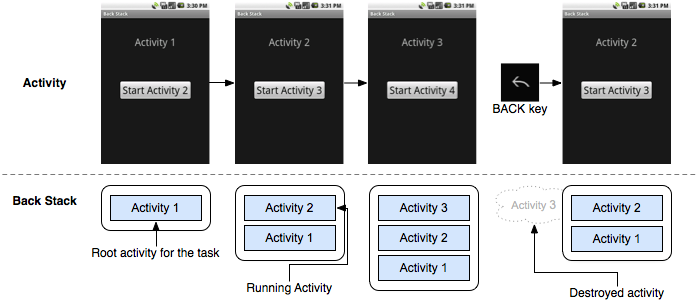 Activity 四種啟動模式完整解析:standard、singleTop、singleTask、singleInstance
為什麼需要啟動模式 在多 Activity 的應用中,畫面之間互相跳轉是常態。但有時我們並不希望每次跳轉都產生一個全新的 Activity 實例,而是希望能回到「原本那一
 Android 選項卡動態滑動效果實作
新聞類應用常有一排可滑動的選項卡,點擊後除了切換內容,還會自動捲動到可見位置。此效果可用 HorizontalScrollView
 Android 動畫實作入門(上):補間動畫與逐幀動畫完全上手
從按鈕的回饋、頁面的轉場,到啟動畫面的淡入淡出,動畫幾乎存在於每一個你會天天打開的 App 裡。好的動畫不只是「炫」,它其實在替使用者回答三個問題:我剛剛點了什麼、東西跑
 重寫 MPAndroidChart 標記顯示,解決邊緣截斷與殘影
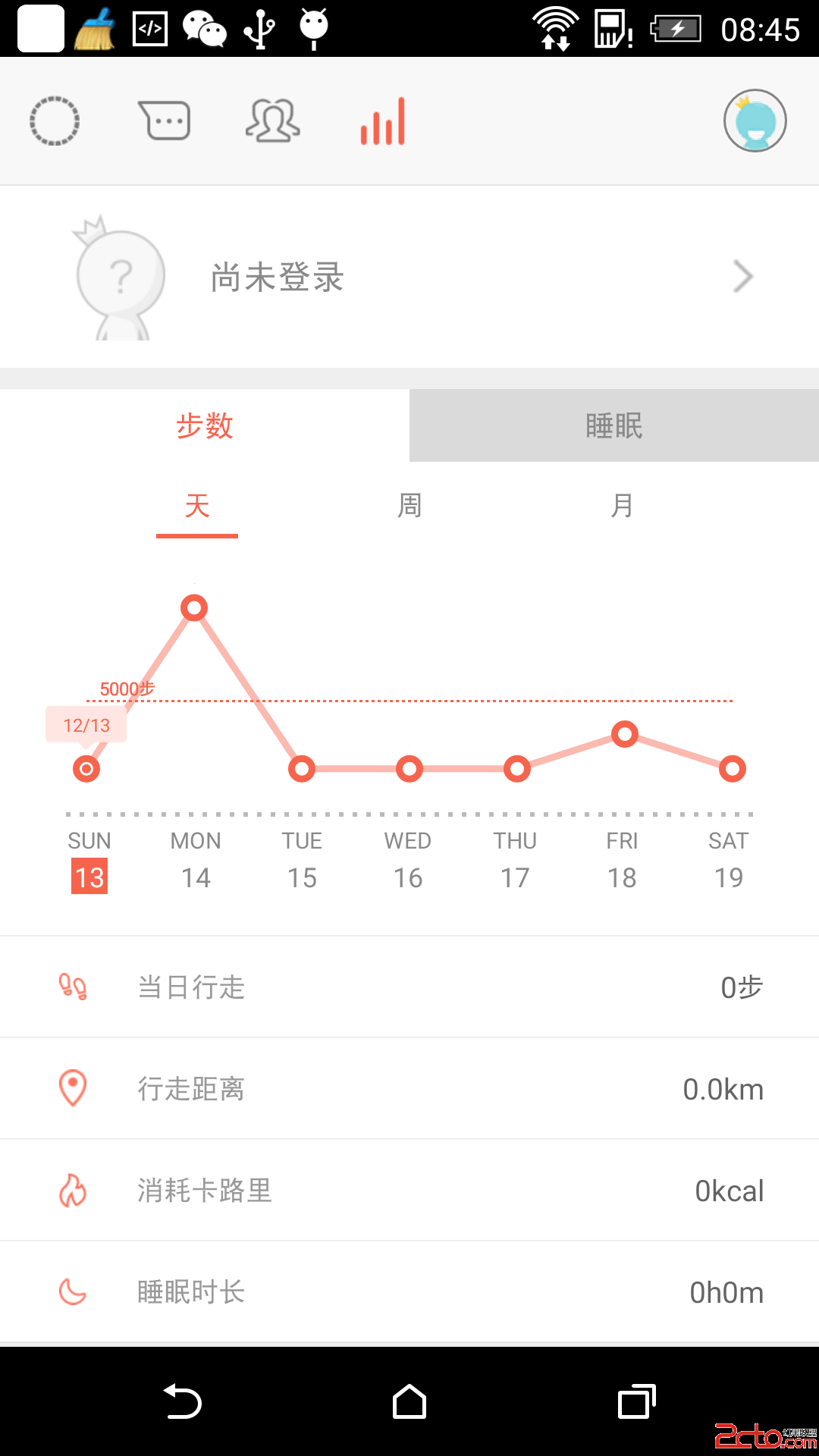
重寫 MPAndroidChart 顯示標記MPAndroidChart 是 Android 上常見的圖表元件,但在使用 MarkView 顯示標記時,若資料點靠近圖表邊