

編輯:關於 Android 開發
logcat 是 Android 自帶的命令行工具,用於獲取程序的日誌輸出。它看似簡單,但過濾語法和輸出格式的組合能省下大量排查時間。
[adb] logcat [<option>] ... [<filter-spec>] ...
常用選項:
-s:設置過濾器,例如指定 *:s-f <filename>:輸出到文件,默認是標準輸出-r [<kbytes>]:每 kbytes 輪轉一次日誌文件(默認 16),需配合 -f-n <count>:設置輪轉日誌的最大數量,默認 4-v <format>:設置打印格式,可選 brief、process、tag、thread、raw、time、threadtime、long-c:清除所有日誌並退出-d:導出所有日誌並退出(不阻塞)-g:查看環形緩衝區大小並退出-b <buffer>:請求不同的環形緩衝區,可選 main、system、radio、events(默認 -b main -b system)-B:以二進制格式輸出日誌格式是 <tag>[:priority]。其中 tag 表示日誌組件(也可用 * 代表全部),priority 從低到高:
V  Verbose
D  Debug
I  Info
W  Warn
E  Error
F  Fatal
S  Silent
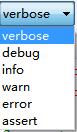
打開 logcat 會看到不同顏色的日誌,顏色本身就代表等級:
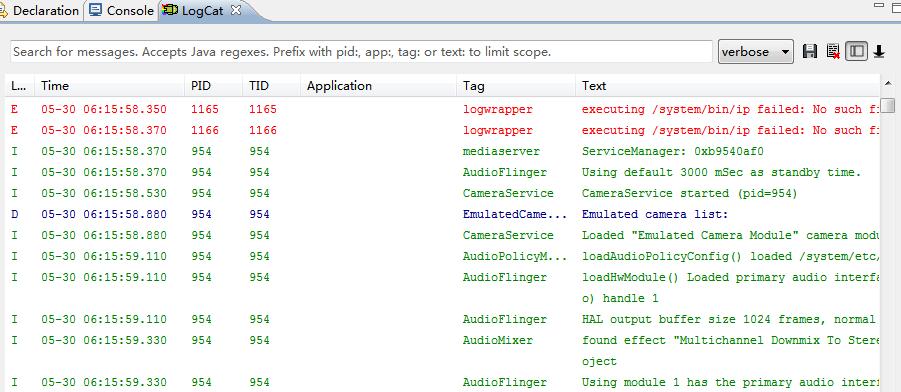
實戰中最好用的組合是 adb logcat *:E(只看 Error)或者 adb logcat | grep 你的TAG,能過濾掉大量噪音。
logcat 的能力其實由 android.util.Log 類決定,五個方法對應五個等級:
Log.v()  ------------ VERBOSE
Log.d()  ------------ DEBUG
Log.i()  ------------ INFO
Log.w()  ------------ WARN
Log.e()  ------------ ERROR
等級依次升高。約定俗成的用法是:DEBUG 信息只存在於開發階段,INFO / WARN / ERROR 這三種才會出現在發布版本中。
package com.wuyudong.logcat;

import android.os.Bundle;
import android.app.Activity;
import android.util.Log;

public class MainActivity extends Activity {

    static final String tag = "LOGCAT";

    @Override
    protected void onCreate(Bundle savedInstanceState) {
        super.onCreate(savedInstanceState);
        setContentView(R.layout.activity_main);
        Log.v(tag, "hello");
    }
}
運行後發現 Application 列為空:

解法是在 AndroidManifest.xml 裡加上 android:debuggable="true":
<application
    android:allowBackup="true"
    android:debuggable="true"
    android:icon="@drawable/ic_launcher"
    android:label="@string/app_name"
    android:theme="@style/AppTheme" >

    <activity
        android:name="com.wuyudong.logcat.MainActivity"
        android:label="@string/app_name" >
        <intent-filter>
            <action android:name="android.intent.action.MAIN" />
            <category android:name="android.intent.category.LAUNCHER" />
        </intent-filter>
    </activity>

</application>

繼續把五個等級都打一遍:
public class MainActivity extends Activity {

    static final String tag = "LOGCAT";

    @Override
    protected void onCreate(Bundle savedInstanceState) {
        super.onCreate(savedInstanceState);
        setContentView(R.layout.activity_main);

        Log.v(tag, "hello");
        Log.d(tag, "hello");
        Log.i(tag, "hello");
        Log.w(tag, "hello");
        Log.e(tag, "hello");
    }
}

此時 Application 列又變空了。這個現象在老版本 ADT 插件上比較常見,是插件與某些設備 / 系統版本組合下的兼容問題,並不影響日誌本身的正確輸出。
用統一常量管理 TAG。不要到處寫字符串字面量,定義成 static final String TAG,改起來方便,也好統一過濾。
Release 版本要關掉日誌。可以用 if (BuildConfig.DEBUG) 包裹,或者封裝一層 LogUtils 統一控制開關,避免把內部信息打到用戶的 logcat 裡。
善用 Android Studio 的 Logcat 面板。它支持按包名過濾(package:mine)、按等級過濾、按 tag 過濾,比在命令行裡敲 grep 直觀得多。
排查崩潰時用 -b crash。Android 4.1 之後提供了獨立的 crash 緩衝區,只看崩潰堆棧時特別乾淨。
 Settings 選單頁成形(第一版):PreferenceActivity 的元件全覽
這一版要做什麼 先不談優化,用最直觀的方式把 Preference 框架的各類元件都跑一遍,確認每種控制項的長相與行為。這份程式碼直接繼承 PreferenceActiv
 Android 內部儲存檔案的四種存取模式
 Android 的檔案權限概念源自 Linux。每個應用通常被視為獨立使用者,因此不同應用之間預設無法任意讀取對方資料。透過
 Android 多線程處理全解析:五種多線程用法大集合
 在 Android 中進行耗時操作時,必須避免使用主線程,否則會造成界面卡頓。本文系統整理五種常見的多線程實現方式
 Android應用開發教程之六:ListView 列表控件詳解
ListView 是 Android 開發中最重要的元件之一,幾乎每一個應用都會用到它。本文將透過一個完整的 Demo,帶大家動手繪製出美觀實用的列表。說到 ListVi