

編輯:開發入門
你已經看過一個完整的應用程式範例,現在簡單談談更複雜的一款應用。
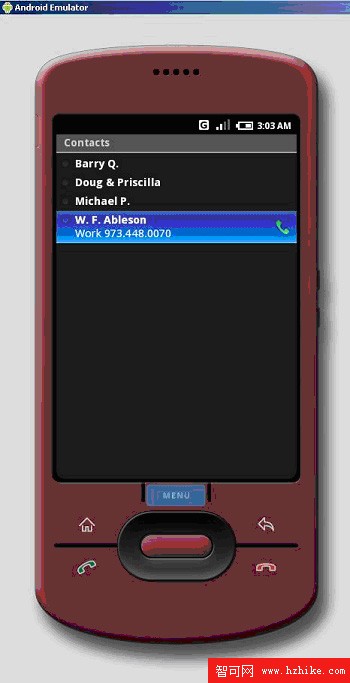
本教學討論的第二款應用,是為提供上門服務的專業人士量身打造的——比如設備維修技師,這些人得設法找到前往客戶地址的路線。這個應用會把 Android 內建的聯絡人資料庫當作記錄儲存庫。本節將講解如何存取內容提供者裡的資料,還會看看 intent 的效果。我們將用聯絡人資料庫中的地址資料來執行 Google Maps 搜尋。要讓這個應用能在 Android 模擬器上正確運行,你得先記錄一些聯絡人,而且務必填好家庭地址欄位。圖 12 展示了模擬器中與聯絡人應用相關的條目。
圖 12. 模擬器中與聯絡人應用相關的條目
下面是這個應用的一段程式碼。請注意,這個應用的主 Activity 類別繼承了 ListActivity——因為我們需要在清單中顯示資訊。
清單 8. 第一段程式碼
public class MobileServiceCallContacts extends ListActivity {
    final String tag = "MSCC";
    /** Called when the activity is first created. */
    @Override
    public void onCreate(Bundle icicle) {
        super.onCreate(icicle);
        setContentView(R.layout.main);
        // Get a cursor with all people
        Cursor c = getContentResolver().query(People.CONTENT_URI, null, null, null, null);
        startManagingCursor(c);
        ListAdapter adapter = new SimpleCursorAdapter(this,
            android.R.layout.simple_list_item_1, c,
            new String[] {People.NAME}, new int[] {android.R.id.text1});
        setListAdapter(adapter);
    }
    ...
}
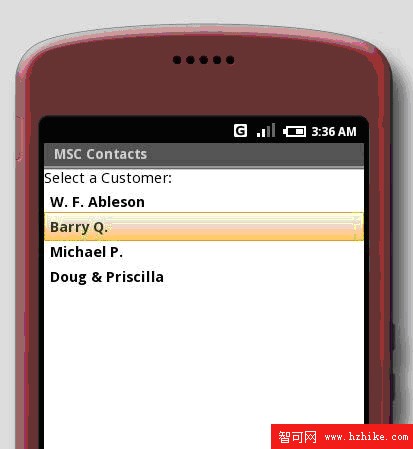
請注意,這裡用游標類別查詢聯絡人資料庫。這個「結果集」游標透過 ListAdapter 類別連接到 UI。圖 13 展示了當裝置上已記錄聯絡人時,這個應用的模樣。請留意,這個畫面上的記錄並未排序。
圖 13. 應用程式的運行效果
你可以用滑鼠點擊、按模擬器中央的按鈕,或按鍵盤上的 Enter 鍵來選取一個聯絡人。選好聯絡人之後,程式碼得查詢該聯絡人的地址,這要透過覆寫的 onListItemClick() 方法來完成。這個方法的實作有四個重要參數,其中最关键的是 dbidentifier。因為游標綁定到 UI,所以呼叫這個方法時,它實際上會取得底層資料來源的識別碼。你可以用 dbidentifier 欄位在聯絡人資料庫中查詢所需資訊,也能用它啟動聯絡人應用程式——所用到的 intent 見清單 9 中被註解掉的程式碼。
清單 9. 覆寫的 onListItemClick() 方法
@Override
protected void onListItemClick(ListView list, View view, int position, long dbidentifier) {
    super.onListItemClick(list, view, position, dbidentifier);
    try {
        // this commented out code below will launch the Contacts application
        // and "view" the contact
        Intent myIntent = new Intent(android.content.Intent.VIEW_ACTION,
            new ContentURI("content://contacts/people/" + dbidentifier));
        startSubActivity(myIntent, position);
        // let's lookup specifics on this record
        ContentURI theContact = new ContentURI(
            android.provider.Contacts.ContactMethods.CONTENT_URI.toURI());
        // IMPORTANT: to use this sample application, you need to have at least
        // one Contact record on your Android emulator and be sure to have
        // populated the 'Home Address field'
        // this "where clause" is for HOME address and for the person record
        // selected in the GUI (id, dbidentifier)
        Cursor c = managedQuery(theContact, null, " type = 1 and person = " + dbidentifier, null);
        if (!c.first()) {
            showAlert("MSCC", "No Contact Methods Available!", "", true);
            return;
        }
        String address = c.getString(c.getColumnIndex("data"));
        address = address.replace("\n", "");
        address = address.replace(",", "");
        address = address.replace(" ", "+");
        Intent geoIntent = new Intent("android.intent.action.VIEW",
            new ContentURI("geo:0,0?q=" + address));
        startActivity(geoIntent);
    } catch (Exception ee) {
        Log.i(tag, ee.getMessage());
    }
}
找到地址後,得透過幾個簡單的字串操作清理資料,好為查詢 Google Maps 做準備。geoIntent 是一個用來執行地理搜尋的新 intent,它會透過呼叫 Google Maps,提供 Android 模擬器的預設圖像。
第一款應用的所有主要元素,在這款應用裡依舊適用。它有個從主螢幕啟動的活動,當然還有 androidManifest.xml 檔。完整原始碼可從 下載 一節取得。
關於第二款應用,還有最後一點值得留意:androidManifest.xml 檔裡有一個條目,讓應用能夠讀取聯絡人資料庫——<uses-permission id="android.permission.READ_CONTACTS" />。少了它,Linux 核心就會禁止應用存取聯絡人資料庫。
本教學介紹了 Android 平台、Android Developer Tools,以及在 Eclipse 中開發 Android 應用時所涉及的關鍵概念。透過 Android Developer Tools,你可以在強大的 Eclipse 開發環境中打造並測試 Android 應用。現在,你可以開始打造自己的 Android 應用了。
 伺服器診所:Expect 遠比你想像的更強大
Cameron Laird 以一篇對廣受好評的 Expect 工具的概述,開啟了他的月度專欄。Expect 的能力遠超大多數程式設計師與系統管理員的認知——它非常適合
 一個滑動 Button 的小例子
本文分享一個具有 3D 視覺效果的滑動開關範例。這個範例重點在於如何攔截滑動操作、安排動畫刷新、避免畫面閃爍,以及繪製帶透明效果的 PNG 圖片。 1. 訊息如何攔截
 Android數據庫事務淺析
在Android應用開發中,數據庫操作時常出現,而數據庫事務的處理對應用的穩定性與效率提升至關重要。 首先,Android的數據庫操作——尤其是寫操作——非常慢,把所有操
 你的第一個 Android 應用程式:Hello, Android!
評估一個開發框架好不好上手,最快的方式就是試著用它寫出第一個「Hello, World!」。在 Android 上,這件事輕鬆得令人愉悅。以下示範完整流程。 要做的事