編輯:Android資訊
Toast用於向用戶顯示一些幫助/提示。下面我做了5中效果,來說明Toast的強大,定義一個屬於你自己的Toast。
注意:
LENGTH_LONG—長時間顯示視圖或文本提示
LENGTH_SHORT—短時間顯示視圖或文本提示
setGravity(int gravity,int xOffset,int yOffset)—設置提示應該在屏幕上的顯示的位置
setDuration(int duartion)—設置提示顯示的持續時間
1.默認效果
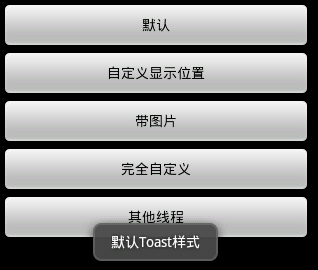
代碼
Toast.makeText(getApplicationContext(), "默認Toast樣式",
Toast.LENGTH_SHORT).show();
2.自定義顯示位置效果
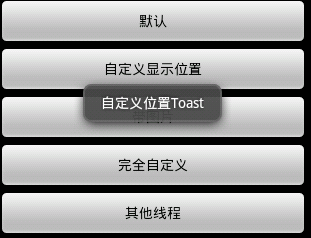
代碼
toast = Toast.makeText(getApplicationContext(),
 "自定義位置Toast", Toast.LENGTH_LONG);
 toast.setGravity(Gravity.CENTER, 0, 0);
 toast.show();
3.帶圖片效果
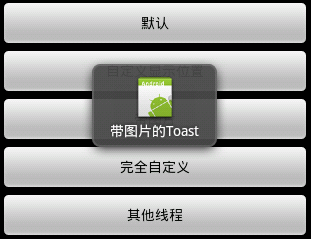
代碼
toast = Toast.makeText(getApplicationContext(),
     "帶圖片的Toast", Toast.LENGTH_LONG);
   toast.setGravity(Gravity.CENTER, 0, 0);
   LinearLayout toastView = (LinearLayout) toast.getView();
   ImageView imageCodeProject = new ImageView(getApplicationContext());
   imageCodeProject.setImageResource(R.drawable.icon);
   toastView.addView(imageCodeProject, 0);
   toast.show();
4.完全自定義效果
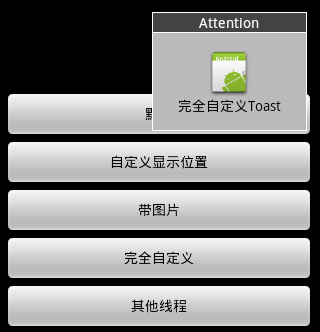
代碼
LayoutInflater inflater = getLayoutInflater();
   View layout = inflater.inflate(R.layout.custom,
     (ViewGroup) findViewById(R.id.llToast));
   ImageView image = (ImageView) layout
     .findViewById(R.id.tvImageToast);
   image.setImageResource(R.drawable.icon);
   TextView title = (TextView) layout.findViewById(R.id.tvTitleToast);
   title.setText("Attention");
   TextView text = (TextView) layout.findViewById(R.id.tvTextToast);
   text.setText("完全自定義Toast");
   toast = new Toast(getApplicationContext());
   toast.setGravity(Gravity.RIGHT | Gravity.TOP, 12, 40);
   toast.setDuration(Toast.LENGTH_LONG);
   toast.setView(layout);
   toast.show();
5.其他線程
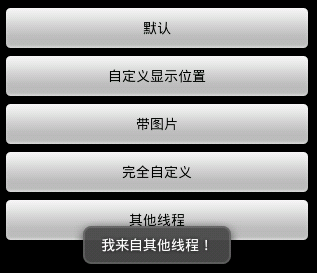
代碼
new Thread(new Runnable() {
    public void run() {
     showToast();
    }
   }).start();
完整代碼
1.Main,java
package com.wjq.toast;
import android.app.Activity;
import android.os.Bundle;
import android.os.Handler;
import android.view.Gravity;
import android.view.LayoutInflater;
import android.view.View;
import android.view.ViewGroup;
import android.view.View.OnClickListener;
import android.widget.ImageView;
import android.widget.LinearLayout;
import android.widget.TextView;
import android.widget.Toast;
public class Main extends Activity implements OnClickListener {
Handler handler = new Handler();
@Override
public void onCreate(Bundle savedInstanceState) {
  super.onCreate(savedInstanceState);
  setContentView(R.layout.main);
  findViewById(R.id.btnSimpleToast).setOnClickListener(this);
  findViewById(R.id.btnSimpleToastWithCustomPosition).setOnClickListener(
    this);
  findViewById(R.id.btnSimpleToastWithImage).setOnClickListener(this);
  findViewById(R.id.btnCustomToast).setOnClickListener(this);
  findViewById(R.id.btnRunToastFromOtherThread).setOnClickListener(this);
}
public void showToast() {
  handler.post(new Runnable() {
   @Override
   public void run() {
    Toast.makeText(getApplicationContext(), "我來自其他線程!",
      Toast.LENGTH_SHORT).show();
   }
  });
}
@Override
public void onClick(View v) {
  Toast toast = null;
  switch (v.getId()) {
  case R.id.btnSimpleToast:
   Toast.makeText(getApplicationContext(), "默認Toast樣式",
     Toast.LENGTH_SHORT).show();
   break;
  case R.id.btnSimpleToastWithCustomPosition:
   toast = Toast.makeText(getApplicationContext(),
     "自定義位置Toast", Toast.LENGTH_LONG);
   toast.setGravity(Gravity.CENTER, 0, 0);
   toast.show();
   break;
  case R.id.btnSimpleToastWithImage:
   toast = Toast.makeText(getApplicationContext(),
     "帶圖片的Toast", Toast.LENGTH_LONG);
   toast.setGravity(Gravity.CENTER, 0, 0);
   LinearLayout toastView = (LinearLayout) toast.getView();
   ImageView imageCodeProject = new ImageView(getApplicationContext());
   imageCodeProject.setImageResource(R.drawable.icon);
   toastView.addView(imageCodeProject, 0);
   toast.show();
   break;
  case R.id.btnCustomToast:
   LayoutInflater inflater = getLayoutInflater();
   View layout = inflater.inflate(R.layout.custom,
     (ViewGroup) findViewById(R.id.llToast));
   ImageView image = (ImageView) layout
     .findViewById(R.id.tvImageToast);
   image.setImageResource(R.drawable.icon);
   TextView title = (TextView) layout.findViewById(R.id.tvTitleToast);
   title.setText("Attention");
   TextView text = (TextView) layout.findViewById(R.id.tvTextToast);
   text.setText("完全自定義Toast");
   toast = new Toast(getApplicationContext());
   toast.setGravity(Gravity.RIGHT | Gravity.TOP, 12, 40);
   toast.setDuration(Toast.LENGTH_LONG);
   toast.setView(layout);
   toast.show();
   break;
  case R.id.btnRunToastFromOtherThread:
   new Thread(new Runnable() {
    public void run() {
     showToast();
    }
   }).start();
   break;
  }
}
}
2.main,xml
<?xml version="1.0" encoding="utf-8"?>
<LinearLayout xmlns:android="http://schemas.android.com/apk/res/android"
android:orientation="vertical" android:layout_width="fill_parent"
android:layout_height="fill_parent" android:padding="5dip" android:gravity="center">
<Button android:layout_height="wrap_content"
  android:layout_width="fill_parent" android:id="@+id/btnSimpleToast"
  android:text="默認"></Button>
<Button android:layout_height="wrap_content"
  android:layout_width="fill_parent" android:text="自定義顯示位置"
  android:id="@+id/btnSimpleToastWithCustomPosition"></Button>
<Button android:layout_height="wrap_content"
  android:layout_width="fill_parent" android:id="@+id/btnSimpleToastWithImage"
  android:text="帶圖片"></Button>
<Button android:layout_height="wrap_content"
  android:layout_width="fill_parent" android:text="完全自定義"
  android:id="@+id/btnCustomToast"></Button>
<Button android:layout_height="wrap_content"
  android:layout_width="fill_parent" android:text="其他線程"
  android:id="@+id/btnRunToastFromOtherThread"></Button>
</LinearLayout>
3.custom.xml
<?xml version="1.0" encoding="utf-8"?>
<LinearLayout
xmlns:android="http://schemas.android.com/apk/res/android"
android:layout_height="wrap_content" android:layout_width="wrap_content"
android:background="#ffffffff" android:orientation="vertical"
android:id="@+id/llToast" >
<TextView
  android:layout_height="wrap_content"
  android:layout_margin="1dip"
  android:textColor="#ffffffff"
  android:layout_width="fill_parent"
  android:gravity="center"
  android:background="#bb000000"
  android:id="@+id/tvTitleToast" />
<LinearLayout
  android:layout_height="wrap_content"
  android:orientation="vertical"
  android:id="@+id/llToastContent"
  android:layout_marginLeft="1dip"
  android:layout_marginRight="1dip"
  android:layout_marginBottom="1dip"
  android:layout_width="wrap_content"
  android:padding="15dip"
  android:background="#44000000" >
  <ImageView
   android:layout_height="wrap_content"
   android:layout_gravity="center"
   android:layout_width="wrap_content"
   android:id="@+id/tvImageToast" />
  <TextView
   android:layout_height="wrap_content"
   android:paddingRight="10dip"
   android:paddingLeft="10dip"
   android:layout_width="wrap_content"
   android:gravity="center"
   android:textColor="#ff000000"
   android:id="@+id/tvTextToast" />
</LinearLayout>
</LinearLayout>
 改變Android按鈕背景顏色的高效方法
本文由碼農網 – 小峰原創翻譯,轉載請看清文末的轉載要求,歡迎參與我們的付費投稿計劃! 本文將介紹一種有效改變Android按鈕顏色的方法。 按鈕可以在狀
 Android UI控件系列:Gallery(畫廊視圖)
Gallery能夠水平顯示其內容,一般用來浏覽圖片,被選中的選項位於中間,並且可以相應事件顯示信息。下面結合ImageSwitcher組件來實現一個通過縮略圖來浏
 Android Framework層JNI的使用淺析
JNI技術對於多java開發的朋友相信並不陌生,即(java native interface),本地調用接口,主要功能有以下兩點: 1、java層調用C/C++
 Android應用Loaders全面詳解及源碼淺析
1 背景 在Android中任何耗時的操作都不能放在UI主線程中,所以耗時的操作都需要使用異步實現。同樣的,在ContentProvider中也可能存在耗時操作,