編輯:關於Android編程
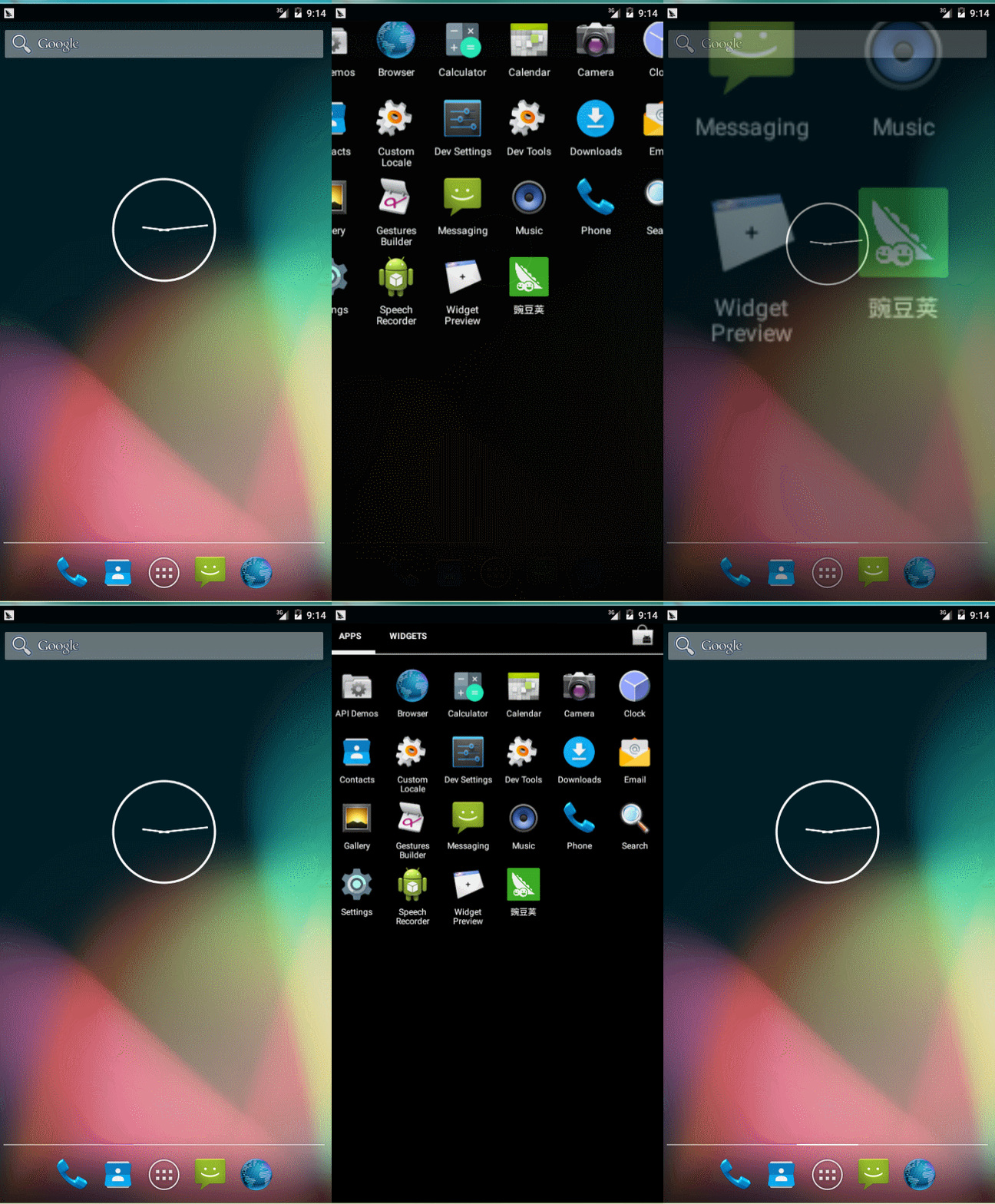
 下面開始分析在Launcher2(KitKat)的源碼裡面是如何實現這種效果的。
4082:
interface LauncherTransitionable {
View getContent();
void onLauncherTransitionPrepare(Launcher l, boolean animated, boolean toWorkspace);
void onLauncherTransitionStart(Launcher l, boolean animated, boolean toWorkspace);
void onLauncherTransitionStep(Launcher l, float t);
void onLauncherTransitionEnd(Launcher l, boolean animated, boolean toWorkspace);
}
2948:
exitSpringLoadedDragMode()
2926:
exitSpringLoadedDragModeDelayed()
2918:
enterSpringLoadedDragMode()
2899:
showAllApps()
2864:
showWorkspace()
2860:
showWorkspace()
2740:
hideAppsCustomizeHelper()
2573:
showAppsCustomizeHelper()
2498:
dispatchOnLauncherTransitionPrepare()
2097:
onClickAllAppsButton()
2048:
onTouch()
2008:
onClick()
1976:
onBackPressed()
1456:
onNewIntent
1273:
mReceiver
749:
onResume() 。點擊它會從桌面到抽屜,進入抽屜後再按返回鍵會從抽屜到桌面。這個按鈕在Launcher類中對應的變量是mAllAppsButton,因為Launcher類繼承了View.OnClickListener, OnLongClickListener, LauncherModel.Callbacks,View.OnTouchListener這幾個接口,所以點擊事情需要由onClick(View v)方法來處理。在Launcher類的onClick(View v)方法中,
/**
* Launches the intent referred by the clicked shortcut.
*
* @param v The view representing the clicked shortcut.
*/
public void onClick(View v) {
// Make sure that rogue clicks don't get through while allapps is launching, or after the
// view has detached (it's possible for this to happen if the view is removed mid touch).
if (v.getWindowToken() == null) {
return;
}
if (!mWorkspace .isFinishedSwitchingState()) {
return;
}
Object tag = v.getTag();
if (tag instanceof ShortcutInfo) {
// Open shortcut
final Intent intent = ((ShortcutInfo) tag).intent;
int[] pos = new int[2];
v.getLocationOnScreen(pos);
intent.setSourceBounds( new Rect(pos[0], pos[1],
pos[0] + v.getWidth(), pos[1] + v.getHeight()));
boolean success = startActivitySafely(v, intent, tag);
if (success && v instanceof BubbleTextView) {
mWaitingForResume = (BubbleTextView) v;
mWaitingForResume.setStayPressed(true);
}
} else if (tag instanceof FolderInfo) {
if (v instanceof FolderIcon) {
FolderIcon fi = (FolderIcon) v;
handleFolderClick(fi);
}
} else if (v == mAllAppsButton ) {
if (isAllAppsVisible()) {
showWorkspace( true);
} else {
onClickAllAppsButton(v);
}
}
}
從標注地方可以看出,首先對View進行一個判斷,如果是mAllAppsButton則開始下面的判斷。如果是在抽屜裡面,則進入到桌面;如果不是抽屜,則調用onClickAllAppsButton(v)方法。而onClickAllAppsButton(v)方法就是調用showAllApps方法,顧名思義就是進入後抽屜顯示所有的app。接著在抽屜裡面,如果要返回桌面,按Back鍵的話會調用onKeyDown或者onBackPressed()方法。 @Override
public boolean onKeyDown( int keyCode, KeyEvent event) {
final int uniChar = event.getUnicodeChar();
final boolean handled = super.onKeyDown(keyCode, event);
final boolean isKeyNotWhitespace = uniChar > 0 && !Character.isWhitespace(uniChar);
if (!handled && acceptFilter() && isKeyNotWhitespace) {
boolean gotKey = TextKeyListener.getInstance().onKeyDown( mWorkspace, mDefaultKeySsb,
keyCode, event);
if (gotKey && mDefaultKeySsb != null && mDefaultKeySsb.length() > 0) {
// something usable has been typed - start a search
// the typed text will be retrieved and cleared by
// showSearchDialog()
// If there are multiple keystrokes before the search dialog takes focus,
// onSearchRequested() will be called for every keystroke,
// but it is idempotent , so it's fine.
return onSearchRequested();
}
}
// Eat the long press event so the keyboard doesn't come up.
if (keyCode == KeyEvent.KEYCODE_MENU && event.isLongPress()) {
return true ;
}
return handled;
}
可以看到在onKeyDown方法中,沒有任何關於進出抽屜或者桌面的方法。那麼再來看一下onBackPressed()方法: @Override
public void onBackPressed() {
if (isAllAppsVisible()) {
showWorkspace( true);
} else if (mWorkspace .getOpenFolder() != null) {
Folder openFolder = mWorkspace.getOpenFolder();
if (openFolder.isEditingName()) {
openFolder.dismissEditingName();
} else {
closeFolder();
}
} else {
mWorkspace.exitWidgetResizeMode();
// Back button is a no-op here, but give at least some feedback for the button press
mWorkspace.showOutlinesTemporarily();
}
}
發現在這裡處理了切換的過程。現在可以確定是顯示桌面調用的是showWorkspace()方法,進入抽屜調用的是showAllApps()方法。在這兩個方法中,又各自調用不同的方法實現各自的邏輯。 那麼這兩個方法都是在上面情況下調用的呢?先看showAllApps()方法。launcher.java類:1、onResume()2、onClickAllAppsButton void showAllApps( boolean animated) {
if (mState != State.WORKSPACE) return;
showAppsCustomizeHelper(animated, false);
mAppsCustomizeTabHost.requestFocus();
// Change the state *after* we've called all the transition code
mState = State. APPS_CUSTOMIZE;
// Pause the auto-advance of widgets until we are out of AllApps
mUserPresent = false ;
updateRunning();
closeFolder();
// Send an accessibility event to announce the context change
getWindow().getDecorView()
.sendAccessibilityEvent(AccessibilityEvent.TYPE_WINDOW_STATE_CHANGED);
}
逐行分析下,第一行是一個判斷,如果當前的狀態不是在桌面,那麼就退出這個方法。第二行代碼就是進入抽屜的動畫方法。第三行代碼是給抽屜界面焦點。第四行代碼進入抽屜後更改當前的狀態。之後就不細說了。重點還是showAppsCustomizeHelper(animated, false );這個方法,它就是實現進入抽屜動畫的方法。來到這個方法,發現其上面有很長的注釋: /**
* Things to test when changing the following seven functions.
* - Home from workspace
* - from center screen
* - from other screens
* - Home from all apps
* - from center screen
* - from other screens
* - Back from all apps
* - from center screen
* - from other screens
* - Launch app from workspace and quit
* - with back
* - with home
* - Launch app from all apps and quit
* - with back
* - with home
* - Go to a screen that's not the default, then all
* apps, and launch and app, and go back
* - with back
* -with home
* - On workspace, long press power and go back
* - with back
* - with home
* - On all apps, long press power and go back
* - with back
* - with home
* - On workspace, power off
* - On all apps, power off
* - Launch an app and turn off the screen while in that app
* - Go back with home key
* - Go back with back key TODO: make this not go to workspace
* - From all apps
* - From workspace
* - Enter and exit car mode (becuase it causes an extra configuration changed)
* - From all apps
* - From the center workspace
* - From another workspace
*/
注釋下面是showAppsCustomizeHelper()和hideAppsCustomizeHelper()兩個方法,顧名思義hideAppsCustomizeHelper就是離開抽屜的動畫實現方法,這兩個方法是相對立的。/**
* Zoom the camera out from the workspace to reveal 'toView'.
* Assumes that the view to show is anchored at either the very top or very bottom
* of the screen.
*/
private void showAppsCustomizeHelper(final boolean animated, final boolean springLoaded) {
if (mStateAnimation != null) {
mStateAnimation.setDuration(0);
mStateAnimation.cancel();
mStateAnimation = null ;
}
final Resources res = getResources();
final int duration = res.getInteger(R.integer.config_appsCustomizeZoomInTime );
final int fadeDuration = res.getInteger(R.integer.config_appsCustomizeFadeInTime );
final float scale = (float) res.getInteger(R.integer.config_appsCustomizeZoomScaleFactor );
final View fromView = mWorkspace ;
final AppsCustomizeTabHost toView = mAppsCustomizeTabHost;
final int startDelay =
res.getInteger(R.integer.config_workspaceAppsCustomizeAnimationStagger );
setPivotsForZoom(toView, scale);
// Shrink workspaces away if going to AppsCustomize from workspace
Animator workspaceAnim =
mWorkspace.getChangeStateAnimation(Workspace.State.SMALL, animated);
if (animated) {
toView.setScaleX(scale);
toView.setScaleY(scale);
final LauncherViewPropertyAnimator scaleAnim = new LauncherViewPropertyAnimator(toView);
scaleAnim.
scaleX(1f).scaleY(1f).
setDuration(duration).
setInterpolator( new Workspace.ZoomOutInterpolator());
toView.setVisibility(View. VISIBLE);
toView.setAlpha(0f);
final ObjectAnimator alphaAnim = LauncherAnimUtils
. ofFloat(toView, "alpha", 0f, 1f)
.setDuration(fadeDuration);
alphaAnim.setInterpolator( new DecelerateInterpolator(1.5f));
alphaAnim.addUpdateListener( new AnimatorUpdateListener() {
@Override
public void onAnimationUpdate(ValueAnimator animation) {
if (animation == null) {
throw new RuntimeException("animation is null" );
}
float t = (Float) animation.getAnimatedValue();
dispatchOnLauncherTransitionStep(fromView, t);
dispatchOnLauncherTransitionStep(toView, t);
}
});
// toView should appear right at the end of the workspace shrink
// animation
mStateAnimation = LauncherAnimUtils.createAnimatorSet();
mStateAnimation.play(scaleAnim).after(startDelay);
mStateAnimation.play(alphaAnim).after(startDelay);
mStateAnimation.addListener(new AnimatorListenerAdapter() {
boolean animationCancelled = false;
@Override
public void onAnimationStart(Animator animation) {
updateWallpaperVisibility( true);
// Prepare the position
toView.setTranslationX(0.0f);
toView.setTranslationY(0.0f);
toView.setVisibility(View. VISIBLE);
toView.bringToFront();
}
@Override
public void onAnimationEnd(Animator animation) {
dispatchOnLauncherTransitionEnd(fromView, animated, false);
dispatchOnLauncherTransitionEnd(toView, animated, false);
if (mWorkspace != null && !springLoaded && !LauncherApplication.isScreenLarge()) {
// Hide the workspace scrollbar
mWorkspace.hideScrollingIndicator(true);
hideDockDivider();
}
if (!animationCancelled ) {
updateWallpaperVisibility( false);
}
// Hide the search bar
if (mSearchDropTargetBar != null) {
mSearchDropTargetBar.hideSearchBar(false);
}
}
@Override
public void onAnimationCancel(Animator animation) {
animationCancelled = true ;
}
});
if (workspaceAnim != null) {
mStateAnimation.play(workspaceAnim);
}
boolean delayAnim = false;
dispatchOnLauncherTransitionPrepare(fromView, animated, false);
dispatchOnLauncherTransitionPrepare(toView, animated, false);
// If any of the objects being animated haven't been measured/laid out
// yet, delay the animation until we get a layout pass
if ((((LauncherTransitionable) toView).getContent().getMeasuredWidth() == 0) ||
( mWorkspace.getMeasuredWidth() == 0) ||
(toView.getMeasuredWidth() == 0)) {
delayAnim = true;
}
final AnimatorSet stateAnimation = mStateAnimation;
final Runnable startAnimRunnable = new Runnable() {
public void run() {
// Check that mStateAnimation hasn't changed while
// we waited for a layout/draw pass
if (mStateAnimation != stateAnimation)
return;
setPivotsForZoom(toView, scale);
dispatchOnLauncherTransitionStart(fromView, animated, false);
dispatchOnLauncherTransitionStart(toView, animated, false);
LauncherAnimUtils.startAnimationAfterNextDraw( mStateAnimation, toView);
}
};
if (delayAnim) {
final ViewTreeObserver observer = toView.getViewTreeObserver();
observer.addOnGlobalLayoutListener( new OnGlobalLayoutListener() {
public void onGlobalLayout() {
startAnimRunnable.run();
toView.getViewTreeObserver().removeOnGlobalLayoutListener(this);
}
});
} else {
startAnimRunnable.run();
}
} else {
toView.setTranslationX(0.0f);
toView.setTranslationY(0.0f);
toView.setScaleX(1.0f);
toView.setScaleY(1.0f);
toView.setVisibility(View. VISIBLE);
toView.bringToFront();
if (!springLoaded && !LauncherApplication.isScreenLarge()) {
// Hide the workspace scrollbar
mWorkspace.hideScrollingIndicator(true);
hideDockDivider();
// Hide the search bar
if (mSearchDropTargetBar != null) {
mSearchDropTargetBar.hideSearchBar(false);
}
}
dispatchOnLauncherTransitionPrepare(fromView, animated, false);
dispatchOnLauncherTransitionStart(fromView, animated, false);
dispatchOnLauncherTransitionEnd(fromView, animated, false);
dispatchOnLauncherTransitionPrepare(toView, animated, false);
dispatchOnLauncherTransitionStart(toView, animated, false);
dispatchOnLauncherTransitionEnd(toView, animated, false);
updateWallpaperVisibility( false);
}
}
變量mStateAnimation的類型是AnimatorSet,是專門負責上述兩個方法裡面的動畫執行。變量duration、fadeDuration、scale分別是進入抽屜動畫的伸縮的時間、透明度改變的時間以及伸縮的大小。從下面兩行代碼可以看出final View fromView = mWorkspace; final AppsCustomizeTabHost toView = mAppsCustomizeTabHost ;fromView就是桌面,而toView就是抽屜。startDelay是動畫之前的准備時間。
mStateAnimation = LauncherAnimUtils.createAnimatorSet(); mStateAnimation.play(scaleAnim).after(startDelay); mStateAnimation.play(alphaAnim).after(startDelay);可以看出二者同時執行。接著是mStateAnimation動畫的回調接口,具體邏輯不再分析。然後如果workspaceAnim不為空的話,就執行說明消失的動畫。再看delayAnim變量,這是用來判斷是否需要延遲動畫執行。如果需要的話就監聽View樹是繪制,繪制完畢之後再執行動畫;否則執行進入抽屜的動畫。還有一個重要的地方是在在上面的方法中出現了
dispatchOnLauncherTransitionPrepare(fromView, animated, false); dispatchOnLauncherTransitionStart(fromView, animated, false); dispatchOnLauncherTransitionEnd(fromView, animated, false);等方法。其實這是在Launcher類中定義的接口裡面的方法,具體如下:
interface LauncherTransitionable {
     View getContent();

      void onLauncherTransitionPrepare(Launcher l, boolean animated,
               boolean toWorkspace);

      void onLauncherTransitionStart(Launcher l, boolean animated,
               boolean toWorkspace);

      void onLauncherTransitionStep(Launcher l, float t);

      void onLauncherTransitionEnd(Launcher l, boolean animated,
               boolean toWorkspace);
}
分別在Workspace、AppsCustomizePagedView、AppsCustomizeTabHost、PagedView中繼承這個接口。最後回過頭看一下桌面消失動畫的實現,它是在Workspace類裡面處理的。 Animator getChangeStateAnimation (final SizeState state, boolean animated, int delay) {
Log.i(TAG, "getChangeStateAnimation");
if (mSizeState == state) {
return null ;
}
// Initialize animation arrays for the first time if necessary
initAnimationArrays();
AnimatorSet anim = animated ? LauncherAnimUtils.createAnimatorSet() : null;
// Stop any scrolling, move to the current page right away
setCurrentPage(getNextPage());
final boolean isEditViewMode = isEditViewMode(state);
final SizeState oldState = mSizeState ;
final boolean oldStateIsNormal = (oldState == SizeState.NORMAL);
final boolean oldStateIsSpringLoaded = (oldState == SizeState.SPRING_LOADED );
final boolean oldStateIsSmall = (oldState == SizeState.SMALL);
mSizeState = state;
final boolean stateIsNormal = (state == SizeState.NORMAL);
final boolean stateIsSpringLoaded = (state == SizeState.SPRING_LOADED );
final boolean stateIsSmall = (state == SizeState.SMALL);
float finalScaleFactor = 1.0f;
float finalBackgroundAlpha = (stateIsSpringLoaded || isEditViewMode) ? 1.0f: 0f;
float translationX = 0;
float translationY = 0;
boolean zoomIn = true;
if (state != SizeState.NORMAL) {
if (isEditViewMode) {
finalScaleFactor = getCellLayoutScale(state);
} else {
finalScaleFactor = mSpringLoadedShrinkFactor- (state == SizeState.SMALL ? 0.1f : 0);
}
finalScaleFactor = mSpringLoadedShrinkFactor - (stateIsSmall ? 0.1f : 0);
setPageSpacing(mSpringLoadedPageSpacing);
if (oldStateIsNormal && stateIsSmall) {
zoomIn = false;
setLayoutScale(finalScaleFactor);
updateChildrenLayersEnabled( false);
} else {
finalBackgroundAlpha = 1.0f;
setLayoutScale(finalScaleFactor);
}
} else {
setPageSpacing(mOriginalPageSpacing);
setLayoutScale(1.0f);
}
final int duration;
if (isEditViewMode) {
duration = getResources().getInteger(R.integer.config_overviewTransitionTime );
} else if (zoomIn) {
duration = getResources().getInteger(R.integer.config_workspaceUnshrinkTime );
} else {
duration = getResources().getInteger(R.integer.config_appsCustomizeWorkspaceShrinkTime );
}
for (int i = 0; i < getChildCount(); i++) {
final CellLayout cl = (CellLayout) getChildAt(i);
float finalAlpha = (!mWorkspaceFadeInAdjacentScreens || stateIsSpringLoaded ||(i == mCurrentPage)) ? 1f : 0f;
float currentAlpha = cl.getShortcutsAndWidgets().getAlpha();
float initialAlpha = currentAlpha;
// Determine the pages alpha during the state transition
if ((oldStateIsSmall && stateIsNormal) || (oldStateIsNormal && stateIsSmall)) {
// To/from workspace - only show the current page unless the transition is not
// animated and the animation end callback below doesn't run;
// or, if we're in spring-loaded mode
if (i == mCurrentPage || !animated || oldStateIsSpringLoaded) {
finalAlpha = 1f;
} else {
initialAlpha = 0f;
finalAlpha = 0f;
}
}
mOldAlphas[i] = initialAlpha;
mNewAlphas[i] = finalAlpha;
if (animated) {
mOldTranslationXs[i] = cl.getTranslationX();
mOldTranslationYs[i] = cl.getTranslationY();
mOldScaleXs[i] = cl.getScaleX();
mOldScaleYs[i] = cl.getScaleY();
mOldBackgroundAlphas[i] = cl.getBackgroundAlpha();
mNewTranslationXs[i] = translationX;
mNewTranslationYs[i] = translationY;
mNewScaleXs[i] = finalScaleFactor;
mNewScaleYs[i] = finalScaleFactor;
mNewBackgroundAlphas[i] = finalBackgroundAlpha;
} else {
cl.setTranslationX(translationX);
cl.setTranslationY(translationY);
cl.setScaleX(finalScaleFactor);
cl.setScaleY(finalScaleFactor);
cl.setBackgroundAlpha(finalBackgroundAlpha);
cl.setShortcutAndWidgetAlpha(finalAlpha);
}
cl.isEditViewMode(isEditViewMode);
}
if (animated) {
for (int index = 0; index < getChildCount(); index++) {
final int i = index;
final CellLayout cl = (CellLayout) getChildAt(i);
float currentAlpha = cl.getShortcutsAndWidgets().getAlpha();
if (mOldAlphas [i] == 0 && mNewAlphas[i] == 0) {
cl.setTranslationX(mNewTranslationXs [i]);
cl.setTranslationY(mNewTranslationYs [i]);
cl.setScaleX( mNewScaleXs[i]);
cl.setScaleY( mNewScaleYs[i]);
cl.setBackgroundAlpha(mNewBackgroundAlphas [i]);
cl.setShortcutAndWidgetAlpha(mNewAlphas [i]);
cl.setRotationY( mNewRotationYs[i]);
} else {
LauncherViewPropertyAnimator a = new LauncherViewPropertyAnimator(cl);
a.translationX( mNewTranslationXs[i])
.translationY(mNewTranslationYs [i])
.scaleX( mNewScaleXs[i])
.scaleY( mNewScaleYs[i])
.setDuration(duration)
.setInterpolator(mZoomInInterpolator );
anim.play(a);
if (mOldAlphas [i] != mNewAlphas [i] || currentAlpha != mNewAlphas [i]) {
LauncherViewPropertyAnimator alphaAnim =
new LauncherViewPropertyAnimator(cl.getShortcutsAndWidgets());
alphaAnim.alpha( mNewAlphas[i])
.setDuration(duration)
.setInterpolator(mZoomInInterpolator );
anim.play(alphaAnim);
}
if (mOldBackgroundAlphas [i] != 0 ||
mNewBackgroundAlphas[i] != 0) {
ValueAnimator bgAnim =
LauncherAnimUtils.ofFloat(cl, 0f, 1f).setDuration(duration);
bgAnim.setInterpolator(mZoomInInterpolator );
bgAnim.addUpdateListener( new LauncherAnimatorUpdateListener() {
public void onAnimationUpdate(float a, float b) {
cl.setBackgroundAlpha(
a * mOldBackgroundAlphas[i] +
b * mNewBackgroundAlphas[i]);
}
});
anim.play(bgAnim);
}
}
}
anim.setStartDelay(delay);
}
if (stateIsSpringLoaded) {
// Right now we're covered by Apps Customize
// Show the background gradient immediately, so the gradient will
// be showing once AppsCustomize disappears
animateBackgroundGradient(getResources().getInteger(
R.integer.config_appsCustomizeSpringLoadedBgAlpha ) / 100f, false);
} else {
// Fade the background gradient away
animateBackgroundGradient(0f, true);
}
return anim;
}
在說明方法之前先說一下,Launcher2和Launcher3桌面消失動畫的區別。Launcher2進入抽屜後是一個黑色的背景,沒有壁紙顯示效果,而Launcher3可以看到壁紙。所以getChangeStateAnimation 方法也是有一定區別的。關於這個方法大體可以分為三個部分,一是變量初始賦值階段,二是動畫設置階段,三是動畫返回階段。重點是第二個動畫設置階段,因為桌面的消失、出現都會調用這個方法。同樣的關於這個動畫最主要的部分還是伸縮和透明度的變化,理論上應該是這樣的,桌面消失時開始變小、透明度逐漸不可見;桌面出現時開始變大、透明度逐漸可見。 自定義繪制android EditText的背景,定義EditText文字的顯示樣式
EditText可以通過layer-list來繪制背景: //用白色來填充裡面
 Android Toast的用法總結(五種用法)
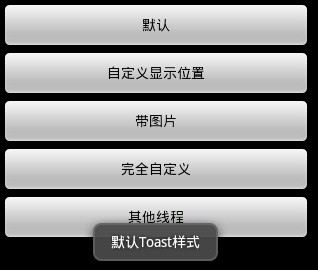
Toast大家都很熟,不多說。直接上圖上代碼。 具體代碼如下:main.xml:<?xml version=1.0 enc
 Android實現單項、多項選擇操作
本文實例為大家分享了Android實現單項、多項選擇操作的相關代碼,供大家參考,具體內容如下1、單項選擇1.1.布局<?xml version=1.0 en
 viewpager+fragment的懶加載
正文 進入正題,主要講解viewpager+fragment實現微信滑動切換頁面的功能,並且附帶切換效果,功能其實並不難,只是需要把知識點關聯起來1.分析用到的知識點(1