

編輯:Android 技術基礎
Adapter 相關的元件終於告一段落,同類元件還有不少,這裡不逐一展開,需要的話直接查文件即可。本節要介紹的是 Android 中用於提示資訊的元件——Toast(常被戲稱為「吐司」)。
Toast 是一種非常便利的訊息提示框:它會在螢幕上顯示一段文字,沒有任何按鈕、也不會取得焦點,一段時間後自動消失,使用頻率極高。下面我們來學它的用法。
這是最常見的寫法。比如點擊按鈕後彈出提示:
Toast.makeText(MainActivity.this, "提示的內容", Toast.LENGTH_LONG).show();
三個參數分別是上下文物件、顯示內容、顯示時長。時長只有 LONG 與 SHORT 兩種會生效,就算你傳了其他值,最後仍會落到這兩者之一。
由於 Toast 實在太常用,實務上我們會把這些公共邏輯抽成一個方法,需要時直接呼叫,省下不少重複程式碼。示例如下:
void midToast(String str, int showTime) { Toast toast = Toast.makeText(global_context, str, showTime); toast.setGravity(Gravity.CENTER_VERTICAL|Gravity.CENTER_HORIZONTAL , 0, 0); //設置顯示位置 TextView v = (TextView) toast.getView().findViewById(android.R.id.message); v.setTextColor(Color.YELLOW); //設置字體顏色 toast.show(); }
從這個抽取方法中不難看出:我們可以用 setGravity 指定 Toast 的顯示位置,也能透過 findViewById(android.R.id.message) 取得顯示文字並調整顏色、大小等屬性。這其實就屬於第二種做法——用建構子客製 Toast。
上面已經調過文字與位置,下面再寫兩個小例子:
效果圖:
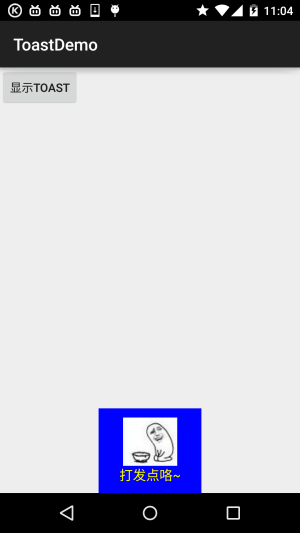
關鍵程式碼:
private void midToast(String str, int showTime) { Toast toast = Toast.makeText(mContext, str, showTime); toast.setGravity(Gravity.CENTER_HORIZONTAL|Gravity.BOTTOM , 0, 0); //設置顯示位置 LinearLayout layout = (LinearLayout) toast.getView(); layout.setBackgroundColor(Color.BLUE); ImageView image = new ImageView(this); image.setImageResource(R.mipmap.ic_icon_qitao); layout.addView(image, 0); TextView v = (TextView) toast.getView().findViewById(android.R.id.message); v.setTextColor(Color.YELLOW); //設置字體顏色 toast.show(); }
如果上面那招還不夠,你完全可以自己寫一份 Toast 版面再顯示出來——唯一的限制是顯示時長依舊無法自訂。
執行結果:
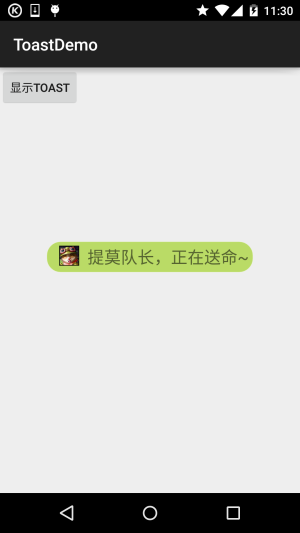
關鍵程式碼:
private void midToast(String str, int showTime) { LayoutInflater inflater = getLayoutInflater(); View view = inflater.inflate(R.layout.view_toast_custom, (ViewGroup) findViewById(R.id.lly_toast)); ImageView img_logo = (ImageView) view.findViewById(R.id.img_logo); TextView tv_msg = (TextView) view.findViewById(R.id.tv_msg); tv_msg.setText(str); Toast toast = new Toast(mContext); toast.setGravity(Gravity.CENTER, 0, 0); toast.setDuration(Toast.LENGTH_LONG); toast.setView(view); toast.show(); }
自訂 Toast 的版面與圓角背景如下:
圓角背景:bg_toast.xml:
<?xml version="1.0" encoding="utf-8"?> <shape xmlns:android="https://schemas.android.com/apk/res/android"> <!-- 設置透明背景色 --> <solid android:color="#BADB66" /> <!-- 設置一個黑色邊框 --> <stroke android:width="1px" android:color="#FFFFFF" /> <!-- 設置四個圓角的半徑 --> <corners android:bottomLeftRadius="50px" android:bottomRightRadius="50px" android:topLeftRadius="50px" android:topRightRadius="50px" /> <!-- 設置一下邊距,讓空間大一點 --> <padding android:bottom="5dp" android:left="5dp" android:right="5dp" android:top="5dp" /> </shape>
版面檔:view_toast_custom.xml:
<?xml version="1.0" encoding="utf-8"?> <LinearLayout xmlns:android="https://schemas.android.com/apk/res/android" android:id="@+id/lly_toast" android:layout_width="match_parent" android:layout_height="match_parent" android:background="@drawable/bg_toast" android:orientation="horizontal"> <ImageView android:id="@+id/img_logo" android:layout_width="24dp" android:layout_height="24dp" android:layout_marginLeft="10dp" android:src="@mipmap/iv_lol_icon1" /> <TextView android:id="@+id/tv_msg" android:layout_width="match_parent" android:layout_height="wrap_content" android:layout_marginLeft="10dp" android:textSize="20sp" /> </LinearLayout>
寫法相當直觀。
ToastDemo.zip
本節講了 Toast 的基本用法與自訂方式。掌握了這幾種寫法,你就能在實際專案中做出符合產品調性的提示樣式。
 2.5.2 GridView 網格檢視基本用法
前言 本節介紹第二個 Adapter 類元件——GridView(網格檢視)。顧名思義,ListView 是清單,GridView 就是網格。它和 ListView 同
 AudioManager 實戰:用三個按鈕切換鈴聲、靜音與震動(從零開始學 Android)
手機的聲音模式不外乎鈴聲、靜音、震動,或者震動加鈴聲。這些看似理所當然的行為,在 Android 裡其實都收攏到一個系統服務上——AudioManager。掌握它,你就能
 第91章:自訂電台與聽眾——打造你的專屬廣播(從零開始學 Android)
「廣播」這個詞,我們一點都不陌生。不管你聽不聽,我們其實都懂它的意思。 打開收音機,裡頭有各式各樣的電台,每一個頻道播放的內容都不一樣。想想看,電台主持人(發送方)其實並
 2015 最新 Android 基礎入門教程完整目錄(共 148 節)
前言 《2015 最新 Android 基礎入門教程》到今天正式收官,全套共 148 節已全部寫完。這里附上完整目錄,方便按需跳讀。教程從環境搭建一路講到傳感器與 GPS