

編輯:初階開發
Android 是為觸控螢幕設計的系統,點擊輸入框時會自動彈出軟鍵盤。但鍵盤一出現,可用高度就變少了——系統該如何處理這段被壓縮的空間?我們能不能自行控制?這是本文想釐清的重點。
我們自訂一個檢視,把版面變化的各個回呼都印出來:
public class ResizeLayout extends LinearLayout {

    private static int count = 0;

    public ResizeLayout(Context context, AttributeSet attrs) {
        super(context, attrs);
    }

    @Override
    protected void onSizeChanged(int w, int h, int oldw, int oldh) {
        super.onSizeChanged(w, h, oldw, oldh);
        Log.e("onSizeChanged " + count++, "w=" + w + ", h=" + h
                + ", oldw=" + oldw + ", oldh=" + oldh);
    }

    @Override
    protected void onLayout(boolean changed, int l, int t, int r, int b) {
        super.onLayout(changed, l, t, r, b);
        Log.e("onLayout " + count++, "l=" + l + ", t=" + t + ", r=" + r + ", b=" + b);
    }

    @Override
    protected void onMeasure(int widthMeasureSpec, int heightMeasureSpec) {
        super.onMeasure(widthMeasureSpec, heightMeasureSpec);
        Log.e("onMeasure " + count++, "widthMeasureSpec=" + widthMeasureSpec
                + ", heightMeasureSpec=" + heightMeasureSpec);
    }
}
版面結構很單純:一個 EditText,加上一個靠底的 LinearLayout 裡放 TextView:
<com.winuxxan.inputMethodTest.ResizeLayout
    xmlns:android="https://schemas.android.com/apk/res/android"
    android:id="@+id/root_layout"
    android:layout_width="fill_parent"
    android:layout_height="fill_parent"
    android:orientation="vertical">

    <EditText
        android:layout_width="fill_parent"
        android:layout_height="wrap_content" />

    <LinearLayout
        android:id="@+id/bottom_layout"
        android:layout_width="fill_parent"
        android:layout_height="fill_parent"
        android:orientation="vertical"
        android:gravity="bottom">

        <TextView
            android:layout_width="fill_parent"
            android:layout_height="wrap_content"
            android:text="@string/hello"
            android:background="#77777777" />
    </LinearLayout>
</com.winuxxan.inputMethodTest.ResizeLayout>
在 AndroidManifest.xml 中設定:
android:windowSoftInputMode = "adjustResize"
點擊文字框後,日誌輸出如下:
E/onMeasure 6: widthMeasureSpec=1073742144, heightMeasureSpec=1073742024
E/onMeasure 7: widthMeasureSpec=1073742144, heightMeasureSpec=1073742025
E/onSizeChanged 8: w=320, h=201, oldw=320, oldh=377
E/onLayout 9: l=0, t=0, r=320, b=201
可以看出:點擊文字框後,根版面依序呼叫了 onMeasure、onSizeChanged 與 onLayout。設為 adjustResize 時,軟鍵盤彈出會導致主視窗重新 measure 與 layout,而在 layout 過程中發現尺寸改變,因此觸發 onSizeChanged。
從執行結果可以看到,原本靠底的 TextView 被頂到了輸入法上方。
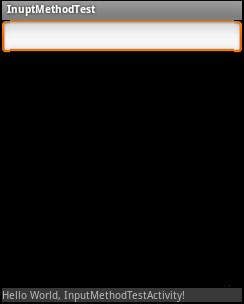
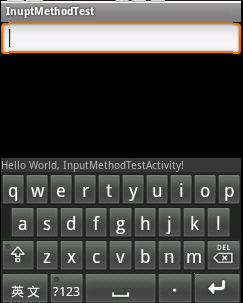
設為 adjustPan 時,Activity 主視窗不會調整螢幕大小來騰出鍵盤空間;相反地,當前視窗的內容會自動上移,確保焦點元件不會被鍵盤遮住,使用者隨時看得到正在輸入的部分。
android:windowSoftInputMode = "adjustPan"
重新執行後的日誌:
E/onMeasure 6: widthMeasureSpec=1073742144, heightMeasureSpec=1073742200
E/onMeasure 7: widthMeasureSpec=1073742144, heightMeasureSpec=1073742201
E/onLayout 8: l=0, t=0, r=320, b=377
系統同樣重新做了 measure 與 layout,但 onSizeChanged 沒有被呼叫,這說明輸入法彈出前後,原有版面尺寸並未改變。從執行結果也看得到,下方的 TextView 沒有被頂上去。
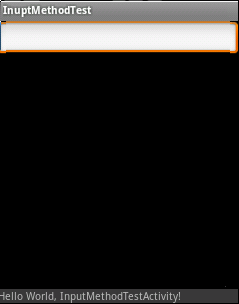
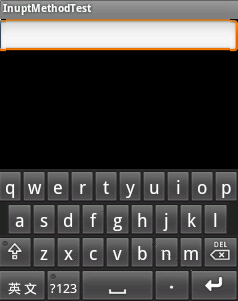
具體來說,當輸入框不會被遮擋時,這個模式完全不調整版面;只有當輸入框即將被遮住時,視窗才會平移。下圖可以看到整個視窗(包含標題列)一起上移,以保證文字框可見。
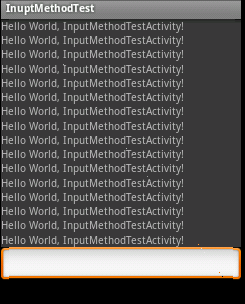
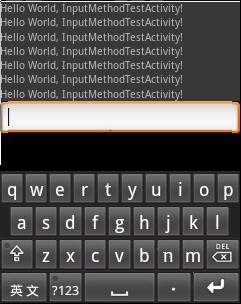
設為 adjustUnspecified 時,系統不預先指定要調整大小還是平移,而是自動判斷——主要依據視窗內容中是否存在可滾動的版面檢視。若有,視窗就會調整大小,讓內容在較小區域中仍可透過滾動查看。這也是主視窗的預設行為。
直接監聽軟鍵盤顯示/隱藏,Android 並沒有提供現成 API(如果哪位讀者知道更好的方法,歡迎分享)。可行的替代思路是:利用「鍵盤顯示或隱藏時主視窗會重新版面配置」這個特性來 indirectly 偵測。
若模式為壓縮模式,可以攔截版面的 onSizeChanged;若為平移模式,這個回呼可能不會被觸發。以下以線性版面 + 壓縮模式為例,實作「鍵盤彈出時隱藏某個 View,收起時顯示回來」。
public class ResizeLayout extends LinearLayout {

    private OnResizeListener mListener;

    public interface OnResizeListener {
        void OnResize(int w, int h, int oldw, int oldh);
    }

    public void setOnResizeListener(OnResizeListener l) {
        mListener = l;
    }

    public ResizeLayout(Context context, AttributeSet attrs) {
        super(context, attrs);
    }

    @Override
    protected void onSizeChanged(int w, int h, int oldw, int oldh) {
        super.onSizeChanged(w, h, oldw, oldh);
        if (mListener != null) {
            mListener.OnResize(w, h, oldw, oldh);
        }
    }
}
public class InputMethodTestActivity extends Activity {

    private static final int BIGGER  = 1;
    private static final int SMALLER = 2;
    private static final int MSG_RESIZE = 1;

    class InputHandler extends Handler {
        @Override
        public void handleMessage(Message msg) {
            switch (msg.what) {
                case MSG_RESIZE:
                    if (msg.arg1 == BIGGER) {
                        findViewById(R.id.bottom_layout).setVisibility(View.VISIBLE);
                    } else {
                        findViewById(R.id.bottom_layout).setVisibility(View.GONE);
                    }
                    break;
                default:
                    break;
            }
            super.handleMessage(msg);
        }
    }

    private InputHandler mHandler = new InputHandler();

    @Override
    public void onCreate(Bundle savedInstanceState) {
        super.onCreate(savedInstanceState);
        setContentView(R.layout.main);

        ResizeLayout layout = (ResizeLayout) findViewById(R.id.root_layout);
        layout.setOnResizeListener(new ResizeLayout.OnResizeListener() {
            public void OnResize(int w, int h, int oldw, int oldh) {
                int change = BIGGER;
                if (h < oldh) {          // 高度變小 → 鍵盤彈出
                    change = SMALLER;
                }
                Message msg = new Message();
                msg.what = MSG_RESIZE;
                msg.arg1 = change;
                mHandler.sendMessage(msg);
            }
        });
    }
}
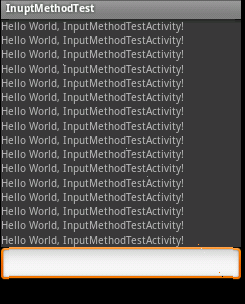
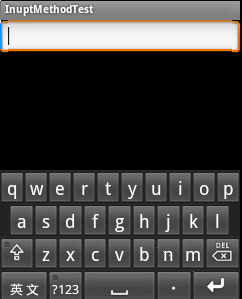
不要在 OnResizeListener 裡直接改動要控制的 View。因為 onSizeChanged 實際上是運行在 View 的 layout 流程中,如果在此直接變更 View 的可見性,往往又會觸發新一輪 layout,於是造成遞迴呼叫甚至錯誤。因此範例中改用 Handler 把訊息丟到下一輪訊息迴圈處理,避開這個陷阱。
 解決 Android 模擬器 PUSH 檔案時出現 Read-only file system 錯誤
在開發 Android 時,經常需要把音樂、圖片或測試資料丟進模擬器的 SD 卡裡,卻時常被一句冷冰冰的錯誤擋住: Failed to push xxx.txt on e
 Android 開發講義(二):DDMS 模擬簡訊、Layout 的服務觀與繼承/委託抉擇
八、如何從 DDMS 發送簡訊給應用程式 切換到 DDMS 路徑一:在 Eclipse 的 Android 程式編輯畫面,點擊右上角的 DDMS 按鈕,再從清單中選取即可
 讓 Android 應用相容多種螢幕解析度
Android 裝置解析度差異大,常見包含 QVGA、HVGA、WVGA、FWVGA 等。若圖片資源未針對不同解析度設計,可能出現拉伸或顯示異常。Resource 目錄可
 Android TextView 局部字元高亮:用 LinearLayout 拆解每一個字
TextView 並不支援局部文字高亮,但我們可以繞道而行。 思路 1. 用 LinearLayout 作為整段文字的容器。 2. 字串中的每一個字,各自用一個 Tex