

編輯:關於 Android 程式設計
本文示範如何呼叫 Android 內建的媒體播放元件 MediaPlayer,做出一個可以播放、暫停、重播與停止的簡易音樂播放器。
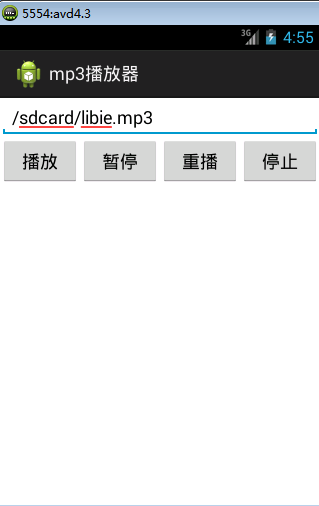
版面很單純:上方一個輸入框用來填音樂檔案路徑,下方一列四顆按鈕分別負責播放、暫停、重播、停止。
<LinearLayout xmlns:android="https://schemas.android.com/apk/res/android"
    xmlns:tools="https://schemas.android.com/tools"
    android:layout_width="match_parent"
    android:layout_height="match_parent"
    android:orientation="vertical"
    tools:context=".MainActivity" >

    <EditText
        android:id="@+id/et_path"
        android:layout_width="fill_parent"
        android:layout_height="wrap_content"
        android:hint="請輸入音樂檔案的路徑" />

    <LinearLayout
        android:layout_width="fill_parent"
        android:layout_height="wrap_content"
        android:orientation="horizontal" >

        <Button android:id="@+id/bt_play"   android:layout_width="0dip" android:layout_height="wrap_content" android:layout_weight="1" android:text="播放" />
        <Button android:id="@+id/bt_pause"  android:layout_width="0dip" android:layout_height="wrap_content" android:layout_weight="1" android:text="暫停" />
        <Button android:id="@+id/bt_replay" android:layout_width="0dip" android:layout_height="wrap_content" android:layout_weight="1" android:text="重播" />
        <Button android:id="@+id/bt_stop"   android:layout_width="0dip" android:layout_height="wrap_content" android:layout_weight="1" android:text="停止" />
    </LinearLayout>
</LinearLayout>
四顆按鈕都設成 layout_width="0dip" 搭配 layout_weight="1",這樣它們會平均瓜分整列寬度,換句話說不管螢幕解析度如何,四顆按鈕永遠等寬。
想查更完整的 API 說明,可以打開本地 SDK 中的這份文件:
file:///……/sdk/docs/guide/topics/media/mediaplayer.html
package com.wuyudong.mp3player;

import java.io.File;
import android.media.AudioManager;
import android.media.MediaPlayer;
import android.media.MediaPlayer.OnCompletionListener;
import android.os.Bundle;
import android.app.Activity;
import android.view.View;
import android.view.View.OnClickListener;
import android.widget.Button;
import android.widget.EditText;
import android.widget.Toast;

public class MainActivity extends Activity implements OnClickListener {

    private EditText et_path;
    private Button bt_play, bt_replay, bt_pause, bt_stop;
    private MediaPlayer mediaPlayer;

    @Override
    protected void onCreate(Bundle savedInstanceState) {
        super.onCreate(savedInstanceState);
        setContentView(R.layout.activity_main);

        et_path   = (EditText) findViewById(R.id.et_path);
        bt_play   = (Button) findViewById(R.id.bt_play);
        bt_replay = (Button) findViewById(R.id.bt_replay);
        bt_pause  = (Button) findViewById(R.id.bt_pause);
        bt_stop   = (Button) findViewById(R.id.bt_stop);

        bt_pause.setOnClickListener(this);
        bt_play.setOnClickListener(this);
        bt_replay.setOnClickListener(this);
        bt_stop.setOnClickListener(this);
    }

    @Override
    public void onClick(View v) {
        switch (v.getId()) {
            case R.id.bt_play:   play();   break;
            case R.id.bt_replay: replay(); break;
            case R.id.bt_stop:   stop();   break;
            case R.id.bt_pause:  pause();  break;
            default: break;
        }
    }

    /** 暫停 / 續播 */
    private void pause() {
        if ("繼續".equals(bt_pause.getText().toString().trim())) {
            mediaPlayer.start();
            bt_pause.setText("暫停");
            return;
        }
        if (mediaPlayer != null && mediaPlayer.isPlaying()) {
            mediaPlayer.pause();
            bt_pause.setText("繼續");
        }
    }

    /** 重新播放 */
    private void replay() {
        if (mediaPlayer != null && mediaPlayer.isPlaying()) {
            mediaPlayer.seekTo(0);
            return;
        }
        play();
    }

    /** 停止播放並釋放資源 */
    private void stop() {
        if (mediaPlayer != null && mediaPlayer.isPlaying()) {
            mediaPlayer.stop();
            mediaPlayer.release();   // 記得釋放資源
            mediaPlayer = null;
            bt_play.setEnabled(true);
        }
    }

    /** 播放音樂 */
    private void play() {
        String path = et_path.getText().toString().trim();
        File file = new File(path);

        if (file.exists() && file.length() > 0) {
            try {
                mediaPlayer = new MediaPlayer();
                mediaPlayer.setAudioStreamType(AudioManager.STREAM_MUSIC);
                mediaPlayer.setDataSource(path);
                mediaPlayer.prepare();   // 可能較耗時(緩衝等)
                mediaPlayer.start();

                mediaPlayer.setOnCompletionListener(new OnCompletionListener() {
                    @Override
                    public void onCompletion(MediaPlayer mp) {
                        bt_play.setEnabled(true);
                    }
                });
                bt_play.setEnabled(false);
            } catch (Exception e) {
                Toast.makeText(this, "播放失敗", 0).show();
                e.printStackTrace();
            }
        } else {
            Toast.makeText(this, "檔案不存在", 0).show();
        }
    }
}
File.exists() 與 length() > 0 判斷,能避免大量不必要的例外。prepareAsync() 搭配 OnPreparedListener,或乾脆放到背景執行緒。release(),並在 Activity 的 onDestroy() 中再保險一次,否則容易在記憶體有限的裝置上崩潰。OnCompletionListener 把播放鈕重新 enable,使用者才能再次播放。執行前先推一份音訊檔到 sdcard,例如用 adb:
adb push test.mp3 /sdcard/
然後在輸入框填入 /sdcard/test.mp3 即可播放。别忘了别忘了,讀取外部儲存需要 READ_EXTERNAL_STORAGE 權限(Android 6.0 以上還要動態申請)。
實際執行的畫面如下:
以上就是 MediaPlayer 的基本用法,掌握播放、暫停、重播、停止這四個動作,再搭配適當的錯誤處理與資源釋放,就足以應付大多數簡單的播放需求。
 Android 自定義控件實戰:打造可複用的標題導航列並打包共享
幾乎每個 App 都有一條頂部的標題導航列,左邊返回、中間標題、右邊操作按鈕。與其每個專案重寫一次,不如封裝成自定義 View,再打包成 library 給其他專案共用。
 ListView 使用與性能優化:從基礎寫法到分批加載
一、ListView 的標準使用步驟 1. 定制實體類,把要填進列表的字段定義好,配齊 set / get 方法; 2. 自定義 item 布局,按數據需要排版; 3.
 React Native 環境建置筆記:Mac 與 Android 篇
本文記錄在 Mac 上建置 React Native Android 開發環境的流程,包含 Homebrew、Node.js、React Native CLI、Andro
 Android ViewSwitcher 用法詳解:兩畫面之間的切換器
ViewSwitcher 屬於 ViewAnimator 家族,專門用來在兩個子 View 之間輪流顯示,同一時間只會有一個出現在畫面上。它最適合做「一組圖片與一組資訊互