

編輯:關於 Android 程式設計
我本來是個 .NET 開發者,卻因為公司要求開發一款 Android App,只能硬著頭皮轉戰前線。
由於專案中有不少地方需要用到數據顯示控件(類似 .NET 的 DataGridView),上網搜尋一番卻找不到有人公開過相似的控件,最後只好自己動手寫了一個。
廢話不多說,直接上程式碼:
public class DataGridView extends HorizontalScrollView { private List<DataGridViewColumn> columns; private List<Map<String,String>> rows; private boolean hasHeader; private CellClickListener cellClickListener; private RowClickListener rowClickListener; private RowValidatorListener rowValidatorListener; private LinearLayout headerRow; private LinearLayout bodyRow; public DataGridView(Context context, AttributeSet attrs) { super(context, attrs); TypedArray a = context.obtainStyledAttributes(attrs, R.styleable.DataGridView); hasHeader = a.getBoolean(R.styleable.DataGridView_hasHeader, true); a.recycle(); LayoutInflater inflater = (LayoutInflater) getContext().getSystemService(Context.LAYOUT_INFLATER_SERVICE); LinearLayout container = (LinearLayout) inflater.inflate(R.layout.ctrl_data_grid_view, null, false); addView(container); this.columns = new ArrayList<DataGridViewColumn>(); this.rows = new ArrayList<Map<String,String>>(); headerRow = new LinearLayout(getContext()); headerRow.setOrientation(LinearLayout.HORIZONTAL); headerRow.setBackgroundResource(R.drawable.datagrid_header_background); headerRow.setLayoutParams(new LayoutParams(LayoutParams.MATCH_PARENT, LayoutParams.WRAP_CONTENT)); if (hasHeader){ container.addView(headerRow); } ScrollView scrollView = (ScrollView)inflater.inflate(R.layout.ctrl_data_grid_view_scroll, container, false); bodyRow = (LinearLayout) inflater.inflate(R.layout.ctrl_data_grid_view, scrollView, false); scrollView.addView(bodyRow); container.addView(scrollView); } public void addColumn(String dataField, String headerText){ this.addColumn(dataField, headerText, 200); } public void addColumn(String dataField, String headerText, int columnWidth){ this.addColumn(dataField, headerText, columnWidth, Gravity.START); } public void addColumn(String dataField, String headerText, int columnWidth, int textAlign){ this.addColumn(dataField, headerText, columnWidth, textAlign, Color.rgb(80, 80, 80)); } public void addColumn(String dataField, String headerText, int columnWidth, int textAlign, int textColor){ this.addColumn(dataField, headerText, columnWidth, textAlign, textColor, true); } public void addColumn(String dataField, String headerText, int columnWidth, int textAlign, int textColor, boolean isEnabled){ DataGridViewColumn column = new DataGridViewColumn(); column.dataField =dataField; column.headerText = headerText; column.columnWidth = columnWidth; column.textAlign = textAlign; column.textColor = textColor; column.isEnabled = isEnabled; this.addColumn(column); } public void addColumn(DataGridViewColumn column){ columns.add(column); insertColumn(column); if (rows.size() > 0){ bodyRow.removeAllViews(); for (Map<String,String> row : rows){ insertRow(row); } } } public void addColumn(DataGridViewColumn column, int index){ columns.add(column); insertColumn(column, index); if (rows.size() > 0){ bodyRow.removeAllViews(); for (Map<String,String> row : rows){ insertRow(row); } } } public void removeColumn(int index){ columns.remove(index); } public void removeColumn(String dataField){ for (DataGridViewColumn column : columns){ if (column.dataField.equals(dataField)){ this.removeColumn(column); if (rows.size() > 0){ bodyRow.removeAllViews(); for (Map<String,String> row : rows){ insertRow(row); } } return; } } } public void removeColumn(DataGridViewColumn column){ columns.remove(column); } public void setDataSource(List<Map<String,String>> rows){ this.rows = rows; if (columns.size() > 0){ bodyRow.removeAllViews(); for (Map<String,String> row : rows){ insertRow(row); } } public void addRow(Map<String,String> row){ rows.add(row); if (columns.size() > 0) { insertRow(row); } } public void addRow(Map<String,String> row, int index){ rows.add(index, row); if (columns.size() > 0) { insertRow(row, index); } } public void removeRow(int index){ rows.remove(index); bodyRow.removeViewAt(index); } public void removeRow(Map<String,String> row){ int index = rows.indexOf(row); this.removeRow(index); } public void setCellClickListener(CellClickListener cellClickListener) { this.cellClickListener = cellClickListener; } public void setRowClickListener(RowClickListener rowClickListener) { this.rowClickListener = rowClickListener; } public void setRowValidatorListener(RowValidatorListener rowValidatorListener) { this.rowValidatorListener = rowValidatorListener; } public boolean isHasHeader() { return hasHeader; } public void setHasHeader(boolean hasHeader) { this.hasHeader = hasHeader; } private void insertColumn(DataGridViewColumn column){ this.insertColumn(column, -1); } private void insertColumn(DataGridViewColumn column, int index){ LayoutInflater inflater = (LayoutInflater) getContext().getSystemService(Context.LAYOUT_INFLATER_SERVICE); TextView headerTextView = (TextView) inflater.inflate(R.layout.ctrl_data_grid_view_column, headerRow, false); headerTextView.setText(column.headerText); headerTextView.setLayoutParams(new LayoutParams(column.columnWidth, LayoutParams.WRAP_CONTENT, 1)); if (index == -1){ headerRow.addView(headerTextView); }else { headerRow.addView(headerTextView, index); } } public DataGridViewColumn getColumn(int index){ return columns.get(index); } private void insertRow(final Map<String, String> row){ this.insertRow(row, -1); } private void insertRow(final Map<String,String> row, int index){ LinearLayout dataRow = new LinearLayout(getContext()); dataRow.setOrientation(LinearLayout.HORIZONTAL); dataRow.setSelected(true); dataRow.setClickable(true); dataRow.setBackgroundResource(R.drawable.datagrid_row_border); dataRow.setLayoutParams(new LayoutParams(LayoutParams.MATCH_PARENT, LayoutParams.WRAP_CONTENT)); LayoutInflater inflater = (LayoutInflater) getContext().getSystemService(Context.LAYOUT_INFLATER_SERVICE); for (final DataGridViewColumn column : columns){ String cellText = row.get(column.dataField); TextView rowFieldText = (TextView) inflater.inflate(R.layout.ctrl_data_grid_view_cell, dataRow, false); rowFieldText.setText(cellText); rowFieldText.setGravity(column.textAlign); rowFieldText.setTextColor(column.textColor); rowFieldText.setLayoutParams(new LayoutParams(column.columnWidth, LayoutParams.WRAP_CONTENT, 1)); dataRow.addView(rowFieldText); if (column.isEnabled) { rowFieldText.setOnClickListener(new OnClickListener() { @Override public void onClick(View v) { if (cellClickListener != null) { cellClickListener.onClick(row, column.dataField); } } }); } else { rowFieldText.setTextColor(Color.rgb(128, 128, 128)); } } if (rowValidatorListener != null){ rowValidatorListener.onValidator(dataRow, row); } if (index == -1){ bodyRow.addView(dataRow); }else { bodyRow.addView(dataRow, index); } dataRow.setOnClickListener(new View.OnClickListener() { @Override public void onClick(View v) { if (rowClickListener != null) { rowClickListener.onClick(row); } } }); } public void updateRow(Map<String,String> row){ int index = rows.indexOf(row); bodyRow.removeViewAt(index); this.insertRow(row, index); } public Map<String,String> getRow(int index) { return rows.get(index); } public int getColumnsCount() { return columns.size(); } public int getRowsCount() { return rows.size(); } public interface CellClickListener{ void onClick(Map<String,String> rowData, String dataField); } public interface RowClickListener{ void onClick(Map<String,String> rowData); } public interface RowValidatorListener{ void onValidator(ViewGroup v,Map<String,String> rowData); } } 另外也附上程式碼中用到的欄位屬性類:
public class DataGridViewColumn { public String dataField; public String headerText; public int columnWidth; public int textAlign; public int textColor; public boolean isEnabled; } 以上便是這個自定義 DataGridView 表格控件的完整實作,希望對大家的學習有所幫助,也歡迎多多支持本站。
 Android TabLayout 選項卡布局實戰入門教程
TabLayout 是許多人開發 Android 應用時經常會用到的組件,本文就帶大家一起動手玩轉這個官方選項卡控件,希望對正在學習的朋友有所幫助。 為什麼選擇 Tab
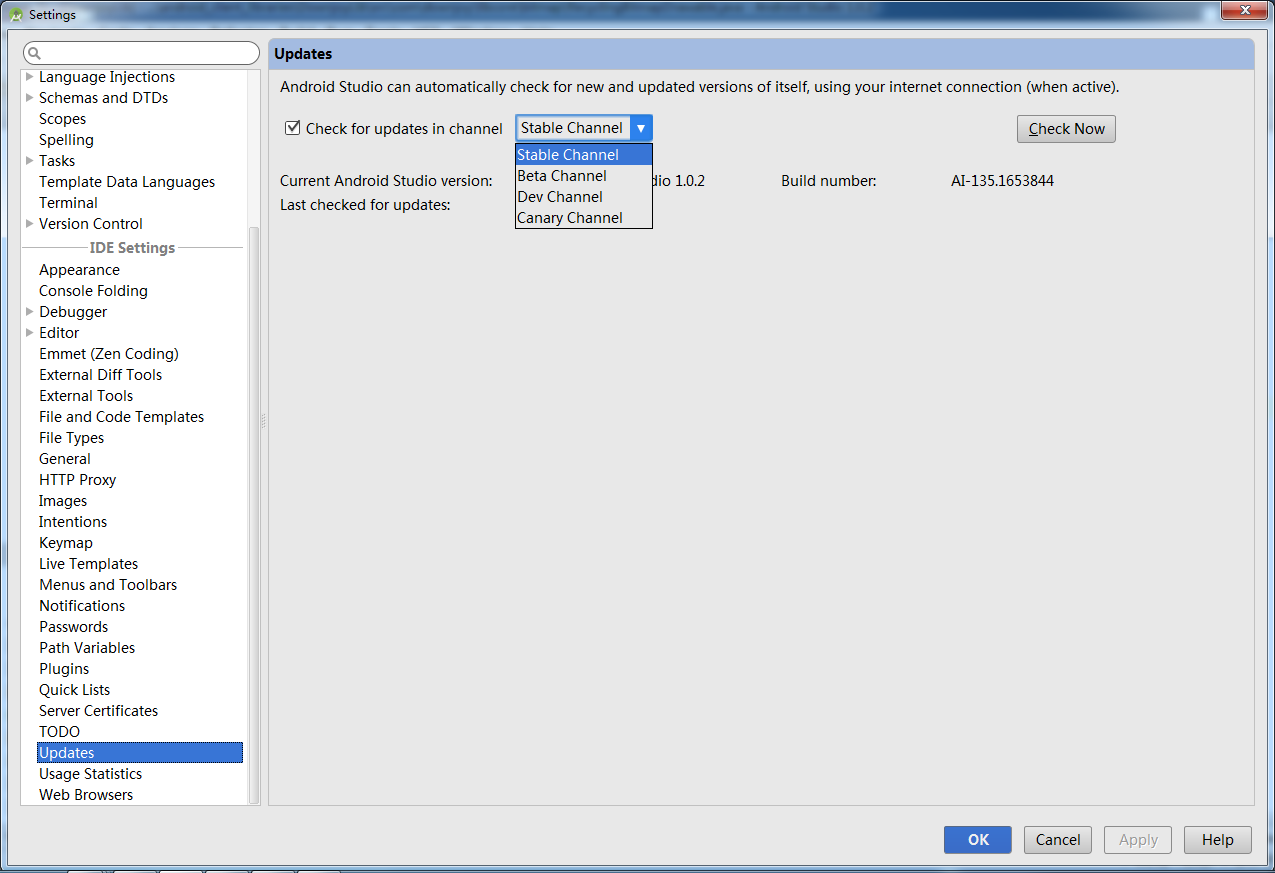 將 Eclipse 專案遷移到 Android Studio 的方法(圖文最新版)
前言近來 Android Studio(以下簡稱 AS)推出了正式版,火得不行。主要還是因為 Android 是 Google 自家的產品,AS 也是它自己搞的 IDE,
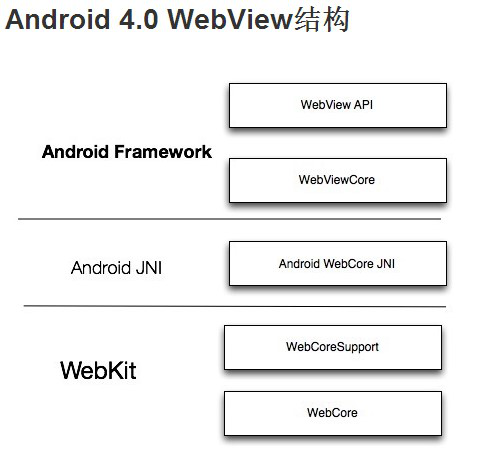 用 Cordova 解決 HTML5 打包成 WebView 應用時的兼容性難題
一、Android 4.0 WebView 分析 Android 4.0 時代,WebView 的實現分布在 framework 與 WebKit 兩層:framewo
 Android ListView 多 Tab 上滑懸浮效果實作思路
在一些內容頁中,常會看到兩個 Tab 共用同一塊描述區域,當頁面向下滑動時,Tab 會停留在頂部,方便使用者切換。本文整理這種 ListView 多 Tab 上滑懸浮效果