

編輯:關於 Android 程式設計
Android 傳統上提供兩類動畫:Tween 補間動畫,對同一個物件連續做位移、旋轉、縮放、透明度變化;以及 Frame 幀動畫,依序播放一張張事先備好的圖,原理跟 GIF 類似。兩者都可以用 XML 宣告,也可以純程式碼實作。
<!-- fromAlpha:起始透明度,toAlpha:結束透明度
     0.0 全透明,1.0 完全不透明
     duration:持續時間,單位毫秒 -->
<alpha xmlns:android="https://schemas.android.com/apk/res/android"
    android:duration="3000"
    android:fromAlpha="0.0"
    android:toAlpha="1.0" />
程式碼寫法:
Animation animationAlpha = new AlphaAnimation(0.0f, 1.0f);
animationAlpha.setDuration(3000);
ivAnim.startAnimation(animationAlpha);
<rotate xmlns:android="https://schemas.android.com/apk/res/android"
    android:duration="3000"
    android:fromDegrees="0"
    android:toDegrees="+350"
    android:interpolator="@android:anim/accelerate_decelerate_interpolator"
    android:pivotX="50%"
    android:pivotY="50%" />
幾個關鍵屬性:
fromDegrees / toDegrees:起止角度,可以超過 360 度。負數為逆時針,正數為順時針。pivotX / pivotY:旋轉中心,以自身尺寸的百分比表示,50% 就是正中心。interpolator:速度曲線。內建三種——accelerate_interpolator(先慢後快)、decelerate_interpolator(先快後慢)、accelerate_decelerate_interpolator(中間快兩頭慢)。程式碼寫法:
Animation animationRotate = new RotateAnimation(
        0.0f, +350.0f,
        Animation.RELATIVE_TO_SELF, 0.5f,
        Animation.RELATIVE_TO_SELF, 0.5f);
animationRotate.setDuration(3000);
ivAnim.startAnimation(animationRotate);
<scale xmlns:android="https://schemas.android.com/apk/res/android"
    android:duration="700"
    android:fromXScale="0.0"
    android:toXScale="1.4"
    android:fromYScale="0.0"
    android:toYScale="1.4"
    android:pivotX="50%"
    android:pivotY="50%"
    android:fillAfter="false" />
比例值的規則:0.0 收縮到看不見,1.0 維持原大小,小於 1.0 縮小,大於 1.0 放大。fillAfter 設為 true 時,動畫結束後會保留最後一幀的樣子,而不是跳回原狀。
Animation animationScale = new ScaleAnimation(
        0.0f, 1.4f, 0.0f, 1.4f,
        Animation.RELATIVE_TO_SELF, 0.5f,
        Animation.RELATIVE_TO_SELF, 0.5f);
animationScale.setDuration(3000);
ivAnim.startAnimation(animationScale);
<translate xmlns:android="https://schemas.android.com/apk/res/android"
    android:duration="2000"
    android:fromXDelta="30"
    android:fromYDelta="30"
    android:toXDelta="-80"
    android:toYDelta="300" />
未指定 fromXType / toXType 等型別屬性時,預設以「自身」為參照物。程式碼寫法:
Animation animationTranslate = new TranslateAnimation(30.0f, -80.0f, 30.0f, 300.0f);
animationTranslate.setDuration(3000);
ivAnim.startAnimation(animationTranslate);
把多個動畫包在 <set> 裡,就能同時播放多種效果:
<set xmlns:android="https://schemas.android.com/apk/res/android"
    android:interpolator="@android:anim/decelerate_interpolator">

    <scale android:duration="800"
        android:fromXScale="1.0" android:toXScale="1.5"
        android:fromYScale="1.0" android:toYScale="1.5"
        android:pivotX="50%" android:pivotY="50%" />

    <alpha android:duration="800"
        android:fromAlpha="1.0" android:toAlpha="0.2" />

</set>
XML 檔放在 res/anim/ 目錄,使用時只要兩行:
Animation anim = AnimationUtils.loadAnimation(activity, R.anim.anim_xxx);
ivAnim.startAnimation(anim);
幀動畫的資源檔放在 res/drawable/,根標籤是 animation-list:
<!-- oneshot 為 true 表示只播一遍,false 則無限循環
     item 的 duration 是這一幀顯示的毫秒數 -->
<animation-list xmlns:android="https://schemas.android.com/apk/res/android"
    android:oneshot="true">

    <item android:drawable="@drawable/icon_frame1" android:duration="200" />
    <item android:drawable="@drawable/icon_frame2" android:duration="200" />
    <item android:drawable="@drawable/icon_frame3" android:duration="200" />
    <item android:drawable="@drawable/icon_frame4" android:duration="200" />
    <item android:drawable="@drawable/icon_frame5" android:duration="200" />
    <item android:drawable="@drawable/icon_frame6" android:duration="50" />

</animation-list>
使用時要注意:幀動畫必須透過 getDrawable() 取得 AnimationDrawable 才能播放,不能直接用 startAnimation():
ivFrame = (ImageView) findViewById(R.id.iv_frame_image);
ivFrame.setImageResource(R.drawable.anim_frame);

AnimationDrawable animation = (AnimationDrawable) ivFrame.getDrawable();
animation.setOneShot(false);   // 設定為循環播放
animation.start();
另外,start() 必須在 view 已經 attach 到視窗之後呼叫,寫在 onCreate 裡通常不會動,建議放到 onWindowFocusChanged 或用 post() 延後執行。
Frame 幀動畫適合「本身就是一段序列圖」的場景,例如 loading 轉圈、人物走路。缺點很直接:所有幀都常駐記憶體,幀數多、解析度高時非常吃記憶體,動畫也會卡。
Tween 補間動畫適合「對現有 view 做變形」的場景,成本極低。但要特別注意:它只改變了繪製時的矩陣,並沒有改變 view 的真實位置與大小。也就是說,一個被平移到別處的按鈕,點擊範圍仍留在原位——這是新手最常踩的坑。
如果需要真正改變 view 屬性、或要求手勢跟手、複雜的時間軸控制,請改用 API 11 之後提供的屬性動畫(ObjectAnimator、ValueAnimator、AnimatorSet),它是目前 Android 動畫的標準做法。
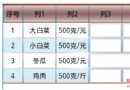 用 ListView 打造自定義表格:動態列、單元格合並與自定義鍵盤
要解決的三個問題 1. 列數不固定:根據數據源動態生成不同列數; 2. 支持按數據定義合並單元格; 3. 可填寫的單元格能自由選擇自定義鍵盤或系統鍵盤。 圍繞這三點做了
 Android DataBinding 原理剖析:從視圖綁定到資料回寫
DataBinding 的核心目標 DataBinding 的主要目的,是讓布局檔與資料模型之間建立可觀察的連結。開發者不必反覆呼叫 findViewById,也不必手動
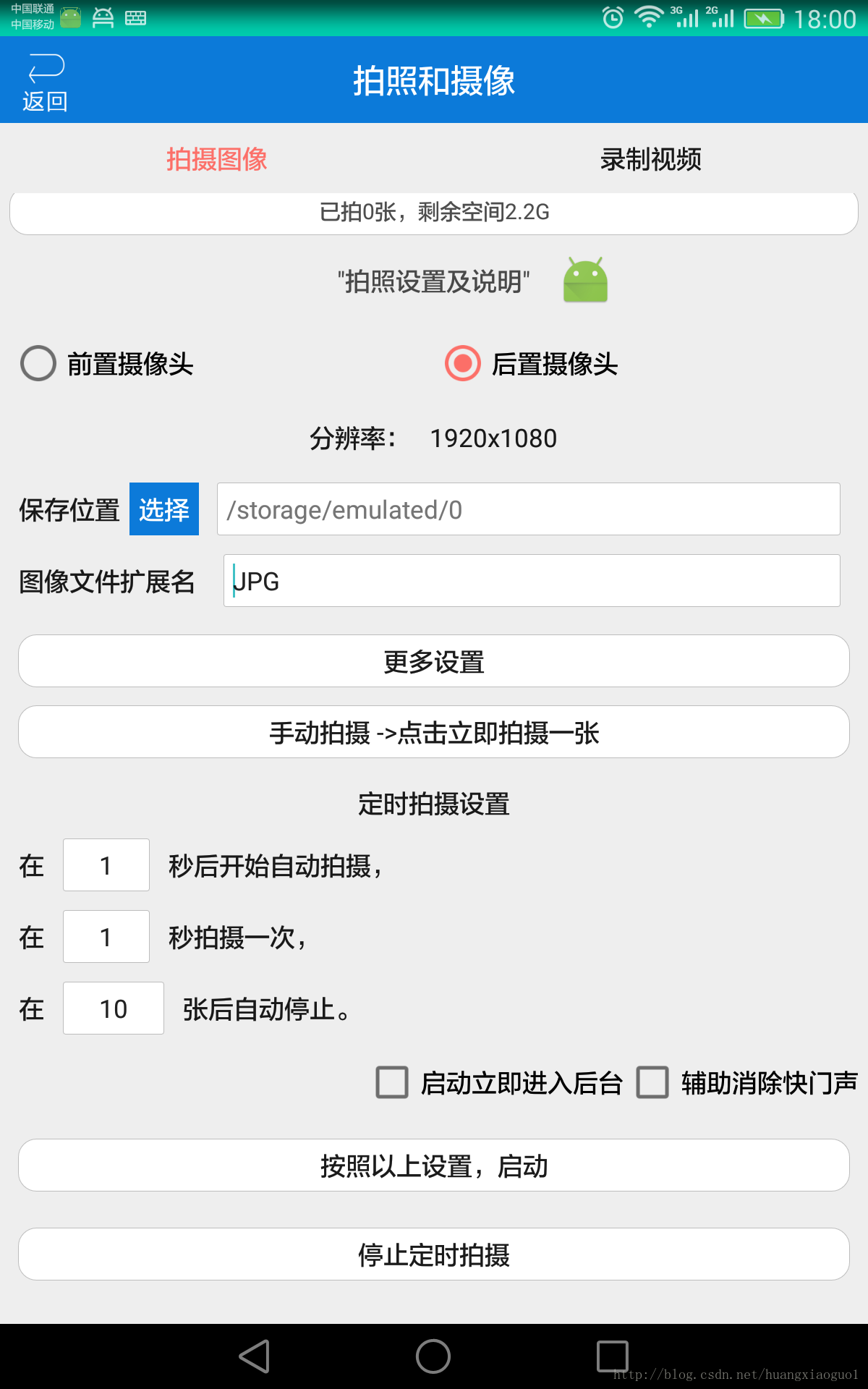 Android 懸浮相機窗口實戰:WindowManager + Service + Camera 全流程
懸浮窗裡嵌一個相機預覽,是很多工具類應用的常見需求,比如掃碼懸浮入口、遠程監控小窗、拍照打卡等。本文把這個功能的完整鏈路走一遍:用 WindowManager 把一個極小
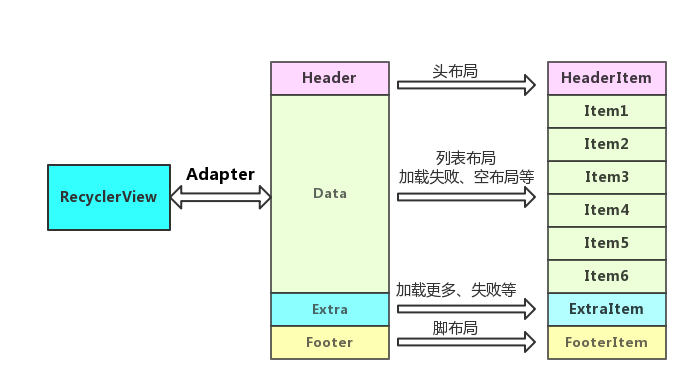 深入解析 Android 中 RecyclerView Adapter 的封裝思路
前言 關於 Adapter 的封裝,網路上已有許多成熟開源庫可以直接取用,省下不少功夫。最近閒來無事,便想自己動手封裝一個。 問題所在 一般封裝時,通常可以簡化到下面這個