

編輯:關於 Android 程式設計
做過閱讀器或電子書的朋友都知道,章節目錄往往是「大分類底下再展開小篇目」的兩層結構。Android 內建的 ExpandableListView 正好能實現這種可展開、可收合的二級列表效果。本文就帶你完整走一遍。
<?xml version="1.0" encoding="utf-8"?>
<LinearLayout
    xmlns:android="https://schemas.android.com/apk/res/android"
    android:layout_width="fill_parent"
    android:layout_height="fill_parent"
    android:orientation="vertical"
    android:background="#FFFFFF" >

    <ExpandableListView
        android:id="@+id/elv_journal_catalog"
        android:layout_height="fill_parent"
        android:layout_width="fill_parent"
        android:cacheColorHint="#FFFFFF" />
</LinearLayout>
這段寫法和一般 ListView 幾乎一樣,接著在 Activity 中把元件接起來:
private ExpandableListView elv_journal_catalog;
private List<List<Article>> childrenObj;
private JournalCatalogListAdapter adapter;

public void onCreate(Bundle savedInstanceState) {
    super.onCreate(savedInstanceState);
    setContentView(R.layout.journal_catalog);
    init();
    elv_journal_catalog.setGroupIndicator(null);  // 隱藏系統預設的展開圖示
    elv_journal_catalog.setDivider(null);
    loadData();
}

private void init() {
    elv_journal_catalog = (ExpandableListView) findViewById(R.id.elv_journal_catalog);
    elv_journal_catalog.setOnChildClickListener(listener);
}

private void loadData() {
    Message msg = handler.obtainMessage();
    msg.what = 1;
    msg.sendToTarget();

    childrenObj = new ArrayList<List<Article>>();
    new Thread() {
        @Override
        public void run() {
            if (!isLoading) {
                queryArticleList();
            } else {
                queryArticleListFromSqlite();
            }
        }
    }.start();

    adapter = new JournalCatalogListAdapter(this, childrenObj);
    elv_journal_catalog.setAdapter(adapter);
}expandGroup(position)。setGroupIndicator(Drawable icon);本文直接傳入 null 把圖示拿掉,你也可以在 XML 裡自訂。由於填充資料需要「父層+子層」的兩級結構,這裡的資料以 List<List<Article>> 表示。以下是 JournalCatalogListAdapter 的核心實作:
public class JournalCatalogListAdapter extends BaseExpandableListAdapter {

    private LayoutInflater inflater;
    private String[] parent = new String[] {
        "美顏美體", "潮流單品", "娛樂八卦", "情感", "觀點", "健康生活" };
    private List<List<Article>> clildren = new ArrayList<List<Article>>();

    public JournalCatalogListAdapter(Context context,
                                     List<List<Article>> clildren) {
        this.clildren = clildren;
        inflater = LayoutInflater.from(context);
    }

    @Override
    public Object getChild(int groupPosition, int childPosition) {
        return clildren.get(groupPosition).get(childPosition);
    }

    @Override
    public long getChildId(int groupPosition, int childPosition) {
        return childPosition;
    }

    @Override
    public View getChildView(int groupPosition, int childPosition,
                             boolean isLastChild, View convertView, ViewGroup parent) {
        if (convertView == null) {
            convertView = inflater.inflate(
                R.layout.journal_catalog_list_item_content, null);
        }
        TextView textView = (TextView) convertView
            .findViewById(R.id.tv_journal_catalog_list_item_content);
        Article a = (Article) getChild(groupPosition, childPosition);
        textView.setText(a.getTitle());
        return convertView;
    }

    @Override
    public int getChildrenCount(int groupPosition) {
        return clildren.get(groupPosition).size();
    }

    @Override
    public Object getGroup(int groupPosition) {
        return parent[groupPosition];
    }

    @Override
    public int getGroupCount() {
        return parent.length;
    }

    @Override
    public long getGroupId(int groupPosition) {
        return groupPosition;
    }

    @Override
    public View getGroupView(int groupPosition, boolean isExpanded,
                             View convertView, ViewGroup parent) {
        if (convertView == null) {
            convertView = inflater.inflate(
                R.layout.journal_catalog_list_item_title, null);
        }
        TextView textView = (TextView) convertView
            .findViewById(R.id.tv_journal_catalog_list_item_title);
        String title = String.valueOf(getGroup(groupPosition));
        textView.setText(title);
        convertView.setOnClickListener(null);
        return convertView;
    }

    @Override
    public boolean hasStableIds() {
        return true;
    }

    @Override
    public boolean isChildSelectable(int groupPosition, int childPosition) {
        return true;
    }
}
透過 getGroupView() 負責繪製父層標題、getChildView() 負責繪製子層內容,再搭配 BaseExpandableListAdapter 的骨架,一個靈活的小說目錄就完成了。
 在 Android 專案中移植 FFmpeg(一):環境建置與交叉編譯
這幾天為了測試 FFmpeg 取影片幀的效率,認真玩了一次移植。以下記錄整個流程,所有測試都在 macOS 環境下進行。 一、取得 FFmpeg 源碼 官方下載頁(htt
 Android 新手引導蒙層效果的實作
新手引導常用半透明蒙層搭配高亮區域,讓使用者快速注意到重要功能。這個效果不一定需要複雜的第三方元件,也可以透過動態加入覆蓋層來完成。 實作思路 基本做法是:在原本的頁面
 Android 把進度條放進標題欄的實作方式
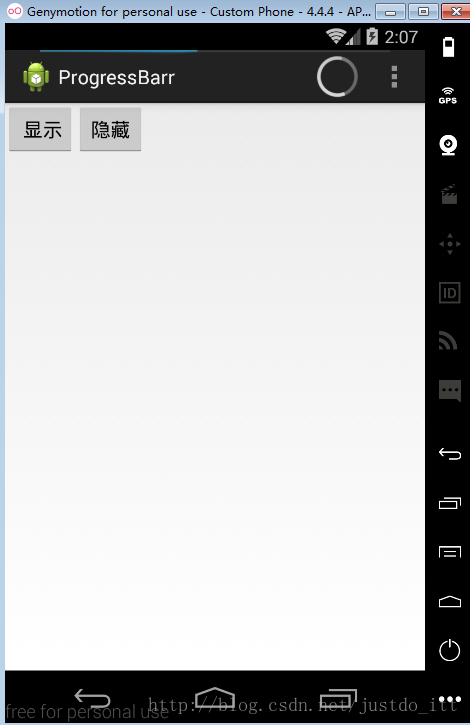
有時候我們不想為了小小的載入提示而遮擋整個畫面,這時可以借用 Activity 標題欄(Title Bar)內建的進度條,效果如下: 版面配置 版面很單純,一顆顯示鈕
 小米手機刪除已保存 WiFi 密碼的兩種方法
小米手機的 WiFi 設置有個惱人的限制:只有在某個熱點的覆蓋範圍內,已保存的密碼條目才會顯示出來。換句話說,人不在現場,就沒法把那些廢棄的網絡記錄刪掉。下面提供兩種思路