

編輯:關於 Android 程式設計
先看效果:以公司附近的國貿為中心點,上方是一張地圖,下方是與之聯動的地理位置列表。有些場景下只展示位置列表(比如 QQ 動態裡的「所在位置」),本質上是同一類功能。它有個專業叫法——POI 周邊搜索。
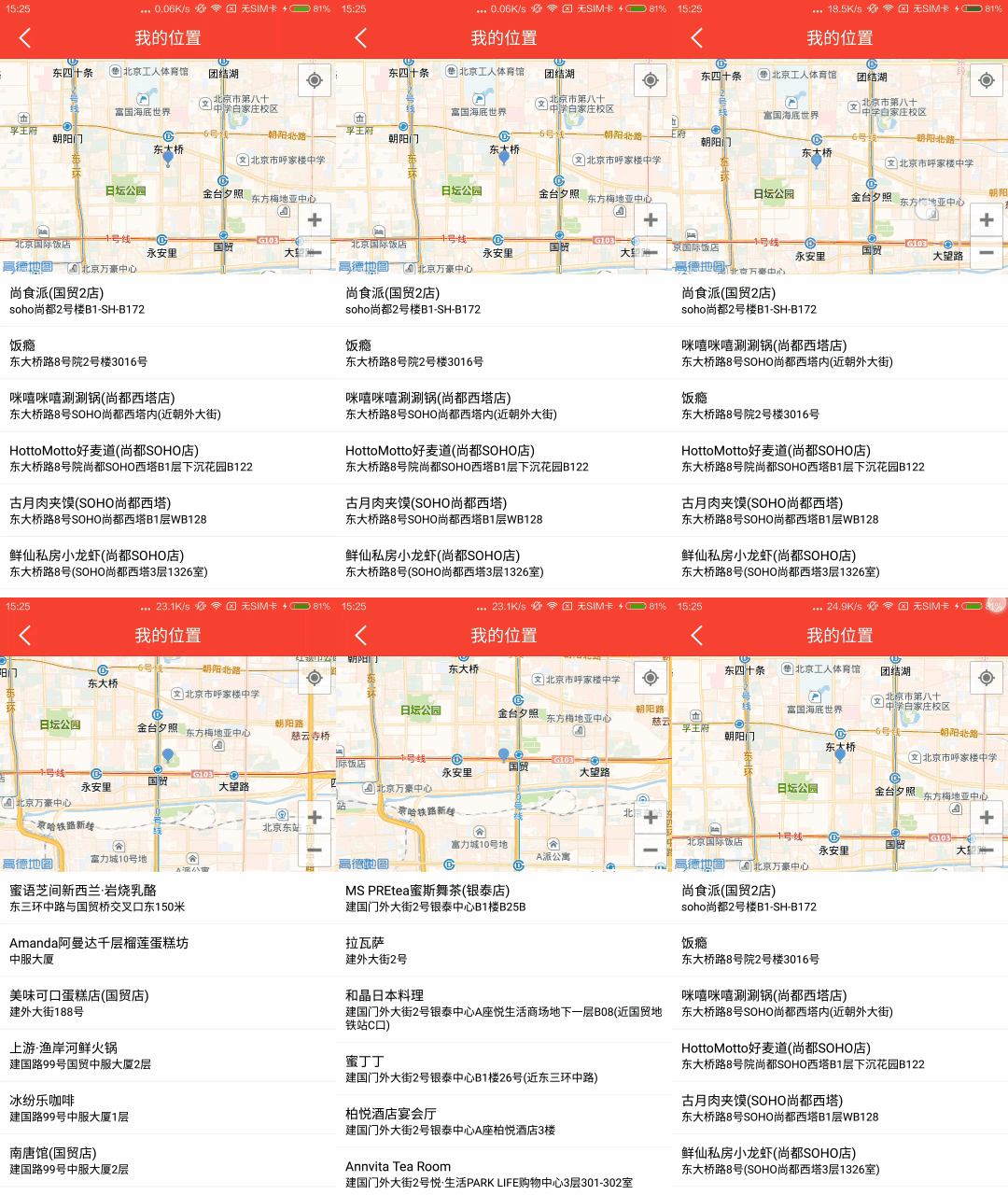
這個效果做起來並不複雜,前提是你要先讀一遍地圖 SDK 的 API 文檔。本文使用的是高德地圖 Android SDK,關於 SDK 的引入與配置這裡不再展開,文末會附上相關資料。
整體可以拆成五步:先借助定位功能拿到用戶當前位置;根據位置調用 POI 搜索接口獲取周邊列表;用 ListView 把結果展示出來;當用戶拖動地圖時,實時獲取地圖中心坐標;再以新的中心點重複搜索與展示的過程。
界面採用上下結構,上半部分是地圖,下半部分是列表,通過 layout_weight 按比例分配空間:
<LinearLayout
    android:layout_width="match_parent"
    android:layout_height="match_parent"
    android:orientation="vertical">

    <com.amap.api.maps2d.MapView
        android:id="@+id/map_local"
        android:layout_width="match_parent"
        android:layout_height="0dp"
        android:layout_weight="2" />

    <ListView
        android:id="@+id/map_list"
        android:layout_width="match_parent"
        android:layout_height="0dp"
        android:layout_weight="3"
        android:divider="@color/space"
        android:dividerHeight="1dp"
        android:scrollbars="none" />
</LinearLayout>
Activity 需要同時實現定位、地圖相機變化與 POI 搜索這幾個監聽接口。定位成功後,把地圖動畫移動到當前位置並觸發第一次周邊搜索;當用戶拖動地圖結束時,取出新的中心坐標重新搜索。
public class New_LocalActivity extends Activity
        implements LocationSource, AMapLocationListener,
        AMap.OnCameraChangeListener, PoiSearch.OnPoiSearchListener {

    private AMap aMap;
    private AMapLocationClient mLocationClient;
    private LocationSource.OnLocationChangedListener mListener;
    private LatLng latlng;
    private String city;
    private String deepType = "";
    private PoiSearch.Query query;
    private PoiSearch poiSearch;
    private List<PoiItem> poiItems;

    private void init() {
        if (aMap == null) {
            aMap = mapView.getMap();
            aMap.setOnCameraChangeListener(this);
            setUpMap();
        }
        deepType = "餐飲"; // 這裡以餐飲為例
    }

    private void setUpMap() {
        if (mLocationClient == null) {
            mLocationClient = new AMapLocationClient(getApplicationContext());
            AMapLocationClientOption option = new AMapLocationClientOption();
            mLocationClient.setLocationListener(this);
            option.setOnceLocation(true);
            option.setLocationMode(AMapLocationClientOption.AMapLocationMode.Hight_Accuracy);
            mLocationClient.setLocationOption(option);
            mLocationClient.startLocation();
        }
        aMap.setLocationSource(this);
        aMap.getUiSettings().setMyLocationButtonEnabled(true);
        aMap.setMyLocationEnabled(true);
    }

    protected void doSearchQuery() {
        int currentPage = 0;
        query = new PoiSearch.Query("", deepType, city);
        query.setPageSize(20);
        query.setPageNum(currentPage);
        LatLonPoint lp = new LatLonPoint(latlng.latitude, latlng.longitude);
        poiSearch = new PoiSearch(this, query);
        poiSearch.setOnPoiSearchListener(this);
        poiSearch.setBound(new PoiSearch.SearchBound(lp, 5000, true));
        poiSearch.searchPOIAsyn();
    }

    @Override
    public void onLocationChanged(AMapLocation location) {
        if (mListener != null && location != null && location.getErrorCode() == 0) {
            mListener.onLocationChanged(location);
            latlng = new LatLng(location.getLatitude(), location.getLongitude());
            aMap.animateCamera(CameraUpdateFactory.newLatLngZoom(latlng, 14), 1000, null);
            city = location.getProvince();
            doSearchQuery();
        }
    }

    @Override
    public void onCameraChangeFinish(CameraPosition cameraPosition) {
        latlng = cameraPosition.target;
        aMap.clear();
        aMap.addMarker(new MarkerOptions().position(latlng));
        doSearchQuery();
    }

    @Override
    public void onPoiSearched(PoiResult result, int rCode) {
        if (rCode == 0 && result != null) {
            poiItems = result.getPois();
            if (poiItems != null && poiItems.size() > 0) {
                mapList.setAdapter(new PoiSearch_adapter(this, poiItems));
                mapList.setOnItemClickListener(new mOnItemClickListener());
            }
        }
    }

    private class mOnItemClickListener implements AdapterView.OnItemClickListener {
        @Override
        public void onItemClick(AdapterView parent, View view, int position, long id) {
            Intent intent = new Intent();
            intent.putExtra(KEY_LAT, poiItems.get(position).getLatLonPoint().getLatitude());
            intent.putExtra(KEY_LNG, poiItems.get(position).getLatLonPoint().getLongitude());
            intent.putExtra(KEY_DES, poiItems.get(position).getTitle());
            setResult(RESULT_OK, intent);
            finish();
        }
    }
}
示例中的 Activity 是以 startActivityForResult 的方式啟動的,這樣用戶點選某個位置後,就能把該位置的經緯度與名稱回傳給上一頁。
初次接觸這個需求時,如果對地圖 API 還不夠熟悉,往往會不知從何下手。但只要理清「定位 → 搜索 → 展示 → 拖動後重新搜索」這條主線,再結合 SDK 文檔逐個調試,就能還原出設計稿中的效果。
 Android 自訂彈出菜單動畫(二):SatelliteMenu 實作
上一篇講了思路,這篇直接寫程式。我們要做一個類似衛星環繞的彈出菜單:SatelliteMenu extends FrameLayout,主按鈕在左下角,點擊後子項以弧形散
 Android 下拉刷新與輪播圖的滑動衝突怎麼解
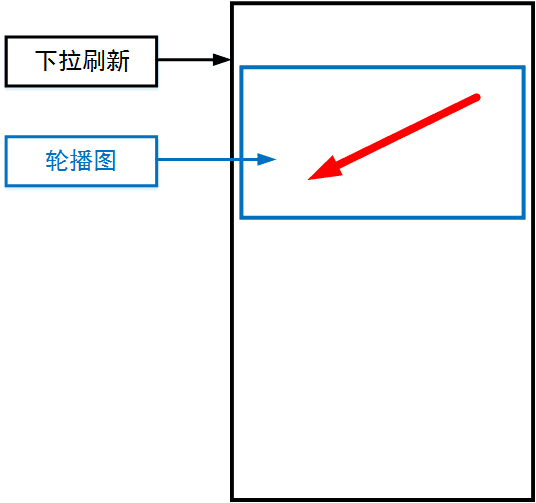
最近在專案中遇到一個惱人的問題:下拉刷新元件裡包了一個輪播圖,當我想左右滑動切換圖片時,很容易誤觸下拉刷新。 如上圖紅色箭頭所示的方向切換輪播圖時,下拉刷新幾乎每次
 Android 傳感器開發完全解析:分類、框架與實作
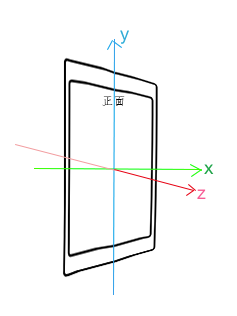
Android 裝置內建多種傳感器,可用於偵測動作、環境與位置變化。本文從傳感器分類、Android Sensor Framework 到常見實作,整理出完整的開發脈絡。
 實作地圖加列表的 POI 周邊搜尋:以高德 SDK 為例
先看成果:以公司附近的國貿為中心點,上方是地圖,下方是地理位置列表。 有些產品只顯示位置列表(例如社群軟體的打卡位置),但「地圖 + 列表」是很常見的組合。它有個專門的