

編輯:關於 Android 程式設計
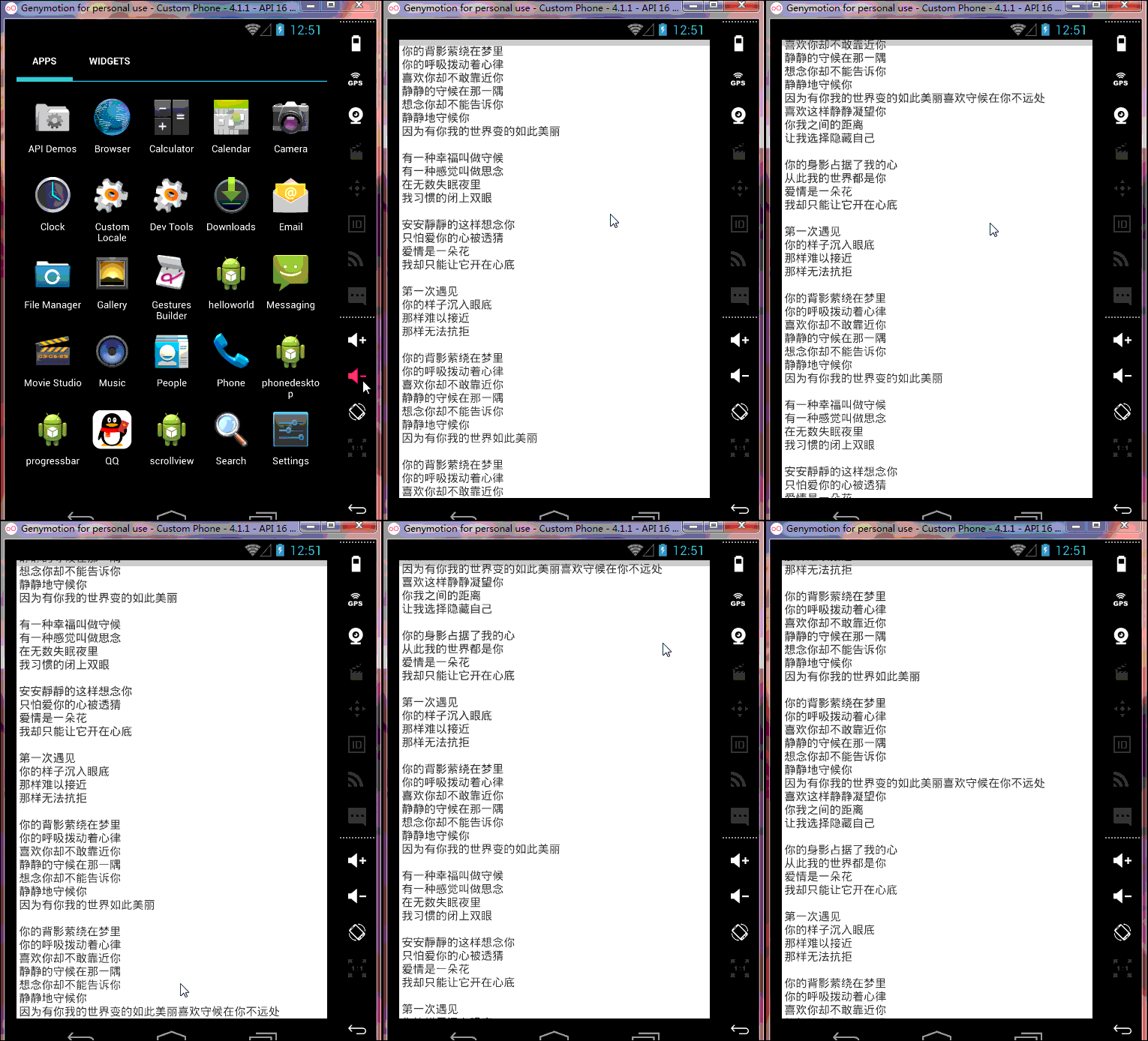
做「滑到底自動載入更多」的時候,第一個要解決的問題是:怎麼知道使用者已經滑到底了?做法是透過 OnTouchListener 攔截 ACTION_UP 事件,再比對 ScrollView 的捲動量與內容高度。
這兩個方法很容易搞混,但對這個判斷至關重要:
getMeasuredHeight():回傳內容的完整高度,包含被遮住、尚未顯示出來的部分。
getHeight():回傳這個 View 在布局中實際佔用的高度,也就是螢幕上看得到的那一段。
換句話說,ScrollView 裡那個 TextView 可能實際有 5000px 高,但 getHeight() 只會告訴你螢幕能顯示的 800px;想知道全部內容多高,必須問 getMeasuredHeight()。
核心條件是:
// 內容的實際高度 <= 已捲動距離 + 可視區域高度
scroll.getChildAt(0).getMeasuredHeight() <= scroll.getScrollY() + scroll.getHeight()
當這個式子成立,代表內容已經全部進入視線範圍,也就是滑到底了。
<FrameLayout
    android:layout_width="fill_parent"
    android:layout_height="fill_parent"
    xmlns:android="https://schemas.android.com/apk/res/android">

    <ScrollView
        android:id="@+id/scrollview"
        android:layout_width="fill_parent"
        android:layout_height="wrap_content"
        android:scrollbars="none">

        <TextView
            android:id="@+id/text"
            android:layout_width="fill_parent"
            android:layout_height="wrap_content" />

    </ScrollView>

    <Button
        android:id="@+id/next"
        android:layout_width="wrap_content"
        android:layout_height="wrap_content"
        android:layout_gravity="bottom|center_horizontal"
        android:text="點擊加載更多"
        android:visibility="invisible" />

</FrameLayout>
用 FrameLayout 疊層,把「載入更多」的按鈕固定在底部,預設隱藏,滑到底時才顯示。
package com.example.scrollview;

import android.os.Bundle;
import android.app.Activity;
import android.view.MotionEvent;
import android.view.View;
import android.view.View.OnClickListener;
import android.view.View.OnTouchListener;
import android.view.Window;
import android.widget.Button;
import android.widget.ScrollView;
import android.widget.TextView;

public class MainActivity extends Activity {

    private ScrollView scroll;
    private TextView text;
    private Button button;

    @Override
    protected void onCreate(Bundle savedInstanceState) {
        super.onCreate(savedInstanceState);
        requestWindowFeature(Window.FEATURE_NO_TITLE);
        setContentView(R.layout.activity_main);

        scroll = (ScrollView) findViewById(R.id.scrollview);
        text   = (TextView) findViewById(R.id.text);
        button = (Button) findViewById(R.id.next);

        text.setText(getResources().getString(R.string.lyric));

        // 點擊後追加內容,並把按鈕藏起來
        button.setOnClickListener(new OnClickListener() {
            @Override
            public void onClick(View v) {
                text.append(getResources().getString(R.string.lyric));
                button.setVisibility(View.INVISIBLE);
            }
        });

        scroll.setOnTouchListener(new OnTouchListener() {
            @Override
            public boolean onTouch(View v, MotionEvent event) {
                switch (event.getAction()) {
                    case MotionEvent.ACTION_MOVE:
                        break;
                    case MotionEvent.ACTION_DOWN:
                        break;
                    case MotionEvent.ACTION_UP:
                        // 內容高度 <= 已捲動距離 + 可視高度 → 已到底部
                        if (scroll.getChildAt(0).getMeasuredHeight()
                                <= scroll.getScrollY() + scroll.getHeight()) {
                            button.setVisibility(View.VISIBLE);
                        }
                        break;
                }
                // 回傳 false,讓 ScrollView 繼續處理自己的滾動邏輯
                return false;
            }
        });
    }
}
onTouch 一定要回傳 false。如果在這裡回傳 true,等於把事件全部吃掉,ScrollView 就再也捲不動了。這是複寫 OnTouchListener 時最常犯的錯誤。
getChildAt(0) 才是真正的內容。ScrollView 只能容納一個直接子元素,所以 getChildAt(0) 就是我們要的那個 TextView。如果對 ScrollView 本身呼叫 getMeasuredHeight(),拿到的會是可視高度,判斷就永遠不成立。
用 ACTION_UP 而非 ACTION_MOVE 判斷。這裡選擇在手指離開時才檢查,可以避免滑動過程中被誤觸;代價是使用者若按住不放且不抬手,不會觸發載入。
更推薦的做法是改用 NestedScrollView 或 RecyclerView。前者提供 OnScrollChangeListener,可以直接取得 scrollY、oldScrollY 與子 View 高度,不必自己攔觸摸事件;後者則能搭配 addOnScrollListener 精準判斷是否觸及尾端,效能與手續都更勝一籌。若只是既有專案要補功能,本文的寫法仍然完全可行。
順帶一提,寫到這段的時候突然意識到自己已經不小了,家裡開始關心婚事。只是,我的那個人究竟在哪裡呢。
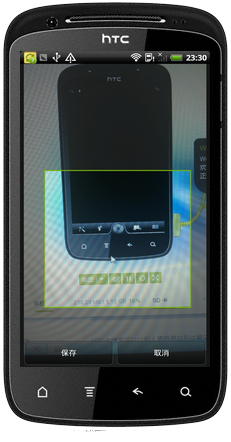 Android 從相機或相簿取圖並裁切成固定尺寸
頭像上傳、商品封面這類功能,通常需要使用者從相機拍攝或相簿挑選,再裁成固定比例。這個流程在 Android 中的做法是:以 Intent 啟動相機或相簿,透過 Inten
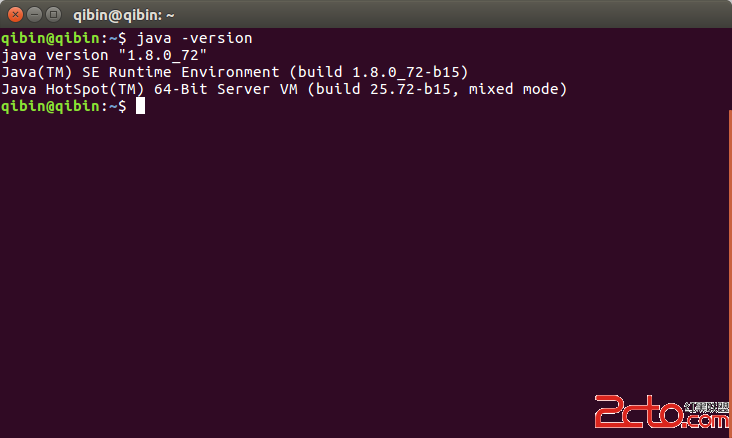 Ubuntu 下安裝 Android Studio 並建立桌面啟動器
近來我把電腦系統換成了 Ubuntu。對不習慣 Windows 8/10 的人來說,Ubuntu 是個相當不錯的選擇:基本軟件都齊全,QQ 這類需求可以找 Wine 版本
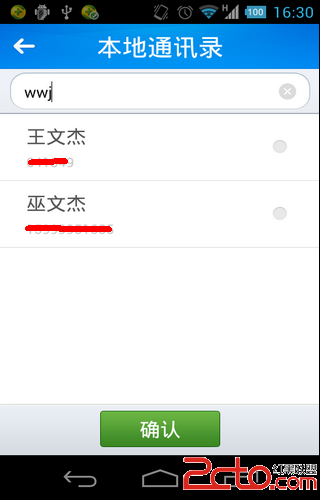 Android 通訊錄開發:姓名首字母與簡拼搜尋
通訊錄搜尋若要支援中文姓名、全拼與簡拼,關鍵在於把中文轉成可用於比對的字串。常見做法是提取姓名首字母,再與使用者輸入做正則或包含比對。 中文首字母工具 FirstLett
 Android Canvas 繪圖 API 筆記:從基本圖形到自定義 View
在 Android 自定義 View 中,Canvas 是繪製內容的畫布,而 Paint 則像畫筆,決定顏色、線寬、樣式與抗鋸齒等效果。View 的 onDraw 回呼會