編輯:關於 Android 程式設計

路徑資料可用的指令如下:
M = moveto(移動至)
L = lineto(畫直線)
H = horizontal lineto(水平直線)
V = vertical lineto(垂直直線)
C = curveto(三次貝茲曲線)
S = smooth curveto(平滑貝茲曲線)
Q = quadratic Belzier curve(二次貝茲曲線)
T = smooth quadratic Belzier curveto(平滑二次貝茲曲線)
A = elliptical Arc(橢圓弧)
Z = closepath(關閉路徑)以上指令均可用小寫書寫,大寫代表絕對座標,小寫代表相對座標。
把下面的內容存成 path1.svg 再放到網站目錄即可預覽:
<?xml version="1.0" standalone="no"?>
<svg height="100%" version="1.1" width="100%" xmlns="https://www.w3.org/2000/svg">
  <path d="M250 150 L150 350 L350 350 Z" />
</svg>
這段定義了一條路徑:從 (250,150) 出發,畫到 (150,350),再畫到 (350,350),最後關閉回到 (250,150)。
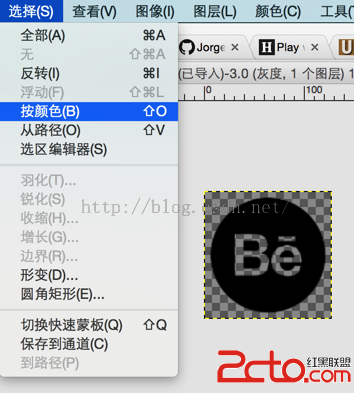
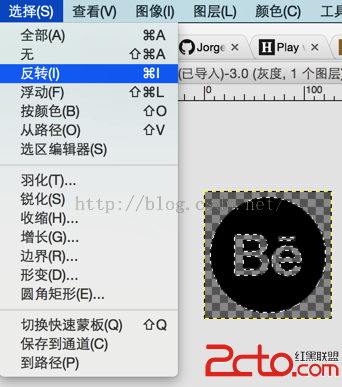
這裡推薦用 GIMP 來做,步驟如下:
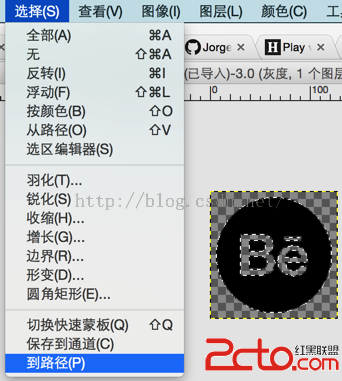
路徑描繪完成後,先把它保存起來:
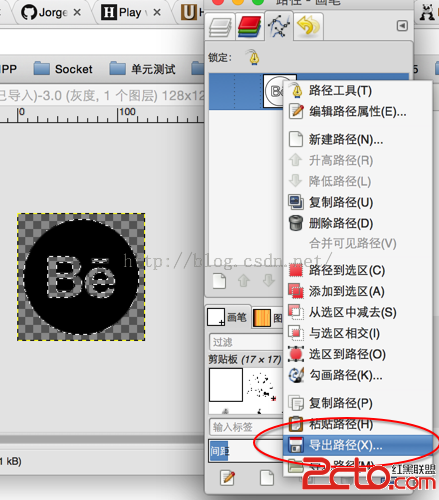
再到「路徑」對話框中把 path 匯出:
匯出後得到的 SVG 內容大致如下:
<?xml version="1.0" encoding="UTF-8" standalone="no"?>
<svg height="1.77778in" viewbox="0 0 128 128" width="1.77778in" xmlns="https://www.w3.org/2000/svg">
  <path d="M 108.54,26.04 C 131.59,52.94 ... Z M 56.97,45.15 C ... Z"
    fill="none" id="選區" stroke="black" stroke-width="1" />
</svg>
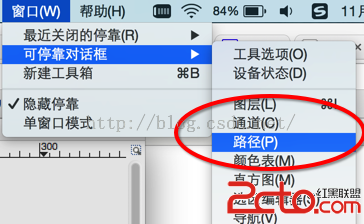
若找不到路徑對話框,可依下圖位置開啟:
這裡採用 AndroidFillableLoaders 框架來載入 SVG,作者的說明文章可參考其個人網站。
版面配置:
<com.github.jorgecastillo.FillableLoader
  android:id="@+id/fillableLoader"
  android:layout_height="100dp"
  android:layout_width="200dp"
  app:fl_clippingTransform="waves"
  app:fl_fillColor="@color/fill_color"
  app:fl_fillDuration="@integer/fill_duration"
  app:fl_originalHeight="@integer/original_svg_height"
  app:fl_originalWidth="@integer/original_svg_width"
  app:fl_strokeColor="@color/stroke_color"
  app:fl_strokeDrawingDuration="@integer/stroke_drawing_duration"
  app:fl_strokeWidth="@dimen/stroke_width" />
Activity 中把 GIMP 匯出的路徑字串傳進去:
@Override protected void onCreate(Bundle savedInstanceState) {
  super.onCreate(savedInstanceState);
  setContentView(R.layout.activity_main);

  String svg = "M 108.54,26.04 C 131.59,52.94 125.04,97.93 93.00,114.74 "
      + "C 79.15,122.00 75.25,122.17 60.00,122.00 "
      + "C 22.32,121.56 -2.52,80.38 8.75,46.00 "
      + "C 16.01,23.85 33.60,10.58 56.00,6.44 "
      + "C 75.35,3.96 95.68,11.04 108.54,26.04 Z "
      + "M 56.97,45.15 C 52.64,43.32 36.54,44.00 31.00,44.00 "
      + "L 31.00,76.00 C 31.02,78.13 30.74,81.51 32.60,82.98 "
      + "C 34.49,84.47 42.35,84.00 45.00,84.00 "
      + "C 49.96,83.99 56.82,83.94 60.73,80.43 "
      + "C 66.36,75.36 66.06,66.13 56.97,63.00 "
      + "L 56.97,61.00 C 65.30,56.20 63.38,47.91 56.97,45.15 Z";

  fillableLoader = (FillableLoader) findViewById(R.id.fillableLoader);
  fillableLoader.setSvgPath(svg);
}
觸發繪製動畫:
findViewById(R.id.btn).setOnClickListener(new View.OnClickListener() {
  @Override public void onClick(View view) {
    fillableLoader.start();
  }
});
 Android 版本檢測與自動更新的完整實現方案
做了一個網站的 Android 客戶端,用戶裝到手機上,一旦你推出了新版本該怎麼辦?答案就是加入版本更新功能。本文分享一套完整的版本檢測與更新方案,涵蓋檢測、下載、安裝替
 Fragment 使用入門:靜態加載與動態切換兩種姿势
一、為什麼要用 Fragment 兩句話概括:解決局部刷新問題;在一定程度上緩解屏幕適配問題。 二、Fragment 是什麼 Fragment 直譯過來就是「碎片」,在
 Android ORM 框架 ORMLite 入門實戰
一直覺得用原始的 SQLiteHelper 操作數據庫有些繁瑣,上網查了些 Android 的 ORM 框架對比之後,發現目前用 ORMLite 的人似乎挺多。於是照著官
 LinearLayout 實戰:權重配置與資源檔的組織方式
LinearLayout 是最基礎的版面容器,把所有子元件排成一條直線。要把它用好,關鍵在 orientation 與 layout_weight 這兩個屬性,以及資源檔