

編輯:關於 Android 程式設計
在 Android 開發中,適配器扮演著舉足輕重的角色,尤其在效能優化方面。除了用 ViewHolder 復用 View 之外,當列表項目眾多或存在多個 ListView 時,重複撰寫 Adapter 會讓程式碼變得冗餘難讀。本文將說明如何封裝通用的 ViewHolder 與 CommonAdapter,讓後續開發事半功倍。
1. 善用 convertView:透過 Android 的 Recycler 機制回收 View,能大幅降低建立 View 的開銷。getView 傳入的 convertView 應充分利用,加上 != null 判斷。
2. 使用 ViewHolder:把需要快取的 View 封裝好,透過 convertView.setTag 儲存,下次直接以 getTag 取出,避免重複呼叫耗時的 findViewById()。當列表布局多樣化時,這個技巧的效果尤其明顯。
3. 優雅地使用 ViewHolder:與其反覆 findViewById 並在 ViewHolder 裡一一宣告 View,不如借鑒 base-adapter-helper 的思路——用 SparseArray 儲存 View 引用來取代傳統 ViewHolder,既簡潔又清晰。
public class ViewHolder {
    private SparseArray<View> mViews;
    private int mPosition;
    private View mConvertView;

    public ViewHolder(Context context, ViewGroup parent, int layoutId, int position) {
        this.mPosition = position;
        this.mViews = new SparseArray<View>();
        mConvertView = LayoutInflater.from(context).inflate(layoutId, parent, false);
        mConvertView.setTag(this);
    }

    public static ViewHolder getViewHolder(Context context, View convertView, ViewGroup parent, int layoutId, int position) {
        if (convertView == null) {
            return new ViewHolder(context, parent, layoutId, position);
        }
        ViewHolder holder = (ViewHolder) convertView.getTag();
        holder.mPosition = position;
        return holder;
    }

    public <T extends View> T findView(int viewId) {
        View view = mViews.get(viewId);
        if (view == null) {
            view = mConvertView.findViewById(viewId);
            mViews.put(viewId, view);
        }
        return (T) view;
    }

    public ViewHolder setText(int viewId, String text) {
        TextView tv = findView(viewId);
        tv.setText(text);
        return this;
    }

    public View getConvertView() {
        return mConvertView;
    }
}
把重複的 getCount、getItem、getView 邏輯抽到抽象基類,只把「如何為 View 賦值」留給子類實作:
public abstract class CommonAdapter<T> extends BaseAdapter {
    protected Context mContext;
    protected List<T> mData;
    private int mLayoutId;

    public CommonAdapter(Context context, int layoutId) {
        this.mContext = context;
        this.mLayoutId = layoutId;
    }

    public int getCount() {
        return mData.size();
    }

    public T getItem(int position) {
        return mData.get(position);
    }

    public long getItemId(int position) {
        return position;
    }

    public View getView(int position, View convertView, ViewGroup parent) {
        ViewHolder holder = ViewHolder.getViewHolder(mContext, convertView, parent, mLayoutId, position);
        convert(holder, getItem(position));
        return holder.getConvertView();
    }

    public abstract void setData(List<T> data);
    public abstract void convert(ViewHolder holder, T item);
}
子類只需專注於資料綁定,還能利用鏈式呼叫一口氣設定多個欄位:
public class MyAdapter extends CommonAdapter<Bean> {
    public MyAdapter(Context context) {
        super(context, R.layout.item_listview);
    }

    public void setData(List<Bean> data) {
        mData = data;
        notifyDataSetChanged();
    }

    public void convert(ViewHolder holder, Bean item) {
        holder.setText(R.id.tv_title, item.getTitle())
              .setText(R.id.tv_desc, item.getDesc())
              .setText(R.id.tv_time, item.getTime())
              .setText(R.id.tv_phone, item.getPhone());
    }
}
1. item 無法被點擊選中:當項目內含 CheckBox 等會搶佔焦點的控件時,可在根布局加上 android:descendantFocusability="blocksDescendants" 並將 CheckBox 設為 android:focusable="false"。
2. CheckBox 復用導致內容錯亂:由於 View 會被回收復用,需在 convert 中先重設為未選中狀態,再依資料判斷是否勾選:
final CheckBox checkBox = holder.findView(R.id.cb_select);
checkBox.setChecked(false);
if (mList.contains(holder.getPosition())) {
    checkBox.setChecked(true);
}
透過這套通用封裝,無論列表多麼複雜,都能以最少的程式碼完成高效、易讀的適配器實作。
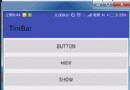 Android 沉浸式狀態欄實作:隱藏、顯示與 Toolbar 內距處理
沉浸式狀態欄效果 沉浸式狀態欄常見於實體按鍵手機。開啟沉浸模式後,狀態欄會隱藏;從畫面頂部向下滑動,狀態欄會短暫出現,之後再自動隱藏。 隱藏與顯示系統 UI 可透過 V
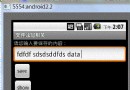 Android讀寫txt文本文件的基本方法
有些時候資料量小到不值得開 SQLite,存成一個純文字檔反而最直接。這篇示範如何在 App 私有空間裡讀寫 txt 檔,介面很簡單:輸入內容按 save 存檔,按 sh
 Android 源碼分析:Handler 消息機制(一)Message 的獲取與復用
在研究源碼之前,我們對 Handler 的常規理解是這樣的:主線程裡有一個消息隊列(Looper)和一個 Handler,Handler 向 Looper 發送消息,Lo
 Android 细节:手把手实作弹出式菜单动画(一)
先上效果图,直观感受一下我们要做的东西: 先写 Layout 文件: 这三个 ImageView 都贴在屏幕底部,其中 clone_item 需要固定在球