

編輯:關於 Android 程式設計
本文分享一個自訂元件 OpenFolder,用來模擬 iPhone 主螢幕上資料夾展開與合併的動畫效果。其核心思路是將畫面截圖後分割為上下兩部分,再透過 WindowManager 疊加一個容器,配合平移動畫營造出資料夾「展開」的錯覺。
public class OpenFolder {

    public static String TAG = "OpenFolder";
    /**
     * folder animaltion execution time
     */
    private static int ANIMALTION_TIME = 300;

    private Context mContext;
    private WindowManager mWindowManager;
    private int mWindowLayoutType = WindowManager.LayoutParams.TYPE_APPLICATION_PANEL;

    private OpenFolderContainer container;
    private View mBackgroundView;
    private View mFolderView;
    private ImageView mTopView;
    private ImageView mBottomView;

    private int mUp_down;
    private int[] mAnchorLocation = new int[2];
    private int mSrceenwidth;
    private int mSrceenheigh;
    private int mFolderheigh;

    private int offsety;
    private int offsetyLast;
    private boolean mIsOpened = false;

    /**
     * Listener that is called when this OpenFolder window is closed.
     */
    public interface OnFolderClosedListener {
        public void onClosed();
    }

    private OnFolderClosedListener mOnFolderClosedListener;

    private Animation.AnimationListener mOpenAnimationListener = new Animation.AnimationListener() {
        @Override
        public void onAnimationStart(Animation animation) { }

        @Override
        public void onAnimationRepeat(Animation animation) { }

        @Override
        public void onAnimationEnd(Animation animation) {
            mIsOpened = true;
        }
    };

    private Animation.AnimationListener mClosedAnimationListener = new Animation.AnimationListener() {
        @Override
        public void onAnimationStart(Animation animation) { }

        @Override
        public void onAnimationRepeat(Animation animation) { }

        @Override
        public void onAnimationEnd(Animation animation) {
            mWindowManager.removeView(container);
            // 清空畫圖緩存區,否則獲取的還是原來的圖像
            mBackgroundView.setDrawingCacheEnabled(false);
            mIsOpened = false;
            if (mOnFolderClosedListener != null) {
                mOnFolderClosedListener.onClosed();
            }
        }
    };

    private static OpenFolder openFolder;

    public static OpenFolder getInstance(Context context) {
        if (openFolder == null) {
            openFolder = new OpenFolder(context);
        }
        return openFolder;
    }

    private OpenFolder(Context context) {
        mContext = context;
        mWindowManager = (WindowManager) context.getSystemService(Context.WINDOW_SERVICE);
        container = new OpenFolderContainer(mContext);
    }

    /**
     * @param anchor           folder 展開參照容器
     * @param backgroundView   當前用於顯示 folder 的頁面
     * @param folderView       folder 頁面
     * @param folderH          folder 頁面高度,dip
     * @param up_down          0 為向上展開,否則向下展開
     */
    public void openFolderView(View anchor, View backgroundView,
            View folderView, int folderH, int up_down) {
        mUp_down = up_down;
        container.removeAllViews();
        mBackgroundView = backgroundView;
        mFolderheigh = dip2px(mContext, folderH);
        mFolderView = folderView;
        mSrceenwidth = backgroundView.getWidth();
        mSrceenheigh = backgroundView.getHeight();

        // 獲取參照控件的位置
        anchor.getLocationInWindow(mAnchorLocation);
        if (up_down == 0) {
            offsety = mAnchorLocation[1];
        } else {
            offsety = anchor.getHeight() + mAnchorLocation[1];
        }

        prepareLayout();
        startOpenAnimation();
    }

    private void prepareLayout() {

        // add folderview
        RelativeLayout.LayoutParams fp = new RelativeLayout.LayoutParams(
                ViewGroup.LayoutParams.FILL_PARENT, mFolderheigh);
        if (mUp_down == 0) {
            fp.setMargins(0, offsety - mFolderheigh, 0, 0);
        } else {
            fp.setMargins(0, offsety, 0, 0);
        }
        container.addView(mFolderView, fp);

        // 截當前 view 背景圖,用於分割 topview bottomview
        mBackgroundView.setDrawingCacheEnabled(true);
        Bitmap srceen = mBackgroundView.getDrawingCache();

        // add topview,截圖控件以上部分
        Bitmap top = Bitmap.createBitmap(srceen, 0, 0, mSrceenwidth, offsety);
        mTopView = new ImageView(mContext);
        mTopView.setId(1000);
        mTopView.setBackgroundDrawable(new BitmapDrawable(mContext.getResources(), top));
        RelativeLayout.LayoutParams ft = new RelativeLayout.LayoutParams(
                ViewGroup.LayoutParams.FILL_PARENT, offsety);
        container.addView(mTopView, ft);

        // add bottomview,截圖控件以下部分
        Bitmap bottom = Bitmap.createBitmap(srceen, 0, offsety, mSrceenwidth,
                mSrceenheigh - offsety);
        mBottomView = new ImageView(mContext);
        mBottomView.setBackgroundDrawable(new BitmapDrawable(mContext.getResources(), bottom));
        RelativeLayout.LayoutParams fb = new RelativeLayout.LayoutParams(
                ViewGroup.LayoutParams.FILL_PARENT, mSrceenheigh - offsety);
        fb.addRule(RelativeLayout.BELOW, 1000);
        container.addView(mBottomView, fb);

        mWindowManager.addView(container, createPopupLayout(mBackgroundView.getWindowToken()));
    }

    private void startOpenAnimation() {
        // 展開動畫
        if (mUp_down == 0) {
            offsety = 0;
            offsetyLast = 0 - mFolderheigh;
            TranslateAnimation ta = new TranslateAnimation(0, 0, offsety, offsetyLast);
            ta.setInterpolator(new DecelerateInterpolator());
            ta.setDuration(ANIMALTION_TIME);
            ta.setFillAfter(true);
            ta.setAnimationListener(mOpenAnimationListener);
            mTopView.startAnimation(ta);
        } else {
            offsety = 0;
            offsetyLast = offsety + mFolderheigh;
            TranslateAnimation ta = new TranslateAnimation(0, 0, offsety, offsetyLast);
            ta.setInterpolator(new DecelerateInterpolator());
            ta.setDuration(ANIMALTION_TIME);
            ta.setFillAfter(true);
            ta.setAnimationListener(mOpenAnimationListener);
            mBottomView.startAnimation(ta);
        }
    }

    private WindowManager.LayoutParams createPopupLayout(IBinder token) {
        WindowManager.LayoutParams p = new WindowManager.LayoutParams();
        p.gravity = Gravity.LEFT | Gravity.TOP;
        p.width = mSrceenwidth;
        p.height = mSrceenheigh;
        p.format = PixelFormat.OPAQUE;
        p.token = token;
        p.type = mWindowLayoutType;
        p.setTitle("OpenFolder:" + Integer.toHexString(hashCode()));
        return p;
    }

    private static int dip2px(Context context, float dipValue) {
        final float scale = context.getResources().getDisplayMetrics().density;
        return (int) (dipValue * scale + 0.5f);
    }

    public void setmOnFolderClosedListener(OnFolderClosedListener onFolderClosedListener) {
        this.mOnFolderClosedListener = onFolderClosedListener;
    }

    public boolean isOpened() {
        return mIsOpened;
    }

    private void dismiss() {
        if (!mIsOpened) {
            return;
        }

        // 關閉動畫
        TranslateAnimation tra = new TranslateAnimation(0, 0, offsetyLast, offsety);
        tra.setInterpolator(new DecelerateInterpolator());
        tra.setDuration(ANIMALTION_TIME);
        tra.setFillAfter(true);
        tra.setAnimationListener(mClosedAnimationListener);

        if (mUp_down == 0) {
            mTopView.startAnimation(tra);
        } else {
            mBottomView.startAnimation(tra);
        }
    }

    private class OpenFolderContainer extends RelativeLayout {

        long lasttime = 0;
        boolean isvalid = false;

        public OpenFolderContainer(Context context) {
            super(context);
        }

        @Override
        public boolean dispatchKeyEvent(KeyEvent event) {
            if (event.getKeyCode() == KeyEvent.KEYCODE_BACK) {
                if (getKeyDispatcherState() == null) {
                    return super.dispatchKeyEvent(event);
                }

                if (event.getAction() == KeyEvent.ACTION_DOWN
                        && event.getRepeatCount() == 0) {
                    KeyEvent.DispatcherState state = getKeyDispatcherState();
                    if (state != null) {
                        state.startTracking(event, this);
                    }
                    return true;
                } else if (event.getAction() == KeyEvent.ACTION_UP) {
                    KeyEvent.DispatcherState state = getKeyDispatcherState();
                    if (state != null && state.isTracking(event)
                            && !event.isCanceled()) {
                        dismiss();
                        return true;
                    }
                }
                return super.dispatchKeyEvent(event);
            } else {
                return super.dispatchKeyEvent(event);
            }
        }

        @Override
        public boolean onTouchEvent(MotionEvent event) {
            final int y = (int) event.getY();

            if (System.currentTimeMillis() - lasttime > ANIMALTION_TIME) {
                isvalid = true;
            } else {
                isvalid = false;
            }
            lasttime = System.currentTimeMillis();

            if ((event.getAction() == MotionEvent.ACTION_DOWN) && isvalid
                    && (y < offsety || y > offsetyLast)) {
                dismiss();
                return true;
            } else {
                return super.onTouchEvent(event);
            }
        }
    }
}
在 Activity 中取得 OpenFolder 實例,並在點擊事件中呼叫 openFolderView 即可觸發展開動畫:
public class MainActivity extends Activity implements View.OnClickListener {

    Button btn1;
    Button btn2;

    OpenFolder openFolder;
    View folderview;

    @Override
    protected void onCreate(Bundle savedInstanceState) {
        super.onCreate(savedInstanceState);
        setContentView(R.layout.main);

        btn1 = (Button) findViewById(R.id.button1);
        btn1.setOnClickListener(this);

        btn2 = (Button) findViewById(R.id.button2);
        btn2.setOnClickListener(this);

        openFolder = OpenFolder.getInstance(this);
        LayoutInflater inflater = LayoutInflater.from(this);
        folderview = inflater.inflate(R.layout.folderview, null);
    }

    @Override
    public void onClick(View v) {

        if (v.equals(btn1)) {
            openFolder.openFolderView(btn1, getWindow().getDecorView(),
                    folderview, 80, 1);
            openFolder.setmOnFolderClosedListener(new OpenFolder.OnFolderClosedListener() {
                @Override
                public void onClosed() {
                    Toast.makeText(getBaseContext(),
                            "close folder btn1", Toast.LENGTH_SHORT).show();
                }
            });
        } else if (v.equals(btn2)) {
            openFolder.openFolderView(btn2, getWindow().getDecorView(),
                    folderview, 80, 0);
            openFolder.setmOnFolderClosedListener(new OpenFolder.OnFolderClosedListener() {
                @Override
                public void onClosed() {
                    Toast.makeText(getBaseContext(),
                            "close folder btn2", Toast.LENGTH_SHORT).show();
                }
            });
        }
    }
}
透過 up_down 參數可控制資料夾向上或向下展開,而 OnFolderClosedListener 則能在關閉動畫結束後回呼自訂的處理邏輯,讓整體互動更貼近 iPhone 的使用手感。
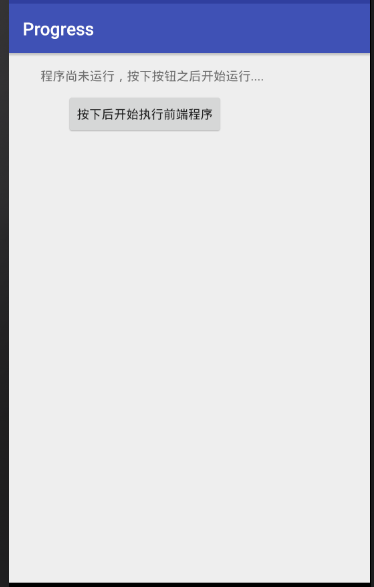 Android 模擬「加載中」效果實作:ProgressDialog 搭配子執行緒
平時沒事寫了個小程式,想做出點擊按鈕後出現「加載中」提示的效果。做法其實很直觀:用 ProgressDialog 彈出一個轉圈的等待視窗,再開一條子執行緒去模擬耗時任務,
 TextView 實現圖文混排:Html.fromHtml 與 ImageGetter 用法
TextView 通常只展示文字,但通過簡單的 HTML 標簽,就能實現不同顏色、不同字號的文字混排,甚至插入圖片。 支援的基礎標簽 <font>:設置顏
 ViewPager 結合 Fragment 實現微信風格界面的實例
在當今的互聯網時代,微信已經是一款名副其實的超級 App。本文將通過 ViewPager + Fragment 實現一個類似微信的界面。此前我曾用 FragmentTab
 Android 自定義 ViewGroup 實作要點總結
自定義 Layout 的兩種類型一是從零建立新的 ViewGroup,二是繼承既有 Layout 並擴充功能。核心流程自定義 View 通常經歷 onMeasure、on