

編輯:關於 Android 開發
這份筆記把 Android 兩大動畫體系一次整理清楚:先看傳統的補間動畫(Tween Animation),包括平移、旋轉、縮放、透明度與集合播放,以及 XML 配置方式;再談屬性動畫(Property Animation)如何用 ObjectAnimator 與 AnimatorSet 完成同樣的效果。
fromXType 是水平播放的型別,fromXValue 是起始位置(0 表示當前位置);toXType 與 toXValue 是終點;Y 軸參數同理。
TranslateAnimation translate = new TranslateAnimation(
        Animation.RELATIVE_TO_SELF, -2, Animation.RELATIVE_TO_SELF, 2,
        Animation.RELATIVE_TO_SELF, 0, Animation.RELATIVE_TO_SELF, 1);
translate.setDuration(3000);
translate.setRepeatCount(Animation.INFINITE);      // 無限循環
translate.setRepeatMode(Animation.REVERSE);        // 往返播放
imageView.setAnimation(translate);
translate.start();
/* fromDegrees 起始角度;toDegrees 結束角度;
   pivotXType/pivotYType 中心點型別,RELATIVE_TO_SELF 表示相對於自身;
   pivotXValue 0.5f 表示以自己的一半處作為軸心 */
RotateAnimation rotate = new RotateAnimation(0, 360,
        Animation.RELATIVE_TO_SELF, 0.5f, Animation.RELATIVE_TO_SELF, 0.5f);
rotate.setDuration(5000);
rotate.setRepeatCount(Animation.INFINITE);
rotate.setRepeatMode(Animation.RESTART);
imageView.setAnimation(rotate);
rotate.start();
/* fromX、toX、fromY、toY 為縮放比例起訖值,1 表示原始大小;
   後四個參數同樣用來指定縮放中心點 */
ScaleAnimation scale = new ScaleAnimation(1, 2, 1, 2,
        Animation.RELATIVE_TO_SELF, 0.5f, Animation.RELATIVE_TO_SELF, 0.5f);
scale.setDuration(5000);
scale.setRepeatCount(Animation.INFINITE);
scale.setRepeatMode(Animation.RESTART);
imageView.setAnimation(scale);
scale.start();
/* fromAlpha 起始透明度,toAlpha 結束透明度,1 為不透明、0 為全透明 */
AlphaAnimation alpha = new AlphaAnimation(1, 0);
alpha.setDuration(2000);
alpha.setRepeatCount(Animation.INFINITE);
alpha.setRepeatMode(Animation.REVERSE);
imageView.setAnimation(alpha);
alpha.start();
AnimationSet set = new AnimationSet();
set.addAnimation(scale);
set.addAnimation(rotate);
set.addAnimation(translate);
imageView.startAnimation(set);   // 多個動畫同時播放
先在 res 目錄下建立 anim 資料夾,再新增 XML 檔:
<?xml version="1.0" encoding="utf-8"?>
<set xmlns:android="https://schemas.android.com/apk/res/android">
    <translate android:fromXDelta="200%" android:toXDelta="200%"
        android:fromYDelta="-100%" android:toYDelta="200%"
        android:duration="4000" android:repeatCount="infinite"
        android:repeatMode="reverse" />
    <rotate android:fromDegrees="0" android:toDegrees="360"
        android:pivotX="50%" android:pivotY="50%"
        android:duration="4000" android:repeatCount="infinite"
        android:repeatMode="reverse" />
</set>
數值若是純數字代表絕對值;若是百分比,代表自身寬高的倍數;百分比加上 p(如 50%p)則代表父元素的寬高倍數。
載入使用:
Animation animation = AnimationUtils.loadAnimation(this, R.anim.animation_set);
imageView.startAnimation(animation);
實務上多用程式碼控制。平移:
public void translate(View v) {
    /* 參數一:作用對象;參數二:屬性名;參數三:動畫數值起訖 */
    ObjectAnimator animX = ObjectAnimator.ofFloat(imageView, "translationX", -50, 50);
    ObjectAnimator animY = ObjectAnimator.ofFloat(imageView, "translationY", 0, 60);
    animX.setDuration(2000);
    animX.setRepeatCount(ObjectAnimator.INFINITE);
    animX.setRepeatMode(ObjectAnimator.REVERSE);
    animX.start();
}
旋轉(X、Y 軸依序播放):
public void rotate(View v) {
    ObjectAnimator rotateX = ObjectAnimator.ofFloat(imageView, "rotationX", 0, 360);
    ObjectAnimator rotateY = ObjectAnimator.ofFloat(imageView, "rotationY", 0, 360);
    rotateX.setDuration(3000);
    rotateX.setRepeatMode(Animation.REVERSE);
    rotateY.setDuration(3000);
    rotateY.setRepeatMode(Animation.REVERSE);
    AnimatorSet set = new AnimatorSet();
    set.playSequentially(rotateX, rotateY);   // 依序播放
    set.start();
}
縮放:
public void scale(View v) {
    ObjectAnimator scaleX = ObjectAnimator.ofFloat(imageView, "scaleX", 2.0f, 5f);
    ObjectAnimator scaleY = ObjectAnimator.ofFloat(imageView, "scaleY", 2.0f, 5f);
    scaleX.setDuration(3000);
    scaleX.setRepeatMode(Animation.REVERSE);
    scaleX.setRepeatCount(Animation.INFINITE);
    scaleY.setDuration(3000);
    scaleY.setRepeatMode(Animation.REVERSE);
    scaleY.setRepeatCount(Animation.INFINITE);
    AnimatorSet set = new AnimatorSet();
    set.playTogether(scaleX, scaleY);        // 同時播放
    set.start();
}
透明度:
public void alpha(View v) {
    ObjectAnimator alpha = ObjectAnimator.ofFloat(imageView, "alpha", 1.0f, 0f);
    alpha.setDuration(3000);
    alpha.setRepeatMode(Animation.REVERSE);
    alpha.setRepeatCount(Animation.INFINITE);
    alpha.start();
}
集合:
public void set(View v) {
    ObjectAnimator animX = ObjectAnimator.ofFloat(imageView, "translationX", -50, 100);
    ObjectAnimator animY = ObjectAnimator.ofFloat(imageView, "translationY", -70, 100);
    animX.setDuration(2000);
    animX.setRepeatMode(ObjectAnimator.REVERSE);
    animY.setDuration(2000);
    animY.setRepeatMode(ObjectAnimator.REVERSE);
    AnimatorSet set = new AnimatorSet();
    // set.playTogether(...) 同時播放;playSequentially(...) 依序播放
    set.playSequentially(animX, animY);
    set.start();
}
若想用 XML 配置屬性動畫,在 res 下建立 animator 資料夾並新增 XML 檔,然後載入:
AnimatorSet set = (AnimatorSet) AnimatorInflater.loadAnimator(myContext, R.anim.property_animator);
set.setTarget(myObject);
set.start();
最後記一點兩者的差別:補間動畫只是改變「繪製時的視覺效果」,View 的真實位置與狀態並沒有變,所以點擊事件仍然落在原本的位置;屬性動畫則是真的改動物件屬性,能正確觸發事件與後續狀態。這也是新專案普遍改用屬性動畫的主要原因。
 MPAndroidChart 圖表庫實戰:餅圖、折線圖與柱狀圖一次學會
用 MPAndroidChart 打造靈活的統計圖表 MPAndroidChart 是一款相當好用的開源圖表庫,它不僅能在 Android 裝置上繪製各種類型的統計圖表,
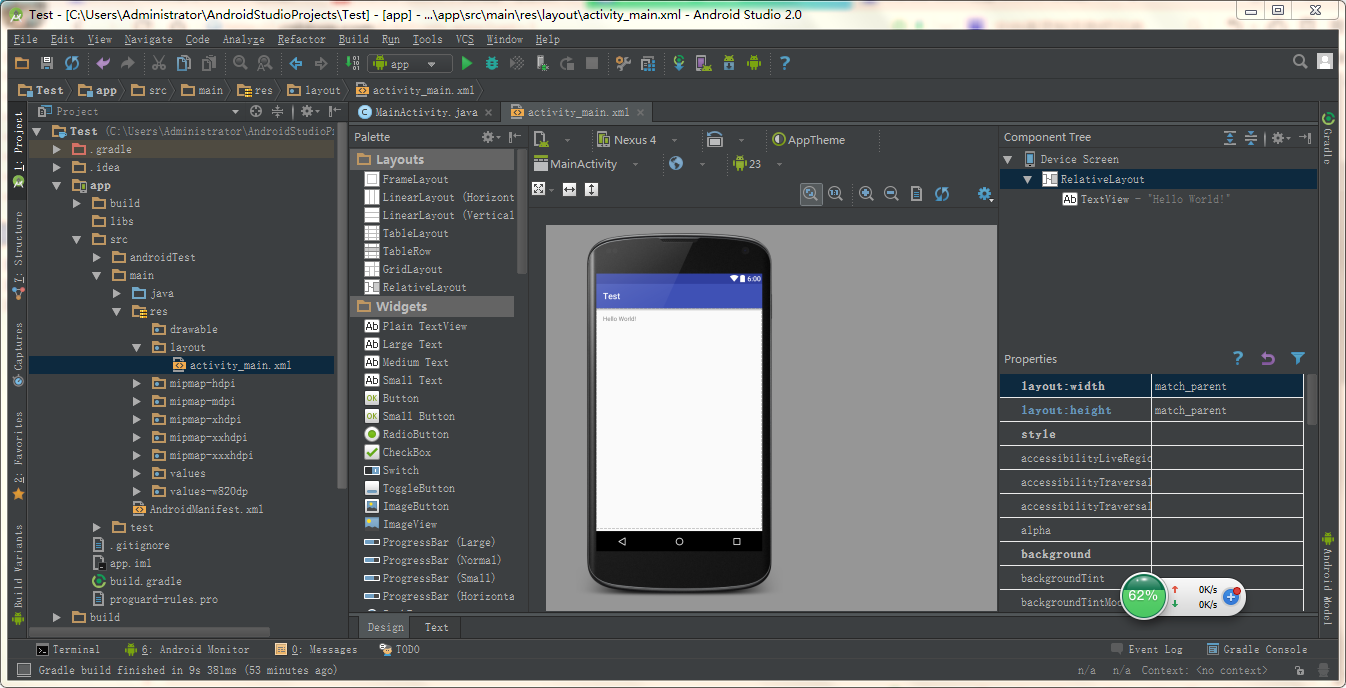 團隊專案週報(4.20):Android Studio 上手與预算管理模組規劃
本週完成情況:熟悉 Android Studio 的操作介面與基礎功能,並擬定個人負責模組的初步計畫。 學習紀錄: 跑通 Hello World:https://jing
 我的 Android 進階之旅:使用 CSDN Markdown 編輯器撰寫部落格
 關於改用 Markdown 編輯器的原因 其實前陣子就支援用 Markdown 編輯
 Android 為 Button 加上點擊水波紋效果的實作解析
Android 點擊 Button 水波紋效果 先來看成果:點擊時按壓位置會盪開一圈半透明的圓環,最後才觸發原本的點擊邏輯,質感接近 360 手機衛士那類安全軟體的互動回