

編輯:關於 Android 開發
上一篇談完了 NavigationView,這次要說的是表單裡最容易被低估的一個小元件:TextInputLayout。
TextInputLayout 只能作為 EditText 的父容器使用,不能單獨存在。它解決的是一個老問題:傳統做法把提示文字放在 android:hint,使用者一旦開始輸入,提示就消失了——你可能根本不記得這個欄位要填什麼。
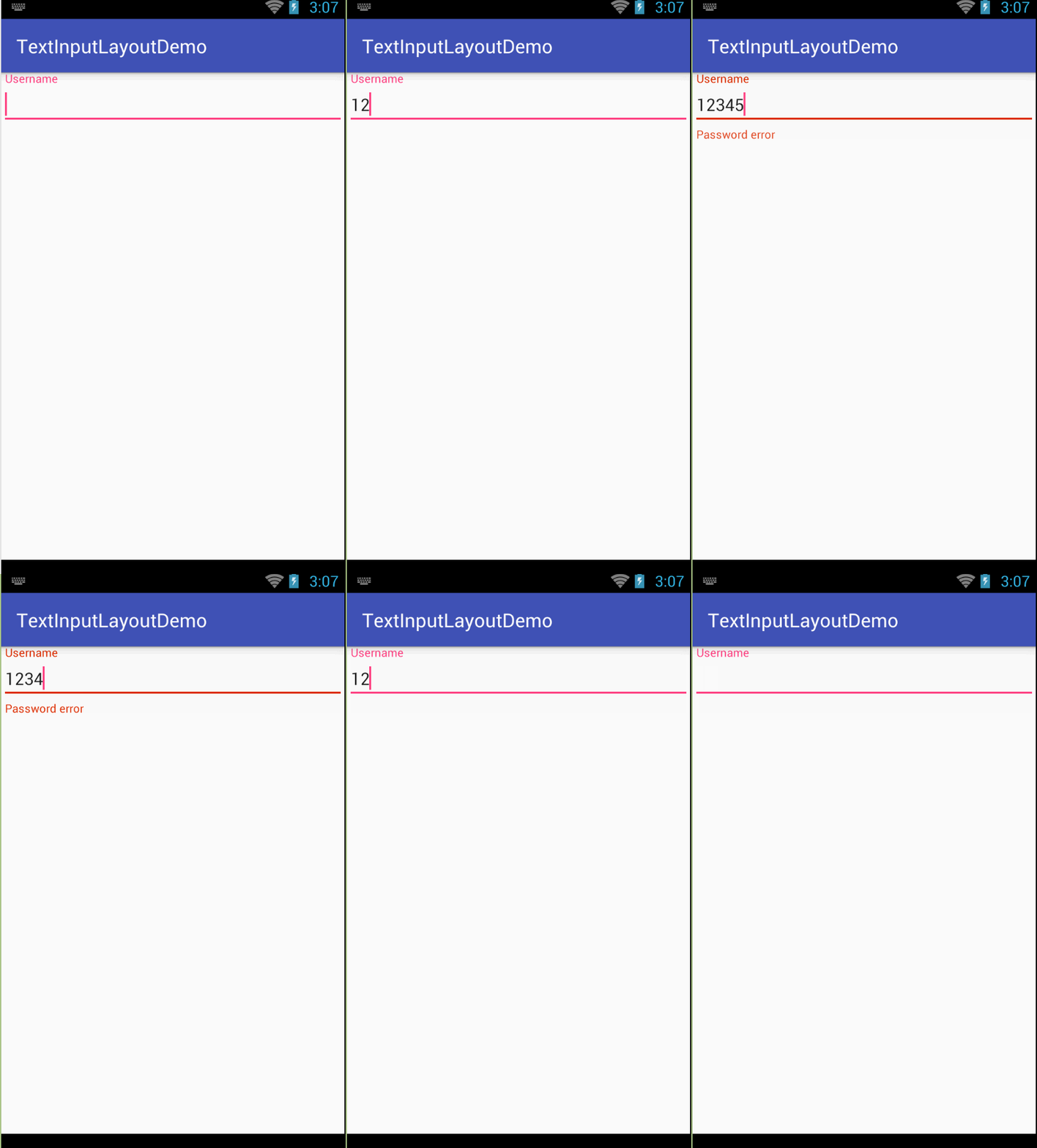
有了 TextInputLayout,當使用者聚焦並輸入時,hint 文字會平滑上浮到輸入框上方,繼續保持可見;同時它还提供了一個標準化的錯誤提示位,可以顯示在輸入框下方。
<?xml version="1.0" encoding="utf-8"?>
<RelativeLayout xmlns:android="https://schemas.android.com/apk/res/android"
    xmlns:tools="https://schemas.android.com/tools"
    android:layout_width="match_parent"
    android:layout_height="match_parent"
    tools:context=".MainActivity">

    <android.support.design.widget.TextInputLayout
        android:id="@+id/usernameWrapper"
        android:layout_width="match_parent"
        android:layout_height="wrap_content">

        <EditText
            android:id="@+id/username"
            android:layout_width="match_parent"
            android:layout_height="wrap_content"
            android:hint="Username"
            android:inputType="textEmailAddress" />
    </android.support.design.widget.TextInputLayout>
</RelativeLayout>
取得 TextInputLayout 後,可以透過 getEditText() 直接拿到內部的 EditText,不必再用 findViewById 繞一圈。
final TextInputLayout textInputLayout = (TextInputLayout) findViewById(R.id.usernameWrapper);
textInputLayout.setHint("Username");

EditText editText = textInputLayout.getEditText();
editText.addTextChangedListener(new TextWatcher() {
    @Override
    public void beforeTextChanged(CharSequence s, int start, int count, int after) {
        if (s.length() > 3) {
            // 這裡可以換成更完整的正則表達式校驗
            textInputLayout.setError("Password error");
            textInputLayout.setErrorEnabled(true);   // 必須在 setError 之後呼叫
        } else {
            textInputLayout.setErrorEnabled(false);  // 條件不滿足時要關閉
        }
    }

    @Override
    public void onTextChanged(CharSequence s, int start, int before, int count) { }

    @Override
    public void afterTextChanged(Editable s) { }
});
這裡有個容易踩的坑:setErrorEnabled(true) 一定要在 setError() 之後呼叫,順序顛倒的話錯誤提示不會如預期顯示。
浮動上去的 hint 與下方的 error 文字,各自有獨立的外觀屬性可以覆寫:
app:errorTextAppearance="@style/FloatingStyle"
app:hintTextAppearance="@style/FloatingStyle"
對應的樣式定義:
<style name="FloatingStyle" parent="@android:style/TextAppearance">
    <item name="android:textColor">@color/colorPrimaryDark</item>
    <item name="android:textSize">12sp</item>
</style>
TextInputLayout 的價值不在於程式碼量少,而在於它把「標籤」與「錯誤回饋」這兩件表單設計中最常被偷工減料的事,變成了幾行宣告就能搞定的標準件。搭配 Material Design 的主色調,一個視覺與可用性都到位的輸入欄位就完成了。
 Android 仿美團城市切換實作:自定義字母索引、定位與列表篩選
 美團、58 同城與趕集網等應用的城市切換頁面,通常包含定位城市、最近訪問、熱門城市、全部城市與字母索引
 SwipeRefreshLayout 搭配 RecyclerView:下拉刷新與上載入兩種實作
列表頁幾乎一定會遇到「下拉更新、上拉載入更多」的需求。這篇整理兩種做法:第一種下拉與上拉都沿用 SwipeRefreshLayout 內建的進度條;第二種下拉用內建進度條
 ELF 格式筆記:段權限與記憶體存取規則
 ELF 中每個可載入段都會透過 p_flags 描述其存取權限。系統在建立段映像時,會依這些標記設定記憶體頁的保護屬性。 常見
 Navigation Drawer 實作全解:從 DrawerLayout 到 ActionBarDrawerToggle
抽屜式導航欄(Navigation Drawer)是顯示在螢幕左緣的主導航面板。大部分時間隱藏,當使用者從左緣往右滑動時才會出現;在應用程式頂層,點擊 ActionBar