

編輯:Android 開發環境
Android構建系統會編譯你的app資源與源碼,並打包成APK,供你測試、部署、簽名與發布。Android Studio採用Gradle這套先進的構建工具來自動化並管理構建流程,同時允許你靈活自定義構建配置。每個構建配置都能定義自己的程式碼與資源集合。
Gradle與Android插件獨立於Android Studio運行,這意味著你可以在命令列、Android Studio,甚至在沒有安裝Android Studio的機器上構建你的Android APP。
Android構建系統的靈活性,讓你能在不修改app核心程式碼的前提下運行自定義的構建配置。
構建流程
構建流程包含眾多工具與環節,負責把你的專案轉化為APK(Android Application Package),整個過程非常靈活。
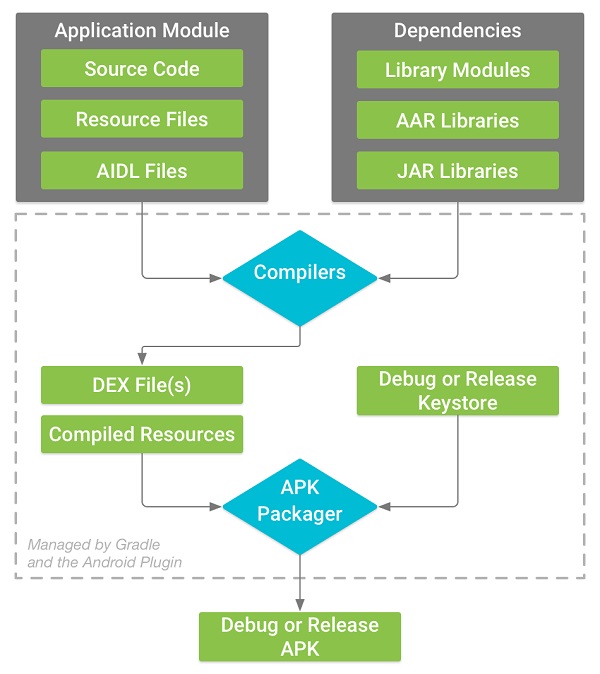
大體遵循以下幾步:
1、編譯器將你的源碼轉化為DEX(Dalvik Executable)檔案,其中包含在Android設備上運行的位元組碼與其他編譯後的資源檔案。
2、APK打包工具把DEX檔案與編譯後的資源打包成單個APK。但在安裝和部署之前,APK必須先經過簽名。
3、APK打包工具會用debug key或release key對APK進行簽名。
4、在生成最終APK之前,打包工具會用zipalign工具對程式碼進行優化,這能在app運行時降低記憶體佔用。
自定義構建配置
Build Types(構建類型)
構建類型定義了Gradle在構建與打包app時所採用的一些屬性配置,它們在不同開發階段各有側重。比如,debug構建類型會開啟調試選項並用debug key對APK簽名;而release構建類型可能需要壓縮、模糊化,並用release key對APK簽名。要構建你的app,你至少要聲明一種類型。
Product Flavors(產品風味)
product flavor代表發布給用戶的不同版本app,比如免費版與付費版。你可以通過定製product flavor來使用不同的程式碼和資源,同時共用各版本可複用的部分。product flavor是可選的,需要你手動創建。
Build Variants(構建變體)
build variant是build type與product flavor組合的產物,也是Gradle用來構建app的實際配置。通過build variant,你可以在開發時構建某個product flavor的debug版本,或其簽名的發布版本。雖然你不直接配置build variant,但可以通過配置build type與product flavor來間接實現;創建額外的build type或product flavor,也會相應生成更多build variant。
Manifest Entries(清單條目)
你可以在build variant配置裡聲明manifest檔案中的部分屬性值,這些值會覆蓋manifest中已有的設定。
Dependencies(依賴)
構建系統負責管理專案的依賴,從本地依賴到遠端依賴一應俱全,讓你能方便地管理它們。
Signing(簽名)
構建系統允許你在構建配置中聲明簽名設定,這樣構建時就能自動對APK簽名。除非你定義了簽名配置,否則構建系統不會對release版本簽名。
ProGuard
構建系統允許你為每個build variant聲明不同的ProGuard規則檔案。
構建配置檔案
要創建自定義配置,你需要修改一個或多個構建配置檔案,也就是build.gradle檔案。這些文字檔使用DSL(領域特定語言)來描述並控制構建邏輯。
當你創建一個新專案時,Android Studio會自動生成一些檔案,如下圖:
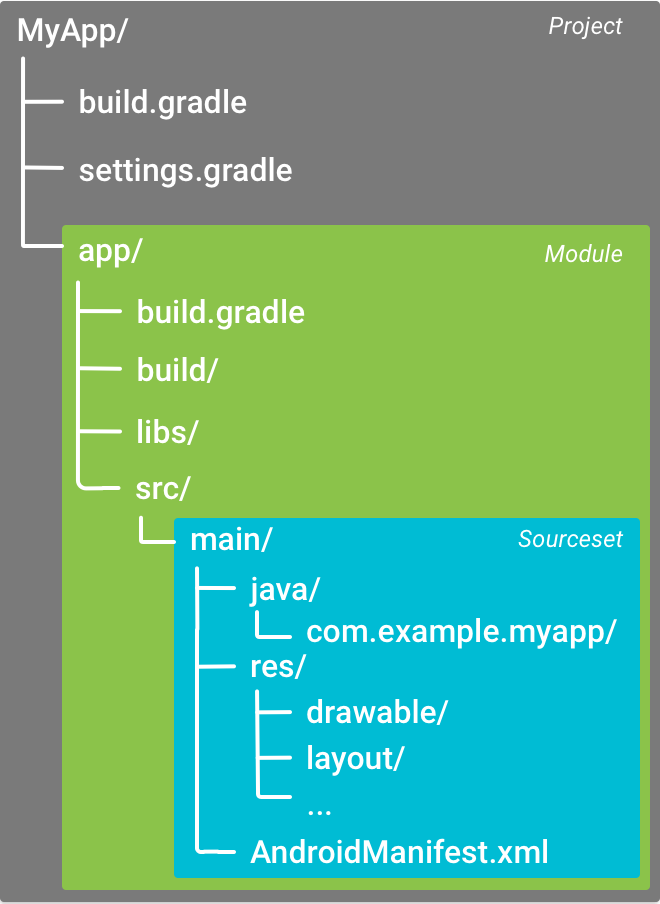
以下是幾個Gradle構建配置檔案,它們是Android應用標準專案結構的一部分。
Gradle設置檔案
gradle.settings檔案位於專案根目錄,用來告知Gradle在構建app時需要包含哪些模組,大部分專案如下:
include ‘:app’
頂層構建檔案
位於專案根目錄的build.gradle檔案,定義了適用於專案所有模組的構建配置。預設情況下,頂層構建檔案在buildscript{}中定義Gradle的repositories與依賴,這些設定會應用到專案的所有模組中,如下:
Java代碼模組構建檔案
模組的build.gradle檔案位於模組目錄下,允許你對特定模組進行構建配置。通過配置這些設定,你能提供自定義的打包選項,比如額外的build type和product flavor,並覆寫manifest或頂層build.gradle的設定。程式碼如下:
Java代碼其中,第一行apply plugin應用Android的Gradle插件,讓android{}區塊可用;android{}區塊用來配置所有Android專屬的構建選項,例如compileSdkVersion(編譯所用的API級別)、buildToolsVersion(構建工具版本)、defaultConfig(各變體的預設設定,可覆寫AndroidManifest.xml中的屬性)、buildTypes(構建類型,預設含debug與release)、productFlavors(產品風味,可覆寫defaultConfig)等;而模組級的dependencies{}區塊則只用來聲明構建該模組本身所需的依賴,例如:
Java代碼Gradle屬性檔案
Gradle還包含兩個屬性檔案,位於專案根目錄,可用來聲明Gradle構建工具的設定:
Gradle.properties:在這裡可以設定全局的Gradle設定。
Local.properties:為你的構建系統配置本地環境屬性,比如SDK安裝位置。由於這個檔案由Android Studio根據本地開發環境自動生成,你不需要手動更改,也不必把它加入版本控制系統。
使用Gradle同步專案
當你修改了專案中的構建配置檔案後,Android Studio需要你同步專案,這樣它才能導入你的配置並執行一些檢測,以確保配置不會導致構建錯誤。
修改檔案後會彈出提示框,點擊Sync Now即可同步。若發現問題,Android Studio會報錯提示,如下圖:

Source Sets(源碼集)
Android Studio會為每個模組合理組織程式碼與資源,一個模組的main目錄便包含了程式碼與資源。
 Android Studio(二十一):調試你的應用
Android Studio 內建了調試器,允許你調試運行在 Android 虛擬機或連接裝置上的應用。透過它,你可以選擇要調試的 App、為程式碼設定斷點、在運行時檢測
 Android Studio 升級教學:手動下載增量更新包完成版本更新
自 2013 年 Google I/O 大會之後,我就把 Android 的開發工具從 Eclipse 遷到了 Android Studio。這個 IDE 一直在快速迭代
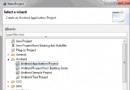 如何使用Android ADT 20創建新項目
Android 開發工具(ADT)第 20 版的諸多改進,都聚焦在企業級 Java 開發人員格外重視的功能上,例如 LINK、Ant Builds 與 JUNIT。這些工
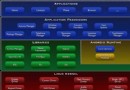 Android 開發環境入門:JDK、Eclipse、ADT、SDK、Dalvik 與 NDK 全解析
近來在學 Android 開發。我過去寫 C/C++ 的時間多,現在回頭補一點 Java。老實說,語言终究只是工具,真學起來大同小異,無所謂優劣。但學 Android 一