

編輯:關於 Android 程式設計
使用 SDK Manager 更新時,常常會看到類似這樣的錯誤訊息:
Failed to fetch URL https://dl-ssl.google.com/android/repository/addons_list.xml, reason: Connection to https://dl-ssl.google.com refused
伴隨而來的還可能有以下幾種:
Failed to fetch URL https://dl-ssl.google.com/android/repository/repository-6.xml, reason: Connection to https://dl-ssl.google.com refused
Failed to fetch URL https://dl-ssl.google.com/android/repository/addons_list-1.xml, reason: Connection to https://dl-ssl.google.com refused
Failed to fetch URL https://dl-ssl.google.com/android/repository/addons_list-1.xml, reason: hostname in certificate didn't match: <dl-ssl.google.com> != <www.google.com>
更新 ADT 時 also 會出現無法解析 https://dl-ssl.google.com/android/eclipse 的情況。
這些錯誤本質上都是同一件事:用戶端連不到 Google 的資源伺服器。
最直接且更新速度最快的方式是改 hosts 檔。Windows 位於 C:\WINDOWS\system32\drivers\etc 目錄,Linux 則是 /etc/hosts。開啟後在檔案中補上以下幾行:
#Google 首頁
203.208.46.146 www.google.com
#方便開啟 Android 開發者官網
74.125.113.121 developer.android.com
#更新內容的來源
203.208.46.146 dl.google.com
203.208.46.146 dl-ssl.google.com
存檔後搭配 http 協定,就能正常更新。需要注意的是,這類 IP 對應關係會隨時間變動,若某天突然失效,找到一組可用的新 IP 替換即可。
開啟 SDK Manager.exe,切到 Tools 選單點 Android SDK Manager,把下方「Force https://... sources to be fetched using https://...」打勾。它的作用就是把受保護的 https 請求降級成一般 http,避開憑證hostname 不匹配的問題。
兩個步驟搭配使用效果最好:hosts 解決連線可達性,http 選項解決憑證驗證。以上就是 Android SDK Manager 更新失敗的處理方式。
 ExpandableListView 完美嵌套 GridView:三個坑與解法
做專案的時候想在 ExpandableListView 中嵌套一個 GridView,實作過程中踩了不少坑,於是寫篇記錄,順便幫幫和我一樣的新手。 我一直覺得,再多的文字
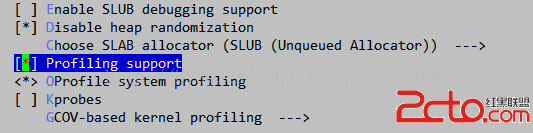 Android 常用調試手段彙總(含 Kernel 調試方法)
除了大家耳熟能詳的 kernel printk、Android 的 DDMS 與 logcat 之外,Android 平台上其實還有不少好用的調試利器。本文重點介紹 bu
 Android SeekBar 實作:用 Handler 訊息機制控制進度條自動遞增
本文分享一個以 Handler 訊息處理機制來操作 SeekBar 的實例,示範如何讓進度條可拖動、也能夠自動遞增,供需要的朋友參考。 這個案例很簡單,重點在於用 Han
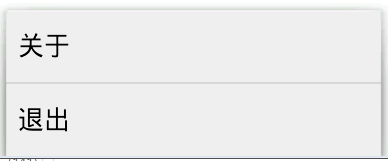 Android 建立選單選項 Menu 與取得螢幕解析度
在 Android 應用中,選單(Menu)是使用者與程式互動的重要入口;而取得裝置的螢幕解析度,則是進行自適應排版時常需要的資訊。本文示範這兩個實用技巧的實作方式。