

編輯:關於 Android 程式設計
先看一下效果:
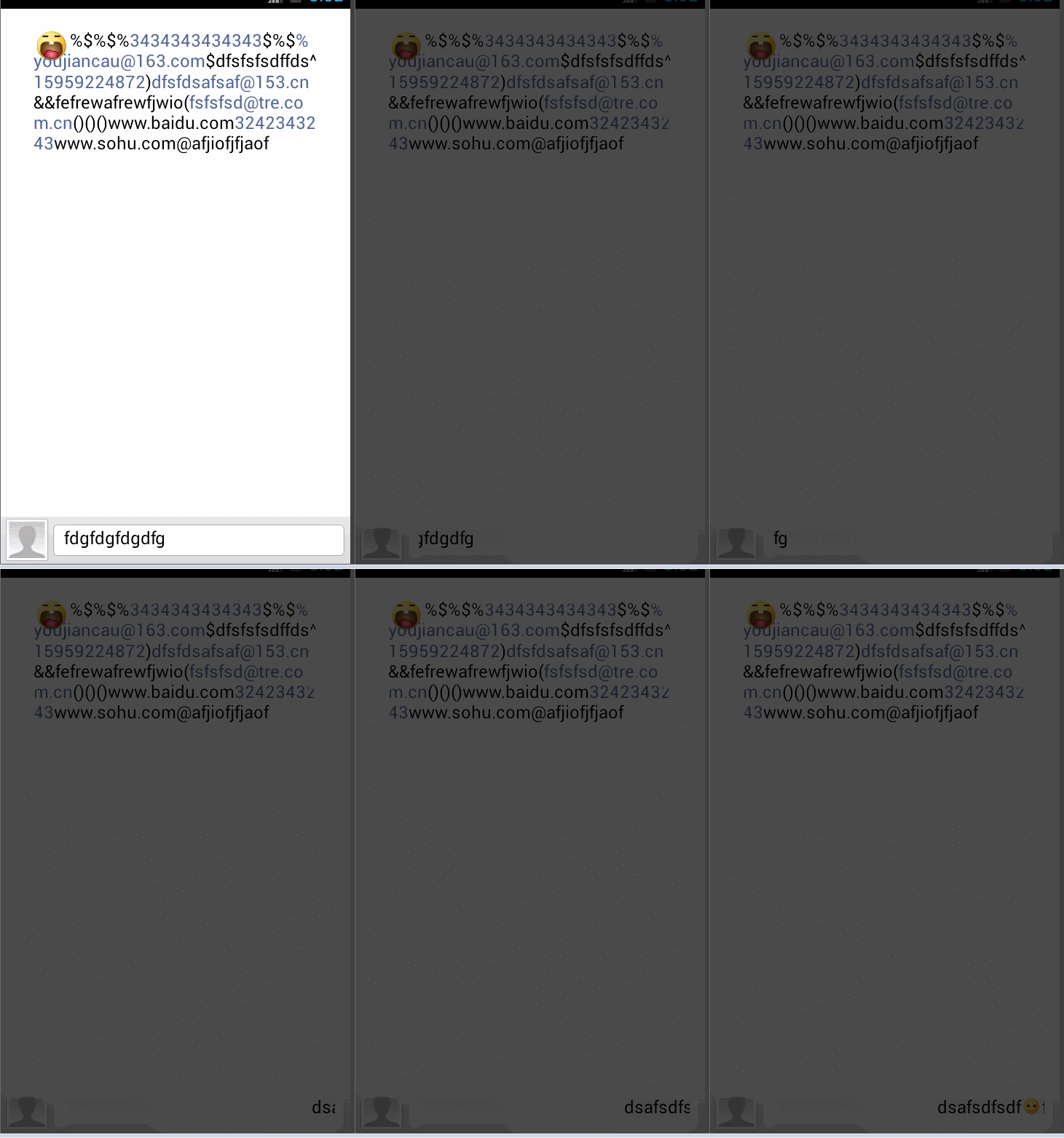
需求是讓一段長文字在 TextView 裡持續向左滾動,滾完之後無縫接回開頭,中間還要能穿插表情圖示。做法是自己寫一個繼承 TextView 的 ScrollText,把繪製邏輯完全接管過來。
<com.kaixin001.view.ScrollText
    android:id="@+id/news_statustxt"
    android:layout_width="wrap_content"
    android:layout_height="wrap_content"
    android:paddingLeft="10dp"
    android:paddingRight="10dp"
    android:layout_gravity="center_vertical"
    android:textColor="#000000"
    android:textSize="16sp"
    android:hint="@string/news_state_hint"
    android:inputType="text" />
使用自訂 View 時,XML 裡要寫完整的類別路徑,而不是 TextView。
private void initStatus() {
    ivState = (ImageView) findViewById(R.id.news_statusinput);
    // 文字長度必須大於控件寬度,才會觸發滾動
    String s = "dsafsdfsdf(#開心)fsgfdg(#閉嘴)fdgdfgdfgdfgdfgdfgfdgfdgfdgfdgdfg";
    newsModel.setStatus(s);
    String strModel = newsModel.getStatus();
    setStateText(strModel);
}

private void setStateText(String strModel) {
    if (!TextUtils.isEmpty(strModel)) {
        tvState.setStateList(newsModel.getStateList());
        tvState.setText(strModel);
        tvState.init(getWindowManager(), handler);
        tvState.startScroll();
        tvState.start();
    }
}

private void setStatus(String status) {
    this.status = status;
    if (!TextUtils.isEmpty(status)) {
        stateList = ParseNewsInfoUtil.parseStr(status);
    }
}

private Handler handler = new Handler() {
    @Override
    public void handleMessage(Message msg) {
        switch (msg.what) {
            case ScrollText.TEXT_TIMER:
                if (tvState != null) {
                    tvState.scrollText();
                }
                break;
            default:
                break;
        }
    }
};
這裡的分工是:ScrollText 內部用 Timer 每 20 毫秒送一個「該重繪了」的消息給外部 Handler,外部 Handler 再回呼 scrollText() 推進位移並 invalidate。之所以繞一圈回到外部,是為了讓使用端保有對時序的控制權。
import java.util.ArrayList;
import java.util.Timer;
import java.util.TimerTask;
import android.content.Context;
import android.graphics.Bitmap;
import android.graphics.Bitmap.Config;
import android.graphics.Canvas;
import android.graphics.Color;
import android.graphics.Paint;
import android.graphics.Paint.FontMetrics;
import android.graphics.Paint.Style;
import android.os.Handler;
import android.os.Message;
import android.util.AttributeSet;
import android.view.WindowManager;
import android.widget.TextView;
import com.kaixin001.item.LinkInfo;
import com.kaixin001.model.StateFaceModel;

public class ScrollText extends TextView {

    public static final int TEXT_TIMER = 100;

    private float textLength = 0f;    // 文本長度
    private float viewWidth = 0f;
    private float step = 0f;          // 文字的橫坐標
    private float y = 0f;             // 文字的縱坐標
    private float temp_view_plus_text_length = 0.0f;
    private float temp_view_plus_two_text_length = 0.0f;
    private boolean isStarting = false;
    private int left = 0;
    private int right = 0;
    private Paint paint = null;
    private String text = "";
    private Bitmap txtBmp;
    private Canvas txtCanvas;
    private FontMetrics fontMetrics;
    private Timer timer = new Timer();
    private ArrayList<LinkInfo> stateList;
    Handler handler;

    TimerTask task = new TimerTask() {
        public void run() {
            if (handler != null && isStarting) {
                Message msg = Message.obtain();
                msg.what = TEXT_TIMER;
                handler.sendMessage(msg);
            }
        }
    };

    public ScrollText(Context context) {
        super(context);
    }

    public ScrollText(Context context, AttributeSet attrs) {
        super(context, attrs);
    }

    public ScrollText(Context context, AttributeSet attrs, int defStyle) {
        super(context, attrs, defStyle);
    }

    /**
     * 文本初始化。每次更改文本內容或效果之後,都需要重新初始化
     */
    public void init(WindowManager windowManager, Handler handler) {
        try {
            this.handler = handler;
            paint = new Paint();
            paint.setAntiAlias(true);
            paint.setStyle(Style.STROKE);
            paint.setTextSize(getTextSize());
            paint.setColor(getCurrentTextColor());

            text = getText().toString();
            textLength = 0;

            // 逐段累加寬度,表情符要按圖片寬度計算,文字則用 measureText
            int len = stateList.size();
            for (int i = 0; i < len; i++) {
                LinkInfo info = stateList.get(i);
                if (info.isFace()) {
                    Bitmap faceBmp = StateFaceModel.getInstance()
                            .getSmallFaceIcon(info.getContent());
                    textLength += faceBmp.getWidth() + 4;
                    continue;
                }
                textLength += paint.measureText(info.getContent());
            }

            left = this.getPaddingLeft();
            right = this.getPaddingRight();
            step = textLength;   // 起始位置設為 textLength,讓文字從右側外進入

            fontMetrics = paint.getFontMetrics();
            y = getPaddingTop();
            txtBmp = null;
        } catch (Exception ex) {
            ex.printStackTrace();
        }
    }

    /** 由外部 Handler 驅動,推進位移並觸發重繪 */
    public void scrollText() {
        if (!isStarting) {
            return;
        }
        invalidate();
        if (viewWidth < textLength) {
            step += 0.5;
            if (step > temp_view_plus_two_text_length) {
                step = textLength;   // 循環回到起點
            }
        }
    }

    public void setStateList(ArrayList<LinkInfo> stateList) {
        this.stateList = stateList;
    }

    /** 建立離屏 Bitmap,避免每帧重新配置 */
    private void setTxtBmp() {
        if (txtBmp == null && fontMetrics != null) {
            y = -paint.ascent();
            viewWidth = getWidth() - left - right;
            temp_view_plus_text_length = viewWidth + textLength;
            temp_view_plus_two_text_length = viewWidth + textLength * 2;

            txtCanvas = new Canvas();
            txtBmp = Bitmap.createBitmap((int) viewWidth, getHeight(), Config.ARGB_8888);
            txtCanvas.setBitmap(txtBmp);
        }
    }

    public void startScroll() {
        isStarting = true;
    }

    public void stopScroll() {
        isStarting = false;
    }

    public void start() {
        timer.schedule(task, 10, 20);
    }

    public void stop() {
        timer.cancel();
    }

    @Override
    public void onDraw(Canvas canvas) {
        try {
            setTxtBmp();
            if (txtBmp == null) {
                return;
            }

            // 先填白底
            Paint txtPaint = new Paint();
            txtPaint.setColor(Color.WHITE);
            txtPaint.setStyle(Style.FILL);
            txtCanvas.drawRect(0, 0, txtBmp.getWidth(), txtBmp.getHeight(), txtPaint);

            txtPaint.setAntiAlias(true);
            txtPaint.setStyle(Style.STROKE);
            txtPaint.setTextSize(getTextSize());
            txtPaint.setColor(getCurrentTextColor());

            // 只有當 viewWidth 小於 textLength 時才需要滾動
            float x = (viewWidth < textLength) ? (temp_view_plus_text_length - step) : 0;

            int len = stateList.size();
            float curLen = x;
            for (int i = 0; i < len; i++) {
                LinkInfo info = stateList.get(i);
                if (info.isFace()) {
                    // 表情符排版
                    Bitmap faceBmp = StateFaceModel.getInstance()
                            .getSmallFaceIcon(info.getContent());
                    txtCanvas.drawBitmap(faceBmp, curLen + 2, 0, txtPaint);
                    curLen += faceBmp.getWidth() + 4;
                    continue;
                }
                String strContent = info.getContent().replaceAll("\n", " ");
                float xLen = txtPaint.measureText(strContent);
                // 因為 x 持續遞減,文字便能往左滾動
                txtCanvas.drawText(strContent, curLen, y, txtPaint);
                curLen += xLen;
            }

            canvas.drawBitmap(txtBmp, left, 0, paint);
        } catch (Exception ex) {
            ex.printStackTrace();
        }
    }

    @Override
    protected void onSizeChanged(int w, int h, int oldw, int oldh) {
        super.onSizeChanged(w, h, oldw, oldh);
        txtBmp = null;
        setTxtBmp();
    }
}
離屏 Bitmap 的意義。onDraw 每幀都會被呼叫,如果每次都重新建立 Bitmap 與 Canvas,很快他就會 GC 到卡頓。這裡把 txtBmp 當成快取,只在 onSizeChanged() 或 init 時重建一次,之後每幀只是往這塊記憶體上重畫再貼出去。
step 的循環條件。step 從 textLength 起算,每幀加 0.5,x 座標由 viewWidth + textLength - step 得出,於是文字由右向左移動。當 step 超過 viewWidth + textLength * 2 時重置回 textLength,就形成無縫循環。
為什麼要自訂 onDraw。TextView 原生的跑馬燈(android:ellipsize="marquee")只支援單行、且必須先取得焦點才會啟動,在 ListView item 或需要混排表情圖的場景完全派不上用場。自己接管繪製,才能精確控制每一段的座標。
記得呼叫 stop()。Timer 一旦啟動就會持續發送消息,Activity 或 Fragment 銷毀時務必 cancel,否則不只是浪費資源,內部持有的 Handler 與 View 參照也會阻礙回收。
程式碼下載:https://download.csdn.net/detail/baidu_nod/7736733
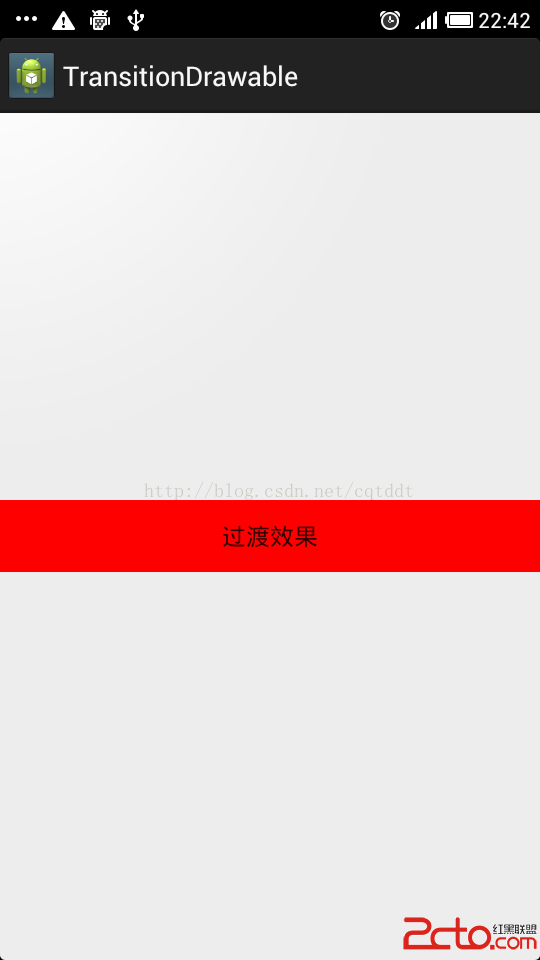 TransitionDrawable 圖片過渡效果實例
效果說明TransitionDrawable 可用於兩張圖片或兩種顏色之間的淡入淡出過渡動畫。適合按鈕背景、圖片切換或狀態提示。建立 TransitionDrawable
 自定義柱狀圖:帶生長動畫與點擊彈窗提示
專案裡要用到各種圖表。原本打算直接用 MPAndroidChart——這個庫確實強大,接入也快,但最終發現和設計稿差異太大,改起來還不如自己寫。於是就有了這份柱狀圖 de
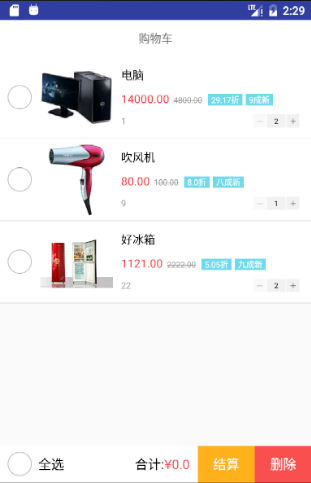 Android 購物車功能實作:清單渲染、全選單選與結算刪除
最近在商城 App 中實作了「購物車」這個常見模組,把過程與關鍵程式碼記錄下來。 效果與需求 核心需求可以拆成四塊:商品清單渲染、單品勾選與數量增減、全選與單選的狀
 Android 自動化測試 UiAutomator(三):用腳本自動比對測試截圖
系列回顧:本系列從開發者角度介紹 UiAutomator 的使用,共三篇——基礎入門、技巧篇,以及這一篇的比較工具篇:比對測試截圖。 1. 適用範圍 本文的方法適用於所